Collect the customer email before the paywall (required for subscriptions)
Step 3 of launch: ask for the customer's email on a screen before your paywall, then point your Stripe settings at it so checkout pre-fills and subscriptions can be created.
Where this fits in launch
Launching a funnel you can run ads against follows a set order: (1) connect Stripe, (2) create and attach a paywall product, (3) collect the customer email before the paywall, (4) optionally wire ad-pixel events, (5) connect a custom domain, then (6) publish and test. This is step 3. Before you start, make sure you have already connected Stripe and attached a paywall product to the screen where you sell. Once email collection is set up, your next steps are to wire ad-pixel events (optional) and connect a custom domain - which is required to publish for non-admin accounts, and is also the domain Apple Pay and Google Pay are registered against - before you publish and run a test purchase.
Why collecting the email matters
When you have the email up front, it is pre-filled into the Stripe payment step, which removes typing and lifts conversion. It is also how your customer receives their Stripe receipt, and it gives you a clean address for ad and audience matching. Most importantly, it is required for subscriptions: Segmently requires an email to start a subscription and will stop checkout if none is available, so a subscriber who reaches the paywall with no email on file will be blocked before payment. For one-time payments collecting the email is optional but strongly recommended; for subscriptions it is required.
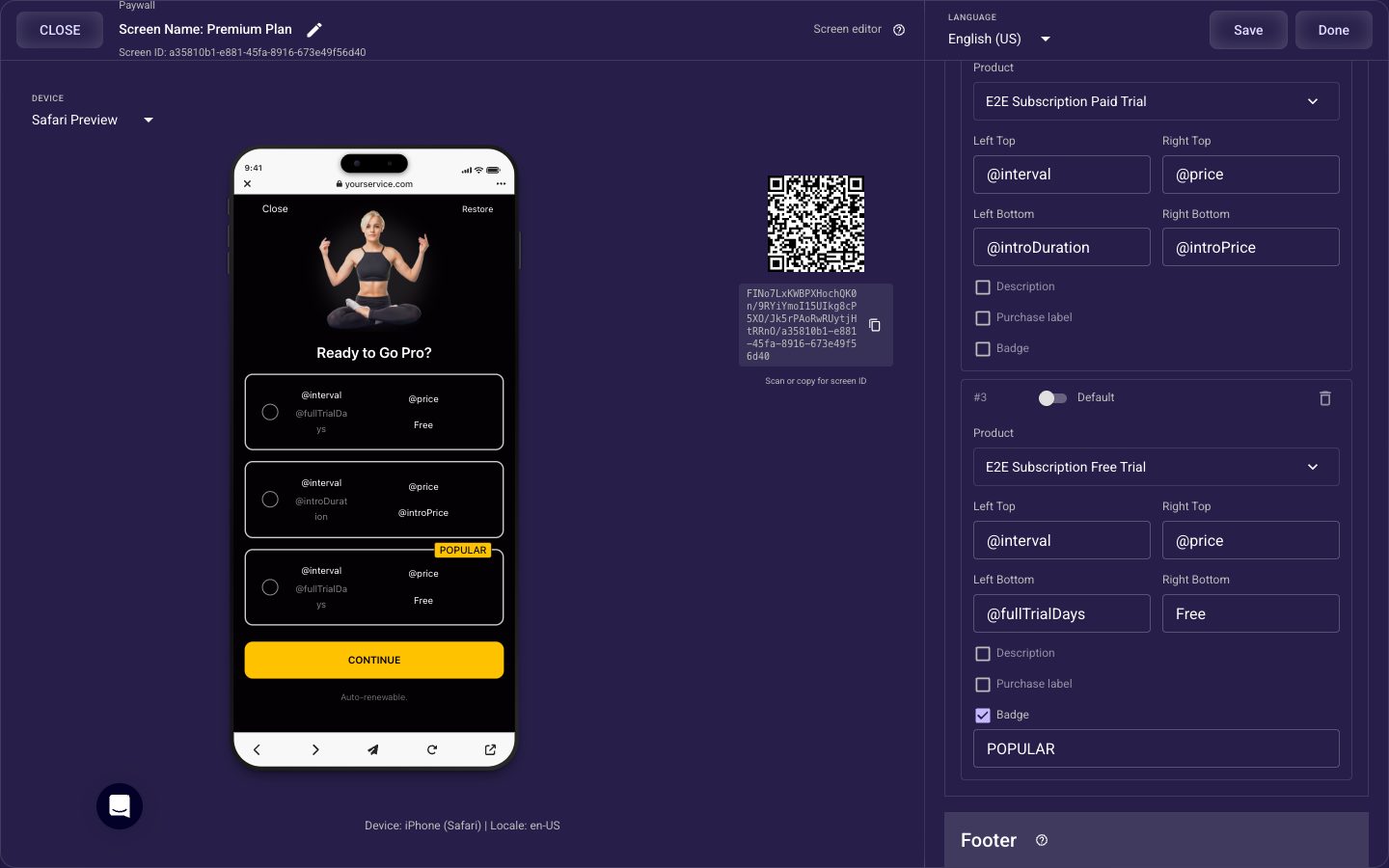
Step 1 - Add an email screen before the paywall (required)
In the Segmently editor, add a text-input screen and place it earlier in the funnel than your paywall, so the customer answers it on the way to the offer. Ask for their email with a single input field and a clear prompt like "Where should we send your results?". The order matters: the email has to be captured before the paywall screen loads, because that is the moment it gets handed to Stripe.
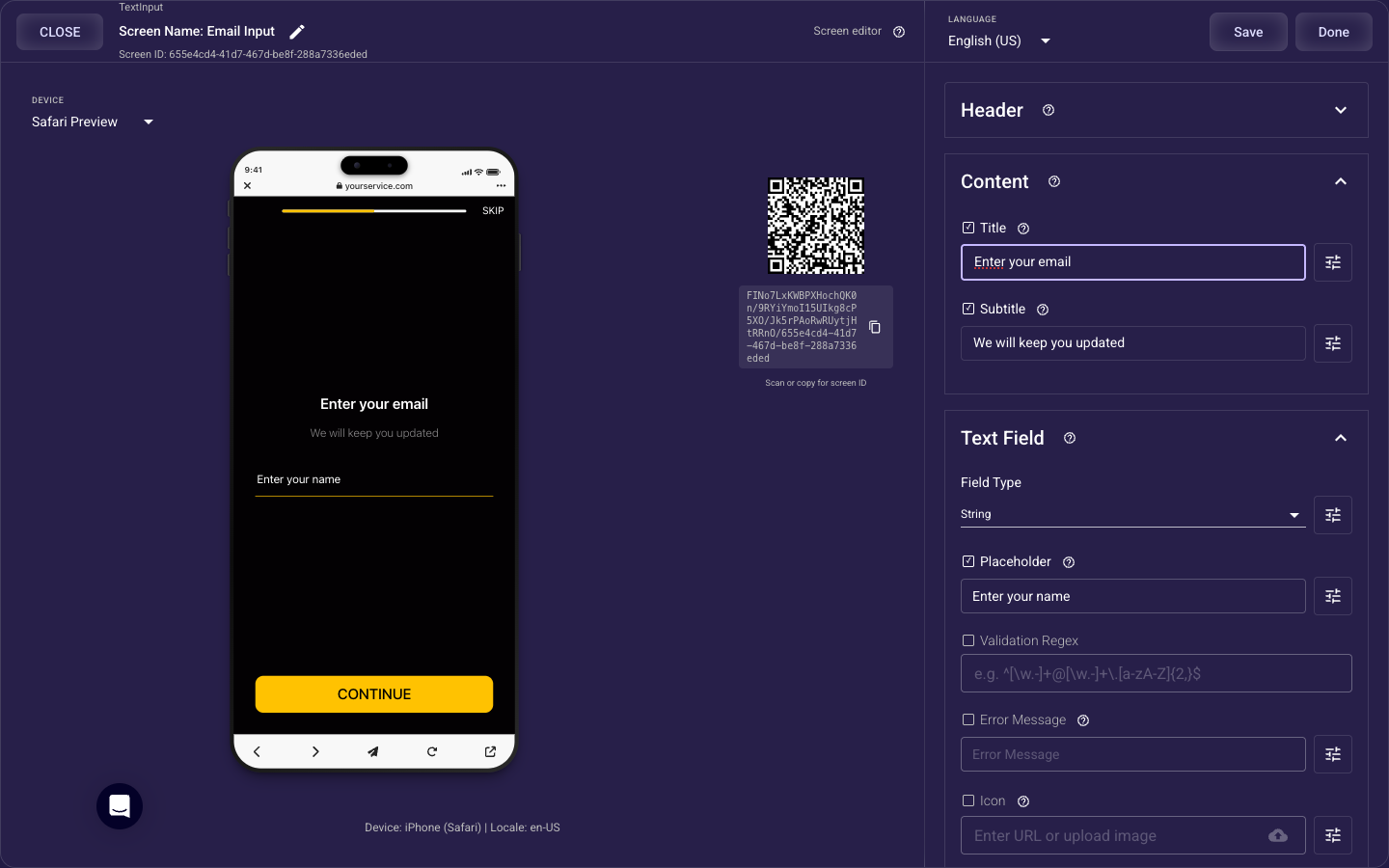
Step 2 - Create a variable to hold the email (required)
A variable is a named slot that remembers an answer as the customer moves through the funnel. Create a text variable - for example, name it "email" - so the value the customer types is saved and can be reused later. Make sure its type is text (a string), because only text variables can be used as the email value when you publish.
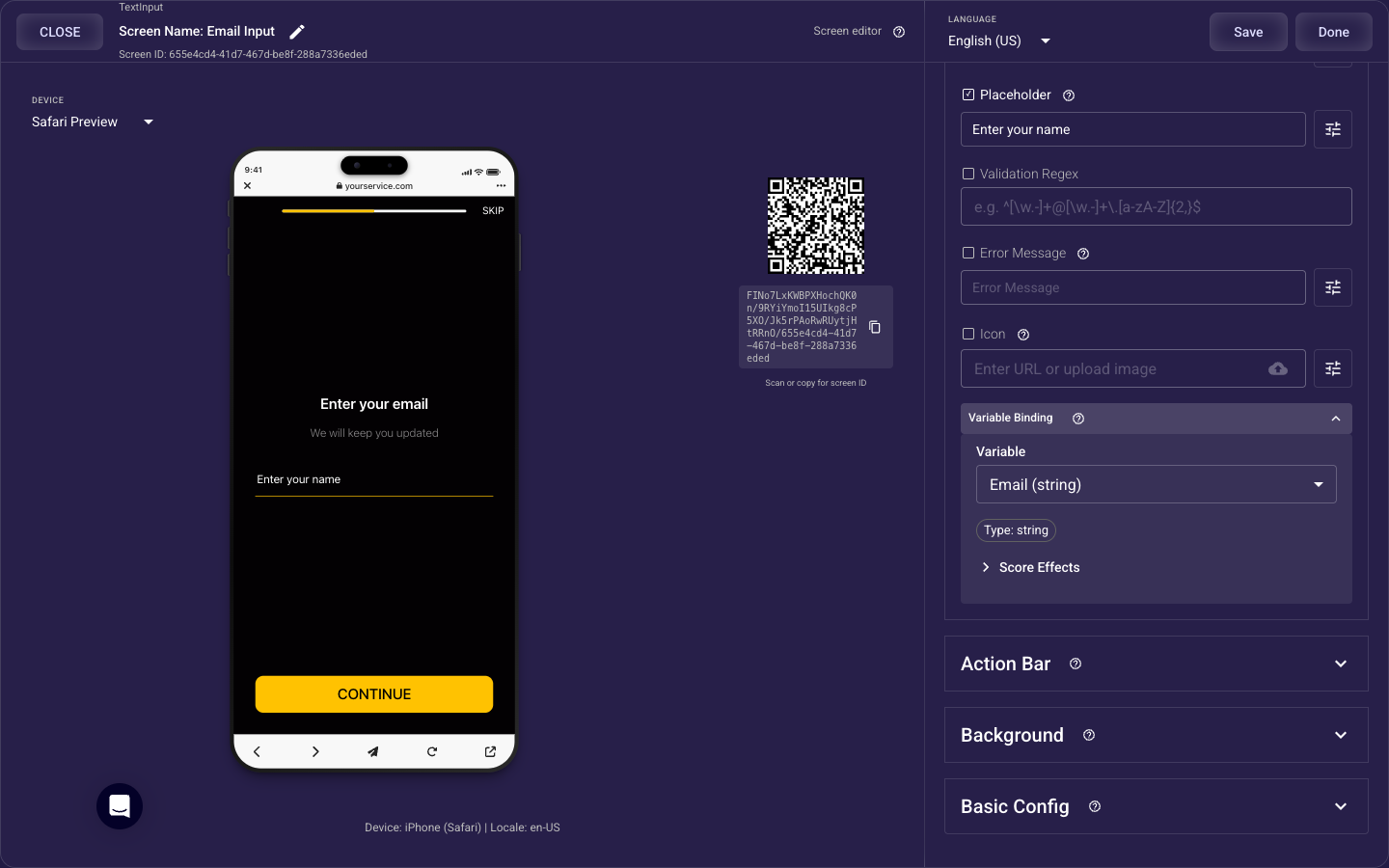
Step 3 - Bind the variable to the input field (required)
Open the email screen's input field and assign your "email" variable to it. This connection is what tells Segmently to store whatever the customer types into that variable. Without it, the screen still shows an input box, but the answer is never saved and there is nothing to pass to Stripe later. After binding, the field and the variable move together as one value.
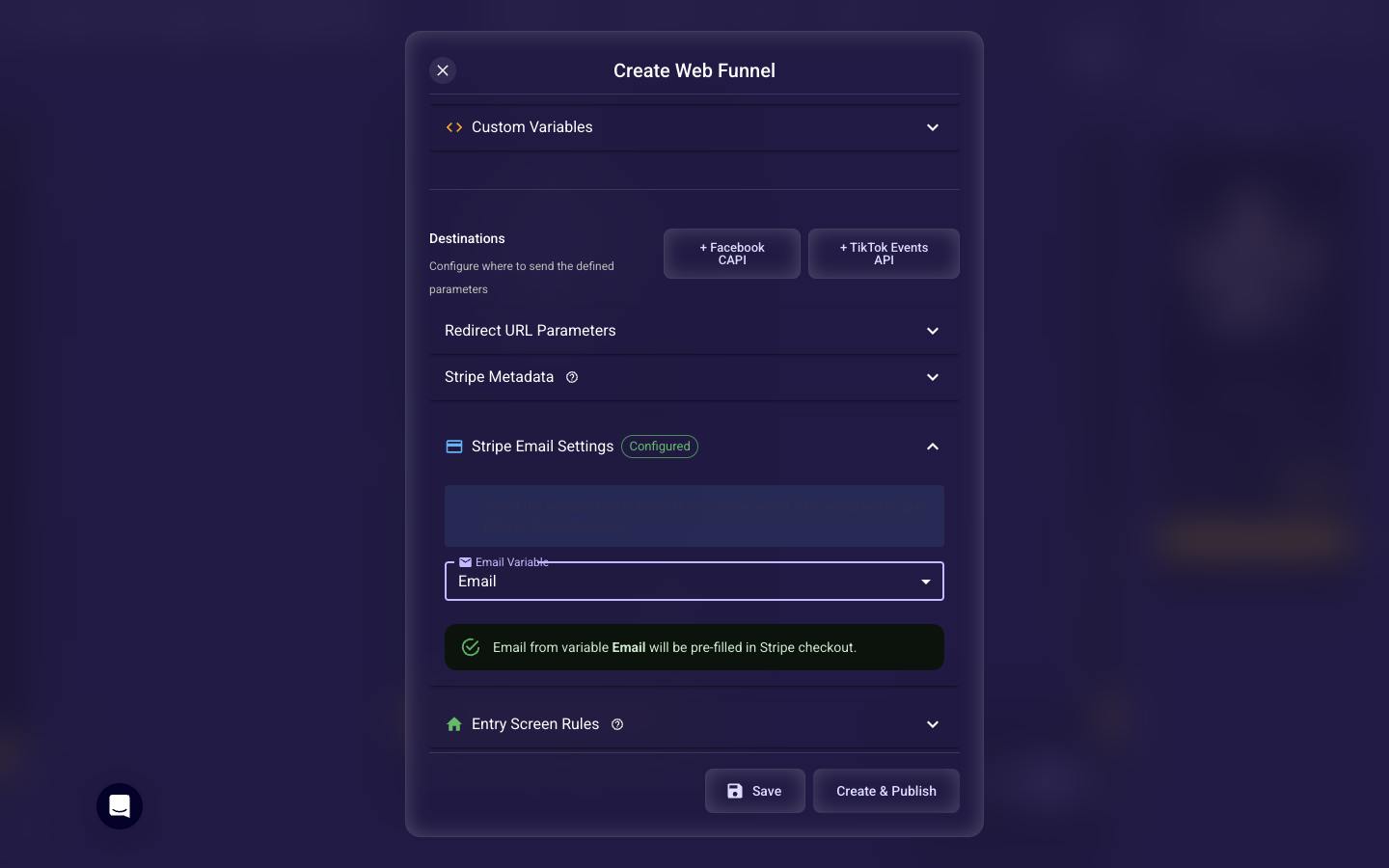
Step 4 - Select the email variable in your Stripe settings (required)
Selecting the email variable is the recommended way to tell Stripe which variable holds the email. Before publishing, open your funnel's publish settings and find the Stripe Email Settings section. Choose your "email" variable from the Email Variable list; once selected, it shows as configured. This is the email variable setting. Only text variables from your funnel appear here, and this section is available for current (V2) funnels. With it set, the email is pre-filled into Stripe checkout and is available for subscription payments. As a safety net, Segmently will also pick up a variable literally named "email" or "user_email" even if you skip this setting - but selecting the variable here is the reliable path, because it always points Stripe at the exact variable you mean.
One-time payments vs subscriptions
If your paywall sells a one-time payment, the email is optional - we still recommend collecting it for receipts and audience matching, but checkout will work without it. If your paywall sells a subscription, the email is required: Segmently requires an email to start a subscription and will stop checkout if none is available, so a customer who reaches the paywall without an email will be stopped before payment. When in doubt, set it up - it helps either way and is the only safe choice for subscriptions.
Apple Pay, Google Pay, and updating the email later
Two things to know about edge cases. First, Apple Pay and Google Pay do not rescue a missing email for a subscription. For a subscription, Segmently's email check runs before the wallet sheet even opens, so a subscription with no configured or collected email is blocked before the wallet ever runs - the wallet cannot fill in the gap. The wallet's own email can only stand in for a one-time payment, and only if the customer's wallet account exposes an email to share. That is exactly why you should collect the email yourself: it is the only path that works for subscriptions and for card-paying customers, and it is what your audience matching depends on. Second, the email is not locked in at payment: you can add a screen after the paywall that asks for a preferred email, and Segmently updates the customer's email on Stripe to match. Collecting it before the paywall remains the right default for the highest conversion and for subscriptions.
Next steps
With the email collected and selected, step 3 is done. If you plan to optimize ad campaigns, the optional next step is to wire ad-pixel events so your ad platform learns who converted. After that - or right away, if you are skipping pixels - connect a custom domain, which is required to publish for non-admin accounts and is also the domain Apple Pay and Google Pay are registered against, then publish and run a test purchase. You can also attach the same email and other funnel values onto each Stripe payment as metadata for cleaner reporting.