Action Bar — every setting
The bottom button bar — your primary call-to-action and an optional secondary button. This guide documents every setting of the Action Bar block, grouped by area. Each setting matches a real control in the screen editor.
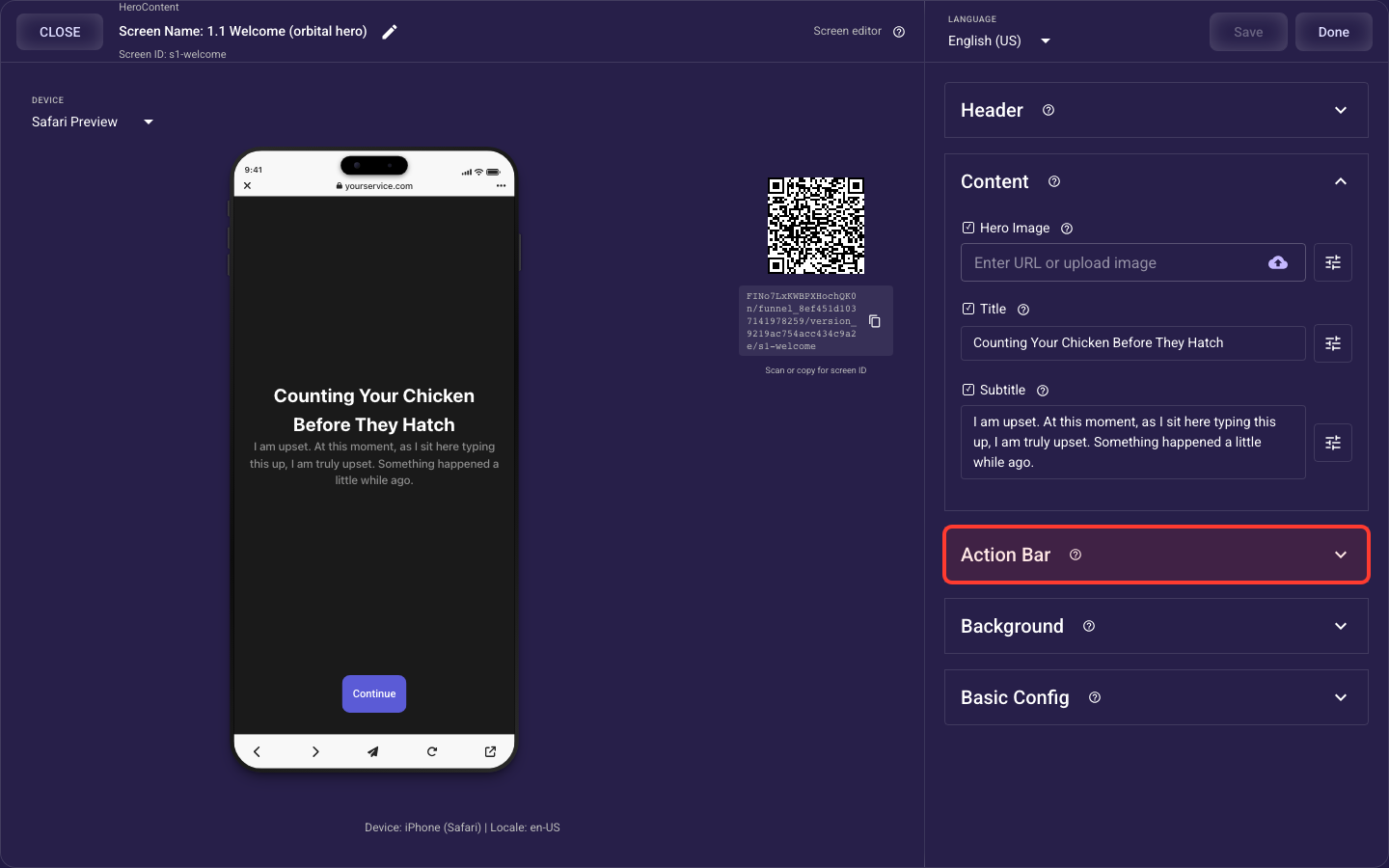
Open the Action Bar section in the screen editor to configure its settings.
Applies to: Hero Content, List Multi Pick, List Single Pick, Grid Multi Pick, Grid Single Pick, Text Input, Wheel Picker, Hero List, and Web Embed screens.
Primary (main) button
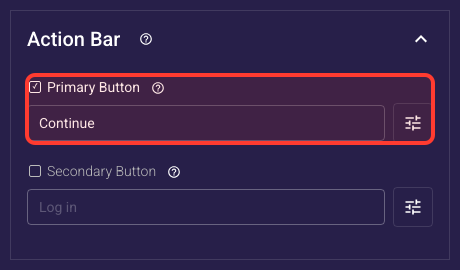
Inside the Action Bar section, this is the Primary (main) button.
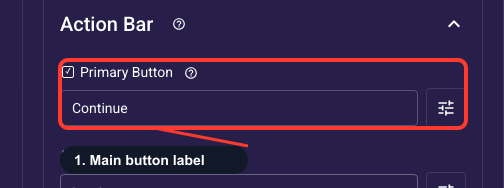
Main button label
The text on your main call-to-action button — the one that moves visitors to the next screen. Make it a short, specific verb phrase tied to the action (Continue, Get my plan, Subscribe) rather than a generic word; clear, benefit-led labels lift click-through on a paid landing page. This text can be translated per language.
Main button text style
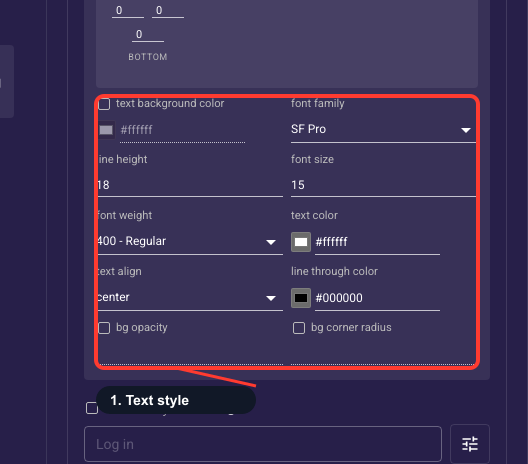
Typography for the main button label — font, weight, size, color, and alignment. Leave it on the theme defaults for a consistent look; bump the weight or size, or switch color, only when the label is hard to read against the button fill. Applies to the label in every language.
• Background color
Fill drawn behind the label text (a highlight pill).
• Font family
Typeface of the button label.
• Line height
Vertical spacing of the label text.
• Font size
Text size (px) of the label.
• Font weight
How bold the label is.
• Text color
Color of the label text.
• Text align
Alignment of the label within the button.
• Strikethrough color
Color of a line-through decoration when used (for example, an old price).
• Background opacity
Transparency of the label background (0–100%).
• Background radius
Corner rounding of the label background.
Main button shape and fill
Sets the main button's look — background color, border, corner radius, height, inner padding, and a full-width toggle. For an ad landing page keep it full-width and high-contrast so it reads as the obvious next step. The Visibility toggle hides the button entirely; only hide it when the screen forces a choice first, and never hide both buttons.
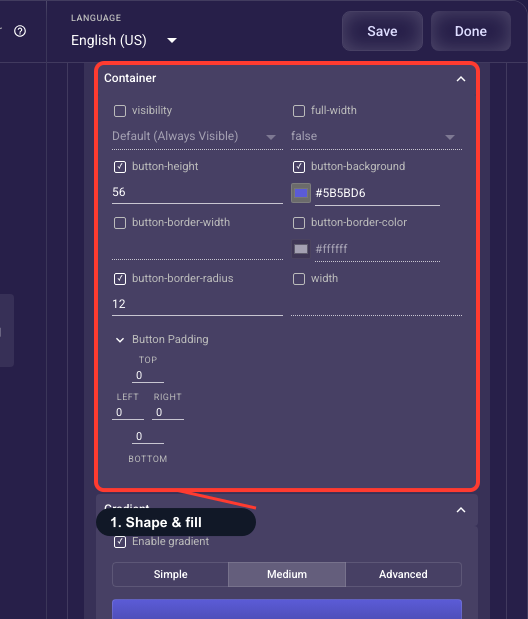
• Visibility
Show or hide this button entirely. Never hide both buttons, or the screen has no way forward.
• Full width
Stretch the button across the whole bar. Full-width reads as the obvious next step on a phone; turn it off for a button only as wide as its label.
• Button height
Fixed height of the button in pixels. Keep it tap-friendly (≈44px or taller).
• Background color
The button fill color.
• Border width
Thickness (px) of the button outline; 0 hides it.
• Border color
Color of that outline.
• Corner radius
How rounded the button corners are (px); higher is softer.
• Width
Explicit button width — used when Full width is off.
• Button padding
Inner spacing between the label/icon and the button edges (top, right, bottom, left).
Gradient on the main button
An optional color gradient layered over the button's solid fill — set start and end colors, the angle, extra color stops, and an optional moving shimmer. Leave it off for a clean flat look; turn it on to make the call-to-action pop against a busy background. Keep enough contrast that the label stays easy to read.
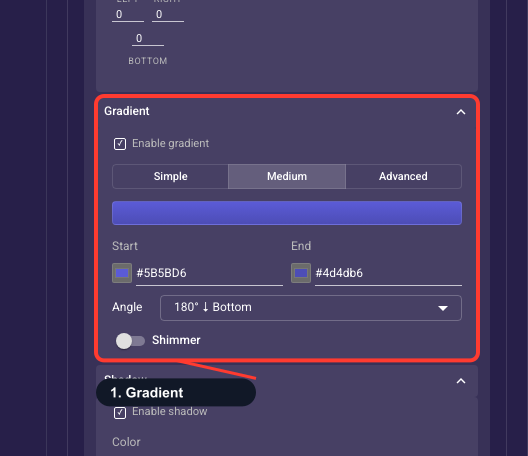
• Enable gradient
Off by default — the button uses a single flat color. Turn this on to blend colors across the fill for a richer look; turn it off for a clean solid button.
• Detail level
A complexity switch (not saved on its own): Simple = just a start and end color; Medium = adds a direction angle and a shimmer toggle; Advanced = multi-stop colors plus a numeric angle, size and the full shimmer controls. Pick the depth you need.
• Start color
The color the gradient begins with (the first color stop / left-most stop in Advanced).
• End color
The color the gradient fades to (the last color stop). Keep enough contrast with the start color that the label stays readable.
• Angle / direction
Which way the colors flow across the button. Medium offers preset directions (e.g. 90° left→right, 180° top→bottom); Advanced lets you type any angle from 0–360°.
• Color stops (Advanced)
The full list of colors in the gradient. Add up to five stops and set each stop’s color and its position (0–100%) along the sweep, for multi-color blends beyond a simple two-color fade.
• Gradient size (Advanced)
How far the gradient is stretched, from 50% (tight, punchy transition) to 200% (soft, gradual spread).
• Shimmer
An optional animated sheen that sweeps across the button. When on you can tune the trigger (on hover, on a timer, or off), the streak color, its width and skew (slant), the duration of one sweep, and — for the timer trigger — the cycle gap between sweeps.
Shadow under the main button
An optional drop shadow beneath the button, with control over its color, blur, and vertical drop. A soft shadow lifts the call-to-action off the page so it feels tappable; keep it subtle (low blur, small offset) so it looks intentional rather than heavy. Leave it off if your theme is flat.
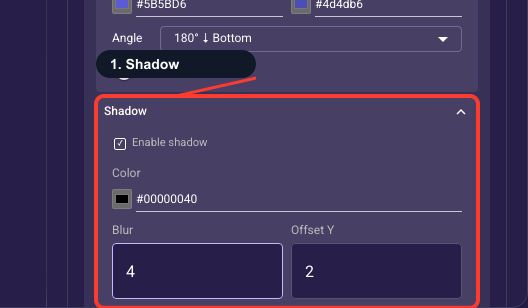
• Enable shadow
Off by default. Turn on to cast a soft drop shadow beneath the button so it lifts off the background; off keeps it flat.
• Color
The shadow color, including its transparency (default is a semi-transparent black). A tinted, low-opacity color gives a subtle lift.
• Blur
How soft and spread-out the shadow is, from 0 (hard edge) to 50 (very diffuse).
• Vertical offset
How far the shadow sits below (positive) or above (negative) the button, −50 to 50 px.
Motion on the main button
Optional animation for the call-to-action — pulse, glow, bounce, scale, fade-in, slide-up and more, plus an opacity control. A gentle pulse or glow can draw the eye and lift taps; save attention-grabbing effects for your key conversion screen and avoid stacking several. Leave it off for a calm, professional feel.
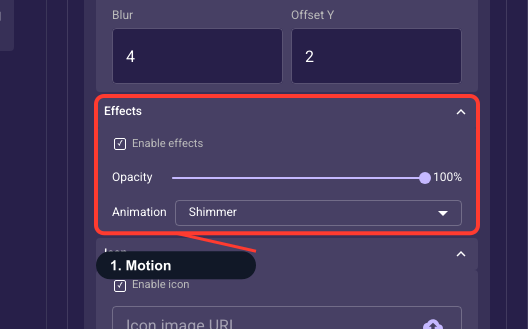
• Enable effects
Off by default (gated on opacity). Turning it on sets the button to full opacity and a default Shimmer animation, then reveals the opacity slider and animation menu. (The animation choice is remembered but inactive while effects are off.)
• Opacity
How see-through the whole button is, from 0% (invisible) to 100% (solid).
• Animation
An optional looping motion to draw the eye to the action — choose from None, Pulse, Shimmer, Bounce, Shake, Glow, Ripple, Scale, Fade In, Slide Up or Wiggle.
Icon on the main button
An optional icon next to the label — choose start or end placement, size, corner radius, and spacing, and how it fits its box (fit shows the whole icon, fill crops to cover). A small leading arrow or lock icon can reinforce the action; keep it in the same color family as the label. Leave it empty for a clean text-only button.
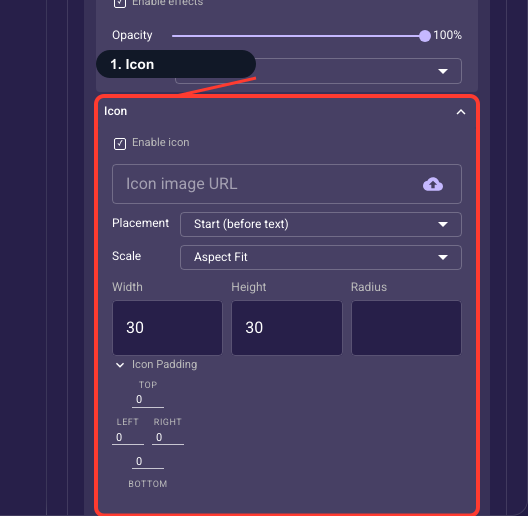
• Enable icon
Off by default. Turn on to show an image (icon) alongside the button label; off for a text-only button.
• Icon image
Upload an image file or paste an image URL — the icon shown next to the label. Leave empty to show no graphic.
• Placement
Where the icon sits relative to the label: Start (before the text) or End (after it); the Fixed Start/End variants pin it to the button’s left/right edge; Top and Bottom stack it above or below the label.
• Scale mode
How the image fits its box: Scale to Fill (stretch), Aspect Fit (show the whole icon, may letterbox), Aspect Fill (cover the box, may crop), or Center (no resize).
• Width
The icon’s width in pixels (0–200).
• Height
The icon’s height in pixels (0–200).
• Corner radius
Rounding of the icon’s corners in pixels; raise it to clip a square image into a rounded or circular badge.
• Icon padding
The space around the icon (top, right, bottom, left) — the gap between the icon and the label and the button edges.
Secondary button
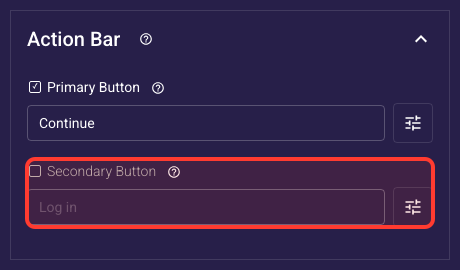
Inside the Action Bar section, this is the Secondary button.
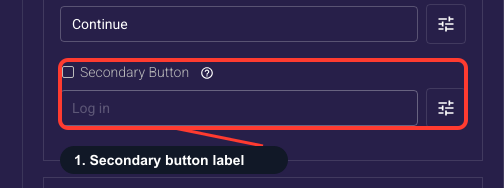
Secondary button label
Text for the optional second button — use it for a side path like Skip, Maybe later, or Restore purchase, never your main goal. On funnel steps an easy escape route can cost conversions, so leave it empty unless you genuinely need the alternative; on a paywall a low-key secondary is fine.
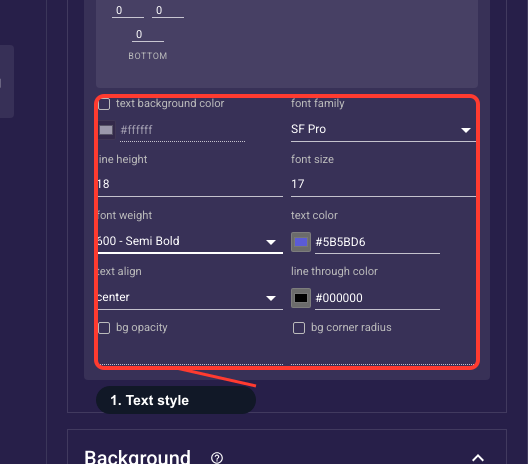
Secondary button text style
Typography for the secondary button label — font, weight, size, color, and alignment. Style it deliberately quieter than the main button (lighter weight, muted color) so your primary call-to-action stays the obvious choice. Leave it on theme defaults unless the hierarchy looks off.
• Background color
Fill drawn behind the label text (a highlight pill).
• Font family
Typeface of the button label.
• Line height
Vertical spacing of the label text.
• Font size
Text size (px) of the label.
• Font weight
How bold the label is.
• Text color
Color of the label text.
• Text align
Alignment of the label within the button.
• Strikethrough color
Color of a line-through decoration when used (for example, an old price).
• Background opacity
Transparency of the label background (0–100%).
• Background radius
Corner rounding of the label background.
Secondary button shape and fill
Sets the secondary button's look — background, border, corner radius, height, padding, and a full-width toggle. Give it lower visual weight than the main button (an outline or transparent fill works well) so it doesn't compete with your call-to-action. The Visibility toggle hides it; never hide both the primary and secondary buttons.
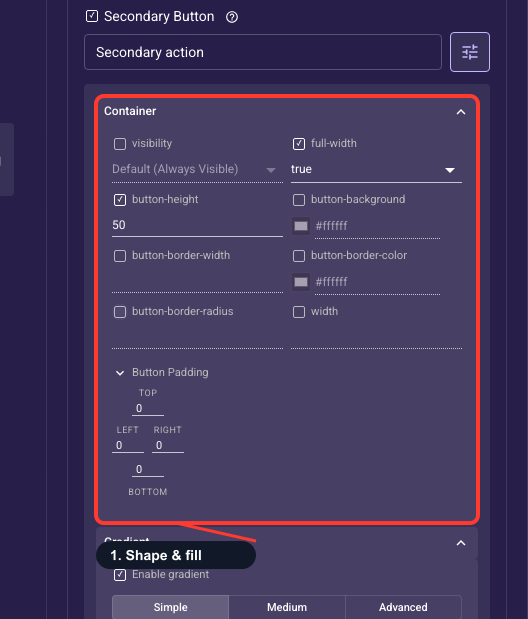
• Visibility
Show or hide this button entirely. Never hide both buttons, or the screen has no way forward.
• Full width
Stretch the button across the whole bar. Full-width reads as the obvious next step on a phone; turn it off for a button only as wide as its label.
• Button height
Fixed height of the button in pixels. Keep it tap-friendly (≈44px or taller).
• Background color
The button fill color.
• Border width
Thickness (px) of the button outline; 0 hides it.
• Border color
Color of that outline.
• Corner radius
How rounded the button corners are (px); higher is softer.
• Width
Explicit button width — used when Full width is off.
• Button padding
Inner spacing between the label/icon and the button edges (top, right, bottom, left).
Gradient on the secondary button
An optional color gradient over the secondary button's solid fill (start/end colors, angle, stops, optional shimmer). Usually leave this off — a gradient draws attention, which you want on your main call-to-action, not the side path. Turn it on only if a flat secondary clashes with your theme.
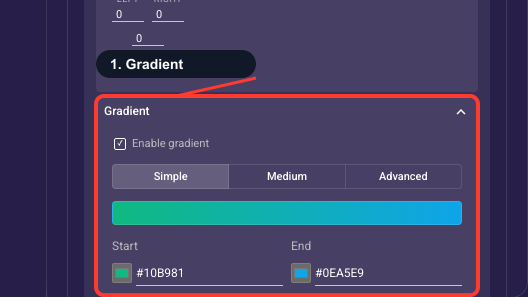
• Enable gradient
Off by default — the button uses a single flat color. Turn this on to blend colors across the fill for a richer look; turn it off for a clean solid button.
• Detail level
A complexity switch (not saved on its own): Simple = just a start and end color; Medium = adds a direction angle and a shimmer toggle; Advanced = multi-stop colors plus a numeric angle, size and the full shimmer controls. Pick the depth you need.
• Start color
The color the gradient begins with (the first color stop / left-most stop in Advanced).
• End color
The color the gradient fades to (the last color stop). Keep enough contrast with the start color that the label stays readable.
• Angle / direction
Which way the colors flow across the button. Medium offers preset directions (e.g. 90° left→right, 180° top→bottom); Advanced lets you type any angle from 0–360°.
• Color stops (Advanced)
The full list of colors in the gradient. Add up to five stops and set each stop’s color and its position (0–100%) along the sweep, for multi-color blends beyond a simple two-color fade.
• Gradient size (Advanced)
How far the gradient is stretched, from 50% (tight, punchy transition) to 200% (soft, gradual spread).
• Shimmer
An optional animated sheen that sweeps across the button. When on you can tune the trigger (on hover, on a timer, or off), the streak color, its width and skew (slant), the duration of one sweep, and — for the timer trigger — the cycle gap between sweeps.
Shadow under the secondary button
An optional drop shadow under the secondary button (color, blur, vertical drop). Keep it lighter than the main button's shadow, or off entirely, so the secondary stays visually subordinate to your call-to-action.
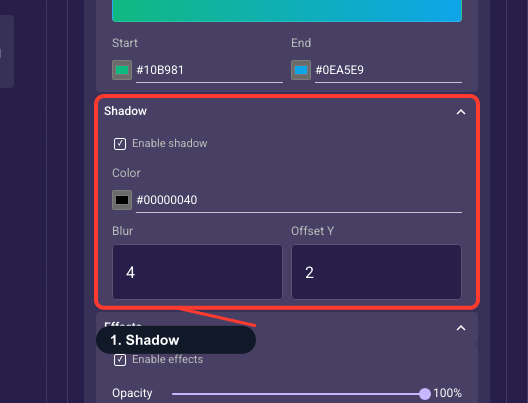
• Enable shadow
Off by default. Turn on to cast a soft drop shadow beneath the button so it lifts off the background; off keeps it flat.
• Color
The shadow color, including its transparency (default is a semi-transparent black). A tinted, low-opacity color gives a subtle lift.
• Blur
How soft and spread-out the shadow is, from 0 (hard edge) to 50 (very diffuse).
• Vertical offset
How far the shadow sits below (positive) or above (negative) the button, −50 to 50 px.
Motion on the secondary button
Adds optional movement to the secondary (lower-priority) button, such as pulse, glow, or bounce, plus an opacity control to fade it. Leave this off by default. Animation draws the eye, so reserve it for your main button only; making the alternative path move competes with your primary call to action and typically lowers conversions.
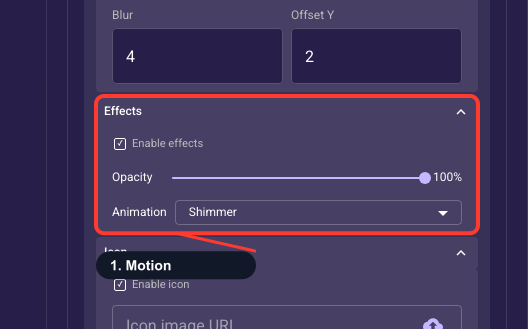
• Enable effects
Off by default (gated on opacity). Turning it on sets the button to full opacity and a default Shimmer animation, then reveals the opacity slider and animation menu. (The animation choice is remembered but inactive while effects are off.)
• Opacity
How see-through the whole button is, from 0% (invisible) to 100% (solid).
• Animation
An optional looping motion to draw the eye to the action — choose from None, Pulse, Shimmer, Bounce, Shake, Glow, Ripple, Scale, Fade In, Slide Up or Wiggle.
Icon on the secondary button
An optional icon on the secondary button — placement (start or end), size, corner radius, spacing, and how it fits its box (fit shows the whole icon, fill crops to cover). Usually leave it empty so the secondary stays understated; add one only when it clarifies the action, like a back arrow for Go back.
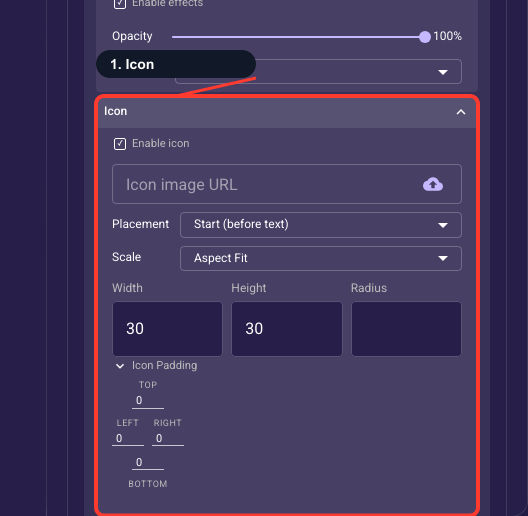
• Enable icon
Off by default. Turn on to show an image (icon) alongside the button label; off for a text-only button.
• Icon image
Upload an image file or paste an image URL — the icon shown next to the label. Leave empty to show no graphic.
• Placement
Where the icon sits relative to the label: Start (before the text) or End (after it); the Fixed Start/End variants pin it to the button’s left/right edge; Top and Bottom stack it above or below the label.
• Scale mode
How the image fits its box: Scale to Fill (stretch), Aspect Fit (show the whole icon, may letterbox), Aspect Fill (cover the box, may crop), or Center (no resize).
• Width
The icon’s width in pixels (0–200).
• Height
The icon’s height in pixels (0–200).
• Corner radius
Rounding of the icon’s corners in pixels; raise it to clip a square image into a rounded or circular badge.
• Icon padding
The space around the icon (top, right, bottom, left) — the gap between the icon and the label and the button edges.