Carousel — every setting
An auto-advancing slide deck — the slide template, total play time, each slide’s text and picture and timing, and the per-slide text/image styles. This guide documents every setting of the Carousel block, grouped by area. Each setting matches a real control in the screen editor.
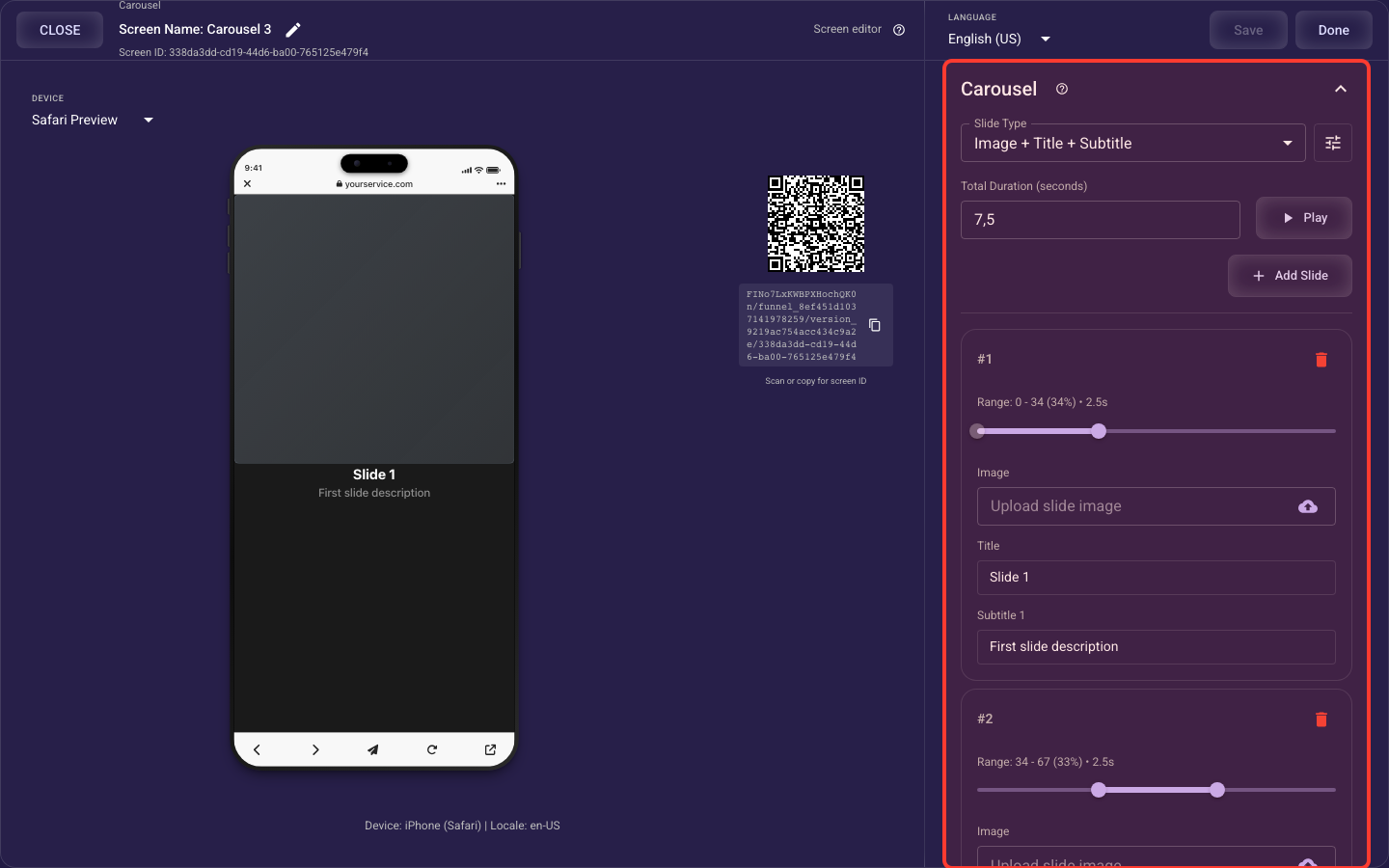
Open the Carousel section in the screen editor to configure its settings.
Applies to: Carousel screens.
Slide template & content
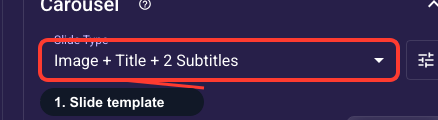
Slide content template
Sets which layers each slide shows: Image Only is just the picture, Image + Title adds one headline, Image + Title + Subtitle adds a supporting line, and Image + Title + 2 Subtitles shows all four text layers. Choosing a richer template reveals its matching text and style fields below. Default to Image + Title for clean, fast-reading slides and add subtitles only when each slide genuinely needs more copy.
Slide headline
The main headline on this slide, shown only when the slide template includes a title. Keep it short and benefit-led so it lands in the few seconds the slide is on screen. You can drop in the visitor's earlier answers with @variable, plus countdown timers and styled label chips; if your funnel runs in several languages, you edit this text per language.
Slide supporting line
The line under the headline, shown only when the slide template is Image + Title + Subtitle or richer. Use it to back up the headline with a quick proof point or detail rather than repeat it. It supports @variable personalization, countdown timers, and styled chips, is edited per language, and only appears after you set a slide template that includes a subtitle.
Slide extra line
A third text line below the supporting line, available only with the Image + Title + 2 Subtitles template. Use it sparingly for one last small detail like a disclaimer or extra proof, since four text layers over an image quickly overcrowd a slide and slow reading. Supports @variable personalization, countdown timers, and styled chips, and is edited per language.
Slide picture
The image shown on this slide, required on every slide no matter which template you pick. Drag-and-drop or click to upload, and Segmently serves a fast-loading optimized version automatically. Use a high-quality picture that matches the slide's message; how it fills the slide is set in Image styles below, and a slide left without an image shows blank, so set one on every slide before publishing.
Timing & duration
Total play time
The total time in seconds for the whole carousel to play through once before it stops or the visitor moves on (0.1–120s). This total is split across slides by each slide's timing slider, so changing it speeds up or slows every slide proportionally. Start around 3–5 seconds per slide (about 12–20s for four slides) — long enough to read each line, short enough to keep momentum and avoid stalling the visitor.
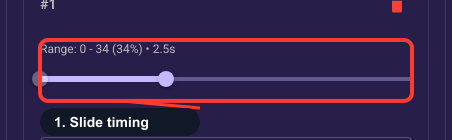
How long this slide shows
A two-thumb slider that sets the window, as a share of the carousel's total duration, during which this slide is on screen. Drag the thumbs apart to give this slide a longer share, which leaves less time for the others. For example, a 25% window at a 20-second total keeps this slide visible about 5 seconds; keep slides spread evenly and only widen the most persuasive one.
Slide text & image styles
Title look and spacing
Open this to override how the carousel's headline looks: font size, weight, color, alignment, and the padding around the text. It only shows when the template includes a title. Leave it untouched to inherit your theme so screens stay consistent; change it only when one carousel needs a bigger or bolder headline, and note the overrides apply to the title on every slide.
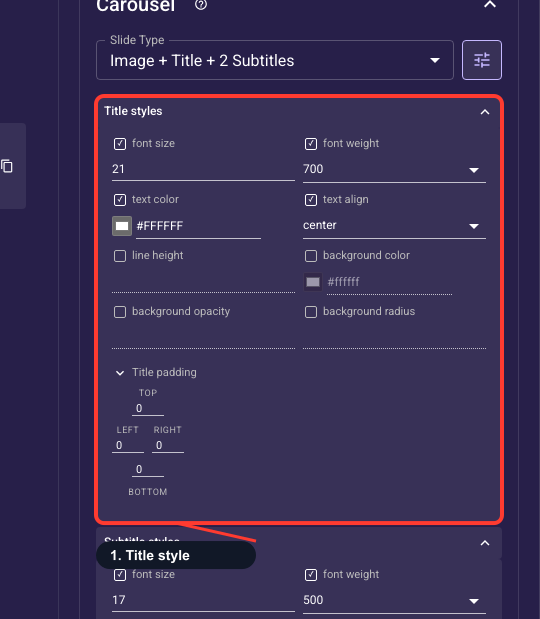
• Font size
Text size (px) of the slide headline.
• Font weight
How bold the headline is.
• Text color
Headline color.
• Text align
Left, center, or right alignment of the headline.
• Line height
Vertical spacing between headline lines.
• Background color
Fill drawn behind the headline text.
• Background opacity
Transparency of that headline background (0–100%).
• Background radius
Corner rounding of the headline background.
• Headline padding
Space around the headline text (top, right, bottom, left). All these overrides apply to the headline on every slide.
Supporting line look
Open this to override the supporting line's font size, weight, color, alignment, and the padding around it; it shows only when the template includes a subtitle. Keep this line visually lighter than the headline (smaller or thinner) so the slide reads in the right order. Leave it on theme defaults for consistency unless this carousel needs a custom look, and remember changes apply to every slide.
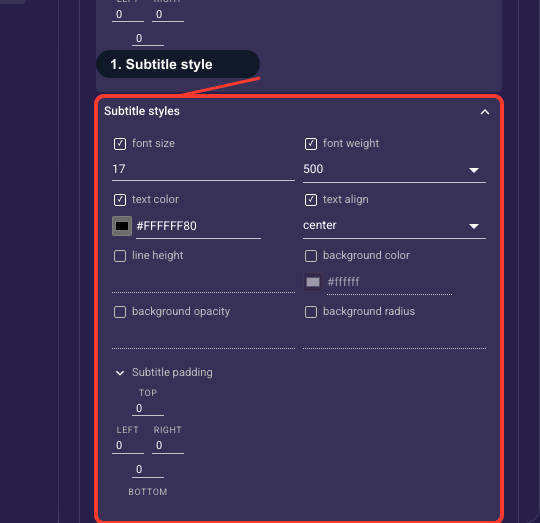
• Font size
Text size (px) of the slide supporting line.
• Font weight
How bold the supporting line is.
• Text color
Supporting line color.
• Text align
Left, center, or right alignment of the supporting line.
• Line height
Vertical spacing between supporting line lines.
• Background color
Fill drawn behind the supporting line text.
• Background opacity
Transparency of that supporting line background (0–100%).
• Background radius
Corner rounding of the supporting line background.
• Supporting line padding
Space around the supporting line text (top, right, bottom, left). All these overrides apply to the supporting line on every slide.
Extra line look
Open this to override the third line's font size, weight, color, alignment, and the padding around it; it appears only with the Image + Title + 2 Subtitles template. Style it as the smallest, quietest text so it never competes with the headline or supporting line. Leave it on theme defaults unless you truly need a change, since overrides apply to this line on every slide of the carousel.
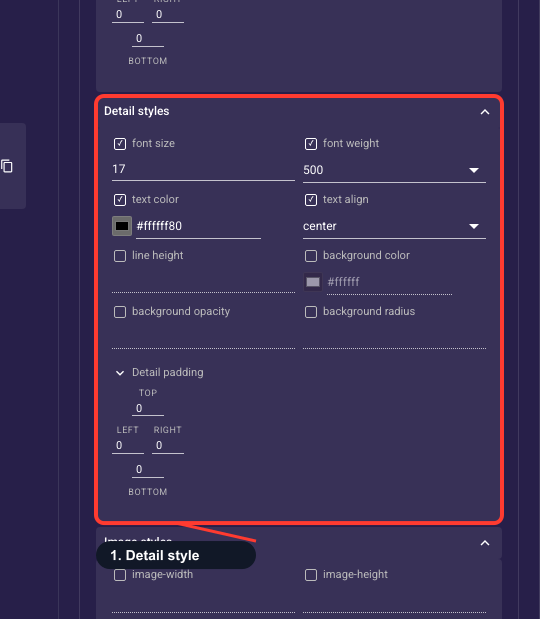
• Font size
Text size (px) of the slide extra line.
• Font weight
How bold the extra line is.
• Text color
Extra line color.
• Text align
Left, center, or right alignment of the extra line.
• Line height
Vertical spacing between extra line lines.
• Background color
Fill drawn behind the extra line text.
• Background opacity
Transparency of that extra line background (0–100%).
• Background radius
Corner rounding of the extra line background.
• Extra line padding
Space around the extra line text (top, right, bottom, left). All these overrides apply to the extra line on every slide.
Image size and fit
Open this to control the slide image's width, height, corner radius, and how it fills its box: Fit shows the whole image (may leave bands), Fill covers the box (edges may crop), Crop trims to the exact box, and Tile repeats it. You also set the padding around the image. Fill is the usual choice for full-bleed slides and Fit keeps the whole graphic visible; settings apply to the image on every slide.
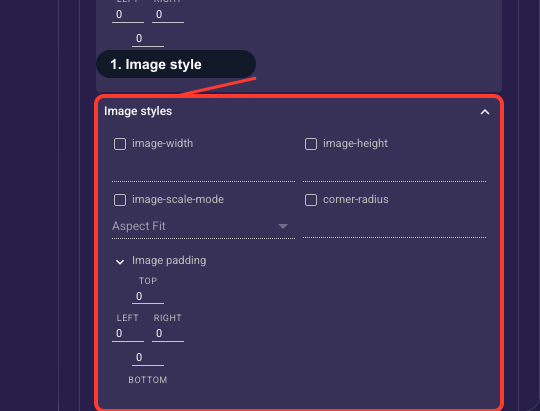
• Image width
Width (px) of the slide's picture.
• Image height
Height (px) of the slide's picture.
• Scale mode
How the picture fills its box: Fit shows the whole image, Fill covers the box (edges may crop), Crop trims to the box, Tile repeats it.
• Corner radius
How rounded the picture corners are (px).
• Image padding
Space around the picture inside the slide. These overrides apply to the picture on every slide.
Image & text layout regions
Image box height and position
Controls the box that holds each slide's image, separate from the image's own styling. Set how tall the box is (Auto fits the image, Fixed is an exact pixel height, Percent is a share of the slide), where the image sits inside it, and the padding around it. Leave it on Auto unless you want every slide's image to occupy the same vertical space so slides don't jump in size as visitors swipe.
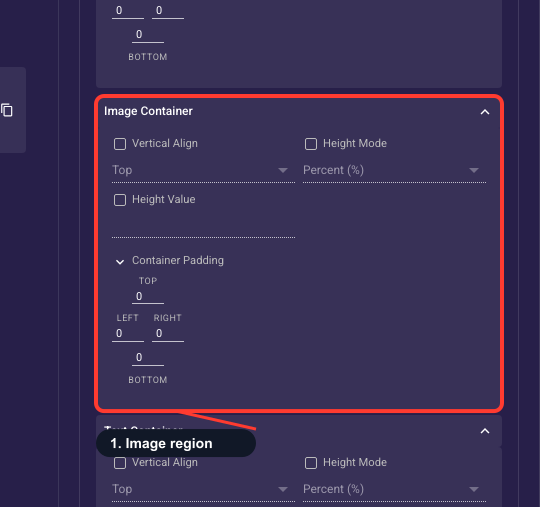
• Vertical align
Where the image sits within its box — top, center, or bottom.
• Height mode
How the image box is sized: Auto fits the content, Fixed is an exact pixel height, Percent is a share of the slide.
• Height value
The height number used by the chosen mode (px or %).
• Container padding
Empty space inside the image box (top, right, bottom, left).
Text box height and position
Controls the box that holds all of a slide's text (title, subtitle, detail) as a group, separate from styling each line. Set how tall the box is (Auto fits the text, Fixed is exact pixels, Percent is a share of the slide), where the text block sits, and the padding around it. Leave it on Auto unless you want text anchored the same way on every slide, for example always sitting in the lower third over the image.
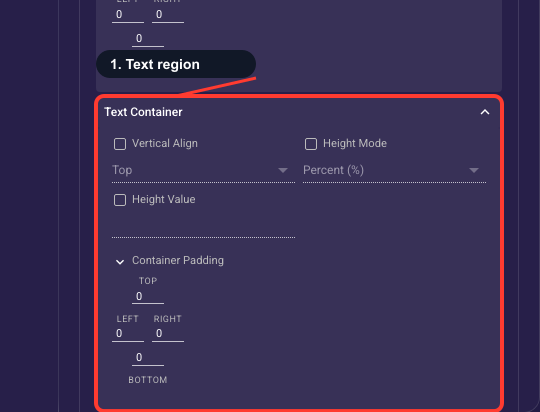
• Vertical align
Where the text block sits within its box — top, center, or bottom.
• Height mode
How the text block box is sized: Auto fits the content, Fixed is an exact pixel height, Percent is a share of the slide.
• Height value
The height number used by the chosen mode (px or %).
• Container padding
Empty space inside the text block box (top, right, bottom, left).