Flexible Sections — every setting
The build-your-own screen — you stack sections (text, media, product catalog, buttons, lists…) and arrange them: add / reorder / rename / delete, set each section’s size, fill, alignment, border, padding and margin, control whole-screen scroll and padding, and link a button to a section (e.g. a Purchase Button to a Product Catalog). Each section type’s own content and styling lives in its dedicated block article. This guide documents every setting of the Flexible Sections block, grouped by area. Each setting matches a real control in the screen editor.
How a Flexible Layout screen works
A Flexible Layout screen is one you build yourself: you add sections — text, media, a product catalog, buttons, lists and more — then stack, size and align them however you like. The settings below cover what is unique to assembling the screen; each section type’s own content and styling lives in its own guide (see the note at the end).
Link a button to a section
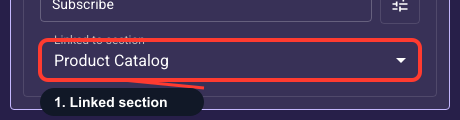
Some sections work together. For a paywall, add a Product Catalog section (the plans) and a Purchase Button section, then open the Purchase Button and pick the catalog in its “Linked to section” dropdown — now the button buys the plan the visitor selected in that catalog.
Each section type has its own guide
A section’s own content and styling — Text, Media, Buttons, Options, Product Catalog and the rest — are documented once in their own articles and reused everywhere they appear, so nothing is duplicated. Links to each of those guides will be added here. The rest of this article covers only what is specific to a Flexible Layout screen: managing sections, their per-section layout, the whole-screen layout, and the sticky bar.
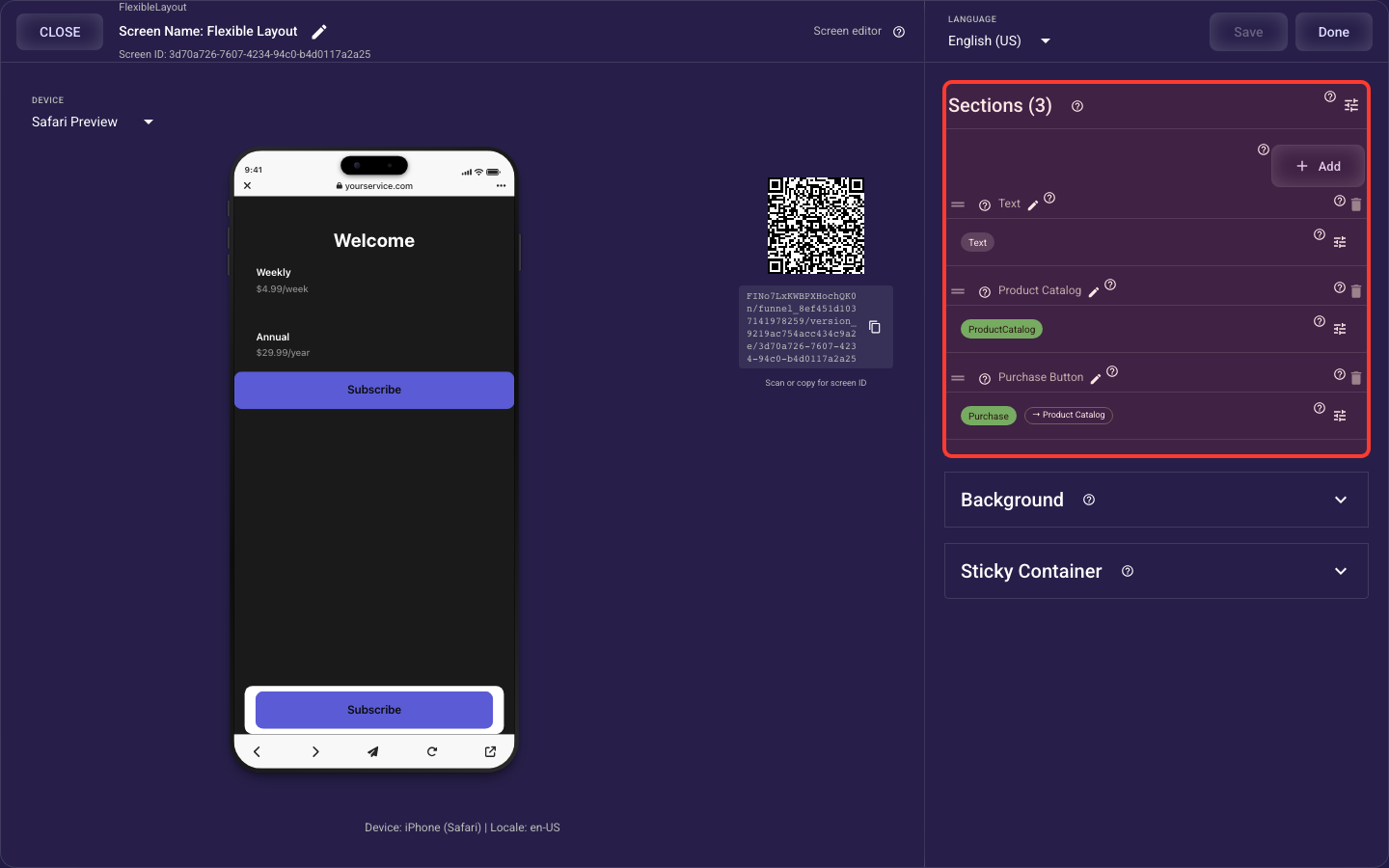
Open the Flexible Sections section in the screen editor to configure its settings.
Applies to: Flexible Layout screens.
Building & arranging sections
Add a new section
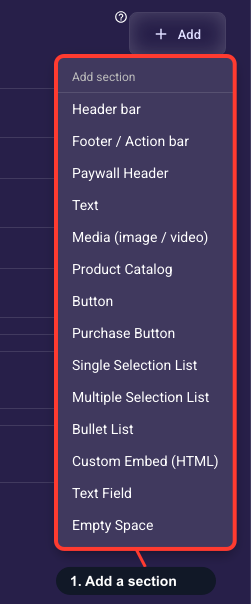
Use + Add to choose what kind of block to place on this FlexibleLayout screen: text, media, product catalog, button, purchase button, list, custom embed, text field, spacer, header, footer, or paywall header. Add sections in the same order a visitor should read them, then drag to reorder if the screen flow changes. Start with the biggest structure first — for example header, hero text/media, products, and CTA — then tune layout settings inside each section.
Open screen-level layout settings
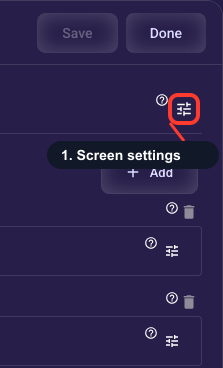
The gear beside the Sections title opens settings for the whole FlexibleLayout screen, not for one individual section. Use it to control whether the full screen scrolls and how much padding the whole stack has from the screen edges. Open this before editing individual section padding when the entire screen feels too close to the phone edge or when you need a fixed, non-scrolling composition.
Reorder sections
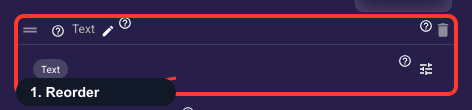
Drag the handle beside a section name to change the vertical reading order on the screen. The order here is the order visitors see in the preview and published flow, so keep the persuasion sequence clear: context first, offer/details next, then the CTA. After reordering, recheck fixed-height and flex settings because a section that worked in one position may need different spacing in another.
Rename a section for editing
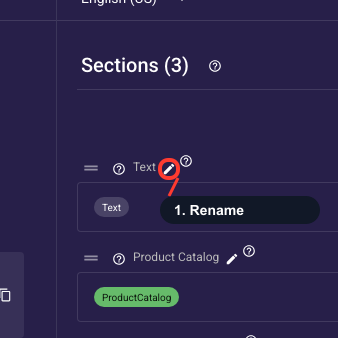
Click the pencil beside a section name to give it a clear internal label, such as Hero headline, Annual plan list, or Bottom CTA. This name helps editors understand the structure and is not shown to visitors. Rename repeated sections immediately so it is obvious which block you are opening, especially when several Text or Button sections exist on the same screen.
Delete a section
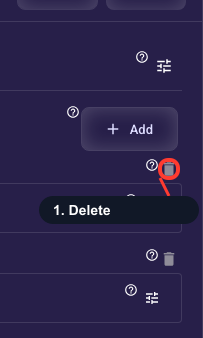
Use the trash icon to remove a section from the screen. Deleting also removes that section's content and can affect buttons linked to it, so confirm only after checking the preview and any parent-section links. If you are unsure, rename the section first or move it lower in the order while you verify the layout instead of deleting it immediately.
Open one section's settings
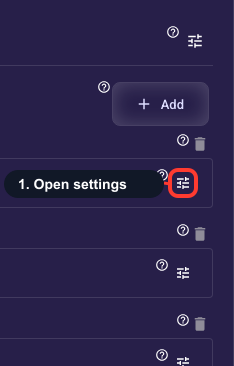
Click the gear inside a section card to open that section's own settings. The first panel controls the section container — height, flex, scrollability, background, borders, alignment, padding, and margin — and the panel below controls the section's content, such as text, media, products, or button styling. This is the main place to tune how one block looks and behaves.
Whole-screen layout
Let the whole screen scroll
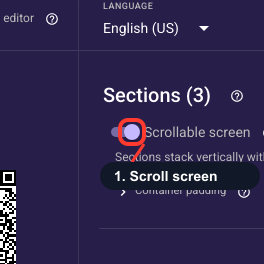
When Scrollable screen is on, sections stack vertically and the visitor can scroll through them. Use this for long paywalls, product catalogs, benefit lists, or any screen with more content than fits on a phone. When it is off, the screen uses flexGrow and flexShrink to distribute sections inside one viewport, which is better for fixed hero layouts where the CTA should stay visible without scrolling.
Space around the whole section stack
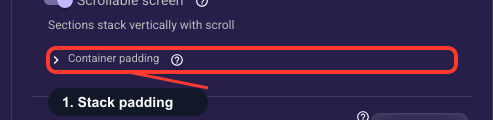
Container padding adds space between the phone edges and all sections on the screen. It is different from Section padding: container padding moves the entire stack inward, while section padding adds space inside one selected section. Use container padding first when every block feels too close to the screen edge, then use per-section padding only where a specific block needs more breathing room.
Per-section layout
How tall this section is
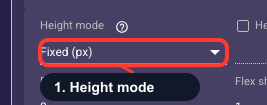
Decides how the section's height is calculated. Auto (the safe default) makes it exactly as tall as its content, which is right for most text and buttons. Fixed lets you type an exact pixel height, and Percent sets it to a share of the screen, handy for a hero image that should always fill, say, the top 40 percent. Your pick also decides which value box below applies.
The height number
This is the number that pairs with your height mode. With Fixed mode, type pixels (0 to 1000, for example 320 for a tall hero); with Percent mode, type a share of the screen (0 to 100, for example 40). The box is ignored in Auto mode. For a scrollable section, this also sets the visible window the content scrolls inside.
Stretch to fill empty space
Controls how much leftover vertical space a section soaks up so the screen has no awkward gap. 0 keeps a section at its natural size (the default for text and buttons); 1 or more lets it stretch, and a section set to 2 takes twice the extra space as one set to 1. Raise this on your image or hero section to push the button down to a comfortable spot. Only applies when the section isn't set to scroll.
Let it shrink on small screens
Controls which section gives up height first when everything can't fit on a small phone. Higher numbers shrink sooner; 0 means never shrink this one. The default of 1 lets sections shrink evenly. Set 0 on must-stay pieces like the button or logo, and raise it on a less important section like a tall image, so the key content survives intact on the smallest screens.
Let this section scroll on its own
Turn on to let a section scroll independently when its content is taller than the height you set (works only with a Fixed or Percent height, not Auto). Use it for a long list of terms or bullets you want capped inside a fixed window while the rest of the screen stays put. Leave off (the default) for normal sections that just sit in the layout.
Which section sits in front
When two sections overlap, this decides which one shows on top. A higher number wins; the default 0 is fine as long as nothing overlaps. You only need it when you've deliberately layered sections, like a headline placed over a background image, so give the part you want visible the higher number.
Solid color or image behind
Sets what fills the area behind this section's content. Solid (the default) uses one color you pick below; Media places an image behind the content for a richer, ad-style look. If you go with Media and put text on top, keep the text readable with a darker image or an overlay so your value proposition doesn't get lost.
Background fill color
Sets the color behind this section's content, used when the background type is Solid. The default is white. Enter a hex code or pick a swatch, and keep it in line with your theme so the screen feels on-brand, with enough contrast against the text on top to stay readable.
Round the section corners
Rounds all four corners of the section. The default 0 keeps them sharp and square; higher values (try 8 to 16) give a soft card look that pairs well with a solid background or border to make the section stand out as its own block. The range is 0 to 50 pixels.
Outline thickness
Draws an outline around the section. The default 0 means no border; 1 to 2 pixels gives a subtle frame that makes a section read as a self-contained card or highlights an offer. Set this above 0 first, then pick the border color below.
Outline color
Sets the color of the section's outline. The default is black, and it only shows when the border thickness is above 0, so set a width first. Match it to one of your theme's accent colors for a clean, on-brand frame around the section.
Top, center, or bottom
Pins the content to the Top, Center, or Bottom of the section. It only changes anything when the section is taller than its content, for example with a Fixed or Percent height or a section stretched to fill space. Use Center to vertically center a headline in a tall hero, or Bottom to push a caption to the base of an image.
Left, center, or right
Positions the content along the section's width: Left, Center, or Right. Center is the usual choice for headlines and buttons, while Left reads more naturally for longer body copy. (Left and right follow text direction, so they flip on right-to-left languages.)
Breathing room inside the section
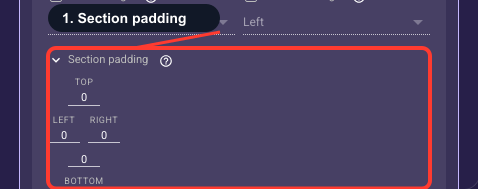
Padding is the space inside a section, between its edges and the content sitting in it. Set Top, Bottom, Left, and Right independently, starting from 0. Add some so text and buttons don't crowd the section border or a background image; 16-24 px all around is a comfortable, readable starting point.
Space between sections
Margin is the gap outside a section, between it and the sections next to it. Set Top, Bottom, Left, and Right independently, using positive values to push sections apart. A negative top margin pulls a section up so it overlaps the one above — for example, a headline resting on a hero image; pair that with stacking order to control what sits in front.