Header — every setting
The top bar of the screen — the Back and Skip buttons and the progress indicator that shows how far along the visitor is. This guide documents every setting of the Header block, grouped by area. Each setting matches a real control in the screen editor.
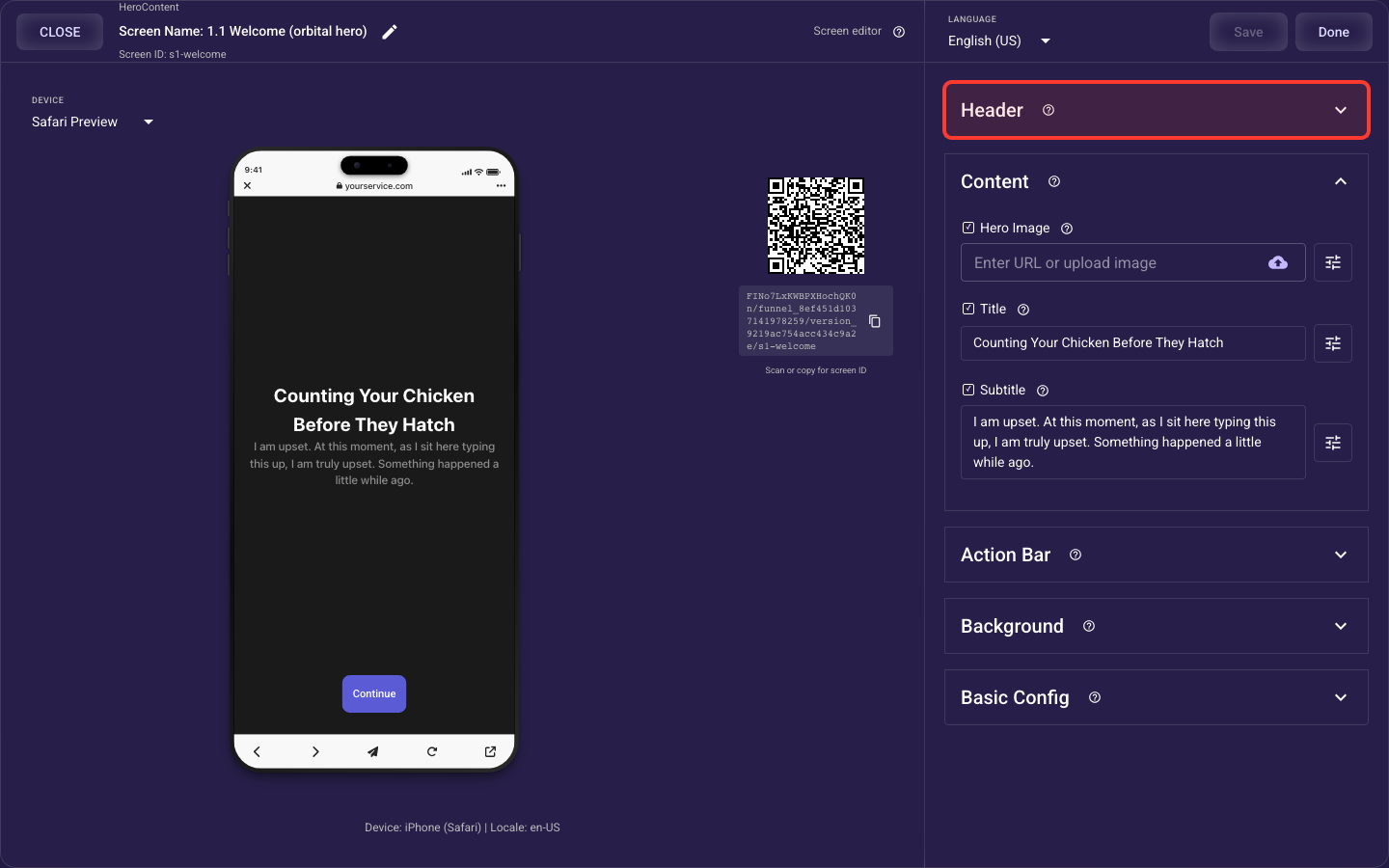
Open the Header section in the screen editor to configure its settings.
Applies to: Hero Content, Carousel, List Multi Pick, List Single Pick, Grid Multi Pick, Grid Single Pick, Progress Steps, Text Input, Wheel Picker, Hero List, and Web Embed screens.
Back button
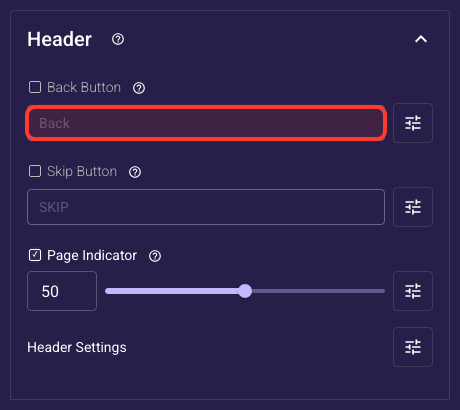
Inside the Header section, this is the Back button.
Back Button Label
Sets the text and styling of the Back control that returns visitors to the previous step. Defaults to a left arrow and supports other languages. Keep it small so it doesn't compete with your main action, and clear it to hide the button on the first screen, where there's nowhere to go back to.
Back button text style
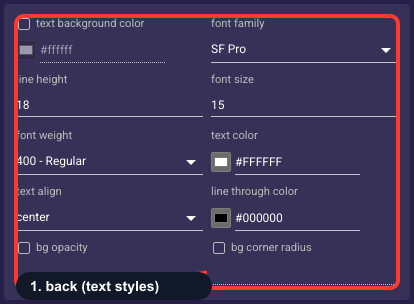
Overrides how the Back control's label looks — font, size, weight, color, alignment, line height, an optional highlight behind the text, and a strikethrough color. By default it inherits your project theme, which keeps every screen consistent. Touch this only when the Back label needs to match a specific header treatment, and keep it subtle so it never competes with your main action.
• Text background color
An optional fill drawn behind the back button text (a highlight pill). Off unless you set it; leave empty for plain text on the screen background.
• Font family
The typeface of the back button.
• Line height
Vertical spacing between lines of text — raise it to give multi-line text more breathing room.
• Font size
Text size of the back button in pixels.
• Font weight
How bold the text is, from Thin through Bold to Black.
• Text color
The color of the back button text. Keep enough contrast with the background that it stays readable.
• Text align
Horizontal alignment of the text: start (left), center, or end (right).
• Strikethrough color
Color of a line-through decoration when the text is struck out (for example, an old price).
• Background opacity
How see-through the text background fill is, from 0% (invisible) to 100% (solid). Only matters when a background color is set.
• Background radius
Corner rounding (px) of the text background fill; higher is softer.
Skip button
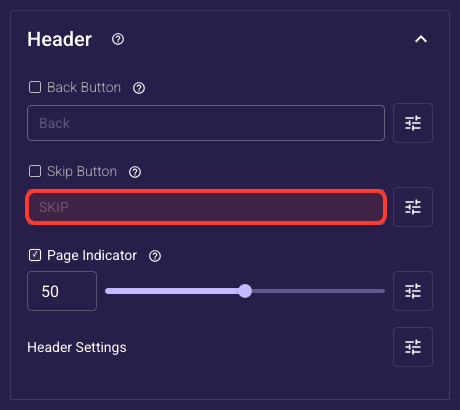
Inside the Header section, this is the Skip button.
Skip Button Label
Sets the text and styling of the Skip control that lets visitors bypass this step. Defaults to 'SKIP' and supports other languages. Use it only where skipping is fine, and clear it to hide it on your paywall and key question screens, where an easy out lowers both sales and the answers you collect.
Skip button text style
Overrides how the Skip control's label looks — font, size, weight, color, alignment, line height, an optional highlight, and a strikethrough color. By default it inherits your theme. Keep Skip visually quiet (smaller, lower-contrast) so it doesn't pull attention away from continuing; restyle it only to fit a specific header look.
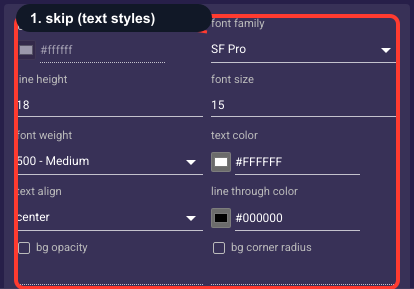
• Text background color
An optional fill drawn behind the skip button text (a highlight pill). Off unless you set it; leave empty for plain text on the screen background.
• Font family
The typeface of the skip button.
• Line height
Vertical spacing between lines of text — raise it to give multi-line text more breathing room.
• Font size
Text size of the skip button in pixels.
• Font weight
How bold the text is, from Thin through Bold to Black.
• Text color
The color of the skip button text. Keep enough contrast with the background that it stays readable.
• Text align
Horizontal alignment of the text: start (left), center, or end (right).
• Strikethrough color
Color of a line-through decoration when the text is struck out (for example, an old price).
• Background opacity
How see-through the text background fill is, from 0% (invisible) to 100% (solid). Only matters when a background color is set.
• Background radius
Corner rounding (px) of the text background fill; higher is softer.
Progress indicator
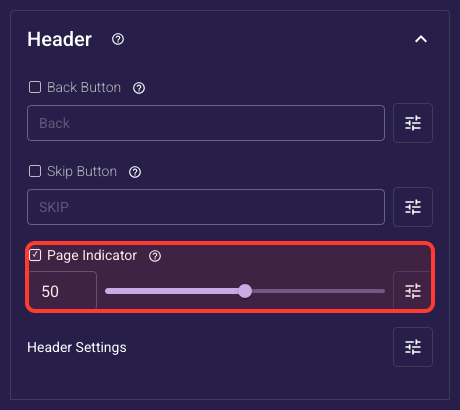
Inside the Header section, this is the Progress indicator.
Progress Bar Style
Chooses how progress through the funnel looks: a single continuous bar (Line) or segmented dots (Dashes), each with its own color controls below. A visible 'how far along' cue reassures visitors only a few steps remain, which lifts completion. Pick whichever fits your brand and keep it the same across screens.
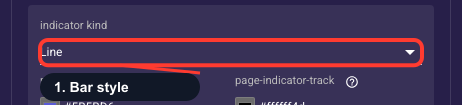
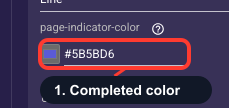
Completed Progress Color
Colors the filled, completed part of the progress bar. Defaults to gold for the Line style and teal for Dashes. Use your brand accent and make sure it clearly stands out against the unfilled track color so visitors can see at a glance how far they've come.
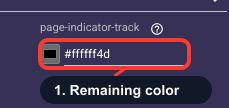
Remaining Progress Color
Colors the empty, not-yet-completed part of the progress bar. Defaults to white for the Line style and light gray for Dashes. Keep it muted next to the filled color so the completed portion clearly reads as progress rather than blending in.
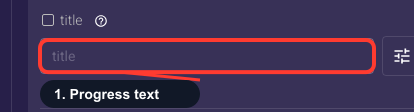
Progress Bar Text
Optional text shown with the progress bar, such as a 'Step 5 of 10' counter or a short line of reassurance. Supports other languages and styling; leave it empty for a clean bar-only look. Note this text is fixed per screen and won't count up on its own, so use it as a label unless you drive it from a variable.
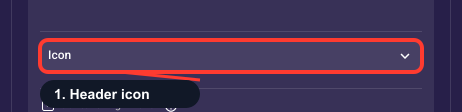
Optional Header Icon
Adds an optional small icon, often a logo or step glyph, next to the progress bar, with controls for the image, its size, and its spacing. Most funnels leave this off. Use it only to reinforce branding in the header, and keep the icon small so it doesn't crowd the progress bar.
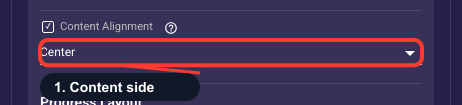
Progress Content Side
Sets where the icon and label sit across the header, on the left (Start), centered, or on the right (End). Mostly a cosmetic touch: centered usually looks balanced, while left or right lets you line the label up with your Back or Skip button. Adjust only if the default looks off.
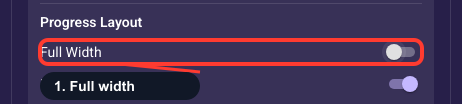
Stretch Progress Edge-To-Edge
When on, the progress bar stretches all the way across the header; when off, it takes only the width its content needs. Use full width for a bold, obvious progress bar across the top of the screen. Turn it off when you want the bar compact and grouped with a label or icon.
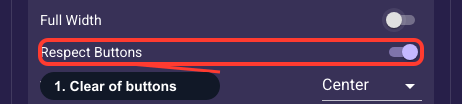
Keep Progress Clear Of Buttons
When on, which is the default, the progress bar shrinks so it never overlaps the Back or Skip buttons; when off, it can collide with them in a tight header. Leave it on. Turn it off only if you've removed those buttons and want the bar to use the full width.
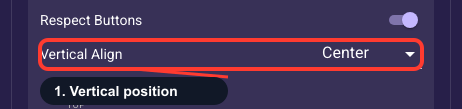
Progress Height In Header
Sets where the progress bar sits up and down within the header: at the top, centered, or at the bottom. Centered is the usual balanced choice; use bottom to sit it just above your content, or top to hug the status bar. Adjust only if the default placement looks off for your header height.
Spacing around the progress bar
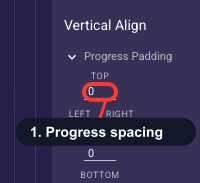
Sets the spacing on each side of the progress indicator alone, separate from the header's overall padding. Use it to fine-tune the gap around the bar, for example to nudge it down from the buttons, without moving the buttons themselves. Most funnels keep the default; adjust only when the bar sits too tight or too loose against the header.
Progress text style
Overrides how the progress label (for example 'Step 5 of 10') looks — font, size, weight, color, alignment, line height, an optional highlight, and a strikethrough color. By default it inherits your theme. Use it to make the reassurance text legible against your header background, and keep it small so it supports rather than overshadows the progress bar.
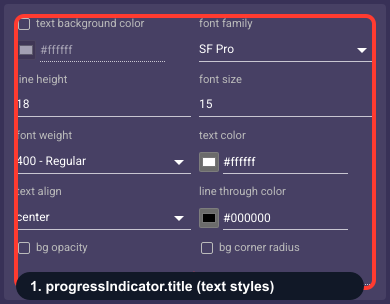
• Text background color
An optional fill drawn behind the progress title text (a highlight pill). Off unless you set it; leave empty for plain text on the screen background.
• Font family
The typeface of the progress title.
• Line height
Vertical spacing between lines of text — raise it to give multi-line text more breathing room.
• Font size
Text size of the progress title in pixels.
• Font weight
How bold the text is, from Thin through Bold to Black.
• Text color
The color of the progress title text. Keep enough contrast with the background that it stays readable.
• Text align
Horizontal alignment of the text: start (left), center, or end (right).
• Strikethrough color
Color of a line-through decoration when the text is struck out (for example, an old price).
• Background opacity
How see-through the text background fill is, from 0% (invisible) to 100% (solid). Only matters when a background color is set.
• Background radius
Corner rounding (px) of the text background fill; higher is softer.
Header icon settings
Controls the optional header icon shown next to the progress bar — its image (upload or URL), placement relative to the label, scale mode, width, height, corner rounding, and padding. Off by default. Turn it on only to reinforce branding in the header, and keep the icon small so it doesn't crowd the progress bar or the Back and Skip buttons.
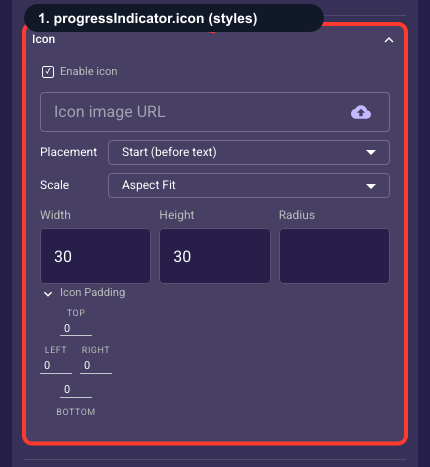
• Enable icon
Off by default. Turn on to show a small image (for example a logo) in the header next to the progress indicator; off for no image.
• Icon image
Upload an image file or paste an image URL — the icon shown in the header. Leave empty to show no graphic.
• Placement
Where the icon sits relative to the progress title: Start (before it) or End (after it); the Fixed Start/End variants pin it to the header’s left/right edge; Top and Bottom stack it above or below.
• Scale mode
How the image fits its box: Scale to Fill (stretch), Aspect Fit (show the whole icon, may letterbox), Aspect Fill (cover the box, may crop), or Center (no resize).
• Width
The icon’s width in pixels (0–200).
• Height
The icon’s height in pixels (0–200).
• Corner radius
Rounding of the icon’s corners in pixels; raise it to clip a square image into a rounded or circular badge.
• Icon padding
The space around the icon (top, right, bottom, left) — the gap between the icon and the surrounding header content.
Header bar appearance & spacing
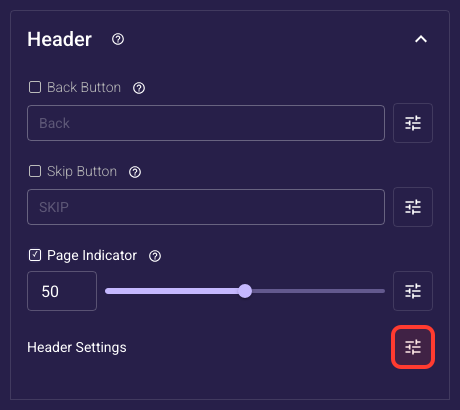
Inside the Header section, this is the Header bar appearance & spacing.
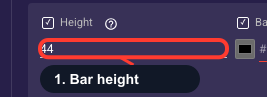
Header Bar Height
Sets how tall the header bar is, from 20 to 200 pixels, with a default of 44, which is the space its buttons and progress bar share. Keep it near the default for a standard bar and raise it only if you add a tall icon or larger text. Going too small cramps the Back and Skip buttons and makes them hard to tap.
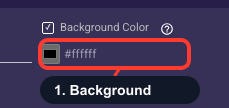
Header Bar Background
Fills the header bar with a color, or clear it to transparent so the screen background shows through for a floating header. Use a solid color to set the header apart from busy content. If you go transparent over a photo or video, check that the Back, Skip, and progress colors still stand out clearly.
Header See-Through Level
Fades the whole header bar from fully solid to fully see-through, defaulting to solid. Lower it for a soft, partly transparent header that blends into a photo or video background. Keep it high enough that the Back, Skip, and progress controls stay easy to see.
Spacing inside the header
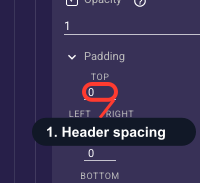
Sets the inner spacing on each side (top, right, bottom, left) that pushes the Back button, Skip button, and progress bar away from the header edges. Raise the top value to keep these controls clear of the phone's status bar or notch, and adjust left/right so buttons aren't jammed against the screen edge. Start from the defaults and nudge only where something looks cramped, since a clean header keeps the first impression of your ad landing page tidy.