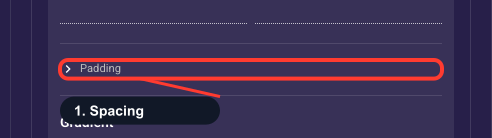
Media — every setting
The screen's image or video block — its source, size, placement, rounding, and an optional fade overlay. This guide documents every setting of the Media block, grouped by area. Each setting matches a real control in the screen editor.
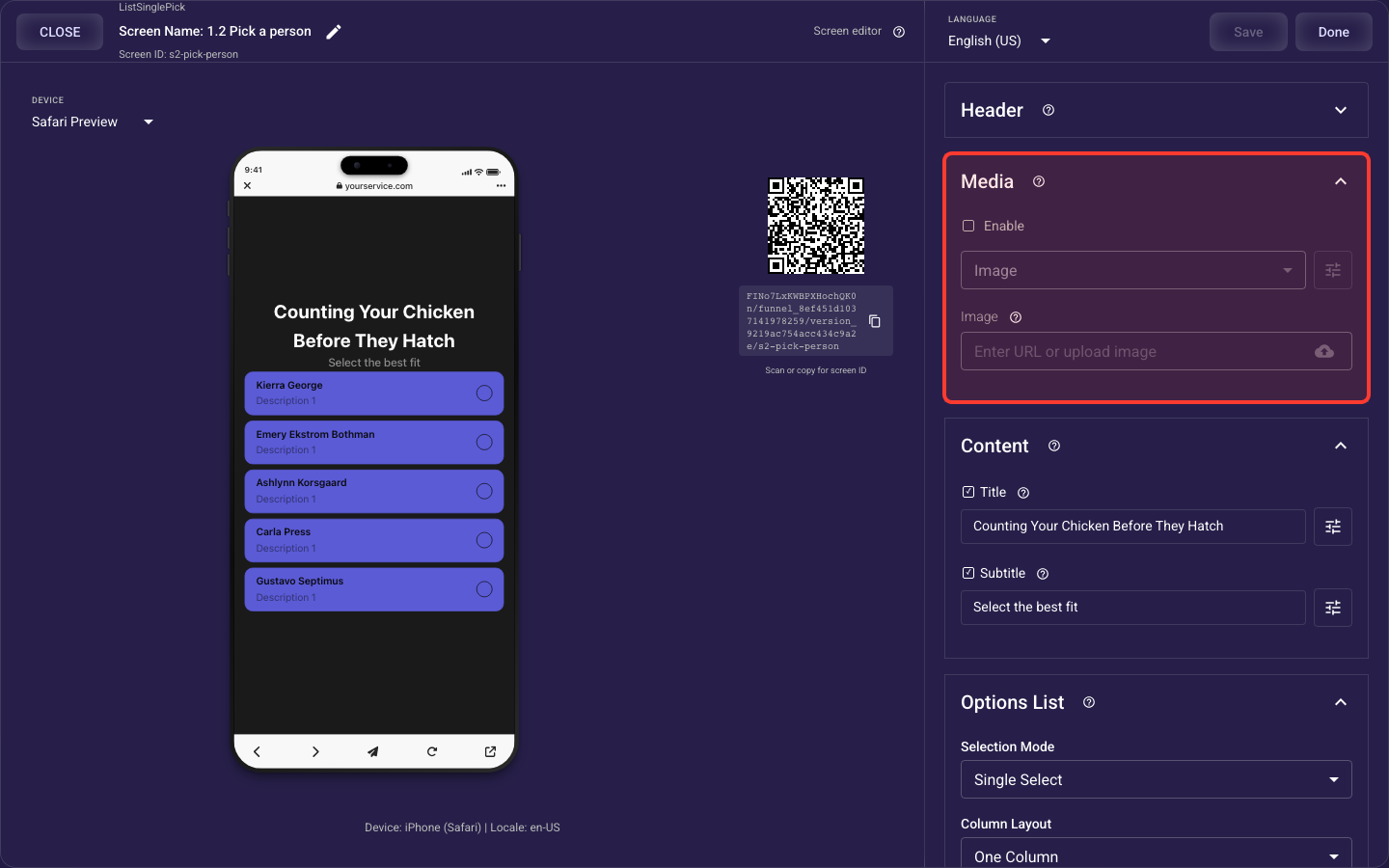
Open the Media section in the screen editor to configure its settings.
Applies to: List Multi Pick, List Single Pick, Grid Multi Pick, Grid Single Pick, and Wheel Picker screens.
Image or video source
Inside the Media section, this is the Image or video source.
Show an image or video
Turns the image or video block on or off for this screen; off means no visual is shown. Turn it on to add a supporting visual, since on a paid landing page a relevant image or video builds trust and lifts conversion. When enabled, it starts with sensible styling from your design theme that you can fine-tune in the fields below.
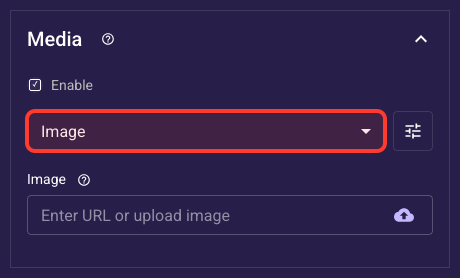
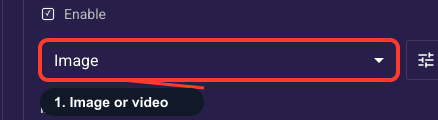
Image or video
Pick whether this screen shows an image or a video. Use an image for a fast, lightweight visual that loads instantly; use a video for short product demos or motion that holds attention (it can loop). Switching type clears the current media, so choose before you upload. Keep videos short and light so the page stays fast, since slow loads cost conversions on paid traffic.
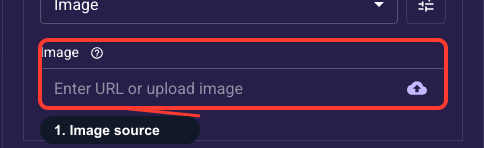
The image for this screen
Add this screen's image by uploading a file from your computer or pasting a direct image URL, then confirm it in the preview. Use a high-quality JPG or PNG that's on-message for the screen — uploads are optimized automatically for fast loading on every device. To replace it later, upload or paste a new source here.
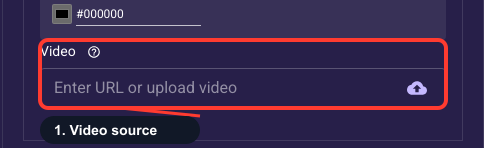
The video for this screen
Add a video by uploading a file or pasting a direct video URL. Keep it short (a few seconds, ideally under ~30s) and lightweight so the page loads fast — long or heavy videos hurt conversion on paid traffic. Uploads are converted automatically to play reliably across devices, and you can pair this with the loop option below to replay it continuously.
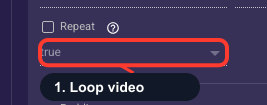
Replay the video on a loop
When on, the video replays continuously; when off, it plays once and stops on the last frame. Only applies to video media. Turn looping on for short ambient background clips that hold attention; turn it off for a demo or explainer you want watched once, so it doesn't loop distractingly while the visitor reads.
Fade overlay
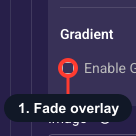
Fade over the media
Lays a soft, see-through fade (usually dark) over the media so any text or button on top stays readable against a busy image. Turn it on whenever you place a title, subtitle, or button over the media; without it, light areas of the image can wash out your copy. When enabled, you get controls below to set the fade's height and color.
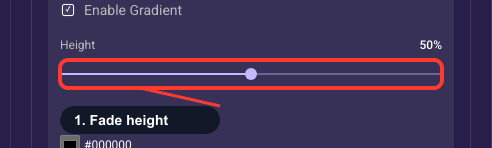
How far the fade extends
Controls how far the fade reaches across the media (0 to 100%). Match it to where your text or button sits: if the copy is near the bottom, a 30 to 50% fade from that edge usually gives enough contrast without darkening the whole image. Increase it if text is still hard to read, decrease it to show more of the image clearly.
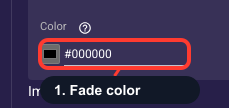
Color of the fade
Picks the color of the fade over the media. Use a dark color (usually black) behind light or white text, or a light color behind dark text; the fade goes from this color to fully transparent so the image still shows through. Match it to your background or brand color for a seamless look, and choose whichever direction gives your copy the strongest contrast.
Size, placement & rounding
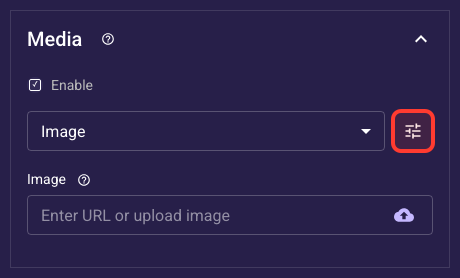
Inside the Media section, this is the Size, placement & rounding.
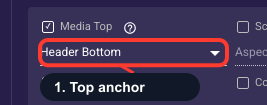
Where the media starts on top
Sets where the media begins from the top of the screen. Screen Top runs it edge-to-edge to the very top (great for a full-bleed hero), Navigation Bar starts it just below the header, and Safe Area keeps it clear of phone notches and rounded corners. Pick Screen Top for an immersive banner, Safe Area when nothing should ever be clipped. This is locked if you set a media height percentage below, which positions it for you.
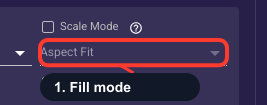
How media fills its box
Controls how the media fills its box. Aspect Fit shows the whole thing without cropping (you may see empty bars), Aspect Fill covers the box completely but may crop edges, and Scale to Fill stretches it, which distorts photos, so avoid that. The positional options (Top, Bottom, Center, and so on) crop to fill while keeping that part in view. Aspect Fill is the usual pick for an edge-to-edge banner; use Aspect Fit when nothing should be cropped.
How tall the media is
Sets the media height as a share of the screen (0 to 100%), so it scales on every device; the default is 50%. Use a larger percentage for an immersive, image-led screen and a smaller one when you need room for the title, text, or button below; on a choice screen, keep it modest so the options stay visible without scrolling. Setting a value pins the media just below the header for a consistent layout.
How rounded the media is
Rounds the corners of the media block; 0 is sharp and higher values (up to 50) make them softer. A small radius around 8 to 16 gives a modern, polished look; match it to the rounding on your buttons and cards so the whole screen feels consistent. Leave it at 0 for full-bleed media that touches the screen edges.
Space around the media
Adds empty space on the four sides of the media (top, right, bottom, left) so it isn't flush against the screen edges or neighboring content. Leave it at the default for a full-width visual. Increase a side to inset the media and give it a framed look with breathing room, rather than edge-to-edge.