Paywall Body — every setting
The paywall's words — the headline and subtitle (with full typography) and the feature-benefit bullet list, including each bullet's box style, padding, and per-bullet title / subtitle / icon styling. This guide documents every setting of the Paywall Body block, grouped by area. Each setting matches a real control in the screen editor.
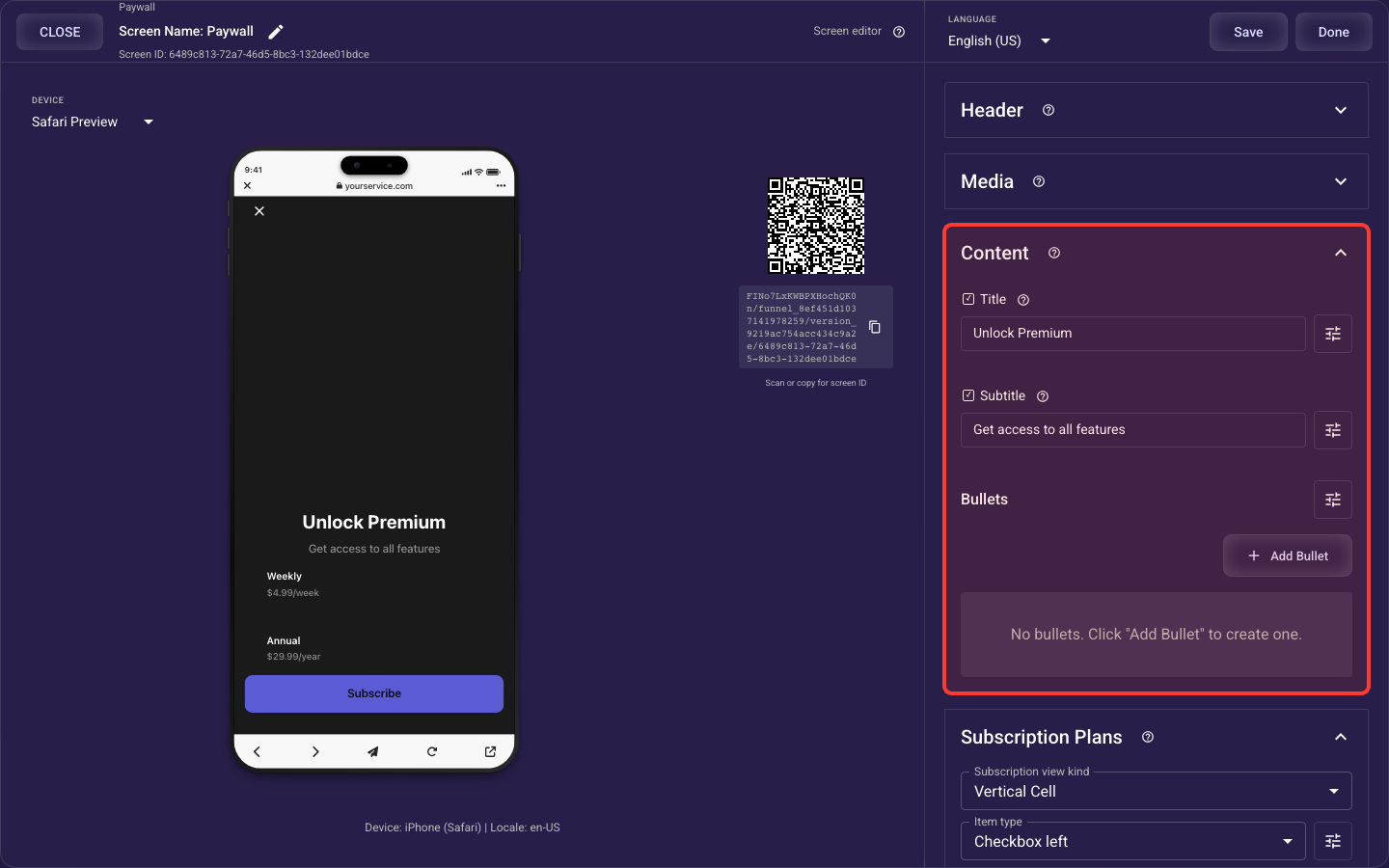
Open the Paywall Body section in the screen editor to configure its settings.
Applies to: Paywall screens.
Headline & subtitle
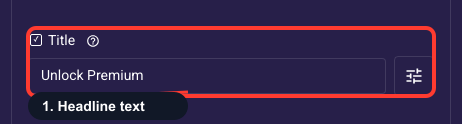
Paywall headline
The big headline at the top of the paywall, your one shot to state your strongest benefit in a few words (e.g. 'Reach your goal in 4 weeks'). You can insert @variables like @{user.name} to echo answers the user gave earlier, which makes the offer feel personal and lifts conversion. Turn it off to hide the headline entirely.
Style the paywall headline
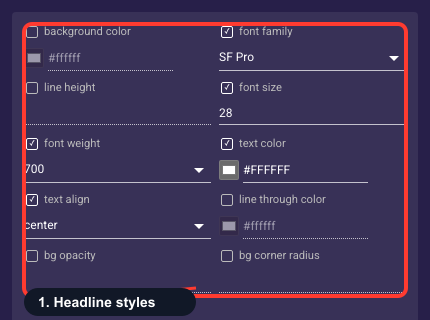
Styles the headline: font, size, weight, color, alignment, and the spacing around it. Keep it large and high-contrast so the main benefit is the first thing the eye lands on. Most users can leave the theme defaults; change them only if the title is hard to read against your background.
• Text background color
An optional fill drawn behind the paywall headline text (a highlight pill). Off unless you set it; leave empty for plain text on the screen background.
• Font family
The typeface of the paywall headline.
• Line height
Vertical spacing between lines of text — raise it to give multi-line text more breathing room.
• Font size
Text size of the paywall headline in pixels.
• Font weight
How bold the text is, from Thin through Bold to Black.
• Text color
The color of the paywall headline text. Keep enough contrast with the background that it stays readable.
• Text align
Horizontal alignment of the text: start (left), center, or end (right).
• Strikethrough color
Color of a line-through decoration when the text is struck out (for example, an old price).
• Background opacity
How see-through the text background fill is, from 0% (invisible) to 100% (solid). Only matters when a background color is set.
• Background radius
Corner rounding (px) of the text background fill; higher is softer.
Supporting subtitle
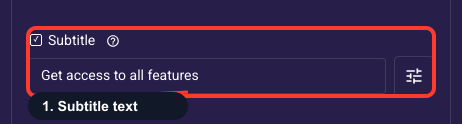
The supporting line just under the headline. Use it to back up the promise with a reason to believe or a specific outcome (e.g. 'Cancel anytime, no questions asked'). You can drop in @variables to reference the user's earlier answers for a personal touch. Turn it off to hide the subtitle.
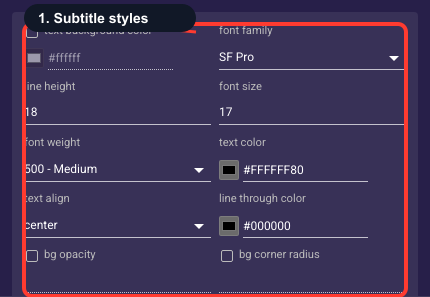
Style the paywall subtitle
Styles the subtitle line: font, size, weight, color, alignment, and the spacing around it. Keep it smaller and lighter than the headline so the main benefit stays dominant. Leave the theme defaults unless the subtitle is hard to read against your background.
• Text background color
An optional fill drawn behind the paywall subtitle text (a highlight pill). Off unless you set it; leave empty for plain text on the screen background.
• Font family
The typeface of the paywall subtitle.
• Line height
Vertical spacing between lines of text — raise it to give multi-line text more breathing room.
• Font size
Text size of the paywall subtitle in pixels.
• Font weight
How bold the text is, from Thin through Bold to Black.
• Text color
The color of the paywall subtitle text. Keep enough contrast with the background that it stays readable.
• Text align
Horizontal alignment of the text: start (left), center, or end (right).
• Strikethrough color
Color of a line-through decoration when the text is struck out (for example, an old price).
• Background opacity
How see-through the text background fill is, from 0% (invisible) to 100% (solid). Only matters when a background color is set.
• Background radius
Corner rounding (px) of the text background fill; higher is softer.
Feature bullets
Benefit checklist
The list of benefits below the subtitle, your main proof the offer is worth paying for. Add one bullet per concrete benefit (what's included, guarantees, results), each with a title, optional subtitle, and icon, and drag to reorder. Aim for 3 to 5 punchy bullets, since too many dilute the message. Use 'Add Bullet' to create one, or clone an existing bullet to keep the styling consistent.
Style the feature bullets
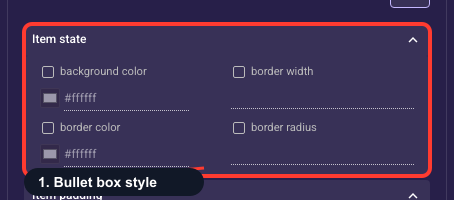
Sets the background color, border, and corner rounding applied to every bullet in the list at once. Use a subtle card background or border only if you want the bullets to read as a grouped card; otherwise the theme defaults look cleanest. Styling once keeps all bullets consistent.
• Bullet background color
Fill behind each feature bullet row. Leave empty for plain bullets on the screen background, or set a subtle tint to group each benefit into its own chip.
• Bullet border width
Thickness (px) of the outline around each bullet; 0 hides it.
• Bullet border color
Color of that outline — only visible once the border width is above 0.
• Bullet corner radius
How rounded each bullet box corner is (px); higher is softer, for pill-shaped benefit chips.
Space inside each bullet
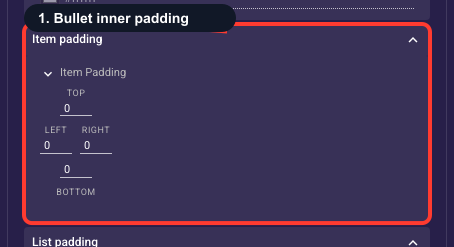
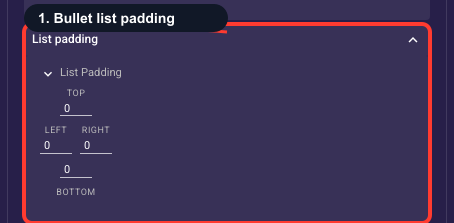
Sets the breathing room inside each bullet, between its text or icon and the bullet's edge, adjustable on the top, bottom, left, and right. Increase it if bullets feel cramped, decrease it to fit more on screen. The theme default is usually fine, so tweak only if the spacing looks off in preview.
Space around the bullet list
Sets the space around the whole list of bullets, separating it from the subtitle above and the plans below. (Bullet padding spaces the inside of one bullet; this spaces the entire group.) Add space if the list feels jammed against the title or the plan cards; the theme default is a safe start.
Style the bullet titles
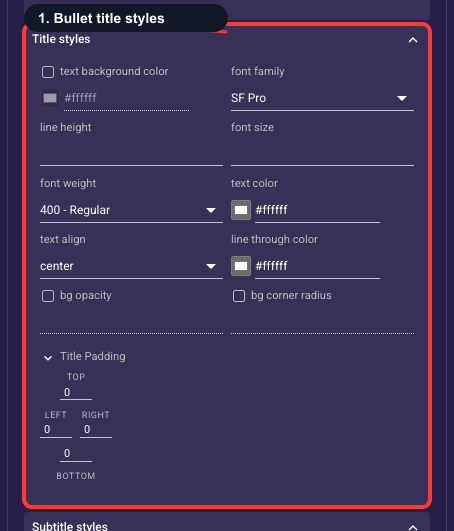
Styles the main line of every feature bullet: font, size, weight, color, alignment, and spacing, applied to all bullets at once. Keep bullet titles bold and easy to read so each benefit lands at a glance. The theme defaults usually work, so change them only if a benefit is hard to read.
• Text background color
An optional fill drawn behind the bullet title text (a highlight pill). Off unless you set it; leave empty for plain text on the screen background.
• Font family
The typeface of the bullet title.
• Line height
Vertical spacing between lines of text — raise it to give multi-line text more breathing room.
• Font size
Text size of the bullet title in pixels.
• Font weight
How bold the text is, from Thin through Bold to Black.
• Text color
The color of the bullet title text. Keep enough contrast with the background that it stays readable.
• Text align
Horizontal alignment of the text: start (left), center, or end (right).
• Strikethrough color
Color of a line-through decoration when the text is struck out (for example, an old price).
• Background opacity
How see-through the text background fill is, from 0% (invisible) to 100% (solid). Only matters when a background color is set.
• Background radius
Corner rounding (px) of the text background fill; higher is softer.
Style the bullet subtitles
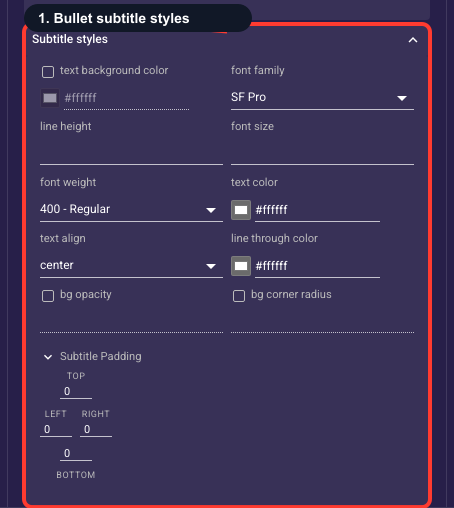
Styles the secondary line under each bullet title: font, size, weight, color, alignment, and spacing, applied to all bullets at once. Keep it smaller and lighter than the bullet title so the benefit itself stays the focus. Leave the theme defaults unless the text is hard to read.
• Text background color
An optional fill drawn behind the bullet subtitle text (a highlight pill). Off unless you set it; leave empty for plain text on the screen background.
• Font family
The typeface of the bullet subtitle.
• Line height
Vertical spacing between lines of text — raise it to give multi-line text more breathing room.
• Font size
Text size of the bullet subtitle in pixels.
• Font weight
How bold the text is, from Thin through Bold to Black.
• Text color
The color of the bullet subtitle text. Keep enough contrast with the background that it stays readable.
• Text align
Horizontal alignment of the text: start (left), center, or end (right).
• Strikethrough color
Color of a line-through decoration when the text is struck out (for example, an old price).
• Background opacity
How see-through the text background fill is, from 0% (invisible) to 100% (solid). Only matters when a background color is set.
• Background radius
Corner rounding (px) of the text background fill; higher is softer.
Style the bullet icons
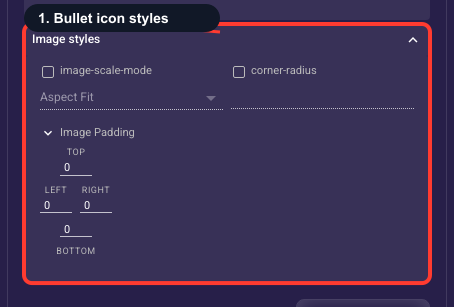
Styles the small icon or image on each bullet: how it sits in its box (fit shows the whole image, fill crops it to cover), how rounded the corners are, and the spacing around it, applied to all bullets at once. Keep icon size and shape consistent so the checklist looks tidy. The theme defaults are a safe start.
• Icon scale mode
How each bullet icon fills its box: Fit shows the whole icon, Fill covers the box (edges may crop).
• Icon corner radius
How rounded each bullet icon’s corners are (px) — raise it for circular avatars or soft-cornered icons.