Paywall Footer — every setting
The bottom of the paywall — the purchase (subscribe) button and its label and box styling, the auto-renew disclosure note, the footer background and element order, and the restore / terms-of-use / privacy-policy legal links with their URLs and styling. This guide documents every setting of the Paywall Footer block, grouped by area. Each setting matches a real control in the screen editor.
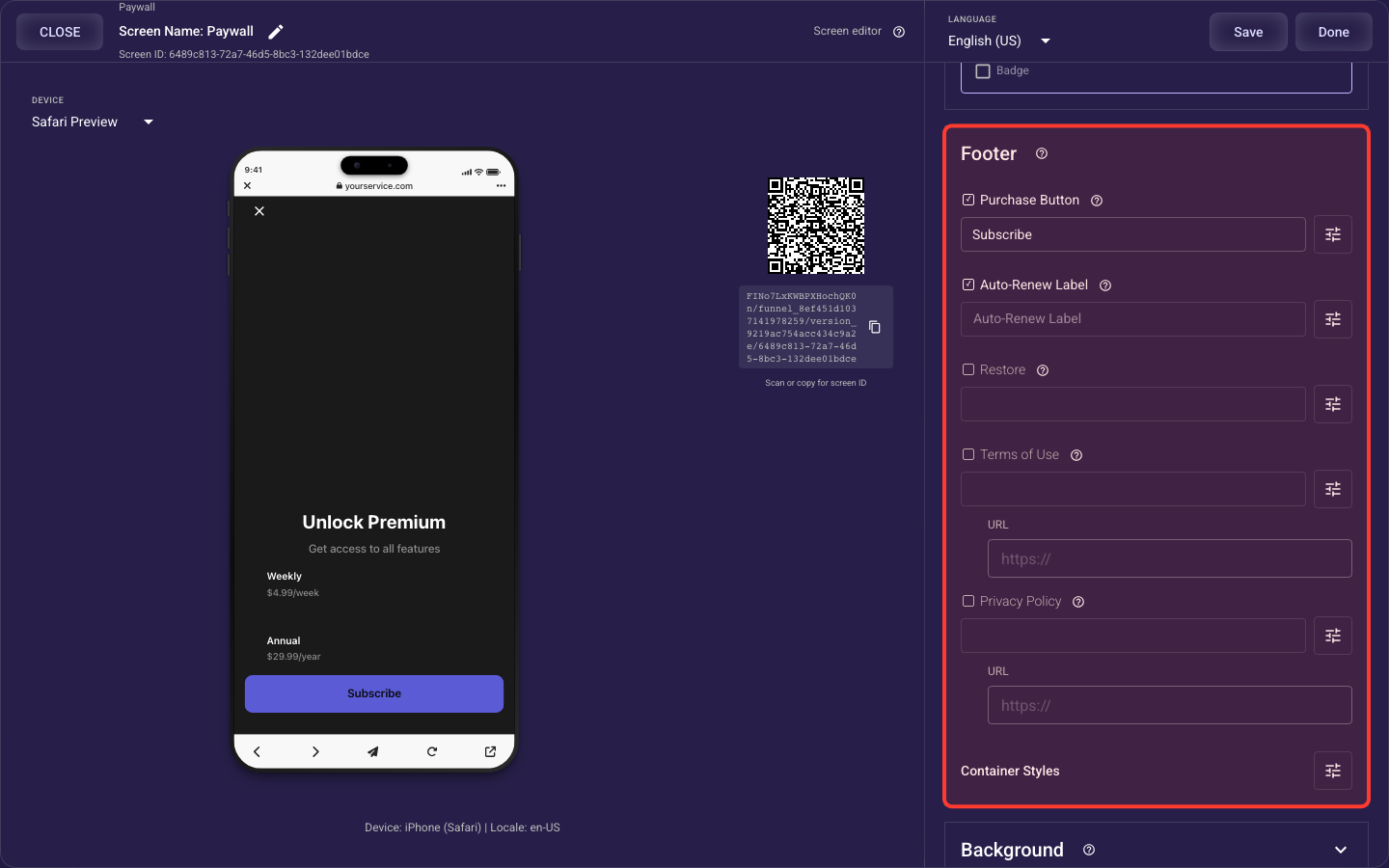
Open the Paywall Footer section in the screen editor to configure its settings.
Applies to: Paywall screens.
Auto-renew text spacing: Adjust the top, bottom, left, and right padding around the disclosure. Start with the defaults and add a little top spacing only when the disclosure needs clearer separation from the purchase button. Start and end padding automatically follow right-to-left languages.
Legal links row spacing: Adjust padding around the complete Restore, Terms, and Privacy row. A small amount of vertical space keeps the legal links below the auto-renew disclosure without crowding it. Start and end padding automatically follow right-to-left languages.
Recover a cancelled checkout: Set the purchase action's cancel destination only when you have already built a connected downsale screen with a cheaper or alternative offer. If no cancel destination is set, cancelling checkout closes the dialog and leaves the visitor on the paywall.
Purchase button
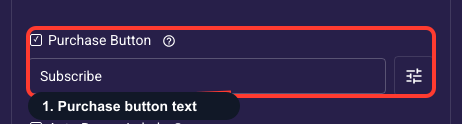
Configure purchase button text
Sets the visible label on the purchase subscribe button (default: Subscribe Now). The text supports template variables like pricing, duration, and custom countdown labels for dynamic personalization.
Style the purchase button label
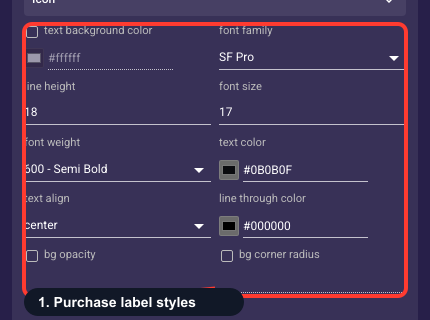
Controls the look of the text inside the purchase button — font, size, weight, color, alignment, and spacing — not the button box itself, which you style under 'Style purchase button box and appearance'. This is your main call-to-action, so make the label large, bold, and high-contrast against the button fill. Weak or hard-to-read button text directly costs you taps and sales.
• Text background color
An optional fill drawn behind the purchase button label text (a highlight pill). Off unless you set it; leave empty for plain text on the screen background.
• Font family
The typeface of the purchase button label.
• Line height
Vertical spacing between lines of text — raise it to give multi-line text more breathing room.
• Font size
Text size of the purchase button label in pixels.
• Font weight
How bold the text is, from Thin through Bold to Black.
• Text color
The color of the purchase button label text. Keep enough contrast with the background that it stays readable.
• Text align
Horizontal alignment of the text: start (left), center, or end (right).
• Strikethrough color
Color of a line-through decoration when the text is struck out (for example, an old price).
• Background opacity
How see-through the text background fill is, from 0% (invisible) to 100% (solid). Only matters when a background color is set.
• Background radius
Corner rounding (px) of the text background fill; higher is softer.
Style the purchase button box
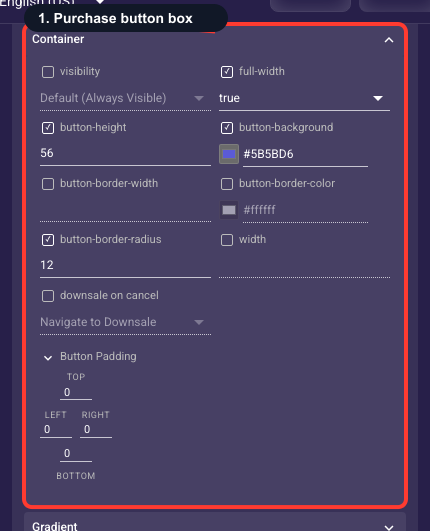
Controls the look of the purchase button itself — fill color, border, corner radius, size, full-width toggle, padding, gradient, shadow, animation, and icon (the label text is styled separately). For ad funnels, a full-width button with a high-contrast accent fill and rounded corners is the proven setup. Make this the boldest element on the screen so the path to purchase is unmistakable.
• Visibility
Show or hide this button entirely. Never hide both buttons, or the screen has no way forward.
• Full width
Stretch the button across the whole bar. Full-width reads as the obvious next step on a phone; turn it off for a button only as wide as its label.
• Button height
Fixed height of the button in pixels. Keep it tap-friendly (≈44px or taller).
• Background color
The button fill color.
• Border width
Thickness (px) of the button outline; 0 hides it.
• Border color
Color of that outline.
• Corner radius
How rounded the button corners are (px); higher is softer.
• Width
Explicit button width — used when Full width is off.
• Button padding
Inner spacing between the label/icon and the button edges (top, right, bottom, left).
Auto-renew note & footer layout
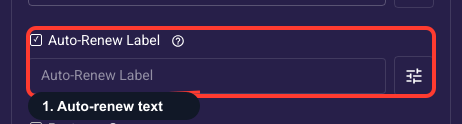
Configure auto-renew disclosure text
Sets the text displayed below the purchase button to explain subscription renewal terms (default: Auto-renews monthly. Cancel anytime.). Supports template variables like duration, price, and custom links.
Auto-renew disclosure styling
Sets the font, size, weight, color, and alignment of the auto-renew disclosure text. Keep it small and quiet relative to your main button — but it must stay clearly readable. App Store and ad-network rules require the renewal terms be legible, so avoid tiny sizes or low-contrast colors that effectively hide the disclosure.
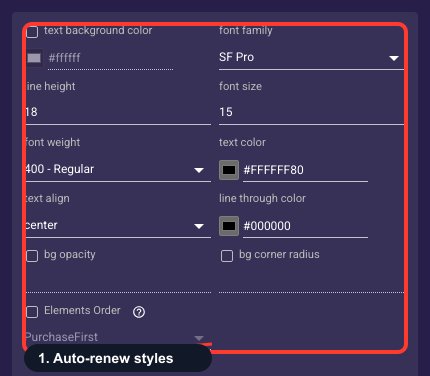
• Text background color
An optional fill drawn behind the auto-renew note text (a highlight pill). Off unless you set it; leave empty for plain text on the screen background.
• Font family
The typeface of the auto-renew note.
• Line height
Vertical spacing between lines of text — raise it to give multi-line text more breathing room.
• Font size
Text size of the auto-renew note in pixels.
• Font weight
How bold the text is, from Thin through Bold to Black.
• Text color
The color of the auto-renew note text. Keep enough contrast with the background that it stays readable.
• Text align
Horizontal alignment of the text: start (left), center, or end (right).
• Strikethrough color
Color of a line-through decoration when the text is struck out (for example, an old price).
• Background opacity
How see-through the text background fill is, from 0% (invisible) to 100% (solid). Only matters when a background color is set.
• Background radius
Corner rounding (px) of the text background fill; higher is softer.
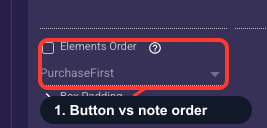
Order the button and renewal note
Sets whether the purchase button sits above the auto-renew disclosure or below it. Button-first is the common, conversion-friendly default. Put the disclosure first when you want the renewal terms visible right above the button so users read them before tapping — often the safer choice for compliance.
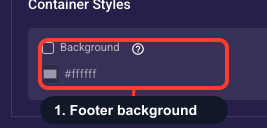
Color the footer background
Sets the fill color of the whole footer block, which holds the purchase button, the auto-renew note, and the legal links (default a dark tone). Pick a color that makes your button pop and keeps the renewal note and legal links readable. If you switch to a light footer, darken those text colors so everything stays legible.
Legal links (restore / terms / privacy)
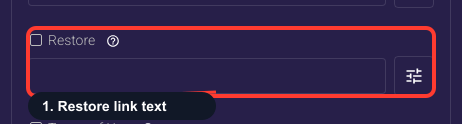
Configure restore purchases link
Sets the text for the restore purchases link (default: Restore Purchases). This link appears in the legal links section below the auto-renew label and allows users to restore prior subscriptions on iOS.
Restore link styling
Sets the font, size, weight, color, and alignment of the footer 'Restore Purchases' link. Style it to match the Terms and Privacy links beside it so the legal row reads as one consistent group — small and muted, but still legible. Don't make it look like your main button.
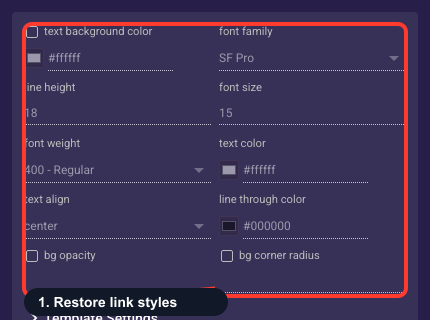
• Text background color
An optional fill drawn behind the restore link text (a highlight pill). Off unless you set it; leave empty for plain text on the screen background.
• Font family
The typeface of the restore link.
• Line height
Vertical spacing between lines of text — raise it to give multi-line text more breathing room.
• Font size
Text size of the restore link in pixels.
• Font weight
How bold the text is, from Thin through Bold to Black.
• Text color
The color of the restore link text. Keep enough contrast with the background that it stays readable.
• Text align
Horizontal alignment of the text: start (left), center, or end (right).
• Strikethrough color
Color of a line-through decoration when the text is struck out (for example, an old price).
• Background opacity
How see-through the text background fill is, from 0% (invisible) to 100% (solid). Only matters when a background color is set.
• Background radius
Corner rounding (px) of the text background fill; higher is softer.
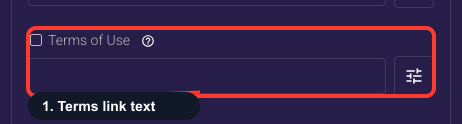
Configure terms of use link
Sets the text for the terms of use link (default: Terms of Use). This link appears in the legal links section and navigates to your terms document when tapped.
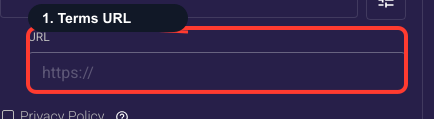
Link your Terms of Use page
The full https:// web address your Terms of Use link opens when tapped. Fill this in for any paid funnel — a live Terms link is effectively required by app stores and ad networks. Leaving it empty disables the link and leaves your paywall non-compliant, so never ship an ad-ready paywall with this blank.
Terms link styling
Sets the font, size, weight, color, and alignment of the Terms of Use link. Keep it consistent with the Restore and Privacy links beside it — small and muted is fine, but it must stay readable. Burying required legal links in unreadable micro-text invites store rejection and ad-network flags.
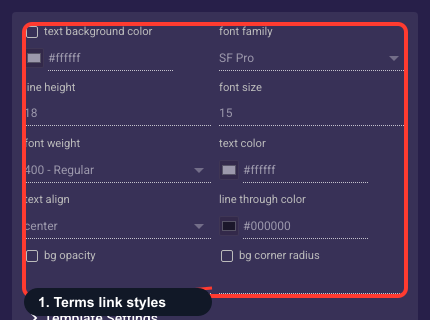
• Text background color
An optional fill drawn behind the terms link text (a highlight pill). Off unless you set it; leave empty for plain text on the screen background.
• Font family
The typeface of the terms link.
• Line height
Vertical spacing between lines of text — raise it to give multi-line text more breathing room.
• Font size
Text size of the terms link in pixels.
• Font weight
How bold the text is, from Thin through Bold to Black.
• Text color
The color of the terms link text. Keep enough contrast with the background that it stays readable.
• Text align
Horizontal alignment of the text: start (left), center, or end (right).
• Strikethrough color
Color of a line-through decoration when the text is struck out (for example, an old price).
• Background opacity
How see-through the text background fill is, from 0% (invisible) to 100% (solid). Only matters when a background color is set.
• Background radius
Corner rounding (px) of the text background fill; higher is softer.
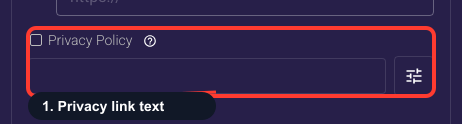
Configure privacy policy link
Sets the text for the privacy policy link (default: Privacy Policy). This link appears in the legal links section and navigates to your privacy document when tapped.
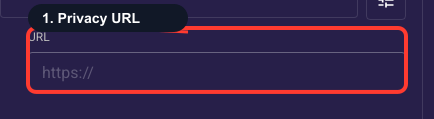
Link your Privacy Policy page
The full https:// web address your Privacy Policy link opens when tapped. Fill this in for any paid funnel — a live Privacy Policy is required by app stores and ad platforms once you collect payment or data. Leaving it empty disables the link and leaves the paywall non-compliant, so don't publish an ad-ready paywall with this blank.
Privacy link styling
Sets the font, size, weight, color, and alignment of the Privacy Policy link. Match it to the Restore and Terms links so the legal row looks unified. Small and muted is fine, but it must stay readable — required legal links hidden in unreadable text can get your paywall rejected.
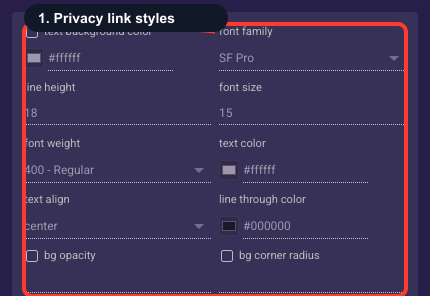
• Text background color
An optional fill drawn behind the privacy link text (a highlight pill). Off unless you set it; leave empty for plain text on the screen background.
• Font family
The typeface of the privacy link.
• Line height
Vertical spacing between lines of text — raise it to give multi-line text more breathing room.
• Font size
Text size of the privacy link in pixels.
• Font weight
How bold the text is, from Thin through Bold to Black.
• Text color
The color of the privacy link text. Keep enough contrast with the background that it stays readable.
• Text align
Horizontal alignment of the text: start (left), center, or end (right).
• Strikethrough color
Color of a line-through decoration when the text is struck out (for example, an old price).
• Background opacity
How see-through the text background fill is, from 0% (invisible) to 100% (solid). Only matters when a background color is set.
• Background radius
Corner rounding (px) of the text background fill; higher is softer.