Paywall Media — every setting
The paywall's featured image or video — its source, how it fills its area, height, corner rounding, spacing, where it sits relative to the header and body, and an optional dark fade overlay for text readability. This guide documents every setting of the Paywall Media block, grouped by area. Each setting matches a real control in the screen editor.
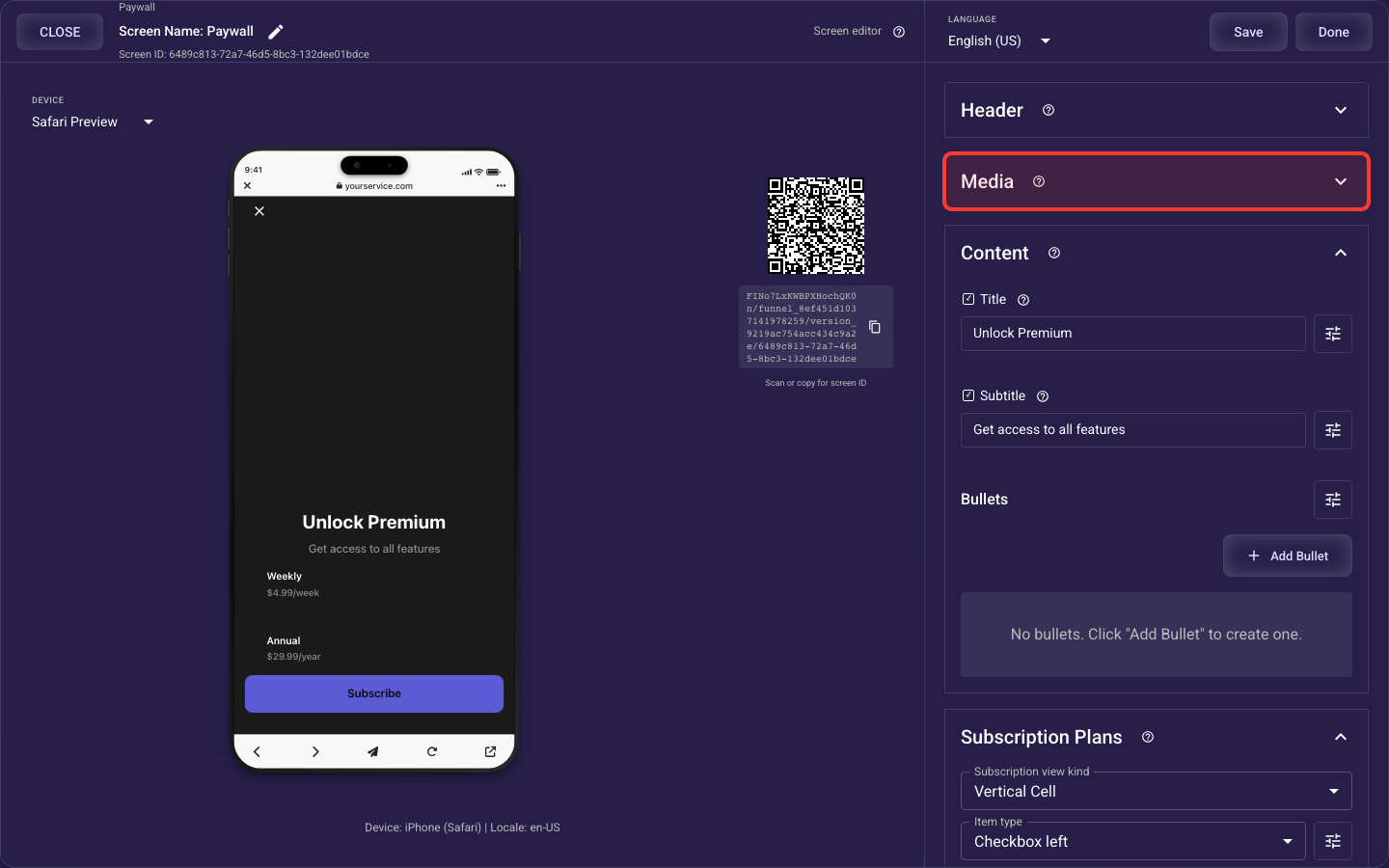
Open the Paywall Media section in the screen editor to configure its settings.
Applies to: Paywall screens.
Image or video source
Show featured media
Turn this on to show a featured image or video at the top of the paywall, or off to hide media and give the plan cards more room. After enabling, choose the media type and upload your asset, otherwise nothing appears. Use media when a visual strengthens the offer; skip it for a tighter, text-only paywall.
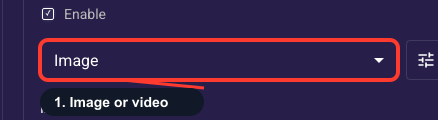
Image or video
Picks whether the featured media is an image or a video. Image is simplest and loads fastest; video can show your product in motion but should be short and auto-playing. Note that switching type clears any asset you already uploaded, so choose first, then upload; picking Video also unlocks the loop option.
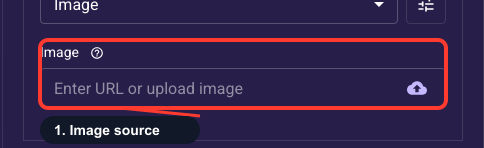
Upload the featured image
Upload (or clear) the hero image shown at the top of the paywall. Use a high-resolution image with its subject centered, since the edges may be cropped depending on your fit setting. If your funnel runs in multiple languages you can upload a different image per language; it appears only when media type is Image, and nothing shows until you upload one.
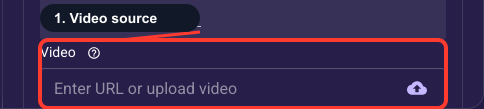
Upload the featured video
Upload (or clear) the hero video shown at the top of the paywall. Keep it short and lightweight (a few seconds, compressed) so it loads fast on mobile data, and remember it auto-plays muted, so the visual must work without sound. If your funnel runs in multiple languages you can upload a different video per language; it appears only when media type is Video, and nothing shows until you upload one.
Size, placement & spacing
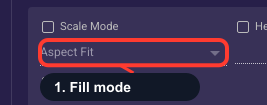
How the media fills its area
Decides how your image or video sits in its space. 'Fit' shows the whole asset but may leave blank bars around it; 'Fill' crops the edges so the area is covered with no gaps. Fill usually looks best for a clean edge-to-edge hero, just keep anything important away from the edges; choose Fit only when the entire image must stay visible.
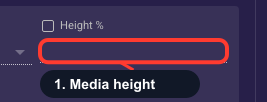
Media height on screen
How much of the screen the featured image or video takes up, as a share of screen height. Keep it moderate (around 30 to 45%) so the plan cards and purchase button stay visible without scrolling; too tall pushes your offer below the fold and costs you sales. Always check the result on a phone-sized preview.
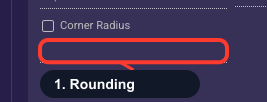
Round the media corners
Sets how rounded the corners of the image or video are. Zero gives sharp edges, which often look best for a full-width hero, while higher values give a soft, card-like look that matches rounded buttons and plan cards. Match it to the rest of your theme's rounding; the default is usually fine.
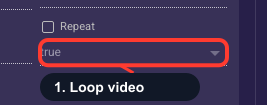
Loop the video
When on, the featured video repeats continuously; when off, it plays once and stops on the last frame. Loop short, ambient clips (a few seconds) so the paywall stays lively and eye-catching; turn it off for a video with a clear ending you don't want replayed. This only appears when the media type is Video.
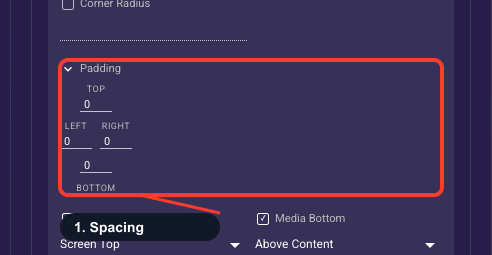
Space around the media
Sets the space between the media and its surroundings on each side: top, right, bottom, and left. Add padding to inset the image or video from the screen edges for a framed look, or set it to zero for a full-bleed, edge-to-edge hero. The theme default is a safe start; adjust only if the media looks too tight or too floaty in preview.
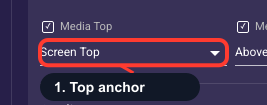
Where media starts vertically
Sets where the image or video begins at the top of the screen relative to the header (back button and progress bar). 'Screen Top' starts media at the very top behind the header for a full-bleed hero look; 'Header Bottom' starts it just under the header so the controls stay clear of the image. Use Header Bottom if the header overlaps your media awkwardly, otherwise Screen Top is the most immersive.
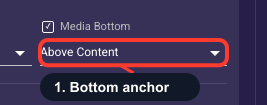
How media meets the text
Sets how the media and the paywall text relate vertically. 'Above Content' keeps the media as a banner with the title, subtitle, and plans stacked below it (safest, always readable); 'Behind Intro Content' layers the title over the media for a magazine-style hero. Start with Above Content; if you choose the overlaid look, turn on the gradient overlay so the text stays legible.
Fade overlay
Dark fade over media
Lays a dark fade over the image or video so any text and buttons placed on top stay readable. Turn it on whenever you layer the headline or content over the media, or when a busy or light image makes text hard to read; leave it off for a clean image with nothing on top. Once on, you can fine-tune its height and color below.
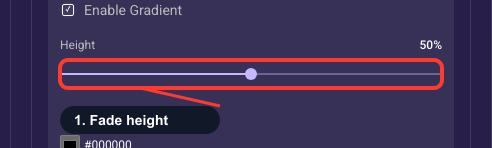
Gradient coverage
How far up the media the dark fade reaches, as a percentage. A low value shades only the bottom edge (enough for text sitting near the bottom); a high value darkens most of the image. Set it just high enough to cover where your overlaid text sits, leaving the rest of the image visible. This only appears when the gradient overlay is turned on.
Gradient overlay color
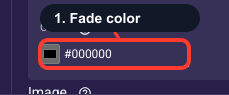
Sets the color of the dark fade laid over your media (default black). Black works best behind white text; choose a dark brand color if you want the fade to feel on-theme. The overlay always fades to clear at the top, so only this base color matters. It appears only when the gradient overlay is turned on.