Paywall Subscriptions — every setting
The plan picker — how the subscription cards are arranged, where the selection checkbox sits, the plans themselves, the selected/unselected card styling and spacing, and each plan's name / price / note / billing-period labels, badge, and checkbox styling. This guide documents every setting of the Paywall Subscriptions block, grouped by area. Each setting matches a real control in the screen editor.
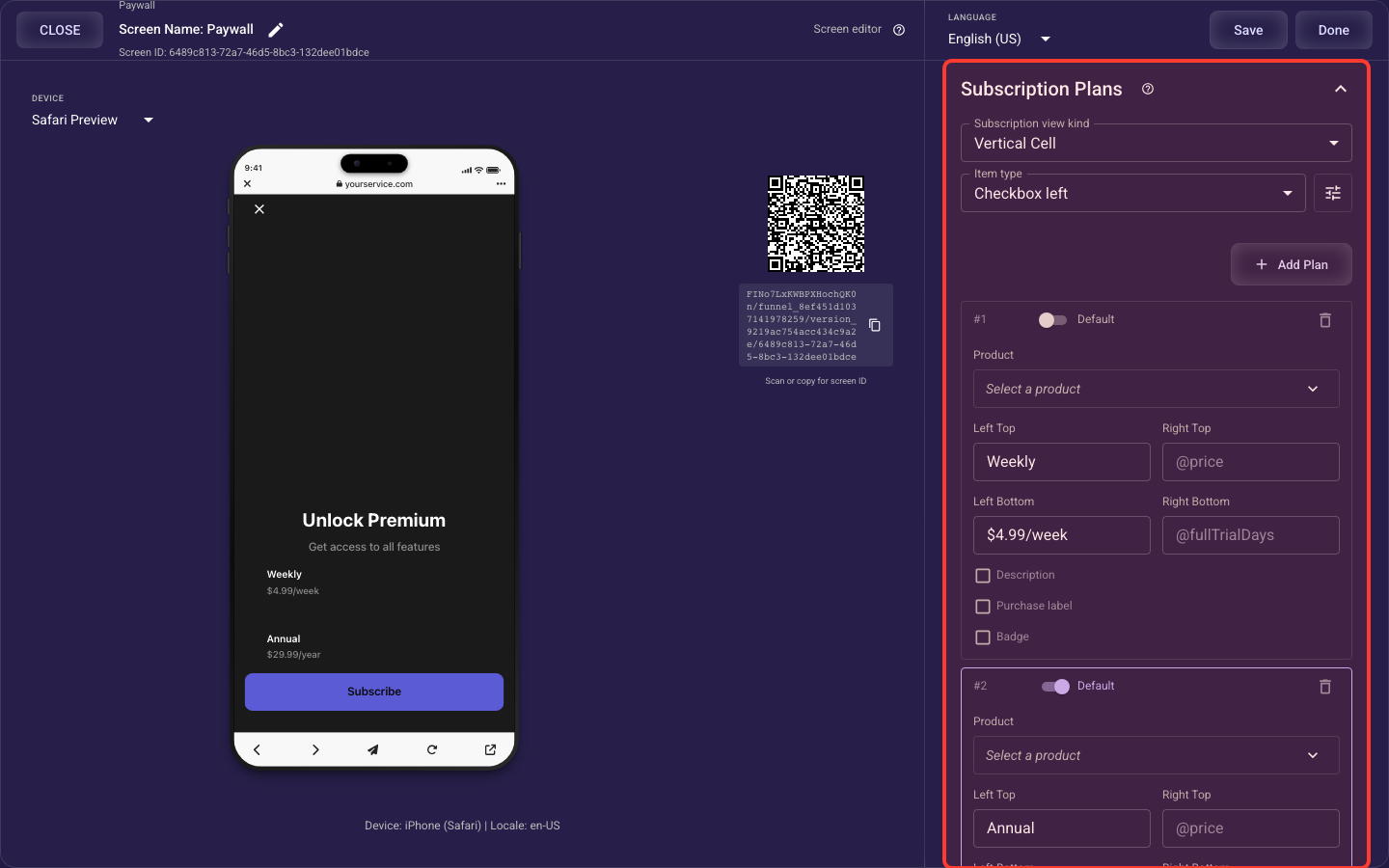
Open the Paywall Subscriptions section in the screen editor to configure its settings.
Applies to: Paywall screens.
Plans & arrangement
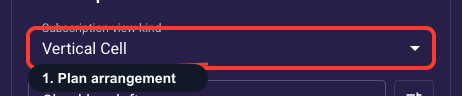
Plan card arrangement
Choose how the plan cards are laid out. Vertical stacks them one under another, which reads best on mobile and works well for 2 to 4 plans; Horizontal lines them up side by side as compact cards, good for 2 short price options you want compared at a glance. Start with Vertical unless you specifically need a side-by-side comparison.
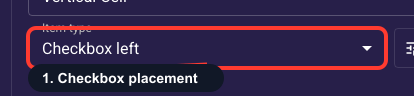
Checkbox placement on plans
Choose where the selection checkbox sits on each plan card: left, right, or hidden. Left or right makes selecting a plan obvious; Hidden removes the checkbox and lets the highlighted card itself signal the choice for a cleaner look, but only if your selected style is clearly distinct. Left is a safe default. This also works together with the checkbox styling field below.
Subscription plans
The list of plans the user can buy. Each plan must be linked to a real product in your connected Stripe account, or checkout will fail when you publish. Per plan you set its four corner labels (top-left = plan name, bottom-left = description, top-right = price, bottom-right = billing period) and an optional badge. Mark your best-value plan as selected by default, since the pre-selected plan converts most often. Use 'Add Plan' to add rows.
Plan card appearance & spacing
Unselected plan style
How a plan card looks before the user taps it: background color, border, and spacing. Keep this neutral and understated so the chosen plan can clearly stand out against it. The contrast between this and the Selected style is what tells users which plan they've picked, so never make the two look the same.
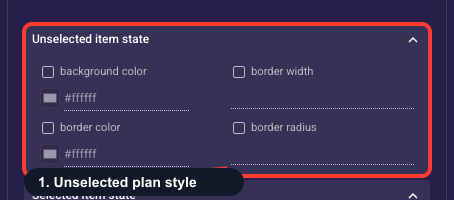
• Background color
Fill color of an unselected plan cell.
• Border width
Outline thickness (px) of an unselected plan cell; 0 hides it.
• Border color
Outline color of an unselected plan cell — visible once the width is above 0.
• Corner radius
How rounded an unselected plan cell corners are (px); higher is softer.
Selected plan style
How a plan card looks once it's the chosen one: background color, border, and spacing. Make it clearly stand out from the unselected cards, for example a brand-colored border or filled background, so the user is never unsure which plan they're about to buy. Crisp selected styling removes hesitation right before checkout.
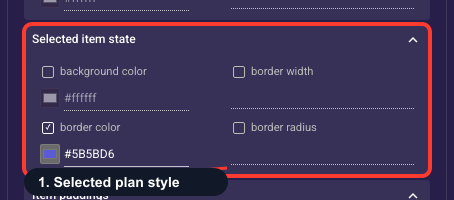
• Background color
Fill color of the selected plan cell.
• Border width
Outline thickness (px) of the selected plan cell; 0 hides it.
• Border color
Outline color of the selected plan cell — visible once the width is above 0.
• Corner radius
How rounded the selected plan cell corners are (px); higher is softer.
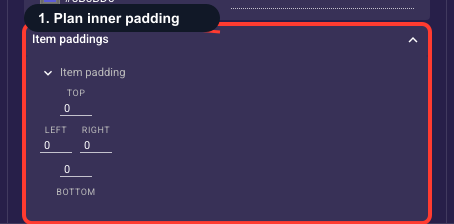
Space inside each plan card
Sets the padding inside each plan card, between its labels and the card edge, on the top, bottom, left, and right. Increase it to make cards feel roomier and easier to tap, decrease it to fit more plans on screen. The theme default is usually fine; adjust only if cards look cramped in preview.
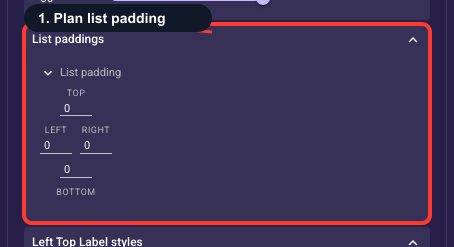
Space around the plan list
Sets the space around the whole block of plans, between the list and the screen edges and the content above and below it. (Card padding spaces the inside of one plan; this spaces the entire group.) Add space if the plans feel jammed against the body copy or the purchase button; the theme default is a safe start.
Per-plan labels, badge & checkbox
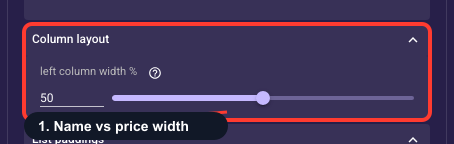
Plan name vs. price width
Sets how much of each plan card's width goes to the left labels (plan name and description), leaving the rest for the right labels (price and billing period). Around 60-70% usually gives names enough room while keeping prices aligned on the right. Lower it if prices look cramped, raise it if plan names wrap awkwardly.
Style the plan name (top-left)
Styles the top-left label on every plan card, which usually holds the plan name like 'Annual': font, size, weight, color, alignment, and spacing, applied to all plans at once. This only controls how it looks; you edit each plan's actual name in the plan list. Make plan names bold and legible so they're easy to compare; theme defaults usually work.
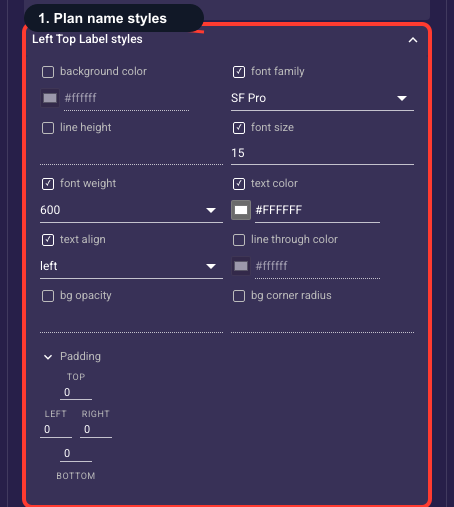
• Text background color
An optional fill drawn behind the plan name text (a highlight pill). Off unless you set it; leave empty for plain text on the screen background.
• Font family
The typeface of the plan name.
• Line height
Vertical spacing between lines of text — raise it to give multi-line text more breathing room.
• Font size
Text size of the plan name in pixels.
• Font weight
How bold the text is, from Thin through Bold to Black.
• Text color
The color of the plan name text. Keep enough contrast with the background that it stays readable.
• Text align
Horizontal alignment of the text: start (left), center, or end (right).
• Strikethrough color
Color of a line-through decoration when the text is struck out (for example, an old price).
• Background opacity
How see-through the text background fill is, from 0% (invisible) to 100% (solid). Only matters when a background color is set.
• Background radius
Corner rounding (px) of the text background fill; higher is softer.
Style the plan note (bottom-left)
Styles the bottom-left label on every plan card, usually the short plan description or trial note: font, size, weight, color, alignment, and spacing, applied to all plans at once. This sets only the look; you write the actual text per plan in the plan list. Keep it smaller and lighter than the plan name; theme defaults are a safe start.
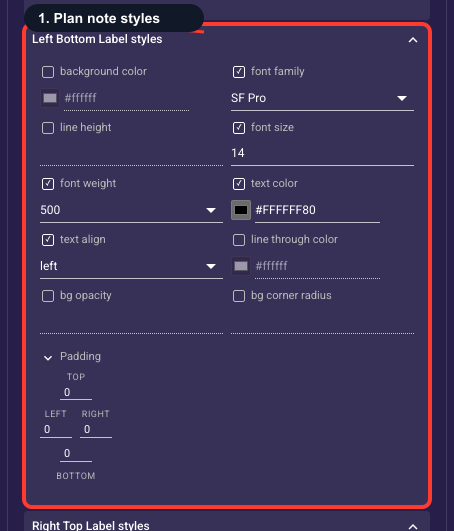
• Text background color
An optional fill drawn behind the plan note text (a highlight pill). Off unless you set it; leave empty for plain text on the screen background.
• Font family
The typeface of the plan note.
• Line height
Vertical spacing between lines of text — raise it to give multi-line text more breathing room.
• Font size
Text size of the plan note in pixels.
• Font weight
How bold the text is, from Thin through Bold to Black.
• Text color
The color of the plan note text. Keep enough contrast with the background that it stays readable.
• Text align
Horizontal alignment of the text: start (left), center, or end (right).
• Strikethrough color
Color of a line-through decoration when the text is struck out (for example, an old price).
• Background opacity
How see-through the text background fill is, from 0% (invisible) to 100% (solid). Only matters when a background color is set.
• Background radius
Corner rounding (px) of the text background fill; higher is softer.
Style the price (top-right)
Styles the top-right label on every plan card, usually the price: font, size, weight, color, alignment, and spacing, applied to all plans at once. The price value itself comes from the linked Stripe product, not here. Make the price bold and prominent so it's easy to compare across plans; theme defaults usually work.
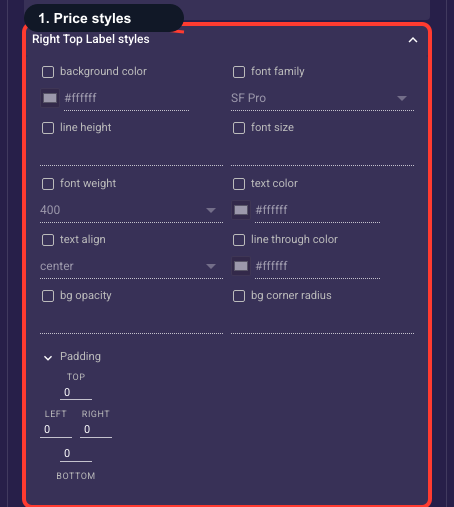
• Text background color
An optional fill drawn behind the price text (a highlight pill). Off unless you set it; leave empty for plain text on the screen background.
• Font family
The typeface of the price.
• Line height
Vertical spacing between lines of text — raise it to give multi-line text more breathing room.
• Font size
Text size of the price in pixels.
• Font weight
How bold the text is, from Thin through Bold to Black.
• Text color
The color of the price text. Keep enough contrast with the background that it stays readable.
• Text align
Horizontal alignment of the text: start (left), center, or end (right).
• Strikethrough color
Color of a line-through decoration when the text is struck out (for example, an old price).
• Background opacity
How see-through the text background fill is, from 0% (invisible) to 100% (solid). Only matters when a background color is set.
• Background radius
Corner rounding (px) of the text background fill; higher is softer.
Style the billing period (bottom-right)
Styles the bottom-right label on every plan card, usually the billing period like 'per month': font, size, weight, color, alignment, and spacing, applied to all plans at once. The text follows the linked product; this only sets the look. Keep it small and quiet under the price; theme defaults are a safe start.
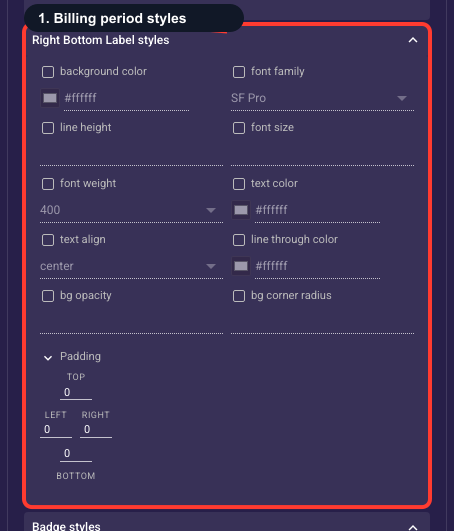
• Text background color
An optional fill drawn behind the billing period text (a highlight pill). Off unless you set it; leave empty for plain text on the screen background.
• Font family
The typeface of the billing period.
• Line height
Vertical spacing between lines of text — raise it to give multi-line text more breathing room.
• Font size
Text size of the billing period in pixels.
• Font weight
How bold the text is, from Thin through Bold to Black.
• Text color
The color of the billing period text. Keep enough contrast with the background that it stays readable.
• Text align
Horizontal alignment of the text: start (left), center, or end (right).
• Strikethrough color
Color of a line-through decoration when the text is struck out (for example, an old price).
• Background opacity
How see-through the text background fill is, from 0% (invisible) to 100% (solid). Only matters when a background color is set.
• Background radius
Corner rounding (px) of the text background fill; higher is softer.
Plan badge
An optional ribbon on a plan card, like 'Most Popular' or 'Best Value', used to steer attention to the plan you most want sold. The styling (color, border, position, spacing) is shared across all plans, but the badge text is set per plan, so add text only to the one plan you're promoting. A single well-placed badge lifts conversion; badging every plan cancels the effect.
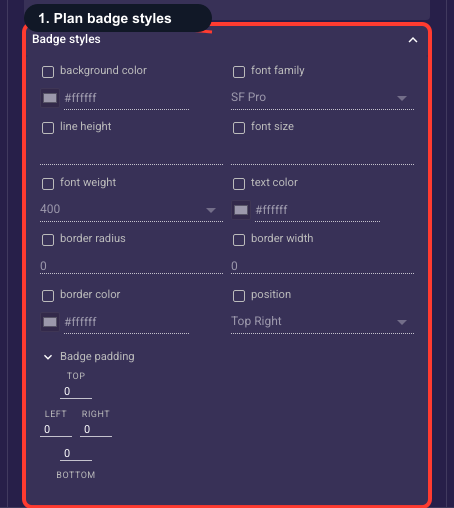
• Badge background color
Fill of the badge chip (e.g. "Best value"). Sits on the plan card corner.
• Badge font family
Typeface of the badge label.
• Badge line height
Vertical line spacing of the badge text — rarely needs changing for a one-word badge.
• Badge font size
Text size (px) of the badge; keep it small so it reads as a tag, not a heading.
• Badge font weight
How bold the badge text is.
• Badge text color
Color of the badge label; keep enough contrast with the badge background.
• Badge border radius
Corner rounding (px) of the badge chip / its outline; higher is more pill-like.
• Badge border width
Outline thickness (px) of the badge; 0 hides it.
• Badge border color
Color of the badge outline.
• Badge position
Where the badge sits on the plan card: top-left, top-center, or top-right.
Style the plan checkbox
Sets the colors of the per-plan checkbox: its unselected (empty) color and its selected (checked) color. It only appears when checkbox placement is set to Left or Right, and is hidden when placement is 'No checkbox'. Use a clear, on-brand selected color so the chosen plan is unmistakable; it defaults to your theme accent.
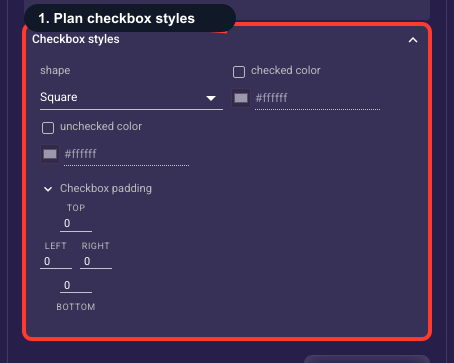
• Checkbox shape
The selection mark shape — square or circle.
• Checked color
Color of the checkbox when its plan is the selected one.
• Unchecked color
Color of the checkbox on the non-selected plans.