Roller — every setting
A spinning wheel picker — the data type, the wheels and their values (text lists or number ranges), the selected-value label styling, and the picker container’s background, borders, corner radius and padding. This guide documents every setting of the Roller block, grouped by area. Each setting matches a real control in the screen editor.
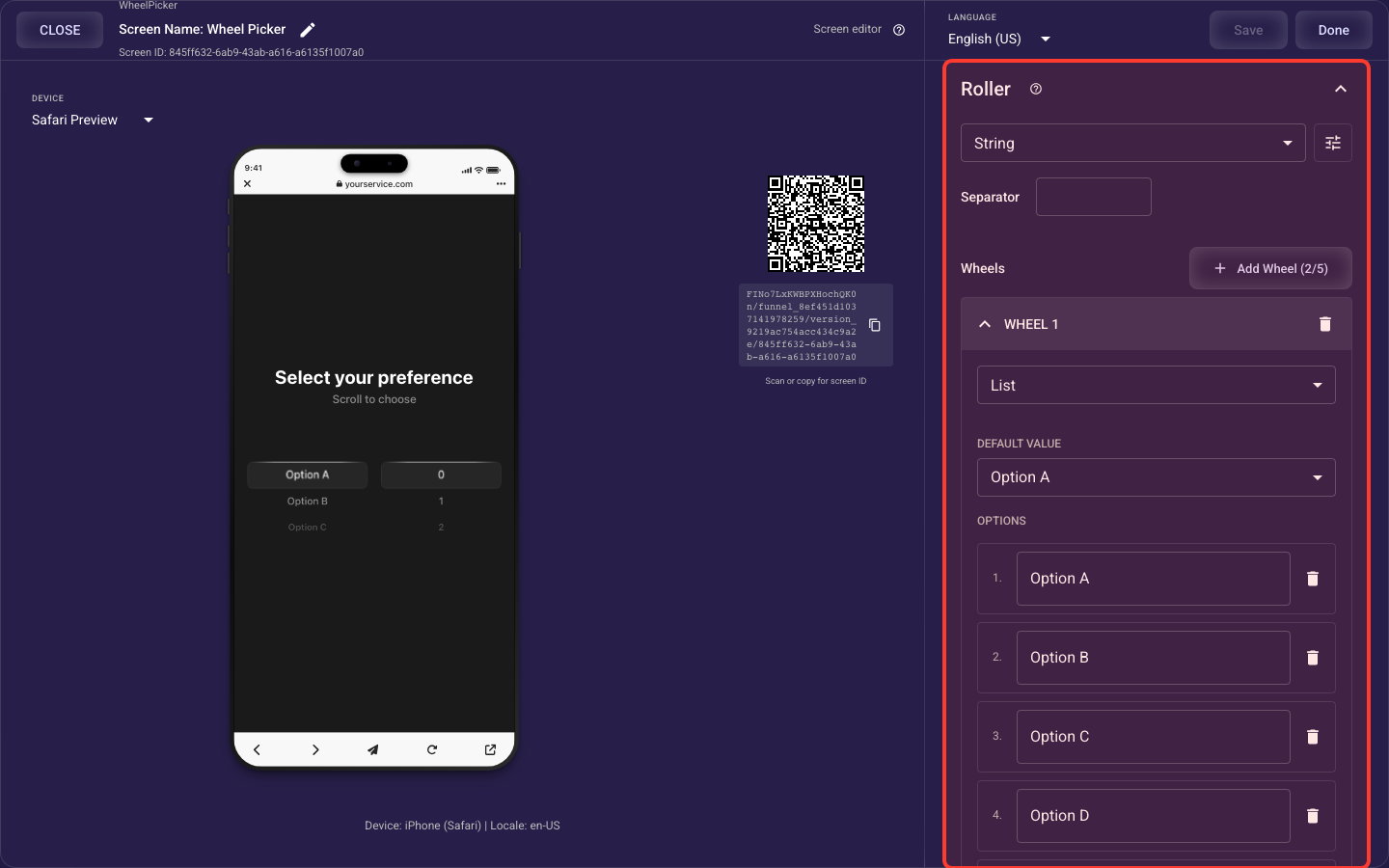
Open the Roller section in the screen editor to configure its settings.
Applies to: Wheel Picker screens.
Wheels & values
Text choices or numbers
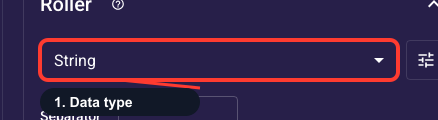
Chooses what the picker collects: String for text choices, which allows up to 5 side-by-side wheels (such as month / day / year), or Integer for a single numeric range (such as age or quantity). Set this first — it limits Integer to one wheel, unlocks up to five wheels for String, and changes how each wheel's options are set up below.
Joiner between wheel values
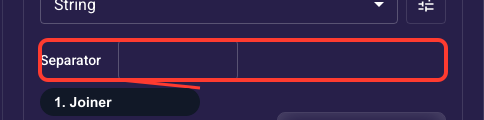
The character or characters used to join selections from multiple wheels into one combined value — for example '/' turns two wheels into 'Large/Red', or a space joins them with a gap. This only matters when you have more than one wheel; leave it as-is for a single-wheel picker. Choose a separator that reads naturally in the answer you'll store and reuse later in the funnel.
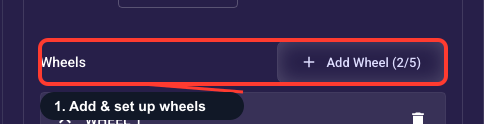
Add and set up wheels
The spinning wheels users scroll to make their choice. Each wheel is either a List of text options or a Range of numbers; use Add Wheel to add more (up to 5 with the String data type, only 1 with Integer), then expand a wheel to set its type, options, and starting value. Each wheel's selection is saved as a variable you can reuse later for personalized copy or to route users down different paths.
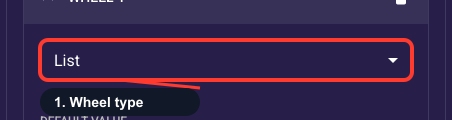
List of options or number range
Sets how this wheel's values are built: List means you type each option yourself (sizes, labels, months), while Range means you set a from/to span and the wheel fills in every number between, such as 1 to 10. Use List for arbitrary text choices and Range for evenly-spaced numbers. Note that switching between them clears the options you've already entered for this wheel.
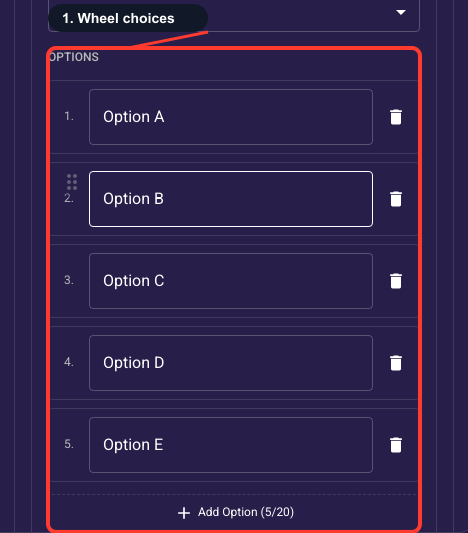
Edit the wheel's choices
The text choices shown on a List-mode wheel. Add, edit, drag to reorder, or delete options (1-20 allowed). The order here is the order users scroll through, so place the most common choices near the top where the starting value lands. Each option is per-language, so translate them if your funnel runs in more than one language.
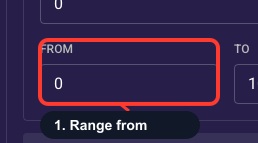
Lowest number on the wheel
The smallest number a Range-mode wheel starts at. Together with the 'to' value it sets the span users can scroll — for example from 1 to 10 lets them pick any number from 1 through 10. Keep this lower than 'to', and set it to the smallest realistic answer for your question, such as a minimum age or quantity.
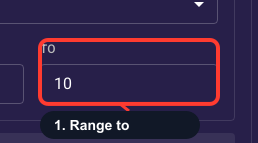
Highest number on the wheel
The largest number a Range-mode wheel ends at. Together with the 'from' value it sets the span users can scroll — for example from 1 to 10 lets them pick any number from 1 through 10. Keep this higher than 'from', and set it to the largest realistic answer for your question so users aren't offered absurd values.
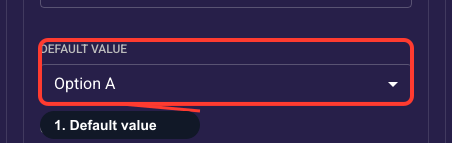
Pre-selected starting value
The value already showing when the screen loads. For List wheels, pick one of your options; for Range wheels, pick any number within the from/to span. Pre-selecting the most common answer reduces friction and prevents accidental empty or extreme submissions — leave it empty only if you truly want nothing chosen up front.
Selection label styles
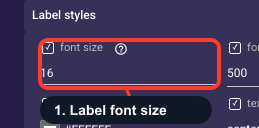
Size of the selection label
Text size of the label that shows the user's current choice above the wheels (0-50, default 18). 16-22 keeps the chosen value clearly readable; very small or 0 effectively hides it. Increase it when you want the selection to stand out as a confirmation of what the user picked.
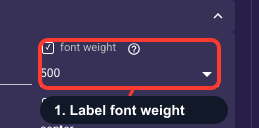
Thickness of the label text
How heavy the selection label looks, from 300 (Light) to 900 (Black); default 400 (Regular). Use 600-700 (Semibold/Bold) to make the chosen value read as a clear confirmation, or keep it at 400 if it should sit quietly above the wheels. Match it to the weight of your other body text for a consistent look.
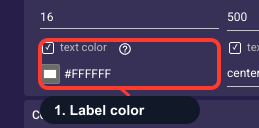
Color of the selection label
Color of the label text that shows the user's current choice above the wheels (default black, #000000). Pick a color with strong contrast against the container background so the chosen value stays easy to read, ideally your theme's main text color for consistency. This affects only the label, not the wheel options themselves.
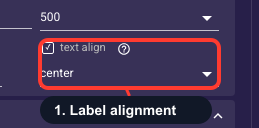
Where the label sits
Horizontal position of the selection label within its container: left, center, or right (default center). Center usually lines up with the centered wheels and is the safe choice; switch to left or right only to align the label with other text or a specific layout. This is purely visual and does not change the value the user selected.
Picker container styles
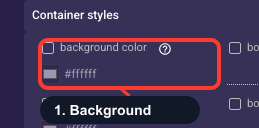
Background behind the wheels
Fill color behind the spinning wheels (default white, #ffffff). Choose a color that contrasts enough with the screen background so the picker reads as its own distinct card and the wheel values stay legible. A subtle off-white or light tint often separates the picker from the page better than pure white.
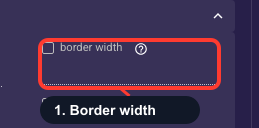
Thickness of the picker outline
Width in pixels of the outline around the picker container (0-50, default 1). Set it to 0 for no border and rely on the background color alone, or use 1-2px for a clean, defined edge. The border color setting below only takes effect when this is greater than 0.
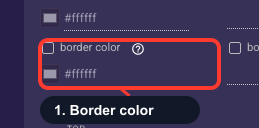
Color of the picker outline
Color of the outline around the picker container (default light gray, #E0E0E0). Use a light neutral for a subtle card edge, or your accent color to make the picker stand out on the screen. It only shows when the border thickness above is greater than 0.
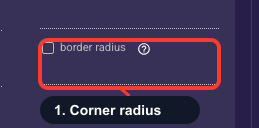
Roundness of the corners
How rounded the four corners of the picker container are, in pixels (0-50, default 12). 0 gives sharp square corners; higher values look softer and more modern. Match it to the corner roundness of your buttons and other cards so the whole funnel feels consistent.
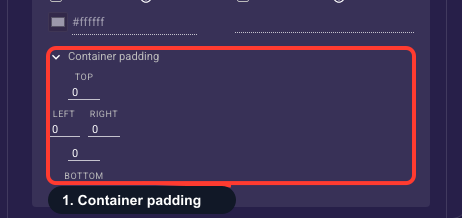
Space inside the picker
Sets the empty space, in pixels, inside the picker container on each side: top, right, bottom, left, between the border and the spinning wheels. The default is usually a small value; increase it to give the wheels breathing room, or keep it tight for a compact picker. A clean, uncluttered picker feels effortless to use, which helps visitors commit their answer and continue through the funnel.