Stepper — every setting
An auto-advancing progress bar that steps through segments — the progress layout, total playback time, the bar’s colours / thickness / padding, the media-area split, and each step’s title / subtitle / description / image styles. This guide documents every setting of the Stepper block, grouped by area. Each setting matches a real control in the screen editor.
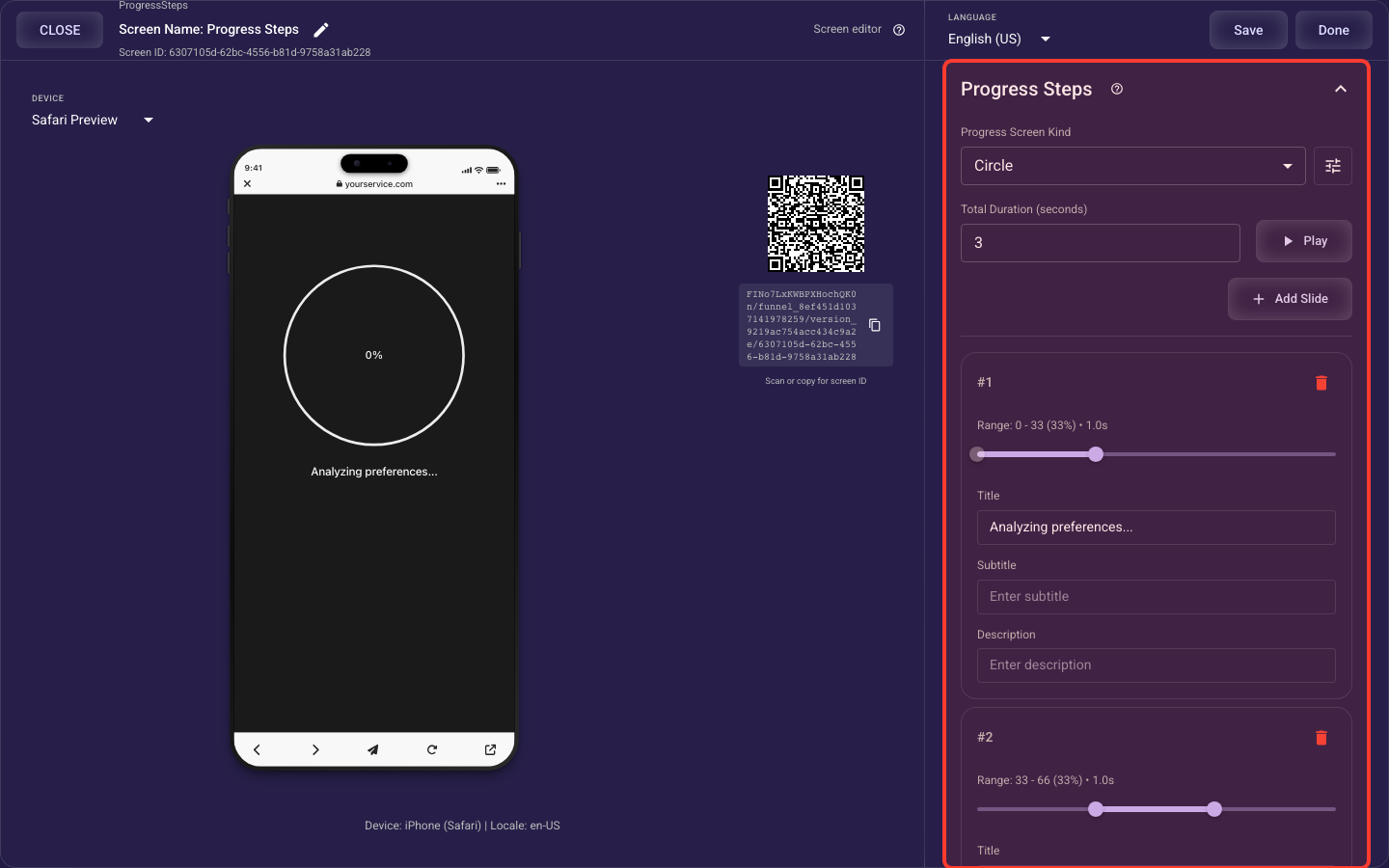
Open the Stepper section in the screen editor to configure its settings.
Applies to: Progress Steps screens.
Progress layout & playback
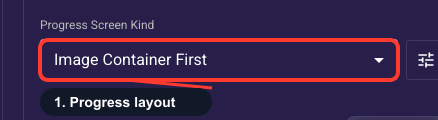
Select progress stepper layout
Determines the visual layout for progress steps. Circle displays steps as an orbital arrangement (no image container); Image Container First and Chart Container First show image/text in a container with progress bar. Defines which content elements are shown in each segment (image visibility, title, subtitle, description).
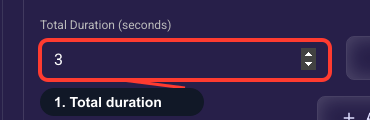
How long the progress runs
Total time, in seconds (1-120), for the progress sequence to advance through all its steps before the screen continues. Aim for about 4-8 seconds: long enough to feel like real work is happening for the user, short enough to avoid drop-off. Use the play/pause preview to test the pacing against your step text.
Progress bar styles
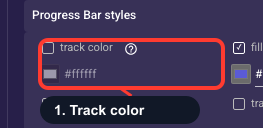
Color of the empty track
Color of the unfilled part of the progress bar — the portion not yet completed. Defaults to light gray (#E0E0E0), which works for most screens. Keep it clearly lighter than the fill color so the user can read their progress at a glance, or match your page background for a subtler look.
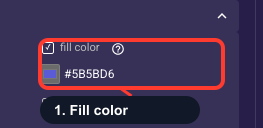
Color of the completed portion
Color of the filled part of the progress bar that grows as the sequence advances, signaling completion to the user. Defaults to green (#4CAF50). Use your brand accent or a clearly positive color, and keep strong contrast against the empty track so progress reads instantly.
How thick the progress bar is
Height of the filled bar in pixels (0-50, default 4px). 4-8px reads as a clean, modern bar; go thicker only for a bold, attention-grabbing indicator. Set it equal to or greater than the track thickness so the fill sits flush over the track instead of looking sunken.
How thick the empty track is
Height of the background track in pixels (0-50, default 4px). Keep it equal to the fill thickness for a standard flat bar — the safe choice for most screens. Make it larger than the fill only if you want a recessed groove look, since mismatched values change how the fill sits inside the track.
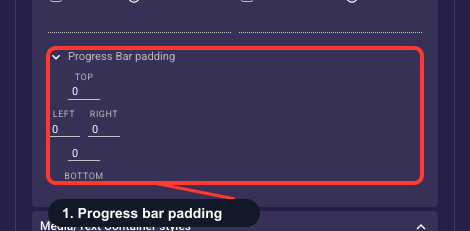
Space around the progress bar
Sets the empty space, in pixels, on each side of the progress bar: top, right, bottom, left. The default is usually 0 for a tight bar that sits close to your content; add top and bottom padding to give it room from the title or image above and below. On an ad funnel a progress bar with a little breathing room reads as a quick, low-effort flow, which keeps people moving forward.
Media area sizing
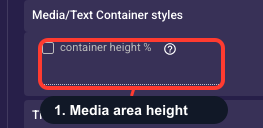
Split between media and progress
Percentage of the screen's vertical space (0-100, default 50%) given to the image/text area; the rest goes to the progress area. Raise it above 50% when your image or step text needs more room, or lower it to make the progress bar more prominent. This appears only for the Image First or Chart First layouts and is hidden for the orbital Circle layout.
Step text & image styles
Configure segment title text
Text styling for segment titles including font size, weight, family, color, line height, and letter spacing. Title text is editable per segment with template variable support (@variable, @link, @countdown).
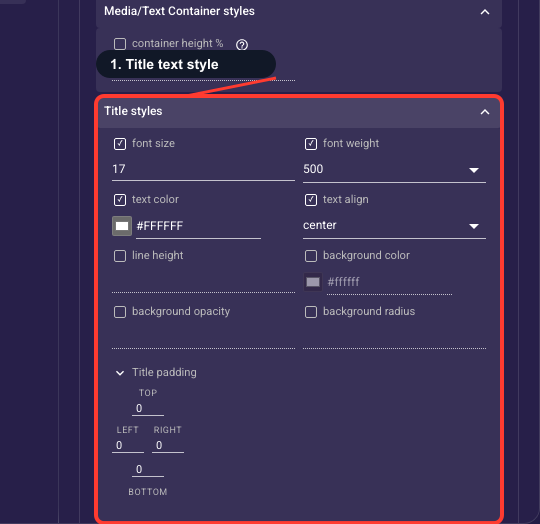
• Font size
Text size (px) of the step title.
• Font weight
How bold the title is.
• Text color
Title color.
• Text align
Left, center, or right alignment of the title.
• Line height
Vertical spacing between title lines.
• Background color
Fill drawn behind the title text.
• Background opacity
Transparency of that title background (0–100%).
• Background radius
Corner rounding of the title background.
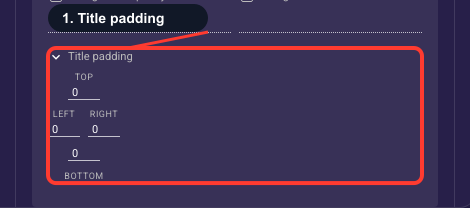
Space around the title
Sets the empty space, in pixels, on each side of the step title: top, right, bottom, left. The default is usually 0; add bottom padding to separate the title from the subtitle below, or side padding to keep long titles off the screen edges. A clear, uncrowded title is the first thing visitors read, so the small spacing tweak helps them grasp the offer fast and stay in the funnel.
Configure segment subtitle text
Text styling for segment subtitles including font size, weight, family, color, line height, and letter spacing. Subtitle text is editable per segment with template variable support.
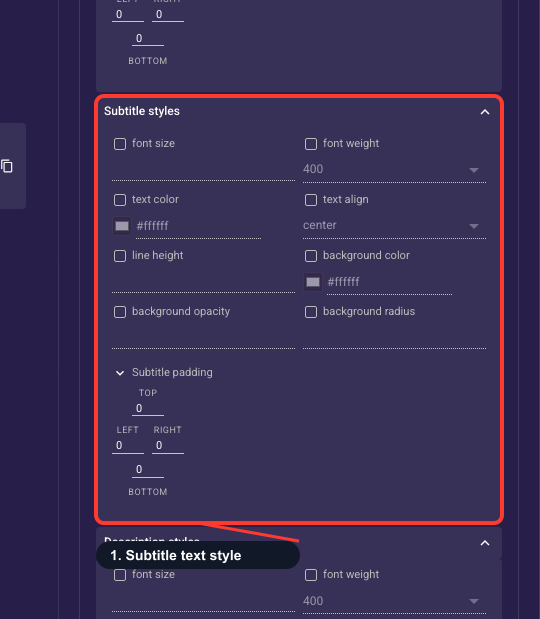
• Font size
Text size (px) of the step subtitle.
• Font weight
How bold the subtitle is.
• Text color
Subtitle color.
• Text align
Left, center, or right alignment of the subtitle.
• Line height
Vertical spacing between subtitle lines.
• Background color
Fill drawn behind the subtitle text.
• Background opacity
Transparency of that subtitle background (0–100%).
• Background radius
Corner rounding of the subtitle background.
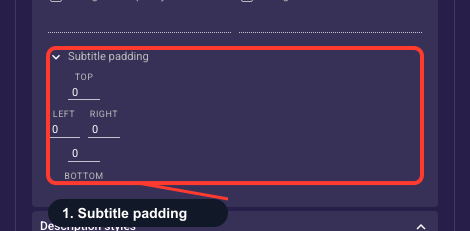
Space around the subtitle
Sets the empty space, in pixels, on each side of the step subtitle: top, right, bottom, left. The default is usually 0; add top padding to set the subtitle off from the title above and bottom padding to separate it from the description below. Adjust it only when the subtitle feels cramped against neighboring text, so the supporting line stays easy to scan and reinforces your pitch.
Configure segment description text
Text styling for segment descriptions including font size, weight, family, color, line height, and letter spacing. Description text is editable per segment with template variable support.
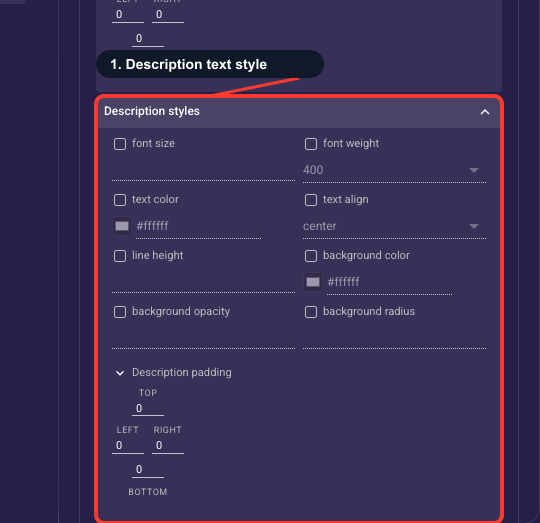
• Font size
Text size (px) of the step description.
• Font weight
How bold the description is.
• Text color
Description color.
• Text align
Left, center, or right alignment of the description.
• Line height
Vertical spacing between description lines.
• Background color
Fill drawn behind the description text.
• Background opacity
Transparency of that description background (0–100%).
• Background radius
Corner rounding of the description background.
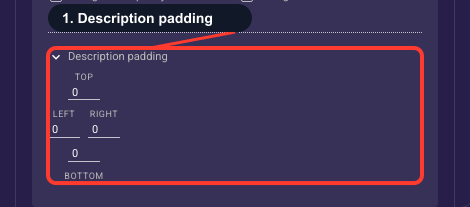
Space around the description
Sets the empty space, in pixels, on each side of the step description: top, right, bottom, left. The default is usually 0; add top padding to separate the description from the subtitle above, or side padding to keep multi-line text off the screen edges. Comfortable spacing makes longer copy easy to read, which keeps visitors absorbing your value and tapping through.
Style the step image
Controls how each step's image looks: how it scales (fill = cover the box and crop overflow, fit = show the whole image with possible gaps, crop, or tile to repeat), corner rounding, width and height, and tile repeat. Use fit for logos or illustrations you don't want cropped, and fill for photos that should fully cover the box. This appears only for the Image First or Chart First layouts and is hidden for the orbital Circle layout.
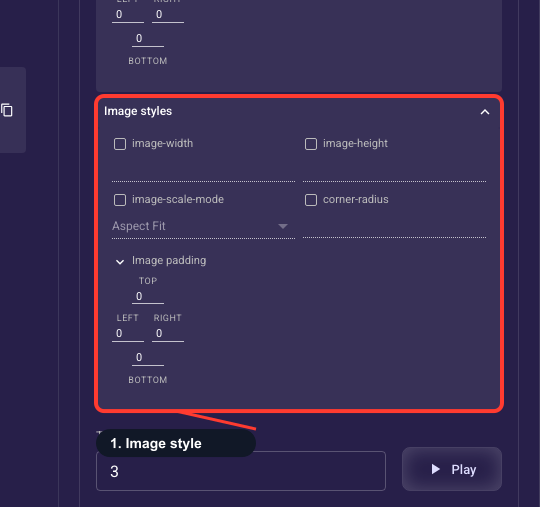
• Image width
Width (px) of each step's image.
• Image height
Height (px) of each step's image.
• Scale mode
How the image fills its box: Fit shows the whole image, Fill covers the box (edges may crop), Crop trims to the box, Tile repeats it.
• Corner radius
How rounded the image corners are (px).
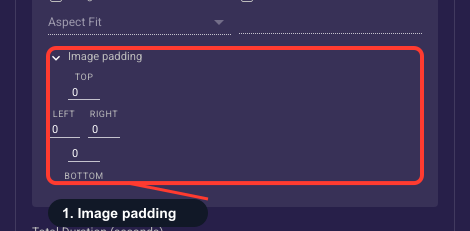
Space around the image
Sets the empty space, in pixels, on each side of the step image: top, right, bottom, left. The default is usually 0; add padding so the image does not touch the title or screen edges and sits balanced in its container. A well-framed visual carries the emotional pull on an ad landing page, so adjust this when the image looks cramped or off-center. This control appears only for the Image First or Chart First layouts.