Sticky Container — every setting
A floating bar pinned to the bottom of a Flexible Layout screen so the main button stays visible and tappable while content scrolls — its background bar (colour, opacity, corner radius, outline), the spacing from the edges and around the button, and whether it holds a standard or purchase button. This guide documents every setting of the Sticky Container block, grouped by area. Each setting matches a real control in the screen editor.
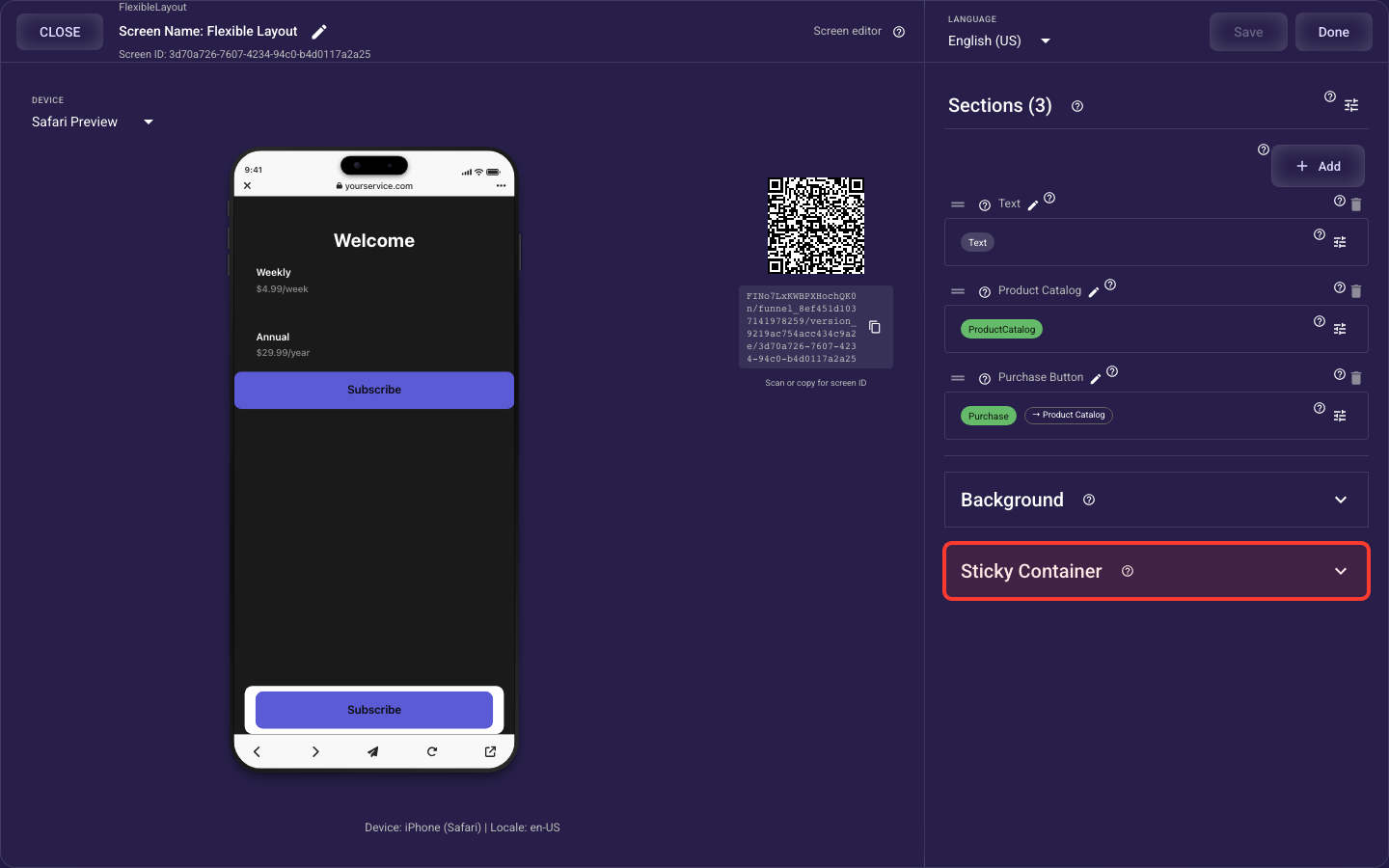
Open the Sticky Container section in the screen editor to configure its settings.
Applies to: Flexible Layout screens.
Pinned button label and style: Open the inline button card to set the label, navigation or purchase action, optional icon, typography, fill, borders, corners, gradient, shadow, effects, and padding. Confirm the action points to the intended next screen or product, then use a short label such as “Start free trial” that stays readable against the container.
Pin & button type
Pin the CTA to the bottom
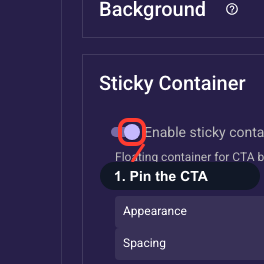
Turns the sticky bar on or off. When on, your main button stays pinned to the bottom and tappable while the visitor scrolls, and the rest of the bar's settings below appear. Turn it on for long or paywall screens so the action never scrolls out of reach (this protects clicks from paid traffic); leave it off on short screens where the button is always in view.
What the button does
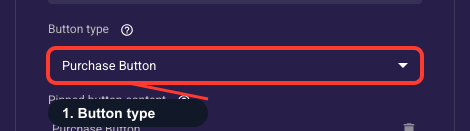
Chooses the pinned button's job: a standard button navigates to the next screen (use it on flow steps like 'Continue'), while a purchase button starts checkout and ties into your paywall products (use it on the paywall). The bar holds one button at a time, so switching type replaces it with a fresh default — your bar styling is kept, but you'll need to re-set the button's label and action.
Bar appearance
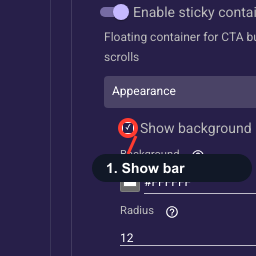
Show a bar behind the button
Adds a solid bar behind the pinned button and unlocks the background color, opacity, border and corner-radius settings. Keep it on in most cases: the bar separates the CTA from content scrolling underneath, so the button stays readable over busy backgrounds. Turn it off only for a clean floating-button look on simple screens where nothing scrolls behind it.
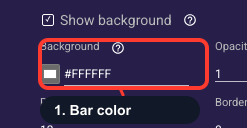
Color of the bar
Sets the color of the bar behind the pinned button (appears only when the bar is shown; defaults to white). Match it to your screen or theme background so the bar feels built-in, and make sure it contrasts with the button so the CTA stays the most eye-catching thing on screen. That contrast is what keeps the call-to-action obvious to paid-traffic visitors.
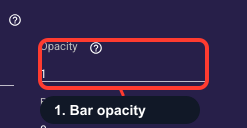
How see-through the bar is
Sets how transparent the bar's background is, from fully see-through to fully solid (only applies when the bar is shown). Keep it near solid to keep the CTA crisp and readable; lower it for a softer, glass-like look that lets content show through. Avoid going very transparent — if the button blends into scrolling content, visitors may miss it and you lose clicks.
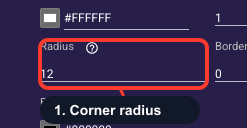
Roundness of the bar corners
Sets how rounded the bar's corners are, in pixels (default 12, only applies when the bar is shown). The default looks good on most screens; raise it for a softer, pill-like bar or set it to 0 for sharp corners. Match it to your buttons and cards so the bar looks like part of the design rather than an add-on.
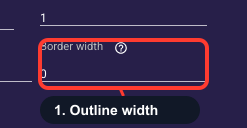
Outline thickness
Sets how thick the outline around the bar is, in pixels (default 0, meaning no outline; only applies when the bar is shown). Add an outline when the bar's color is close to the screen background and you want a crisp edge that separates the CTA from content behind it. Once it is above 0, the border color setting appears so you can style the outline.
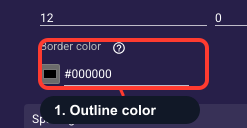
Outline color
Sets the color of the bar's outline (defaults to black; appears only when the outline thickness is above 0 and the bar is shown). Pick a color that frames the bar without competing with the button — a subtle, theme-matched tone usually works best, keeping attention on the CTA itself.
Bar spacing
Spacing from screen edges
Sets the gap, in pixels, between the bar and the top, right, bottom and left edges of the screen. Add a little bottom and side spacing so the bar floats just above the edge instead of touching it. This keeps the CTA clear of the phone's home indicator and gesture area, so the button stays comfortably tappable on mobile, where most paid traffic lands.

Space around the button
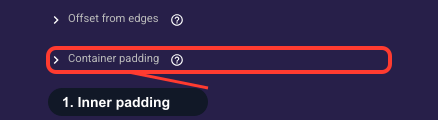
Sets the inner spacing on all four sides between the bar's background and the button inside it. A little padding keeps the button from looking cramped against the edges and gives a comfortable tap target; too much wastes vertical space and shrinks the visible content. Adjust until the button sits centered with even breathing room.