Text Field — every setting
The free-text input field — what kind of value it accepts and how typed answers look. This guide documents every setting of the Text Field block, grouped by area. Each setting matches a real control in the screen editor.
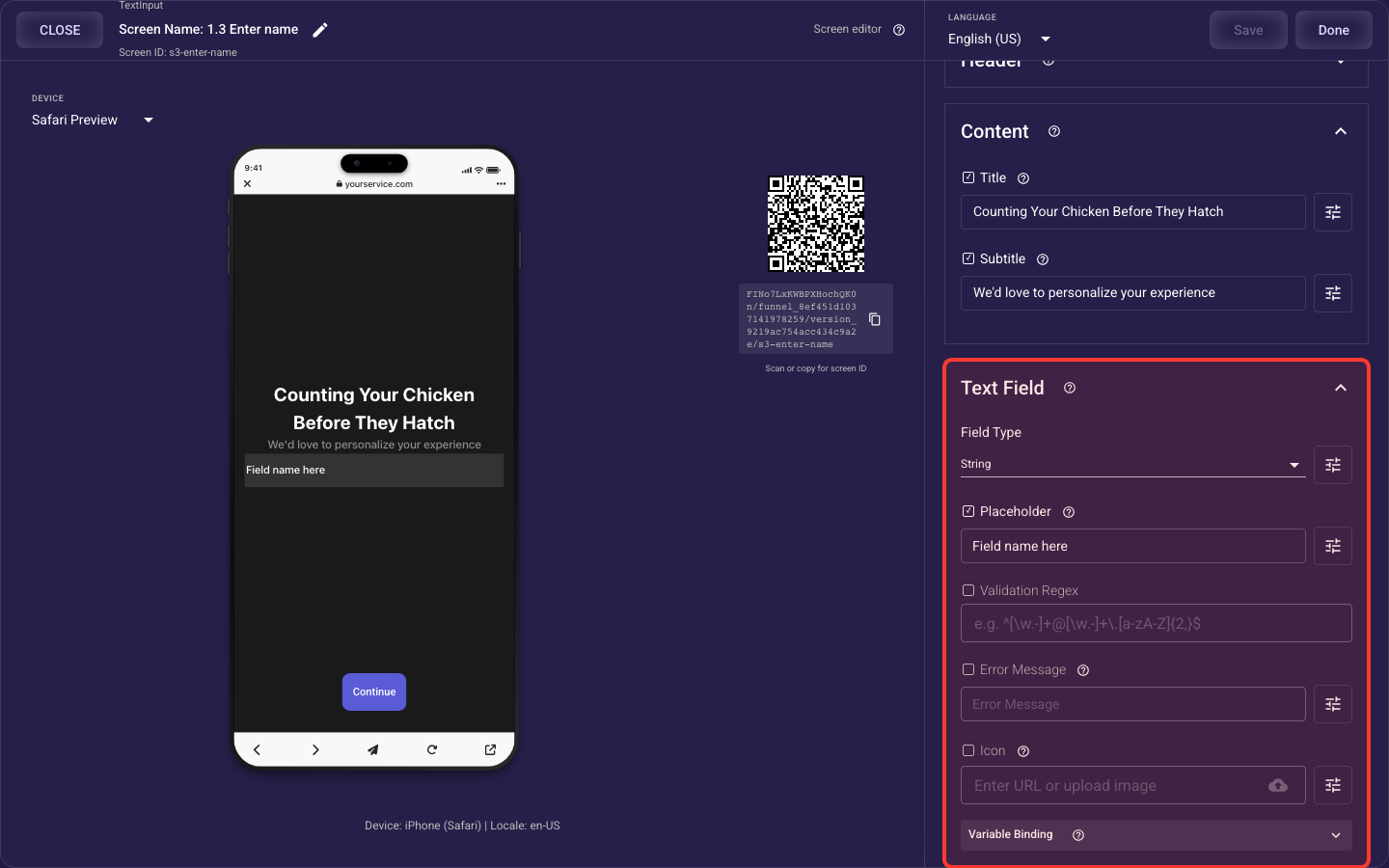
Open the Text Field section in the screen editor to configure its settings.
Applies to: Text Input screens.
Input type & behaviour
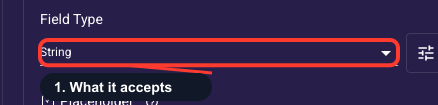
What the field accepts
Tells the field what kind of value to accept — plain text, a whole number, a decimal, a date, or an email — and automatically applies basic checks plus the right phone keyboard. Use Email for email capture and plain text for open answers. Picking the correct type blocks bad data, keeping any branching, analytics, or CRM that reads this answer reliable.
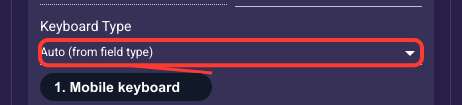
Override mobile keyboard input type
Forces a specific keyboard on mobile devices (Email, Numeric, Decimal, Phone, URL, etc.). Leave as Auto (from field type) to let the system derive keyboard type from Field Type setting.
Focus field when screen loads
When enabled, the field automatically receives focus and opens the keyboard when the screen appears. Default is true. Useful for primary input fields.

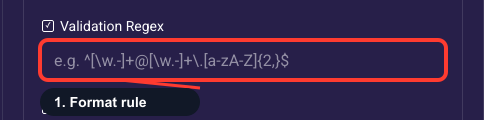
Custom format rule (advanced)
An optional advanced rule that forces the typed value to match an exact pattern before the visitor can continue. Most funnels leave this empty and rely on Field Type instead — for emails the Email type already checks the format. Use it only for special shapes like postal or phone codes; if input fails, the Error Message you set is shown.
Input box appearance & spacing
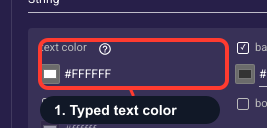
Color of typed answers
Sets the color of the text a visitor types into this field; the gray placeholder hint has its own separate color. Pick a color with strong contrast against the field background (use a light color on dark themes) so answers stay legible. Easy-to-read fields are easier to fill in, which protects completion on your data-collection screens.
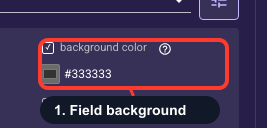
Fill behind the input
Sets the fill color inside the input box. Most funnels leave it clear so the screen background shows through, or use a subtle light fill to make the tappable field stand out. Just make sure it contrasts with the typed-text color so answers stay easy to read and people don't abandon the question.
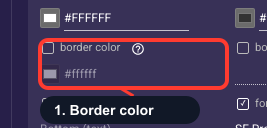
Color of the field outline
Sets the color of the field's outline, which only appears when the Border Style is an underline or a full box. Use a tone from your theme — an accent or a soft neutral — so the field's edges read clearly as something to tap and type into. A visible outline helps people recognize and fill in the field.
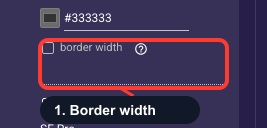
Thickness of the outline
Controls how thick the field's outline is, from 0 to 50 pixels (default 1). Keep it at 1-2 pixels for a clean, modern look and only go thicker for a deliberately bold style. A visible but restrained outline helps people spot the field at a glance and answer faster.
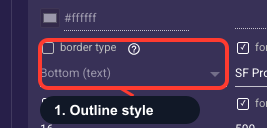
Pick the field outline style
Chooses how the field is outlined: a bottom underline under the text, a bottom underline with room for an icon, or a full box around the whole field. A full box reads most clearly as a place to type, while underline styles feel lighter. Your pick here also decides whether the Border Color and Border Width settings actually show.
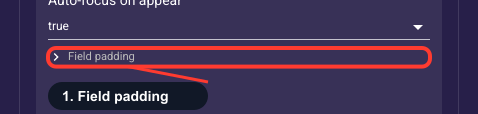
Space inside the field
Sets the breathing room between the text or icon and the field's edges, on the top, right, bottom, and left. Generous spacing makes the field a bigger, easier tap target and keeps text from crowding the outline. If the field feels cramped on a phone, increase the top and bottom spacing.
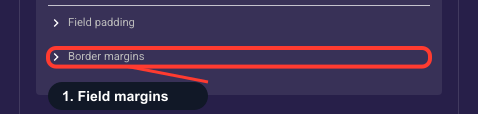
Space around the field
Sets the gap OUTSIDE the field, separating it from the title above and anything below, on the top, right, bottom, and left. Use it to give the field room to breathe within the screen. This is the space around the field — distinct from Internal Padding, which is the space inside it.
Placeholder text & styles
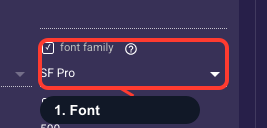
Font for the field
Picks the font used for both the placeholder hint and what the visitor types. Leave it on the system font unless you have a brand font, and match whatever the rest of your funnel uses. Consistent type keeps the page feeling polished and trustworthy, which matters when you're paying for the traffic.
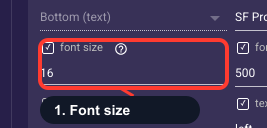
Size of the field text
Sets how large the text in the field appears, from 0 to 50 points (default 15). Keep it around 15-17 points so answers are comfortable to read on a phone. Text that's too small is hard to read on mobile, where most ad traffic lands, and can quietly drag down completion.
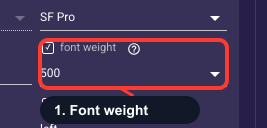
Weight of the field text
Sets how heavy the field text looks, from light (300) to bold (700), with regular (400) as the default. Regular is right for almost every input field. Keeping it regular makes the text read like an editable answer rather than a heading, so the field stays obvious and easy to use.
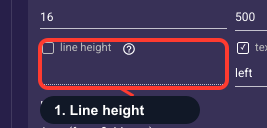
Line spacing in the field
Sets the vertical gap between lines of typed text (0-50pt, default 18). It only shows when an answer wraps onto multiple lines, so for normal single-line questions leave it at the default. Adjust it only if you've allowed long, multi-line responses and they feel too cramped or too loose.
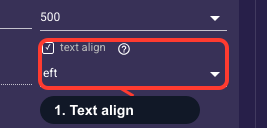
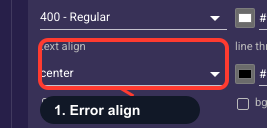
How the text lines up
Lines up the placeholder and typed text to the left, center, or right (default center). Left is the most familiar for input fields and the easiest to scan, while center suits short, decorative prompts. Pick whichever keeps the answer clearly readable for what you're collecting.
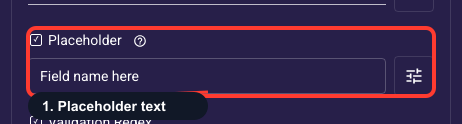
Set placeholder hint text
Hint text displayed in the field when empty, guiding users on what to enter. Can be localized per locale. Styling controlled by text appearance settings.
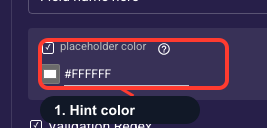
Color of the hint text
Sets the color of the faint hint shown while the field is empty, separate from the color of what the visitor types (default is a light gray, #999999). Keep it dimmer than the typed-text color so people can tell the hint from a real answer, but not so faint it disappears against your background.
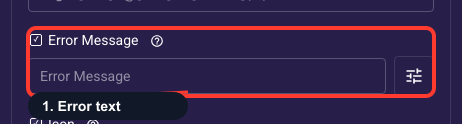
Validation error message
Set validation error message
Message displayed when user input fails validation (does not match Validation Regex or Field Type). Shown to guide correction. Can be localized per locale.
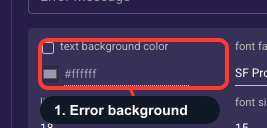
Fill behind the error text
Sets a fill color behind the validation error message that appears when an answer is rejected. Usually leave it transparent so only the red text shows; add a subtle tint only if you want the error to read like a banner. Whatever you choose, keep enough contrast with the error text so the message stays readable and users can quickly fix and continue.
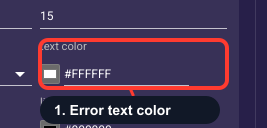
Color of the error message
Sets the color of the error text shown when an answer fails validation (default red, #FF3B30). Keep it red or another high-contrast warning color so people instantly see that their input was rejected and needs fixing. A clear error keeps them from giving up before they can continue.
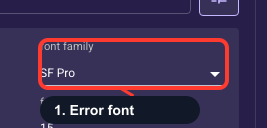
Font of the error text
Sets the typeface for the validation error message shown when an answer is rejected. Leave it on your theme/system font unless you have a specific brand font, and match it to the field's font so the error looks like part of the same form. A consistent error style keeps the screen feeling polished and helps users trust and fix the field fast.
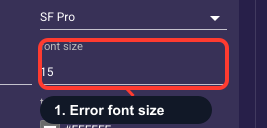
Size of the error text
Sets the point size of the validation error message. Keep it a touch smaller than the field text (about 12-13pt) so it reads as a secondary note, but not so small it's hard to read on a phone. A legible error helps users spot and fix a rejected answer instead of abandoning the screen.
Boldness of the error text
Sets how heavy the error message looks (for example 400 regular or 600 semibold). Regular (400) works in most cases; step up to 600 if you want the error to stand out more. Paired with the red color, a bit more weight helps users notice and correct a rejected answer so they keep moving through the funnel.
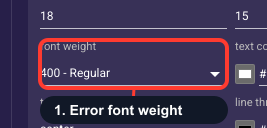
Where the error text sits
Aligns the validation error message to the left, center, or right. Match it to the field's own text alignment (left is typical) so the message sits naturally under the input. Keeping them aligned makes it obvious which field was rejected, so users fix it quickly and don't stall.
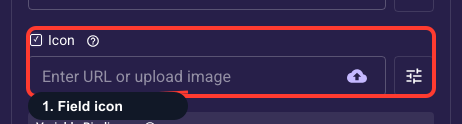
Field icon
Optional icon in the field
Adds a small image — like a mail or person glyph — to the left of the input to hint at what the field is for. It's optional, and you can upload a different image for each language. It only appears with a Border Style that leaves room for an icon, and its size and rounding come from the icon's image style settings.
Width of the field icon
Sets how wide the icon beside the input is (0-500px). Keep it small, around 20-24px, so it fits neatly next to the text, and usually match it to the icon height for a clean square glyph. Oversized icons crowd the field and make the input look heavier than it needs to.
Height of the field icon
Sets how tall the icon beside the input is (0-500px). Keep it around 20-24px so it lines up with the text, and usually match it to the icon width so the glyph stays square and undistorted. A right-sized icon reads as a helpful cue rather than visual clutter.
How the icon fills its space
Controls how the icon sits inside its box: Fit keeps the whole image visible and may leave a little padding, Fill keeps proportions but crops the edges, and Stretch fills the box and can distort the image. Use Fit for logos and glyphs — it's the safe default — unless you specifically want a cropped or stretched look.
Rounding the icon corners
Rounds the corners of the icon image (0-50px, default 0 for square). Leave it at 0 for normal line or glyph icons; raise it only for a photo or avatar-style icon you want to soften or make circular. It has little visible effect on transparent line icons, so most fields can skip it.
Gap between icon and text
Sets the horizontal space between the field's icon and the text the visitor types (default 8 pixels). The default works for most fields — nudge it up a little if the icon and text feel cramped, or down for a tighter look. The goal is an icon and placeholder that sit comfortably balanced.