Variable Binding — every setting
Where this screen's answer is stored — the variable, the value each choice maps to, and optional scoring. This guide documents every setting of the Variable Binding block, grouped by area. Each setting matches a real control in the screen editor.
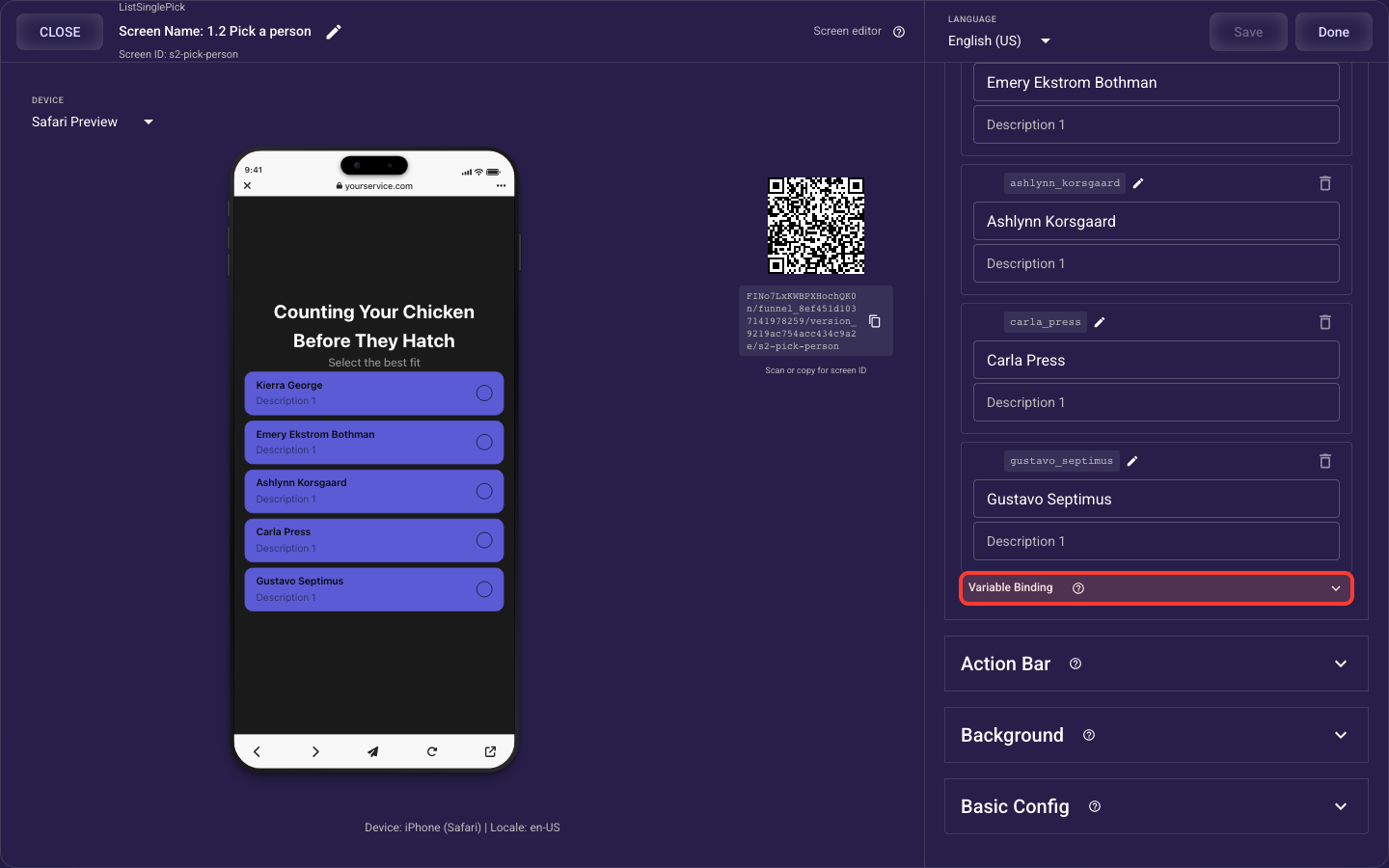
Open the Variable Binding section in the screen editor to configure its settings.
Applies to: List Multi Pick, List Single Pick, Grid Multi Pick, Grid Single Pick, Text Input, and Wheel Picker screens.
Where the answer is saved
Inside the Variable Binding section, this is the Where the answer is saved.
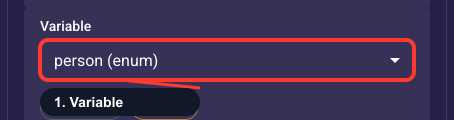
Choose where the answer is saved
Pick which variable stores this screen's answer, or create a new one on the spot. Reuse an existing variable when this screen asks about the same thing as another screen (so all answers feed one value), and create a new one for a brand-new question. This is the key step: nothing downstream (branching, analytics, paywall personalization) works until a variable is chosen here.
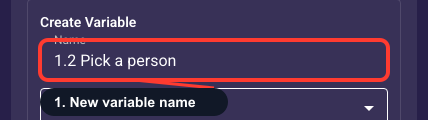
Name the new variable
A readable name for the variable you're creating, like User Goal, that must be unique across the funnel. It becomes the reference you use elsewhere — usually a lowercased, underscored form such as @user_goal in dynamic text and conditions. Pick a clear name that describes the answer (User Goal, Experience Level) rather than the screen, since later references depend on it and you won't want to rename it.
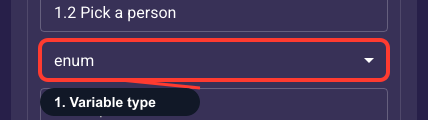
What kind of value it stores
Sets the kind of value this variable holds, which must fit the screen. Use Choice for single-select screens, Multiple choices for multi-select lists or grids where visitors pick several, Number for numeric input like age or weight, and Text for free-form typed answers. The screen only offers compatible types, and the Choice options you can branch and report on are defined below.
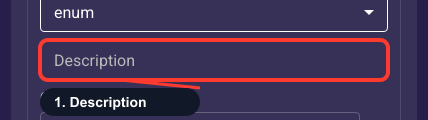
Internal note (optional)
An optional internal note explaining what this variable is for. It only shows as a tooltip in the editor when you hover the variable later — visitors never see it and it has no effect on the funnel. A one-line note like "visitor's primary fitness goal" is worth adding so you and teammates remember the variable's purpose when reusing it across screens.
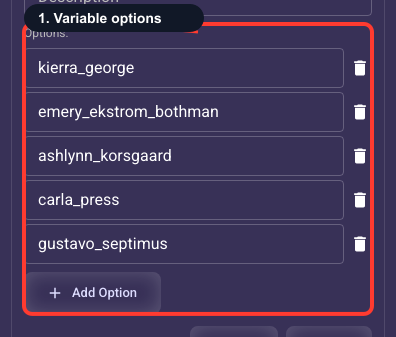
List the stored answers
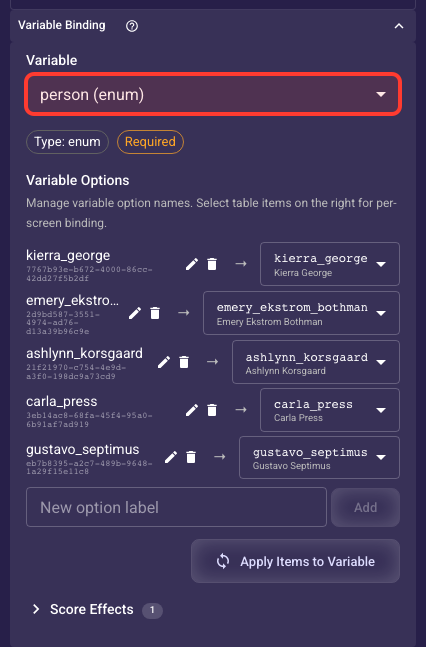
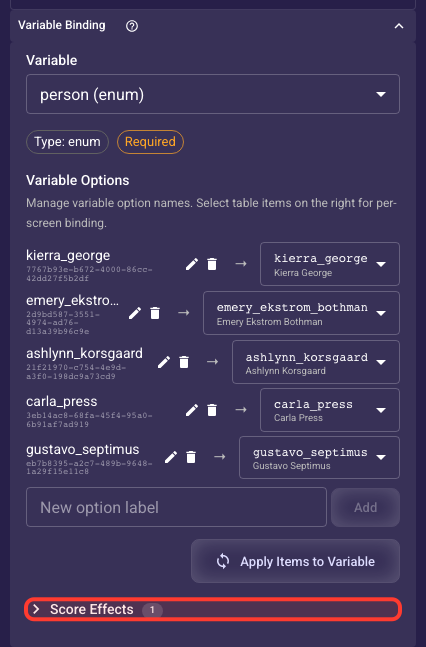
For Choice and Multiple-choice variables, list the values this variable can store, such as lose_weight, build_muscle, or stay_fit; add, rename, or remove them here. These stored values are separate from the labels visitors see — you connect each one to a visible item in the Value Mapping table below. Keep one option per real answer so your routing and analytics stay clean.
Value mapping
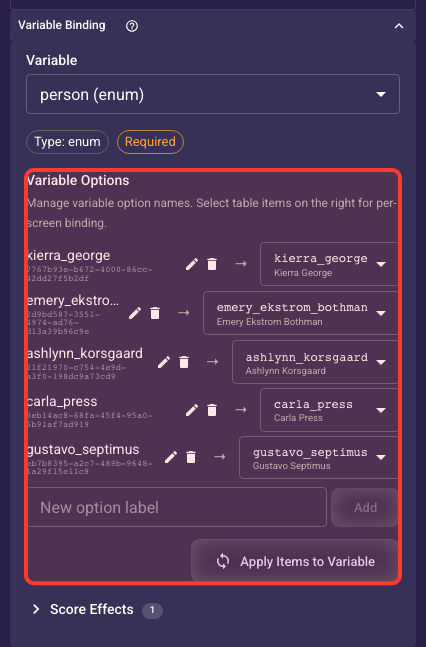
Inside the Variable Binding section, this is the Value mapping.
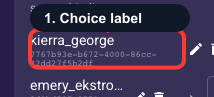
The stored value for this option
This is the value saved to the variable and used in conditions and analytics, not the text visitors see (that lives on the list or grid item). Keep it stable and lowercase with underscores, like lose_weight. You can rename it, but that changes every place it's referenced, so avoid renaming after the funnel is published and collecting data.
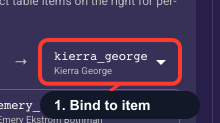
Link a choice to this value
Connect this option to the on-screen choice (the list or grid row) that should set it, so when a visitor picks that row the variable stores this value. Each visible choice should map to one option so answers record correctly, and several options can point to the same row if needed. If a choice has no option mapped to it, the editor flags it as unmapped, so fix that before publishing or it won't record an answer.
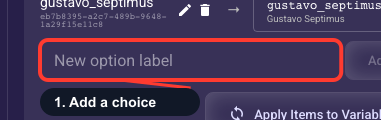
Add an option value
Type a value for a new option on this variable and click Add; it joins the options list and the mapping table below. Use a stable, lowercase, underscore-style value such as maintain_weight so routing and analytics stay clean. After adding it, map it to the matching on-screen item below — otherwise a visitor choosing that answer won't store anything.
Rebuild options from the items
A shortcut that rebuilds this variable's options from the screen's current list or grid items so the stored values match what's on screen, handy after you've added or changed items and don't want to re-enter each option by hand. Warning: it replaces the existing options (a confirmation shows old versus new first), so custom options or mappings not present in the items can be lost. Avoid it when the variable is shared with other screens, and most funnels rarely need it once options are set.
Answer scoring (advanced)
Inside the Variable Binding section, this is the Answer scoring (advanced).
Add points based on answers
Optional and advanced: have each answer on this screen add points to a number variable, like a quiz or lead-qualification score. You can later branch on the total (high score to a premium paywall) or send it to analytics. Skip this unless you're scoring answers, since most screens don't need it.

Which score this adds to
Choose the number variable this answer adds points to, such as a quiz_score or lead_score total. Only Number-type variables appear here, so if the list is empty, create a number variable first. Use one shared score variable across all the screens you want to total up, with the points set in the score value field.
Points this answer adds
The whole number this answer adds to the running total in the target score variable when a visitor selects this option. Give higher-intent answers larger values and weaker ones smaller or zero, for example 'ready to buy' = 10 and 'just browsing' = 1. Keep a consistent scale across all answers so the final total is meaningful for branching or analytics.