Custom Domain setup
Connect a verified custom domain before you publish, then know the order: enter domain, set DNS, verify, then publish.
Why a custom domain matters
A custom domain (for example funnel.example.com) swaps the generic Segmently link for your own brand. A branded link looks more trustworthy in ads and emails, so more people click and fewer drop off before reaching your funnel. It is also a required publish prerequisite: on a normal (non-admin) account, publishing a Web Placement is blocked until a verified custom domain is active — Segmently returns 'Custom domain is required to publish. Please configure a domain first.' if you try to publish without one. So connect and verify your domain first, then publish.
Required before you can publish
On a standard account the custom domain is not optional — it is a hard gate. If you click Publish on a Web Placement (or on a Web A/B Test) while no verified custom domain is active, Segmently stops the publish and shows 'Custom domain is required to publish. Please configure a domain first.' instead of going live. Plan for this: finish your domain setup and reach the 'Verified' status before you expect to publish. (Internal admin accounts can publish on the default Segmently domain, but customer accounts cannot.)
Recommended order of steps
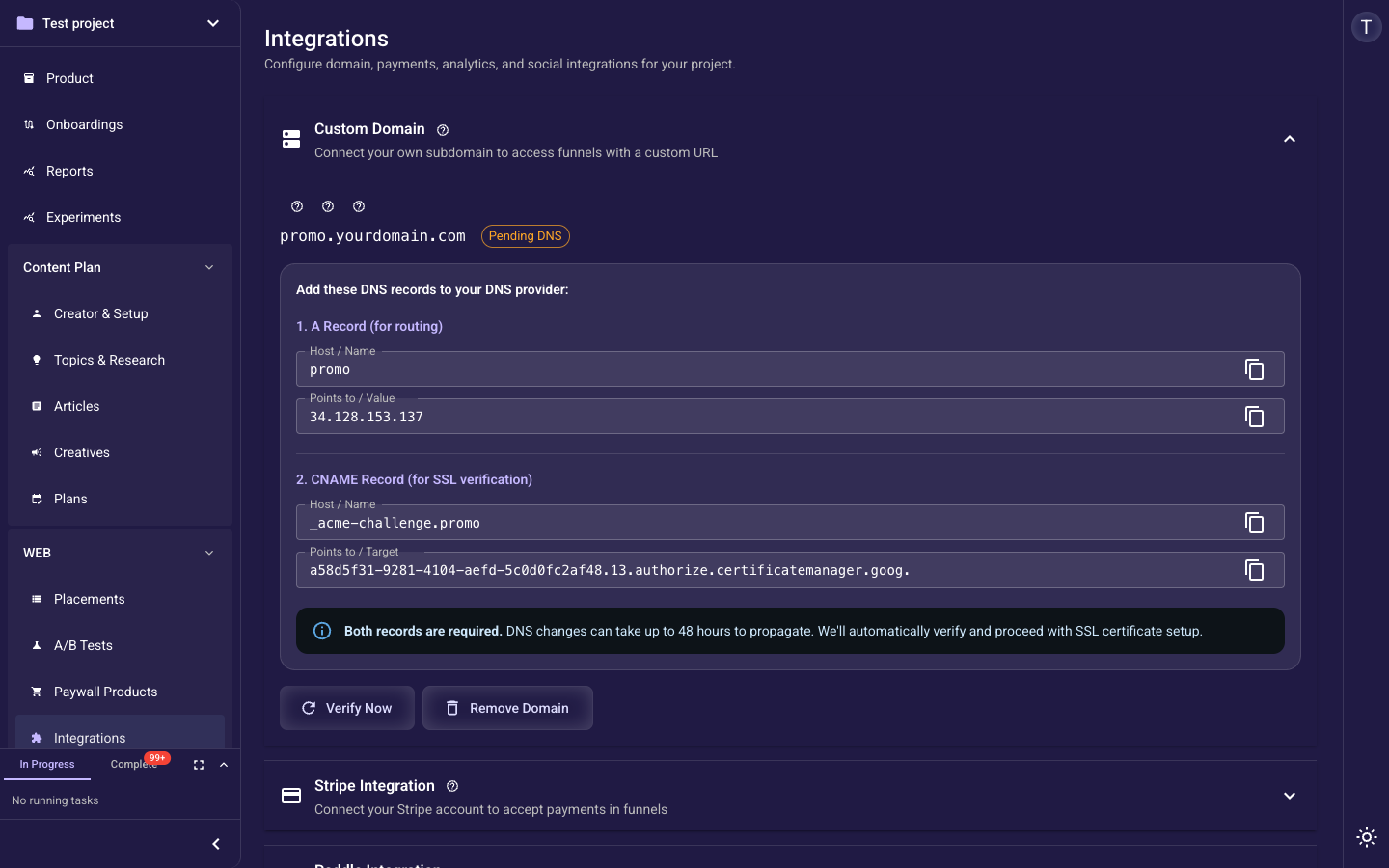
Work through it in this order: (1) enter your domain, (2) add the DNS records Segmently shows you at your domain provider, (3) click Verify and wait for the 'Verified' status, then (4) select that verified domain when you publish a Web Placement. Verification has to succeed before the domain can serve your live funnel, so don't publish against it until the status is green.
The two DNS records
Segmently asks for two records at your domain provider, and both are required: (1) an A record that points your domain at the Segmently Load Balancer IP — this is what routes visitors to your funnel; and (2) a CNAME record used for SSL certificate verification (the ACME challenge) — this is what lets Segmently issue the HTTPS certificate. Copy both values exactly as shown. DNS changes can take up to 48 hours to propagate; after that Segmently automatically verifies the records and provisions SSL. Only publish once the status shows 'Verified'.
Apple Pay / Google Pay on this domain
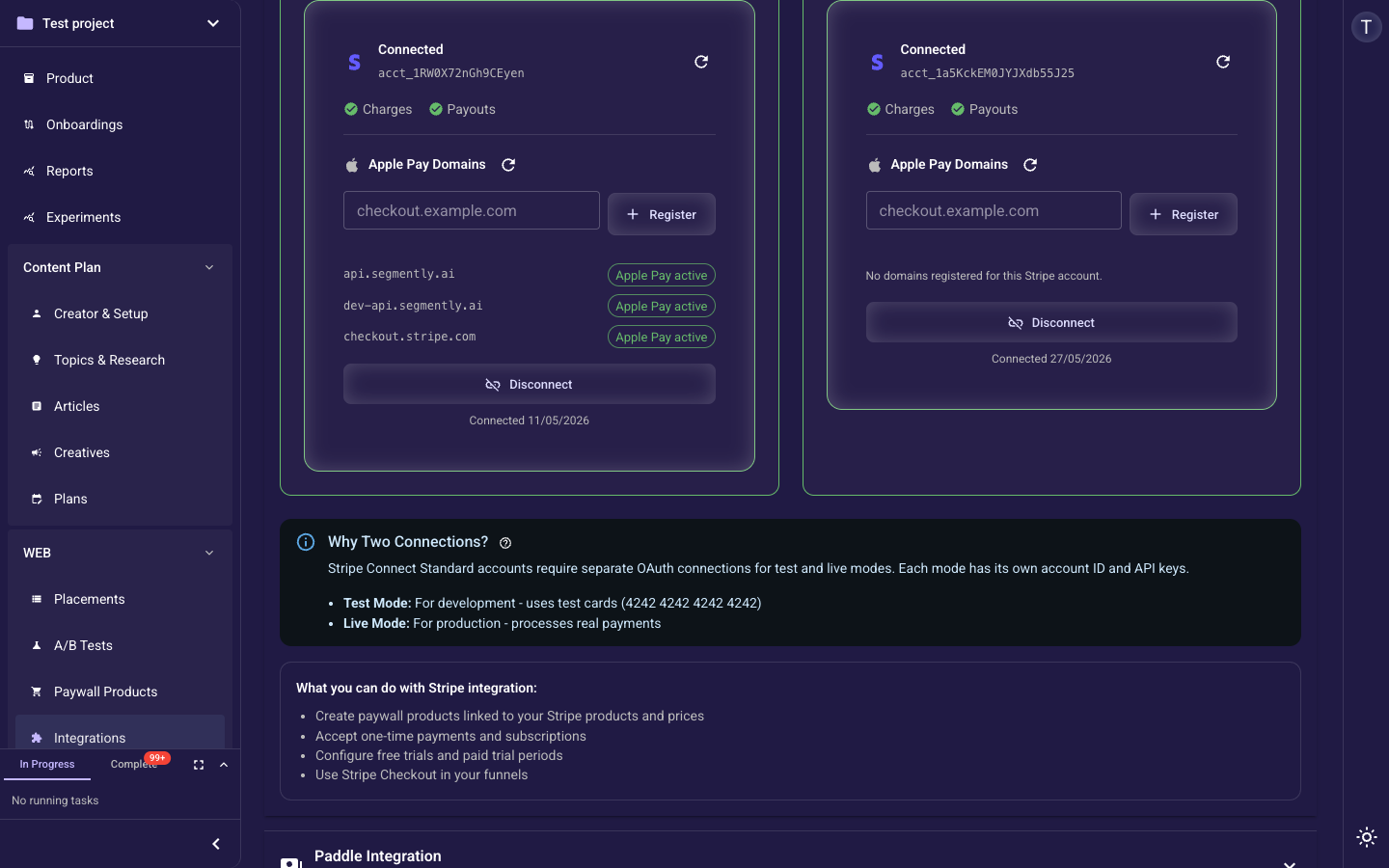
This verified custom domain is also the host you register with your connected Stripe account so Apple Pay and Google Pay appear in the funnel's Payment Element. Open Settings → Integrations → Stripe and use the Apple Pay Domains panel to register the same verified host you set up here. Register it per Stripe mode (test and live are separate), then confirm the domain shows the 'Apple Pay active' status. If you skip this, card payments still work, but the Apple Pay / Google Pay express buttons won't show up at checkout.
Where this fits in your launch
Connecting your custom domain is step 5 of the launch sequence: (1) connect Stripe, (2) create and attach your paywall product, (3) set up email passing before the paywall, (4) optionally enable ad-pixel events, (5) connect this verified custom domain, then (6) publish and verify with a test purchase. Step 5 is a hard gate in front of step 6 — finish the verified domain here before you publish and run your test purchase.
Related step-by-step guides
For the detailed walkthrough of each part, see the companion guides: 'Enter your custom domain' (custom-domain-domain-input), 'Add your DNS records' (custom-domain-dns-setup), and 'Verify your domain' (custom-domain-verification). This page is the overview that ties them together; the companion guides cover each step in full.