Set up the Facebook (Meta) Pixel and Conversion API
Send your funnel's page views and real purchases to Meta so Facebook ads can optimize for paying customers, not just clicks.
Where this fits in your launch
This is Step 4 of getting your funnel live, and it is optional. Do it only if you plan to run Facebook (Meta) ads and want them to optimize on real purchases. The recommended order is: (1) Connect Stripe, (2) Create and attach a paywall product, (3) Set up email passing, (4) wire your ad pixel — that's this article — (5) Connect a custom domain, and (6) Publish and test. Before you start here, finish email passing in Step 3: the email variable you bind there (selected as your Web Placement's email source) gives your conversions a clean, stable customer identity, which is what Meta uses to match purchases to people. A custom domain (Step 5) is also mandatory before you can publish, so make sure it's connected before you try to go live. When you're done here, your next steps are connecting your domain, publishing, and running a real test purchase.
You add two integrations, not one
To optimize Facebook ads on actual sales you add two integrations in Segmently, and both are required. The Facebook Pixel runs in the visitor's browser and reports page views and on-page actions as people move through your funnel. The Facebook Conversion API (CAPI) runs on our servers and reports the real purchase the moment Stripe confirms it. The browser Pixel alone misses purchases that ad blockers or browser settings hide, so the server-side CAPI is what makes your purchase reporting reliable. Add both to give Meta a complete picture.
Open your Analytics settings
Everything you enter here lives inside Segmently. Open your project's Analytics settings and use Add Integration. The dialog shows all available integrations as one ordered grid of cards — the browser (client) integrations come first and the server-side ones follow, so you'll find Facebook Pixel earlier in the list and Facebook Conversion API further down, with its card described as server-side conversion tracking for payment events. Add them one at a time and turn each one on after you've filled it in.
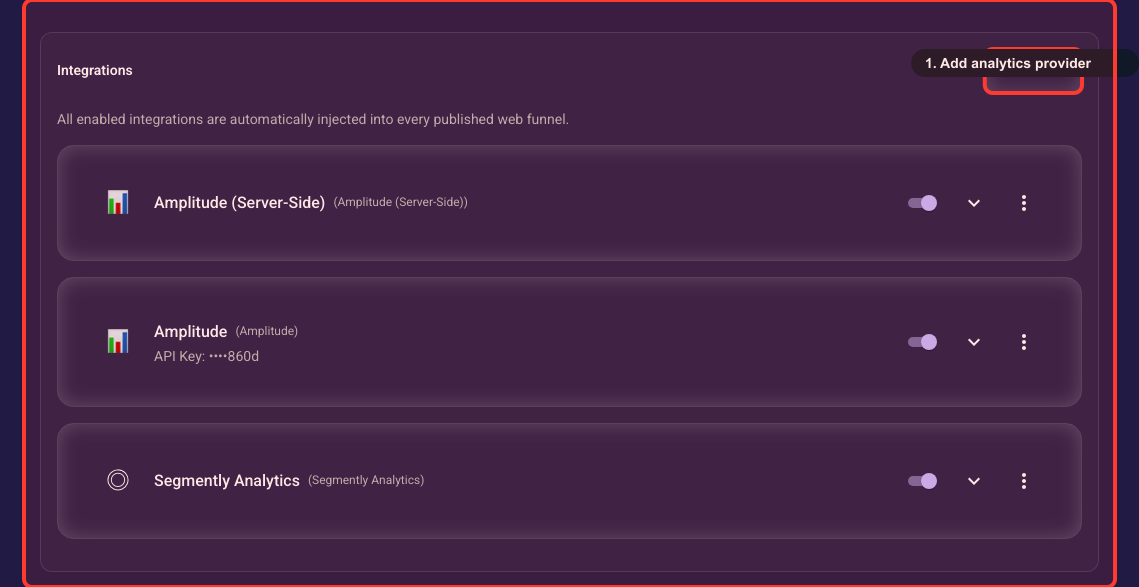
Find your Pixel ID in Meta
Your Pixel ID comes from Meta, not from Segmently. In Meta's Events Manager, open the data source for your business and copy its Pixel ID (a long number). If you don't have one yet, create a new data source in Events Manager first. Keep this ID handy — you'll paste the exact same value into both integrations in the next steps.
Add the Facebook Pixel (browser)
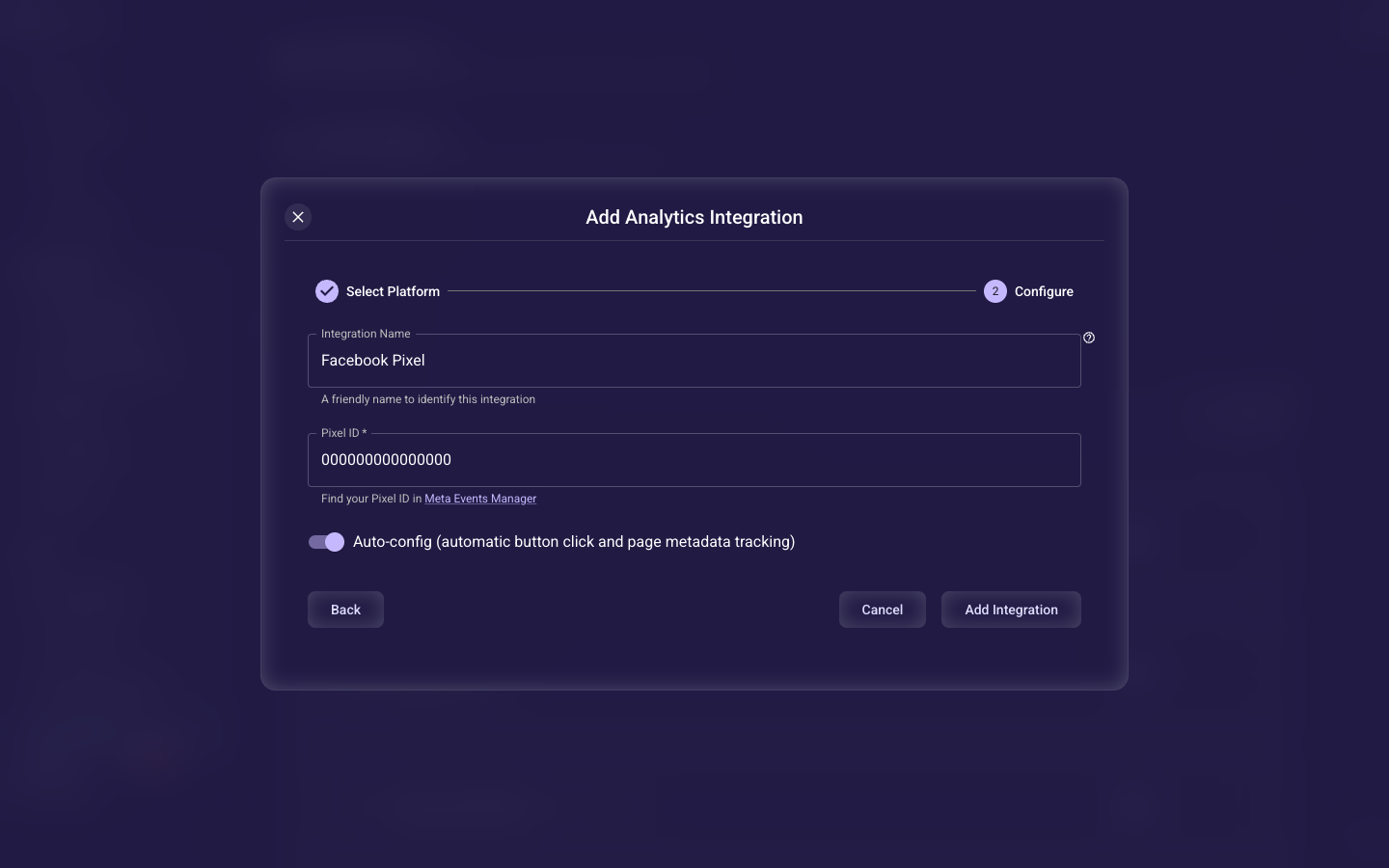
This step is required. In Segmently's Analytics settings, add the Facebook Pixel integration and paste your Pixel ID into it. The editor also has an Auto-config toggle (automatic button click and page metadata tracking), which is on by default — leave it on unless you have a specific reason to manage tracking yourself. Save it and make sure the integration is enabled. Once your funnel is published, the Pixel will load in each visitor's browser and report their journey to Meta.
Generate a CAPI access token in Meta
The Conversion API needs an access token that only Meta can generate, and you create it in Meta Business Manager — not in Segmently. In Business Settings, open System Users and create a System User (or pick an existing one). When you generate its access token, grant the ads_management and ads_read permissions — that's what the Conversion API needs to report your purchases. Meta shows the token only once, so copy it somewhere safe before closing the window. This token is a credential: never share it or post it anywhere public.
Add the Conversion API (server)
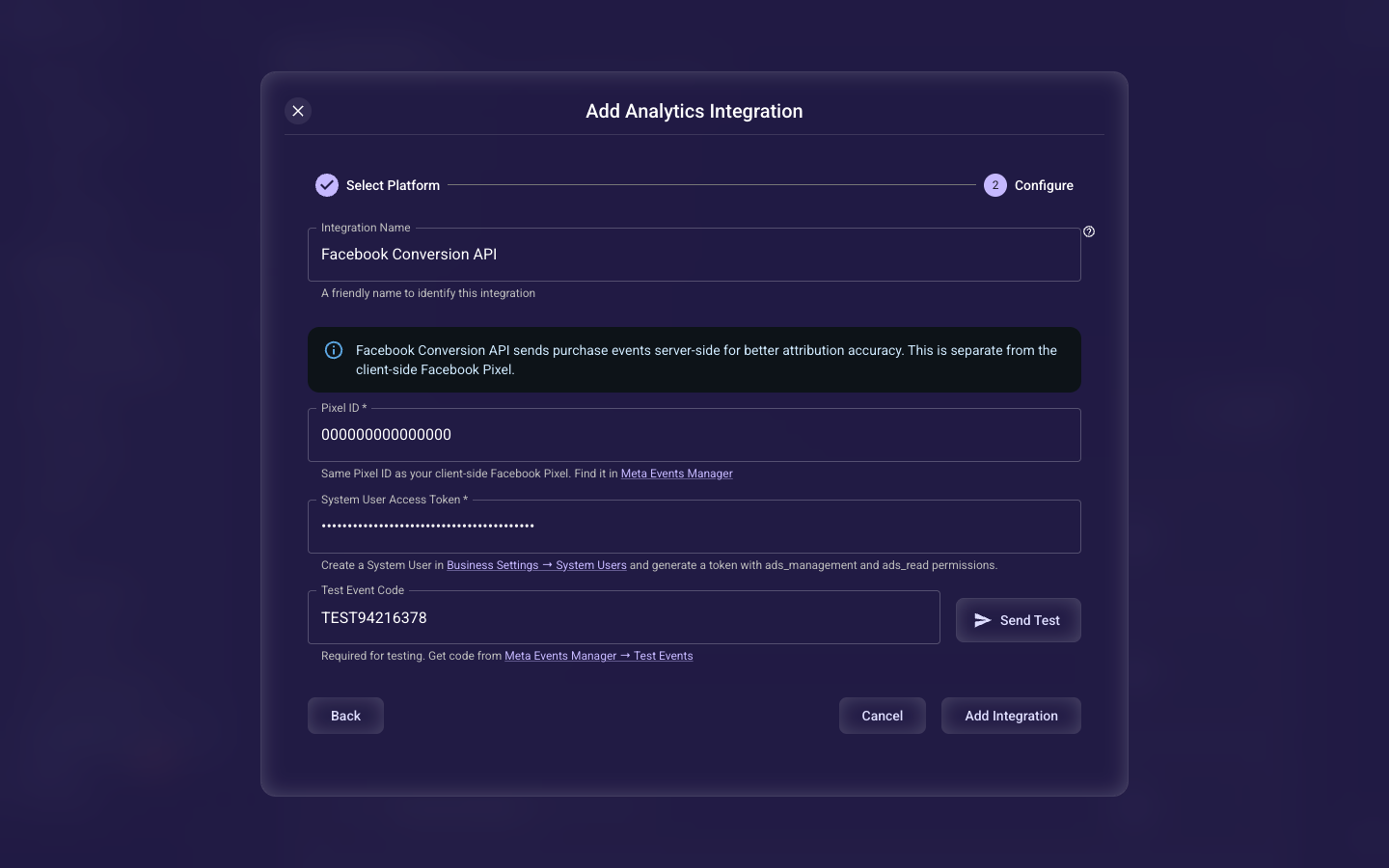
This step is required too. Back in Segmently's Analytics settings, add the Facebook Conversion API integration. Paste the same Pixel ID you used for the browser Pixel — the two must match exactly, or Meta can't connect your server purchases to your ad results — and paste the access token you just generated. As soon as you enter the Pixel ID, the editor auto-fills a Test Event Code (a value like TEST followed by eight digits); leave it as-is. The Send Test button only becomes active once you have a Pixel ID, an access token, and that Test Event Code, so it's there to let you fire a test event into Meta's Events Manager Test Events tab and confirm everything is wired before you go live. Save and enable the integration.
Help Meta match purchases to the right person
This step is required for good ad attribution — without it, Meta can only match purchases on weaker signals like email and IP address. When someone clicks your Facebook ad, their browser carries two Facebook identifiers: the Facebook Browser ID (fbp) and the Facebook Click ID (fbc, which Meta derives from the click). At runtime Segmently already captures both for the browser Pixel, but the server-side Conversion API can only read them off your Stripe payment if you map them there explicitly. To do that, open your Web Placement, go to the Destinations section, and click the + Facebook CAPI button. That one action populates everything the Conversion API needs — the IP address, user agent, facebook.fbp, and facebook.fbc — into both your Server Data and your Stripe Metadata. There are only these four values; there is no separate click-ID-from-the-URL to add, because fbc already is the click identifier. The dedicated guide below walks through this one-click setup and publishing, step by step.
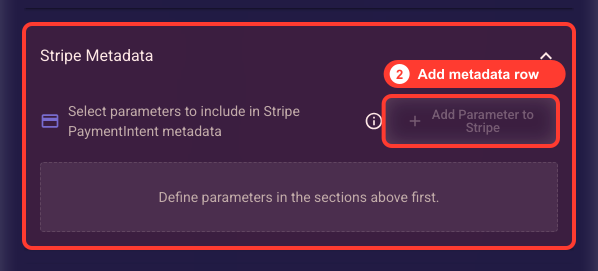
The screenshot-by-screenshot guide to the one-click + Facebook CAPI setup in your web funnel's Destinations, and publishing.
If you collect consent (GDPR)
If you turn on Consent Management for privacy laws like GDPR, the browser Pixel only loads after a visitor accepts your consent banner. That's expected and keeps you compliant. Your server-side Conversion API purchase events are reported from Stripe's confirmation, so they aren't blocked by the browser banner — which is one more reason both integrations matter for reliable purchase reporting.
Verify your events in Meta
After connecting your custom domain and publishing, run a real test Stripe purchase all the way through your funnel and watch your data source in Meta's Events Manager. You should see browser events arriving from the Pixel as you move through the funnel, and a purchase event arriving from the Conversion API once Stripe confirms the payment and its webhook reaches Segmently — that webhook is what triggers the server-side report, so the purchase event only appears after a payment genuinely completes. Use the Test Events tab in Events Manager (it pairs with the Test Event Code from the CAPI editor) to watch them arrive in real time. Once both the browser and purchase events show up, your ads can optimize on real customers.
Next
See which Facebook events Segmently reports and what each one means in the Facebook events guide. To set up the purchase matching mentioned above, follow the Web Placement Stripe metadata guide. Running TikTok ads too? The TikTok Pixel and Events API setup works the same way. When your pixel is wired and verified, move on to Step 5 (connect a custom domain — it's mandatory to publish) and Step 6 (publish your funnel and run a real Stripe test purchase) before you spend on ads.