Send Facebook (CAPI) events from your web funnel
This guide connects the Facebook Conversion API (CAPI) to your web funnel — the server-side integration that reports your purchases and subscriptions to Meta with the extra signals it needs to match them to the ads that drove them. You wire it up entirely in the funnel's Destinations settings: a single “+ Facebook CAPI” click adds the visitor's IP, user agent, and Facebook cookies to your Server Data and Stripe Metadata. The steps below cover that connection; saving and publishing the funnel is the final step, at the end.
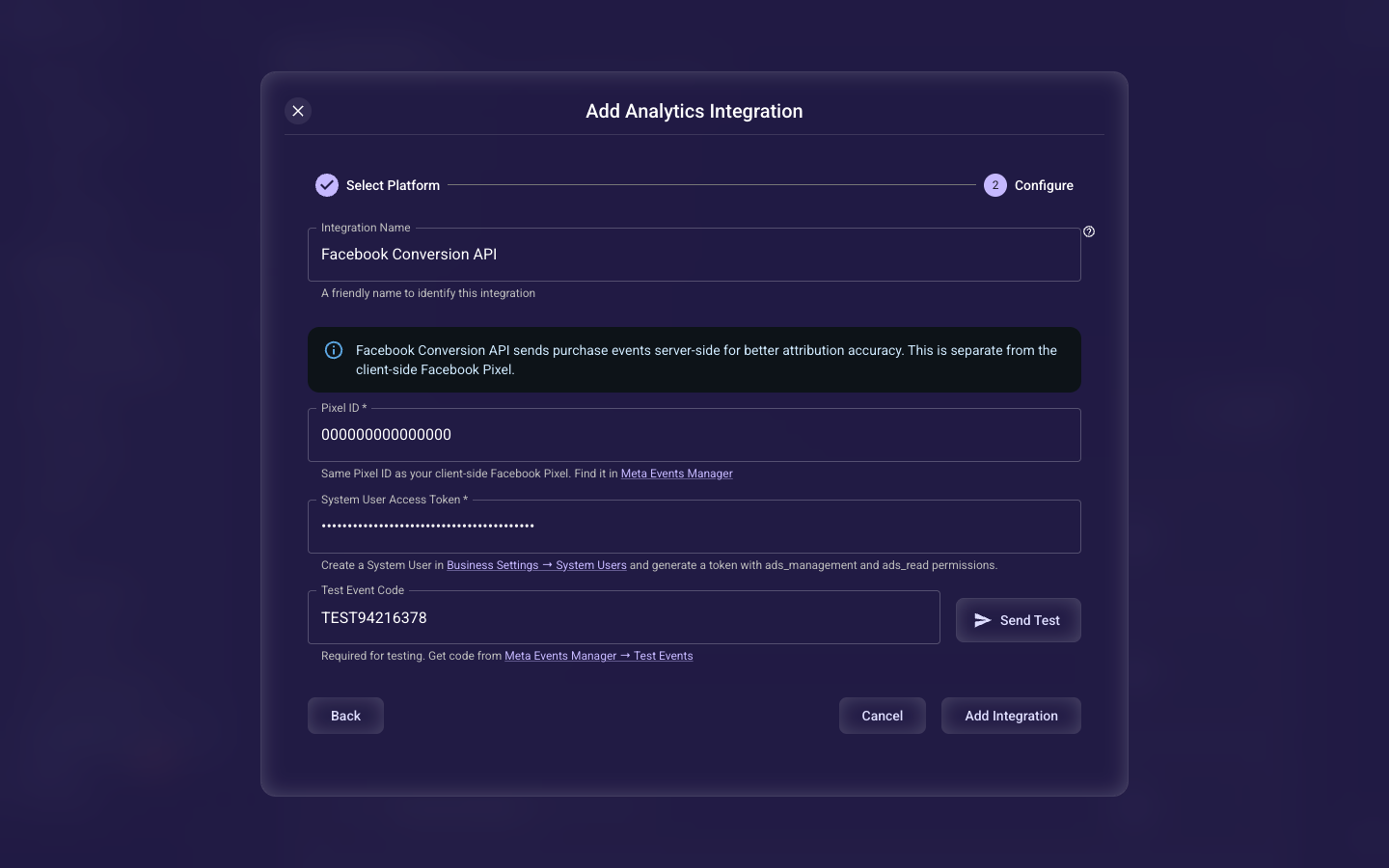
This setting forwards attribution data — the visitor's IP address, user agent, and the Facebook _fbp and _fbc cookies. It does not hold your Pixel ID or access token. Connect the Meta Pixel and the Conversion API first in your project's Analytics settings; without those credentials there is nowhere for these events to go. The full setup is in the guide linked in this heading (and under Related guides below).
1. Open your web funnel’s Destinations settings
On your onboarding canvas, click Deploy Web and create a new web funnel (or edit an existing one) to open the Edit Web Funnel dialog. Scroll to the Destinations block — “Configure where to send the defined parameters.” Two buttons sit there: + Facebook CAPI and + TikTok Events API.
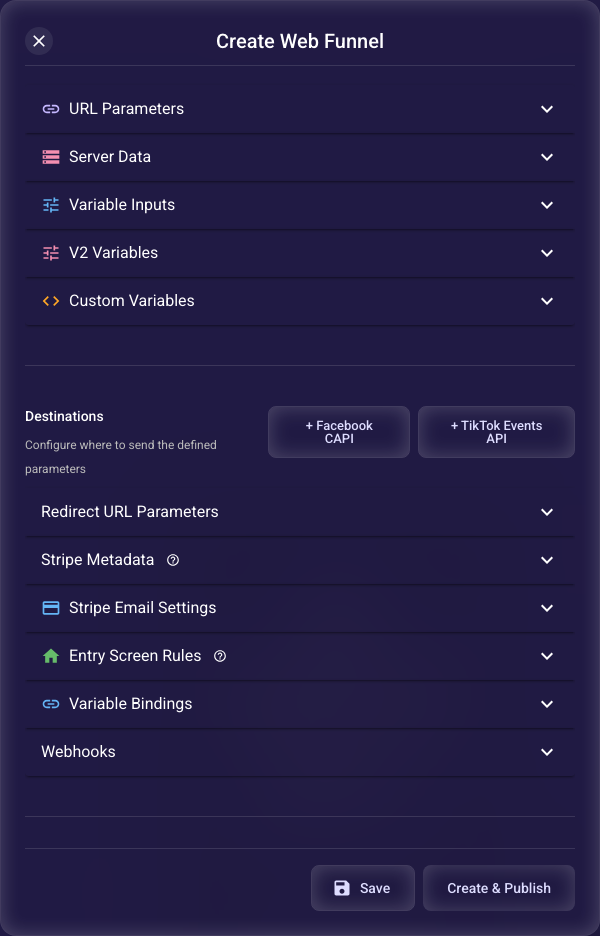
2. Click “+ Facebook CAPI”
That single click does the wiring for you. Its tooltip states it exactly: “Add IP, User Agent, and Facebook cookies to Server Data and Stripe Metadata for Facebook CAPI attribution tracking.” In one action Segmently adds four parameters — the IP address, user agent, Facebook Browser ID (_fbp) and Facebook Click ID (_fbc) — to both your Server Data and your Stripe Metadata. You never add these rows by hand.
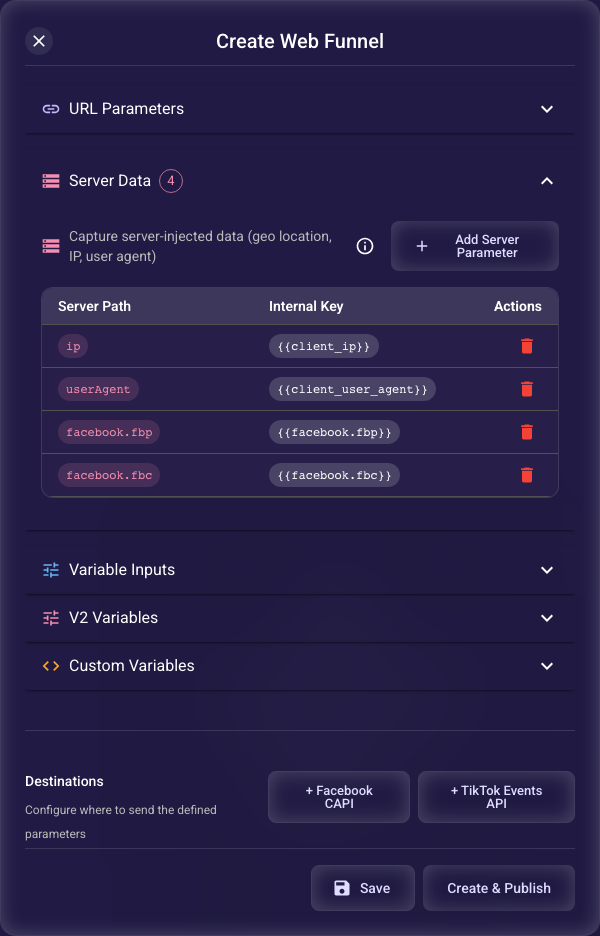
3. Check Server Data
Open the Server Data section (with the parameter definitions near the top of the dialog). It now lists four rows: IP Address → client_ip, User Agent → client_user_agent, Facebook Browser ID → facebook.fbp, and Facebook Click ID → facebook.fbc. Segmently captures these on the server for every visitor who reaches your funnel.
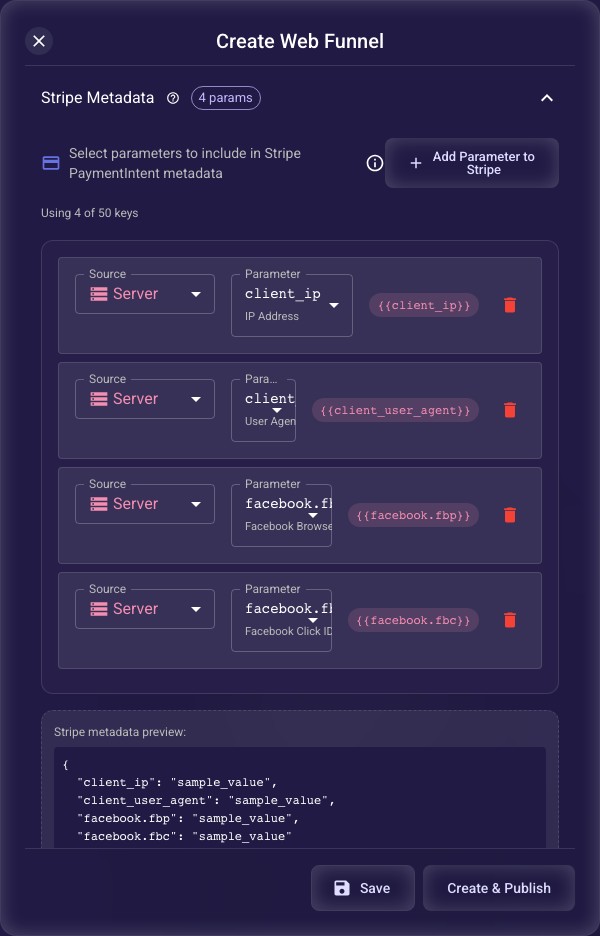
4. Check Stripe Metadata
Open the Stripe Metadata section under Destinations — the same four parameters are listed, and the header shows “4 params.” These travel with the Stripe payment, so when a purchase is confirmed the Conversion API can read them and hand Meta the signals it needs to match the sale to the right person and ad.
When a payment succeeds, Segmently’s server forwards the matching conversion — Purchase for one-time payments, Subscribe for new subscriptions, and more — to the Conversion API, enriched with the IP, user agent and Facebook cookies you just enabled. Because this is reported server-side from Stripe’s confirmation, it still counts even when a browser ad-blocker hides the client-side Pixel. See every event Segmently sends in the guide linked in this heading.
The + Facebook CAPI button only wires the attribution data. Your Pixel ID, access token, and optional Test Event Code are entered once in your project’s Analytics settings, in the Conversion API editor shown here — not in this dialog. If you haven’t connected them yet, do that first (guide linked in this heading).
Selling with TikTok as well?
The + TikTok Events API button next to it does the same thing for TikTok — it wires the IP, user agent and TikTok identifiers (ttp, ttclid) into Server Data and Stripe Metadata. Connect the TikTok Pixel and Events API credentials the same way you did for Meta.
Save and publish
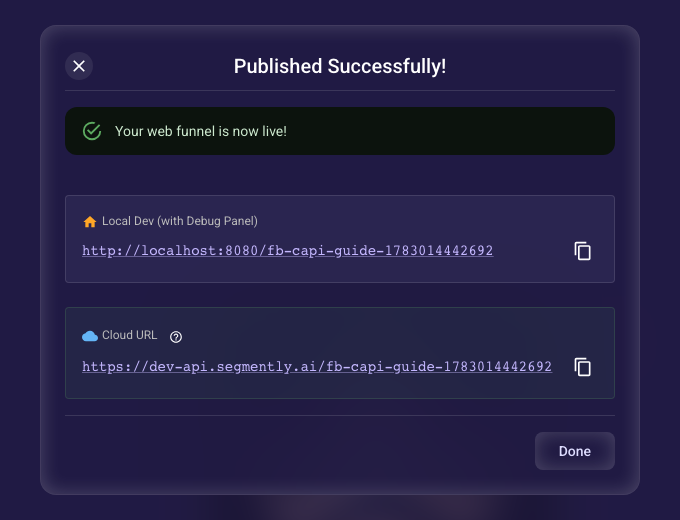
Once the Facebook CAPI destination is wired, click Create & Publish (or Save & Publish when editing) at the bottom of the dialog. Segmently deploys your funnel and shows the live URL. From this point on, every purchase and subscription made in the funnel carries the attribution data to Meta automatically.
Related guides