Animation — every setting
How the screen's standard elements (header, image or video, title and subtitle, choices or bullets, paywall products, action bar) animate in when it opens — style, speed, stagger, easing, and per-element overrides, which take priority over the theme's default motion. This guide documents every setting of the Animation block, grouped by area. Each setting matches a real control in the screen editor.
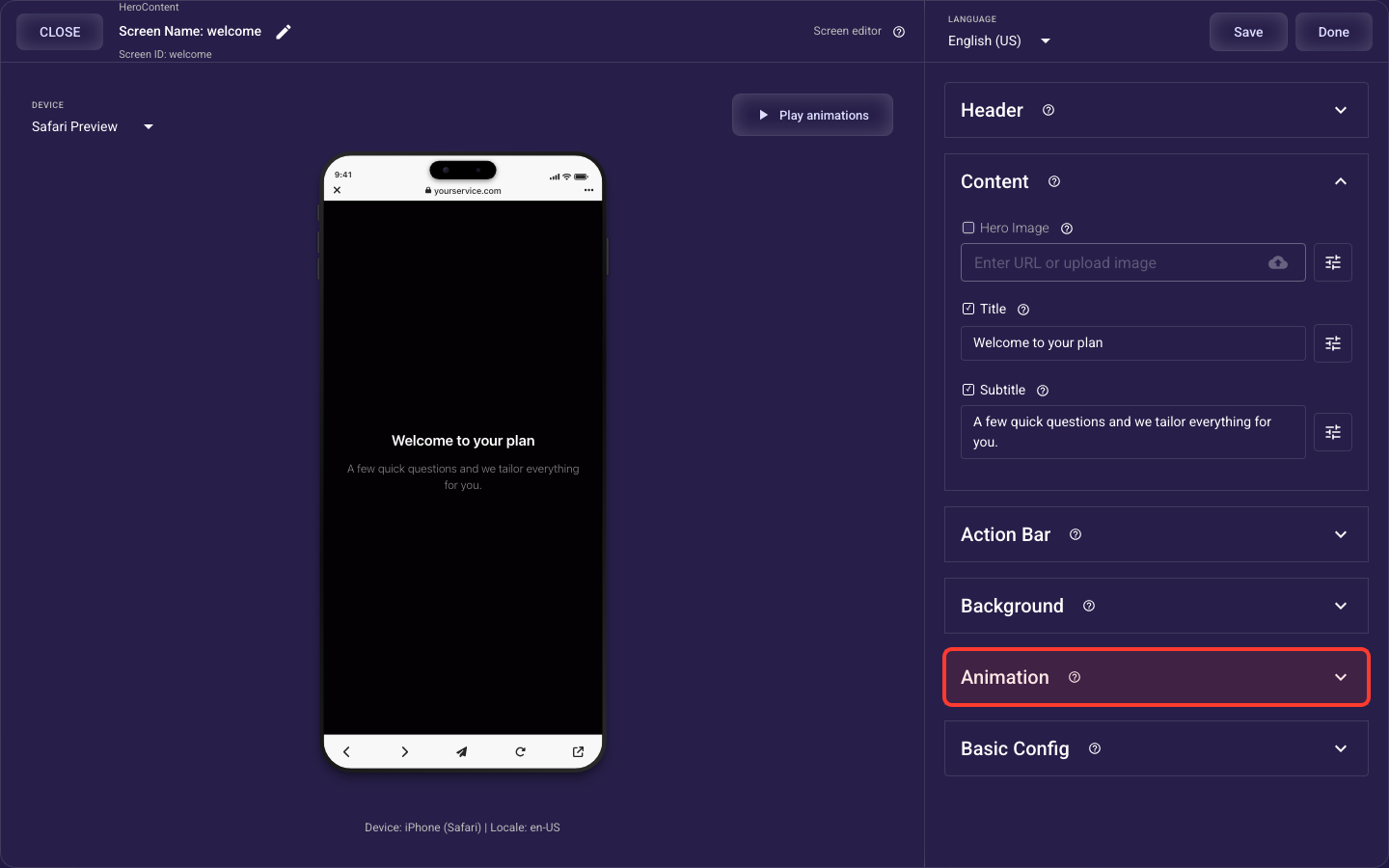
Open the Animation section in the screen editor to configure its settings.
Screen entrance
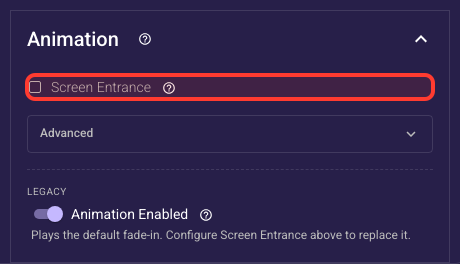
Inside the Animation section, this is the “Screen entrance” group.
Give this screen its own entrance
Turns on this screen's own entrance: its standard elements, such as the header, images, title, and action bar, animate in one after another in a fixed order when a visitor arrives. Switching it on starts with Fade In Up, 450 ms, and an 80 ms stagger (adjust them below) and overrides your theme's entrance for this screen. Switched off, the screen plays the Legacy fade-in if that toggle is on, otherwise your theme's entrance (shown as 'Inherited from theme'), or no entrance if the theme has none.
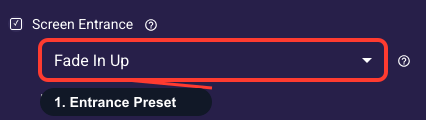
Entrance style
Chooses how each animated element appears when the screen opens: fades, slides, scales, zooms, bounces, flips, and more, many with a choice of direction. Fade In Up is the default and suits almost any screen. Keep calm fades and slides on question and paywall screens, and save bouncy or flipping styles for a playful brand or a single highlight moment.
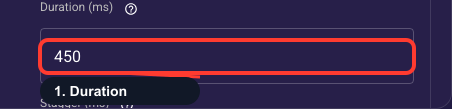
Entrance duration
How long each animated element's entrance lasts, in milliseconds, from 50 to 10,000; Screen Entrance starts at 450. Around 300 to 600 ms feels quick and polished, while long entrances make visitors wait before they can read and tap. The preview replays after every change, so you can judge the speed right away.
Delay between elements
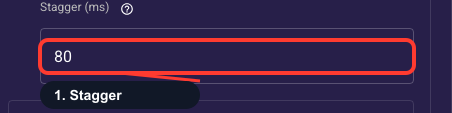
The pause, in milliseconds, before each next element starts its entrance, so the screen builds up in order instead of appearing all at once. Set it from 0 to 1,000: Screen Entrance starts at 80, and 0 makes all elements enter together. Elements you give their own entrance under Advanced, and answer choices with an Item Animation, start right away instead of waiting their turn. Keep it small, since the pauses add up for elements later in the order, such as the action bar.
Advanced
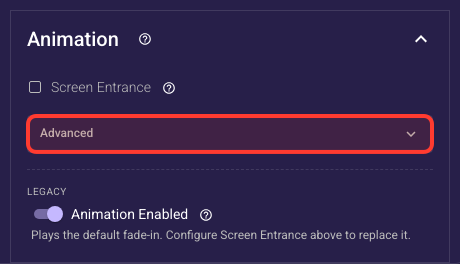
Inside the Animation section, this is the “Advanced” group.
Entrance easing
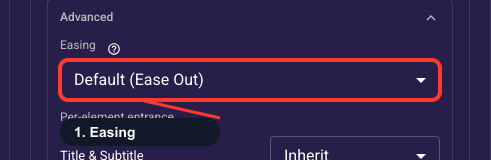
Shapes how the entrance speeds up and slows down. The default, Ease Out, starts quickly and settles gently; Ease Out Back adds a slight overshoot, and Linear moves at a constant speed. It sits under Advanced and only appears while Screen Entrance is on, and most screens can keep the default.
Legacy fade-in
Shows under Legacy on screens that had it switched on when you opened the editor and have no Screen Entrance set. That includes older screens, and screens whose entrance came from a theme's motion scheme once you switch Screen Entrance off. While on, the screen plays a simple fade-in as it appears; turn on Screen Entrance above to replace it with the style, speed, and stagger you choose. Switched off, the screen follows your theme's entrance, or appears without one if the theme has none.
Preview
Play animations
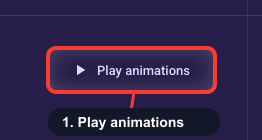
Replays this screen’s entrance in the live preview — its Screen Entrance (or the theme’s default, or the Legacy fade-in) plus every per-element override — so you can check the style, speed and stagger without leaving the editor. Re-clickable while it plays: it restarts.
Paywall
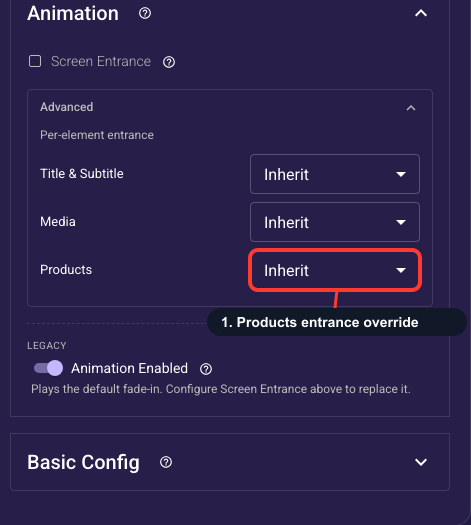
Products entrance override
On a Paywall screen, the Advanced per-element overrides list adds a “Products” row for the plan cards — set its own entrance style, or None to keep the products in place while the rest of the screen animates in. This row only appears on a Paywall screen; other screen types never show it.
What visitors see on your published page
The first screen plays its entrance as the page appears
When a visitor opens your published funnel, the first screen plays its entrance right away, once. It uses the Screen Entrance you set here; on an older screen that still has Legacy fade-in on (and no Screen Entrance), a simple fade-in; otherwise your theme’s entrance. With none of these, the screen appears without an entrance. If the visitor taps or presses a key before the entrance finishes, it ends at once and the screen shows in its final state.
Later screens play their entrance as they arrive
Every following screen plays its entrance when it comes into view, after the change between the two screens has settled.
Visitors who prefer reduced motion see no entrance
If a visitor’s device is set to reduce motion, nothing animates in: every element simply shows in its final state, exactly as you designed it.
Related guides
Theme animations: motion schemes — details
Pick a motion scheme for a whole theme — the default entrance every screen inherits unless you set its own here.
Screen transitions between screens — details
Choose how one screen changes into the next — the movement between screens, separate from each screen’s entrance.