Basic Config — every setting
Screen-level behaviour: cached media, a device-permission prompt, and auto-advance. This guide documents every setting of the Basic Config block, grouped by area. Each setting matches a real control in the screen editor.
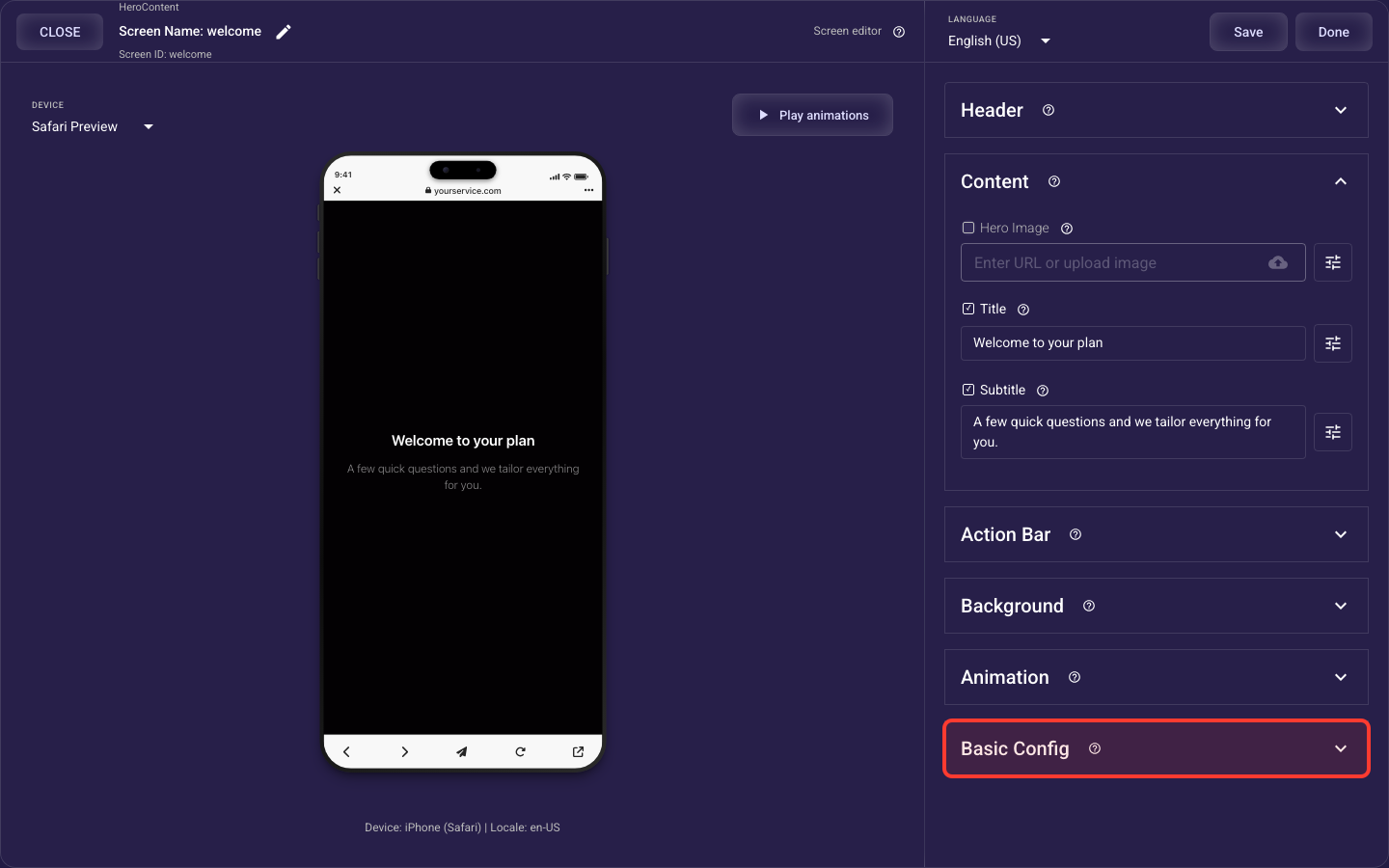
Open the Basic Config section in the screen editor to configure its settings.
Offline media
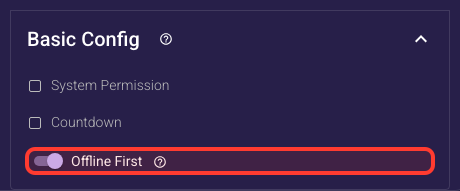
Inside the Basic Config section, this is the Offline media.
Reuse cached media
When on, the screen reuses media it has already cached instead of re-downloading it, which can speed up loading for visitors on slow or flaky connections. Leave it off by default for standard web ad funnels, since there's nothing to reuse until assets are cached. Turn it on only if you ship pre-bundled assets or expect a lot of poor-connectivity traffic.
Device permission prompt
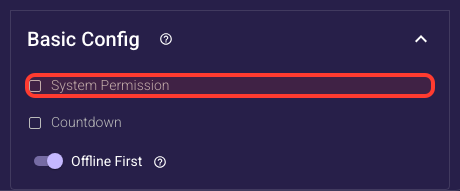
Inside the Basic Config section, this is the Device permission prompt.
Ask For A Device Permission
When on, this screen pops the phone's own permission request, notifications, location, or ad tracking, chosen in the field below, as it appears. This fires in the native app SDK, not on a plain web page. Put it on a screen that first explains why you need it so far more people tap Allow.
Which Permission To Ask For
Picks which device permission this screen requests: push notifications, ad tracking (needed for accurate ad attribution on iPhones), or location. Only shows when the permission request is turned on. Choose what your funnel truly needs, ad tracking if you rely on ad-network attribution, notifications for re-engaging users later.
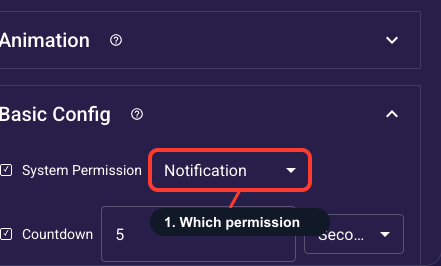
Auto-advance countdown
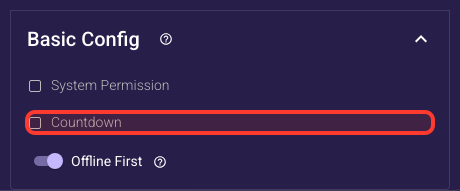
Inside the Basic Config section, this is the Auto-advance countdown.
Auto-Advance After A Delay
When on, the screen moves to the next step on its own after the countdown you set below, with a visible timer. Off by default. Great for splash or 'analyzing...' screens, but never use it where visitors must tap or answer, like questions or your paywall, or you'll skip them past the response or sale.
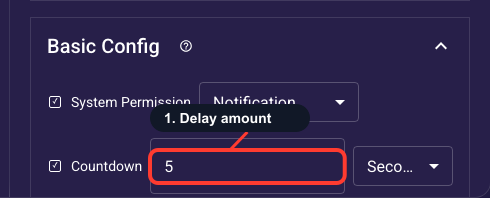
Auto-Advance Duration
The number of seconds or minutes (unit chosen below) before the screen moves on by itself, from 1 to 300. Only used when auto-advance is on. Keep it short, about 2 to 4 seconds for a splash or 'analyzing...' screen, so visitors aren't left waiting and bouncing.
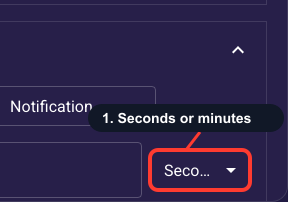
Seconds Or Minutes
Sets whether the auto-advance duration above counts in seconds or minutes. Only shows when auto-advance is on. Seconds is the right choice for nearly every onboarding screen; minutes is rarely useful and risks visitors leaving before the screen ever advances.
Looking for animations?
Animation — all settings — details
The entrance animation and its per-element overrides are not part of Basic Config. They have their own Animation section, right above Basic Config in the screen editor.