Options — List Single Pick
The answer choices visitors pick from — selection mode, list-or-grid layout, item states, spacing, and styling. This guide covers every Options setting that applies to a List Single Pick screen — a one-column list. Each setting matches a real control in the screen editor.
How this screen works
How visitors choose
Single select — visitors tap one option to choose it, and that choice moves them to the next screen.
List or grid
One column — the options stack in a single full-width vertical list.
You can change the selection mode from the select at the top of the Options section.
Available item layouts
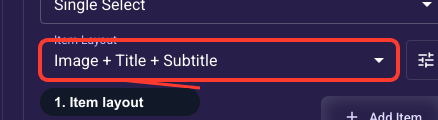
This screen offers these item layouts (set under “Item layout” below): Image + Title + Subtitle • Title + Subtitle + Image • Title + Subtitle • Title + Image • Image + Title • Title.
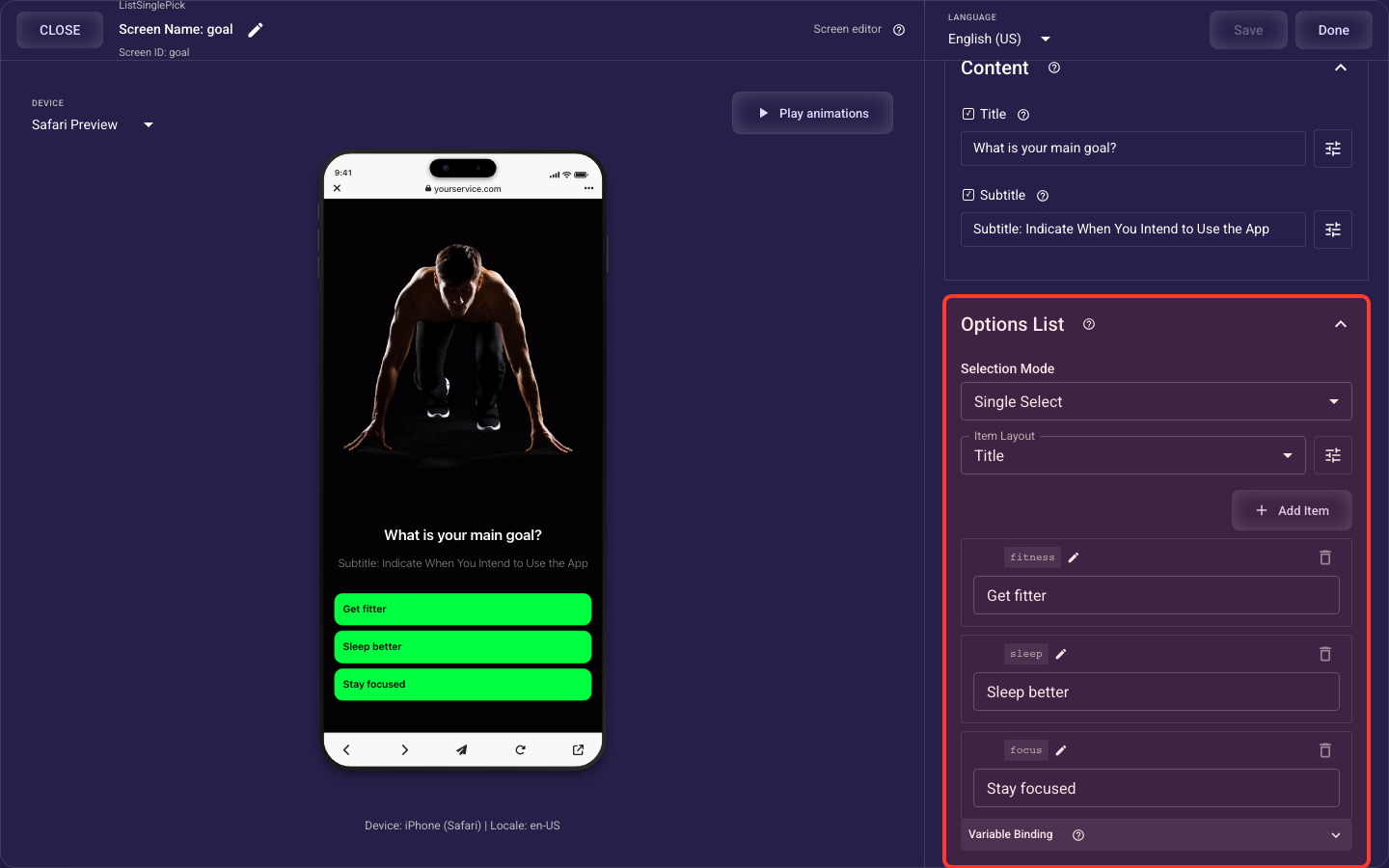
Open the Options section in the screen editor to configure its settings.
Selection behaviour
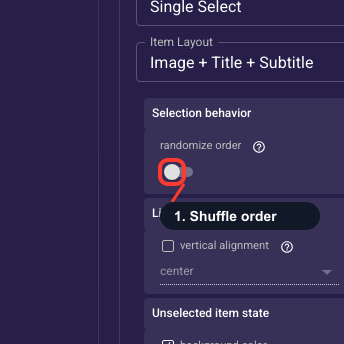
Shuffle item order
When enabled, randomizes the order items appear to users on each view. Useful for A/B testing, survey randomization, and reducing position bias in multi-select scenarios.
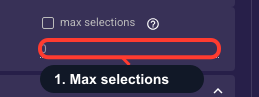
Cap on multi-select picks
Limits how many items a visitor can choose on a multi-select screen. Set a small cap (e.g. 3) to keep answers focused and the next step manageable; leave it unlimited to let them pick freely. This control only appears on multi-select screens and is ignored everywhere else.
List or grid layout
What each choice shows
Pick which parts each choice displays — title only, image plus title, checkbox with title and subtitle, and so on; available combos depend on your selection mode and layout. Adding an element reveals its style controls and means you must supply that content (image or subtitle) on every item. Default to title (plus a checkbox for multi-select) and add an image only when it aids the choice.
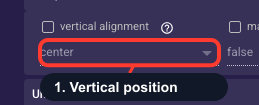
Vertical alignment of items
Aligns each choice's content to the top, center, or bottom of its cell. It's most noticeable in grid layouts where cells are taller than their content; center usually looks balanced. In simple lists it has little visible effect, so center is a safe default.
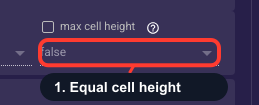
Even grid cell heights
On a grid, choose whether all cells stretch to the same maximum height for tidy, even rows, or each cell sizes to its own content (giving rows of varying height). Turn it on for a clean, consistent grid; turn it off when items have very different content lengths. Only applies to grid layouts.
Selected & unselected look
Unselected item look
The default look of each choice before it's tapped — background, border, corner radius, and an optional gradient. Keep it neutral and calm so the selected state can stand out; the contrast between this and the selected look is what tells visitors their tap registered. Pair it with the Selected item look.
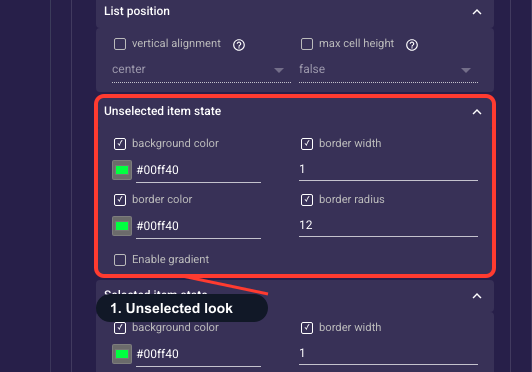
• Background color
The fill behind an option the visitor has NOT selected.
• Border width
Thickness (px) of the outline around an unselected option; 0 hides it.
• Border color
Color of that outline.
• Corner radius
How rounded the option corners are (px); higher is softer.
• Gradient fill
Optional gradient that replaces the flat background color for a richer look.
Selected item look
How a choice looks once tapped — background, border, corner radius, and optional gradient. Make it clearly distinct from the unselected look (an accent border or filled background) so visitors get instant confirmation; weak feedback here causes hesitation and drop-off. Your theme's accent color is a reliable choice.
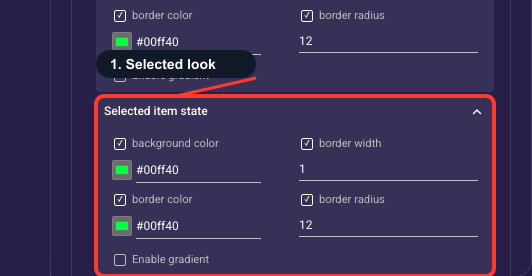
• Background color
The highlight fill behind the option the visitor HAS picked.
• Border width
Outline thickness for the selected option.
• Border color
Outline color for the selected option — often your accent color.
• Corner radius
Corner rounding for the selected option; usually matches the unselected state.
• Gradient fill
Optional gradient highlight for the selected option.
Spacing & padding
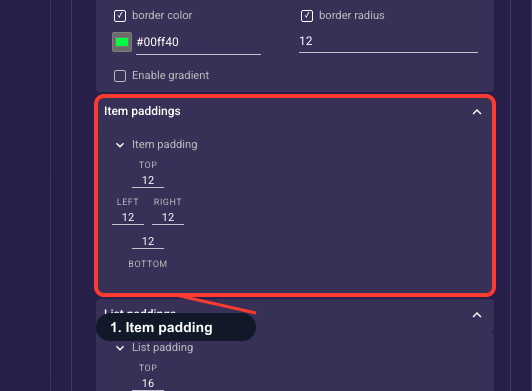
Padding inside each item
The space between each item's edge and its content (title, image, checkbox), set per side — top, end, bottom, start. More padding makes items feel roomy and easier to tap; too little looks cramped. Around 12–16px on all sides reads well on mobile, and the setting applies to every item.
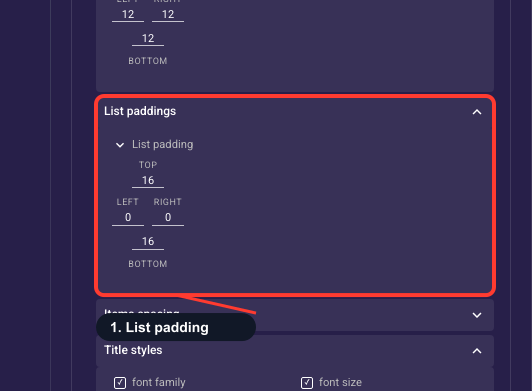
Margin around the whole list
The outer space between the screen edges and the first and last items, set per side (top, end, bottom, start). Use it to keep the list off the screen edges and aligned with your other sections. This is the outside spacing — for the gap inside each item use Padding inside each item instead.
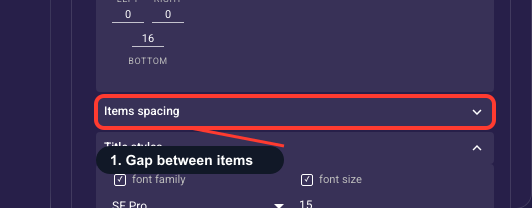
Gap between choices
The spacing between adjacent choices — a vertical gap in lists, the gap between cells in grids. Around 8–12px keeps items clearly separate and easy to tap without wasting space. Increase it for a more airy feel, or decrease it to fit more options above the fold.
Text, image & checkbox styles
Item title text style
Typography for every item's title — size, weight, color, alignment, line height, plus an optional background chip (color, opacity, radius) and padding. It's a shared template, so an edit restyles all items at once. Leave it on theme defaults for consistency, adjusting size or color only to improve readability against the item background.
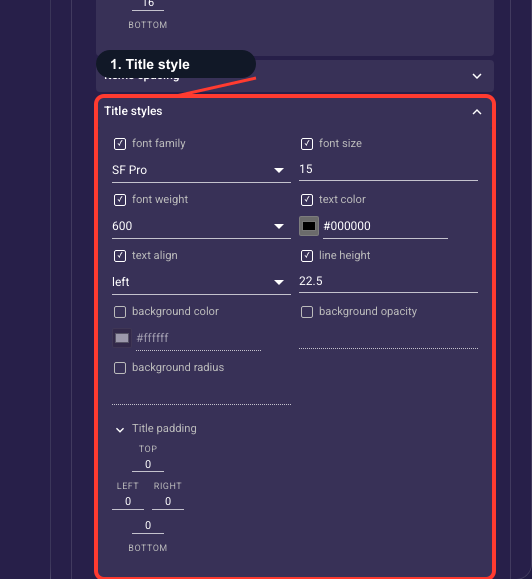
• Font family
Typeface of each option's title.
• Font size
Text size (px) of each option's title.
• Font weight
How bold the title is.
• Text color
Title color.
• Text align
Left, center, or right alignment of the title.
• Line height
Vertical spacing between title lines.
• Background color
Fill drawn behind the title text.
• Background opacity
Transparency of that title background (0–100%).
• Background radius
Corner rounding of the title background.
• Title padding
Space around the title text (top, right, bottom, left).
Item subtitle text style
Typography for the item subtitle — size, weight, color, alignment, line height, optional background, and padding, applied to all items as a shared template. Keep the subtitle visually quieter than the title (smaller, muted color) so it reads as supporting text. Only appears when your item layout includes a subtitle.
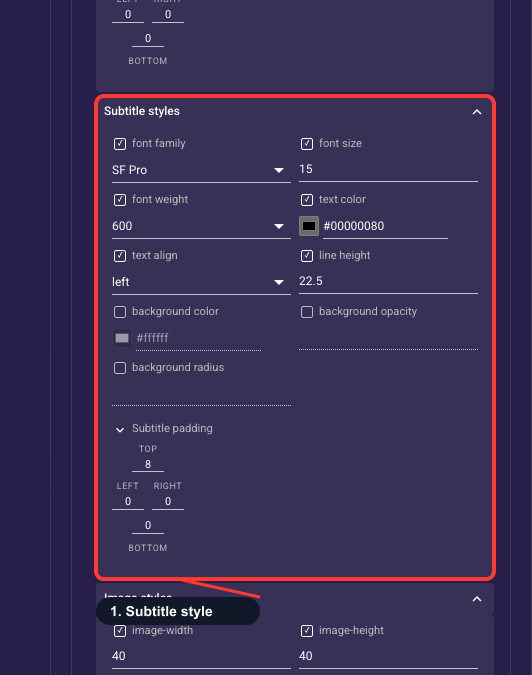
• Font family
Typeface of each option's subtitle.
• Font size
Text size (px) of each option's subtitle.
• Font weight
How bold the subtitle is.
• Text color
Subtitle color — usually a muted shade.
• Text align
Alignment of the subtitle.
• Line height
Spacing between subtitle lines.
• Background color
Fill drawn behind the subtitle.
• Background opacity
Transparency of that subtitle background.
• Background radius
Corner rounding of the subtitle background.
• Subtitle padding
Space around the subtitle text.
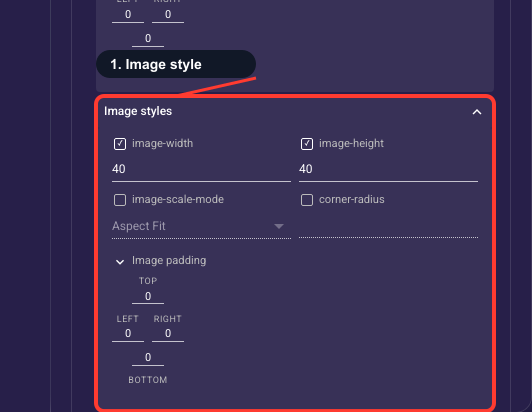
Item image look
Size and look of each item's image — width, height, corner radius, padding, and how it fits its box (fit shows the whole image with possible empty space; fill crops to cover the box). Keep a consistent size and small radius so cards look uniform; choose fill for photos and fit for logos or icons you don't want cropped. Only appears when the layout includes an image.
• Image width
Width (px) of the option's image or icon.
• Image height
Height (px) of the option's image or icon.
• Scale mode
How the image fills its box (fit, fill, or stretch).
• Corner radius
How rounded the image corners are.
• Image padding
Space around the image inside the option.
Animations
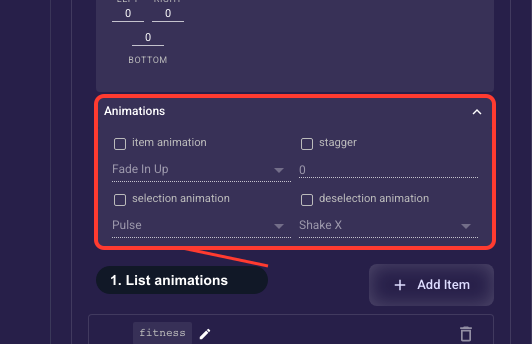
Open the style settings (the gear on the Options section) and scroll to the last section, “Animations”. Each of its four settings has its own checkbox — tick it to turn that animation on, untick it to remove it.
Item animation
Gives every option its own entrance and lets you pick the style from the list (Fade In Up is the starting choice). While it is on, the options animate in one by one instead of moving in together with the rest of the screen.
Stagger
The pause, in milliseconds, between one option starting and the next, so they appear one after another (0 to 1000; when you tick it, it starts at 50). It stays greyed out until Item animation is on.
Selection animation
A short emphasis that plays on an option at the moment a visitor selects it (Pulse is the starting choice). It plays when the selection changes, not when the screen first appears.
Deselection animation
The same kind of emphasis, played when a visitor un-selects an option (Shake X is the starting choice).
Screen-wide entrance — details
How the whole screen — including the list — animates in is set in the screen’s Animation section. See “Animation — all settings”.