Paywall Product: Stripe mapping
Map the product to the right Stripe product/price (same account mode) so checkout charges the intended amount.
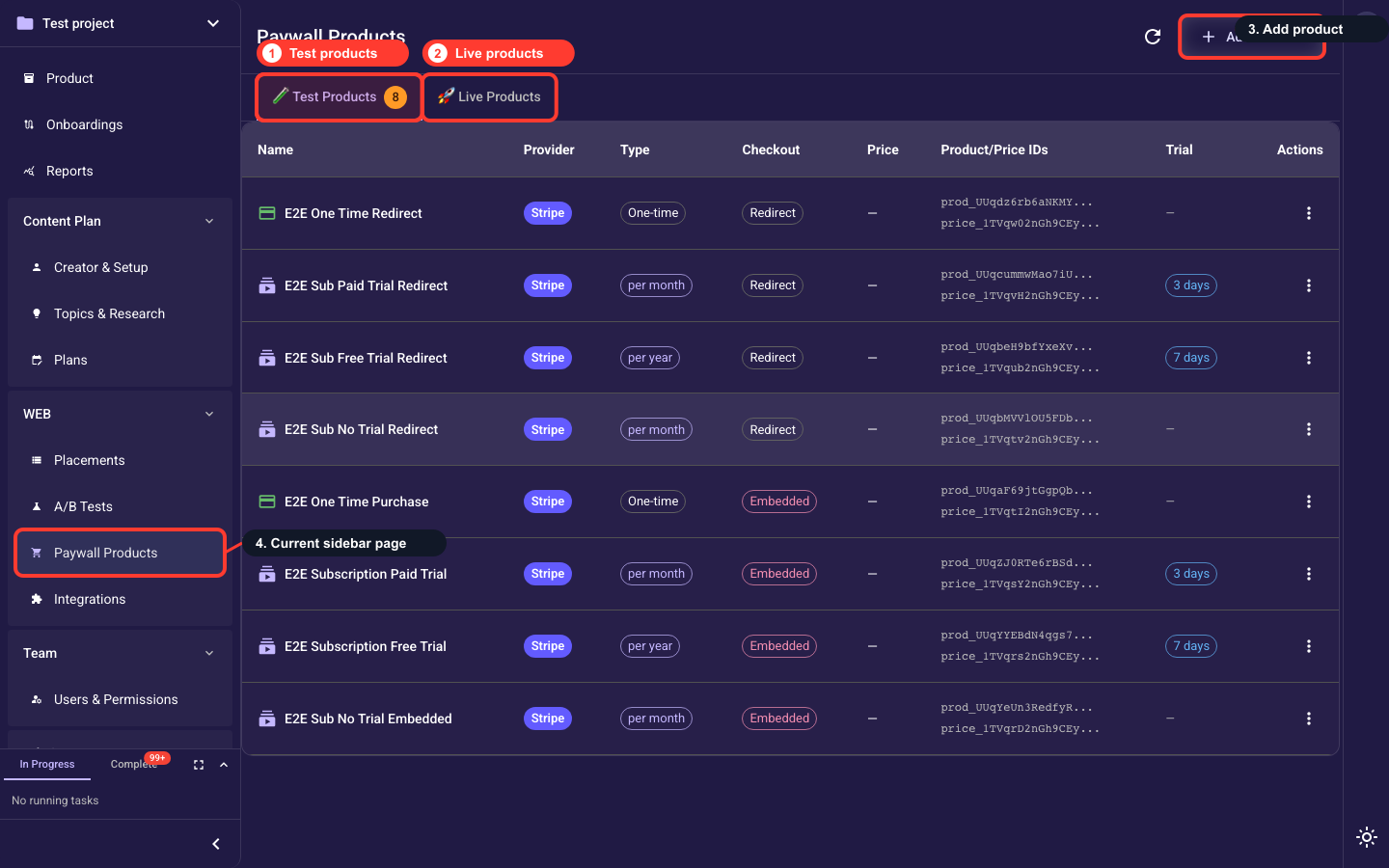
Open it from the sidebar — WEB → Paywall Products. Pick the Test or Live tab to match the Stripe mode you will ship, then click “Add product” (top right) to open the create dialog. Give the product a name and choose its type (Subscription or One-time) and checkout mode — then map it to a Stripe product and price using the two steps below.
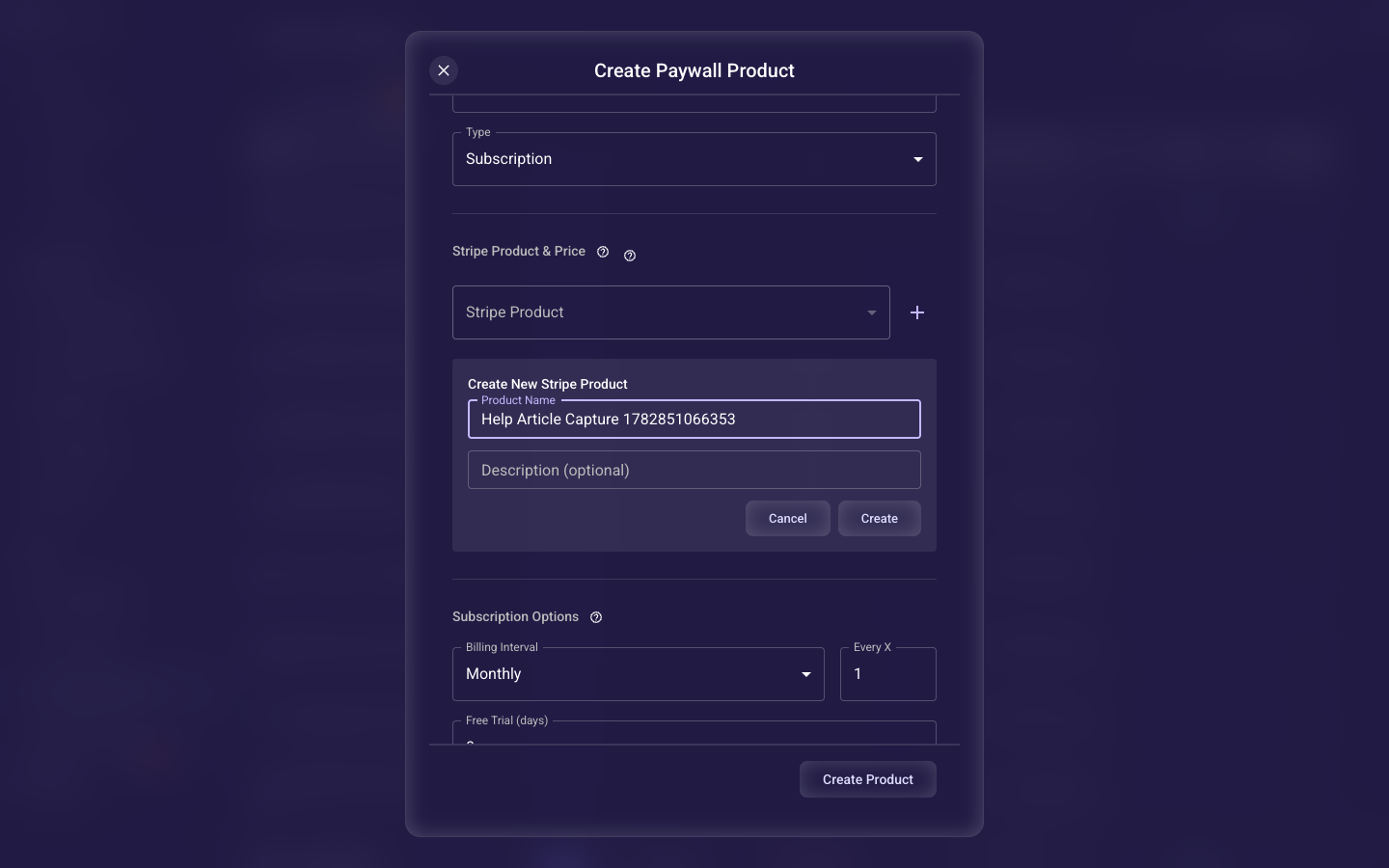
Select or create the Stripe product
Link this paywall product to a real product in your Stripe account, or click to create one inline without leaving this dialog. It has to live in the same Stripe mode (Test or Live) you selected above — if it's in the other mode it won't show up in the list.
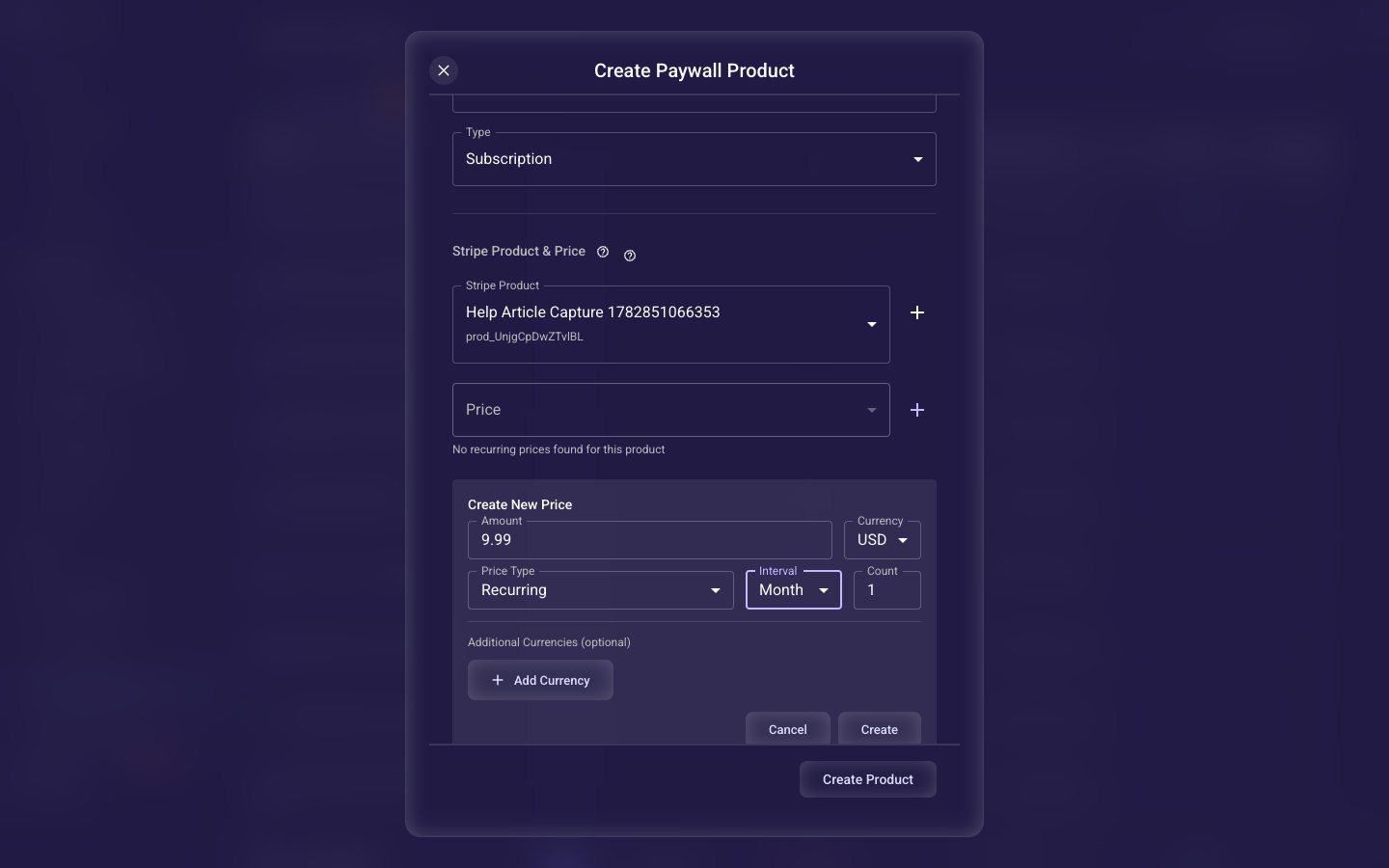
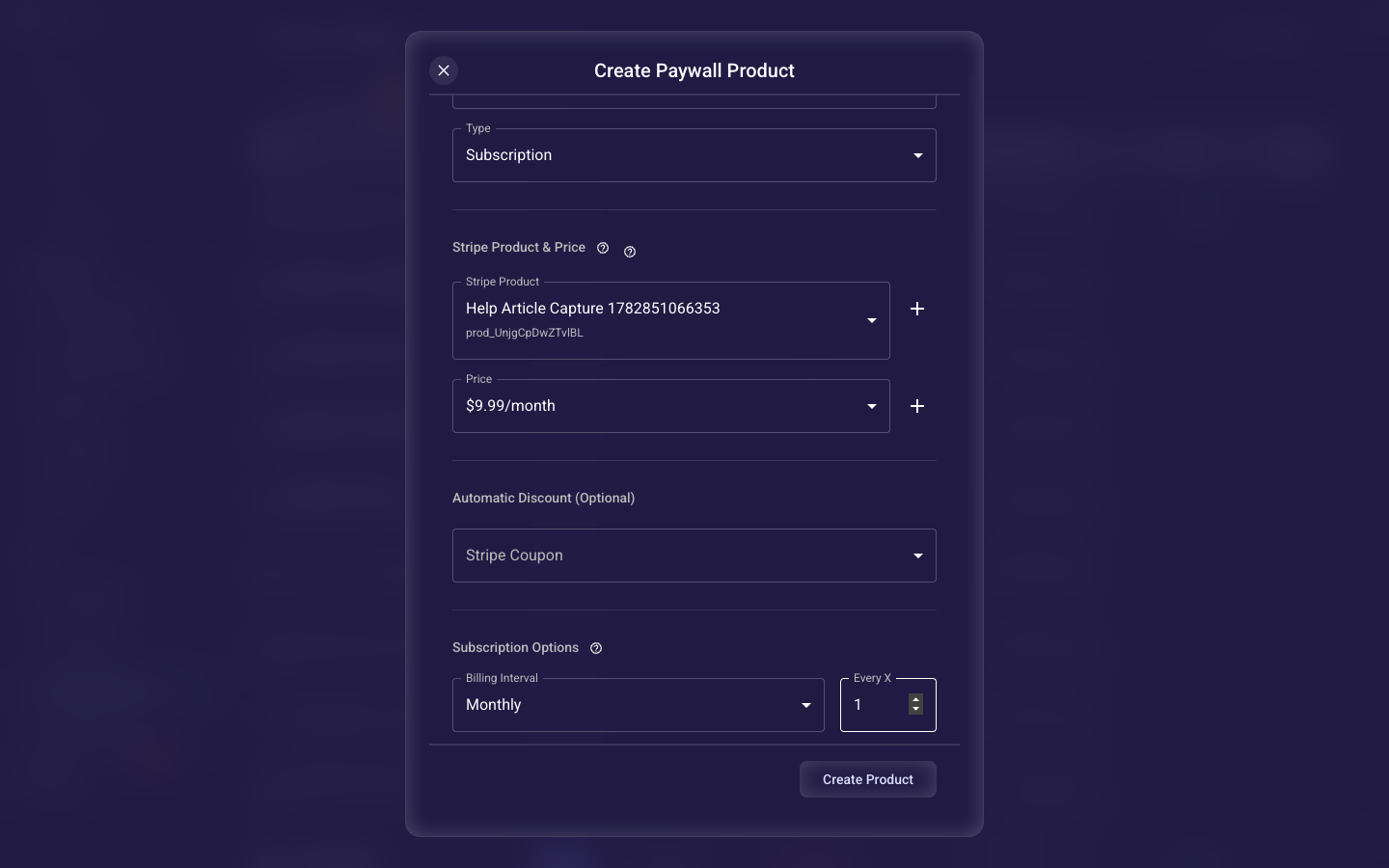
Select or create the Stripe price
Pick the exact price customers will be charged — this is what actually drives checkout, so if you leave the price empty the paywall will fail when a visitor tries to pay. The list filters to recurring prices for subscriptions and one-time prices for single purchases; if none fits, create a new price inline.