Fonts — set your funnel typography
Your funnel can use any typeface you like — and it renders the same on every visitor's device. Choose one of Segmently's built-in web fonts, or upload your own brand font. To open these settings, go to the left sidebar, select Integrations, and expand the Font Mappings panel.
1. Choose a web font (the same on every device)
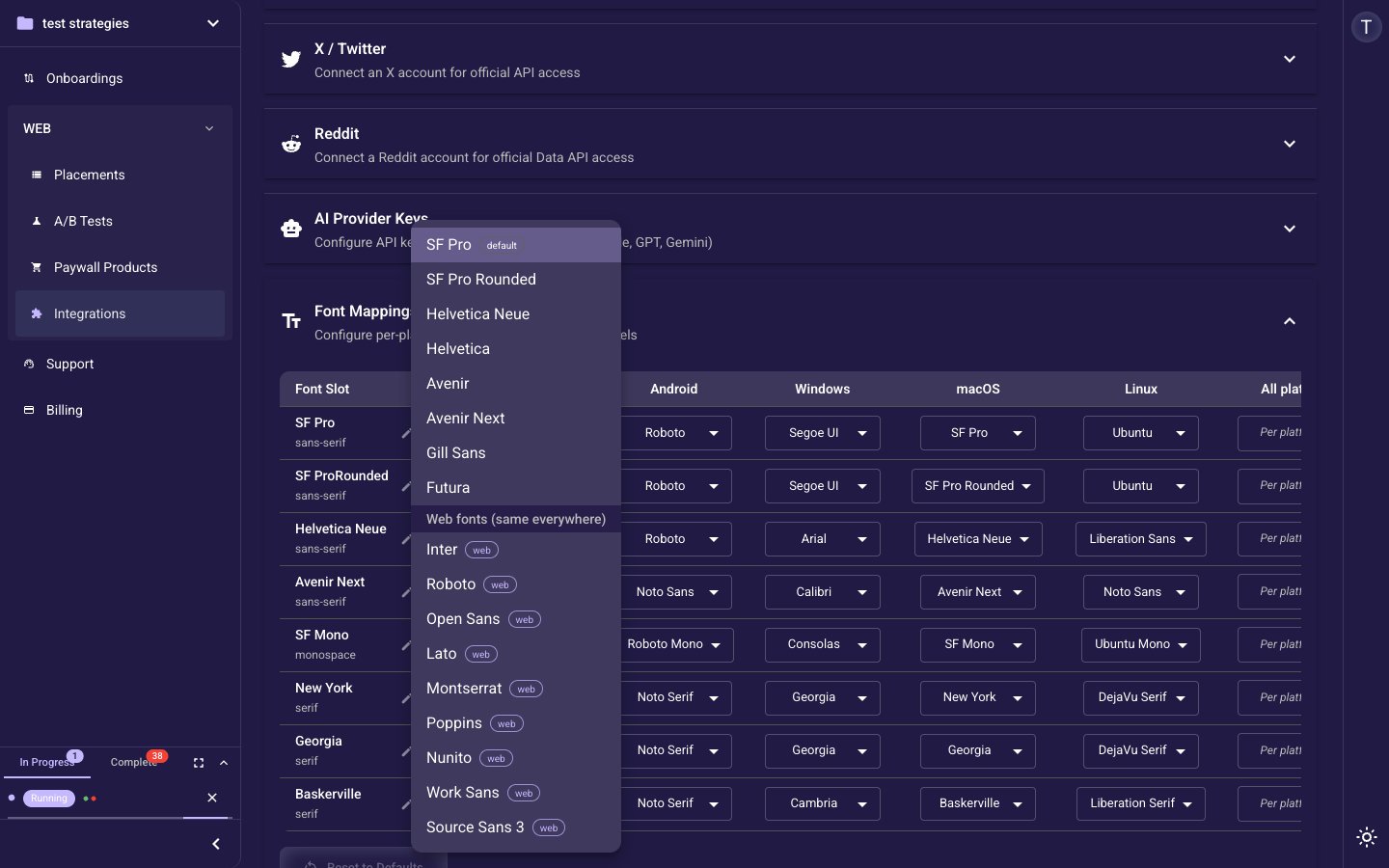
The panel lists eight font slots (the rows) across five platforms — iOS, Android, Windows, macOS and Linux. Open any cell's dropdown: your device's system fonts appear first, then a group labelled “Web fonts (same everywhere)”. Every option in that group carries a “web” badge. Pick one — for example Inter — and Segmently self-hosts that font with your funnel, so it looks identical on every device and makes no external Google Fonts request.
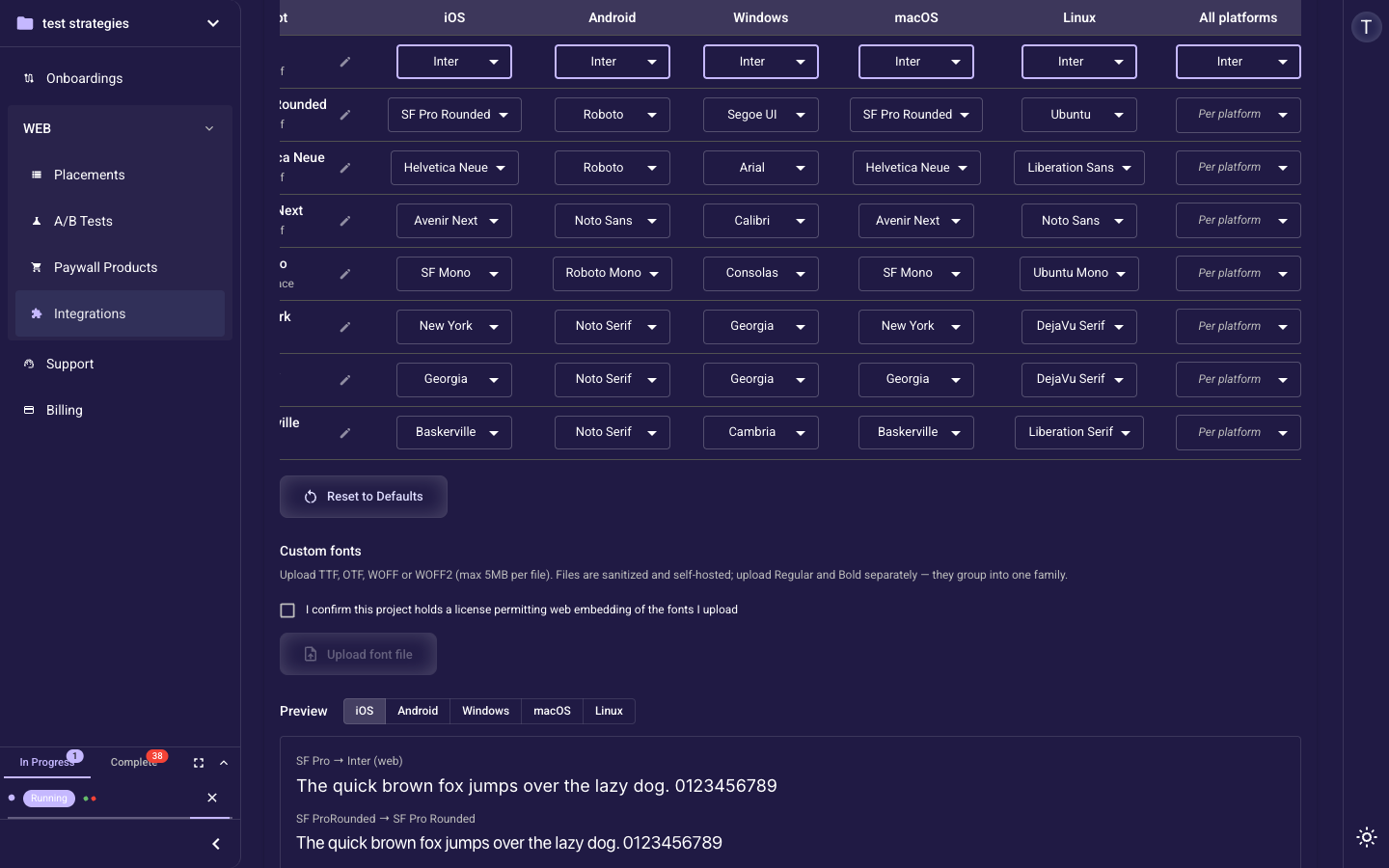
To apply one font to every platform at once, set it in the “All platforms” column on the right. This is the recommended way to get identical rendering everywhere. The live Preview at the bottom of the panel shows the real font for each platform as you make changes.
2. Upload your own font
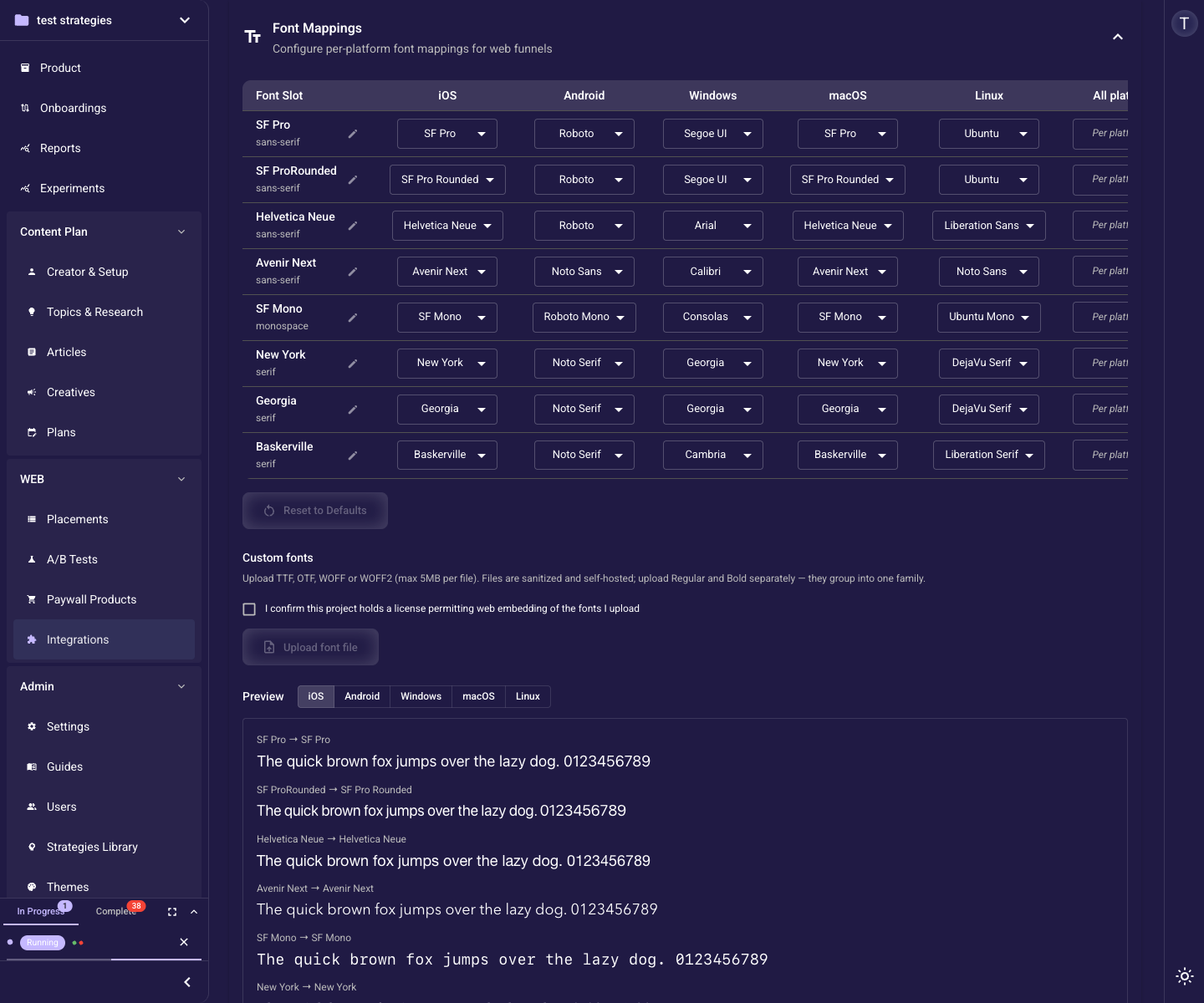
Scroll to the Custom fonts section. The “Upload font file” button stays disabled until you tick “I confirm this project holds a license permitting web embedding of the fonts I upload”. Accepted formats are TTF, OTF, WOFF and WOFF2, up to 5 MB per file.
Upload Regular and Bold as separate files — Segmently groups them into a single family (for example “PT Sans” with weights 400 and 700). Uploaded fonts are sanitized and self-hosted, appear in a “Custom” group in every slot's dropdown, and work with the “All platforms” option exactly like the built-in web fonts.
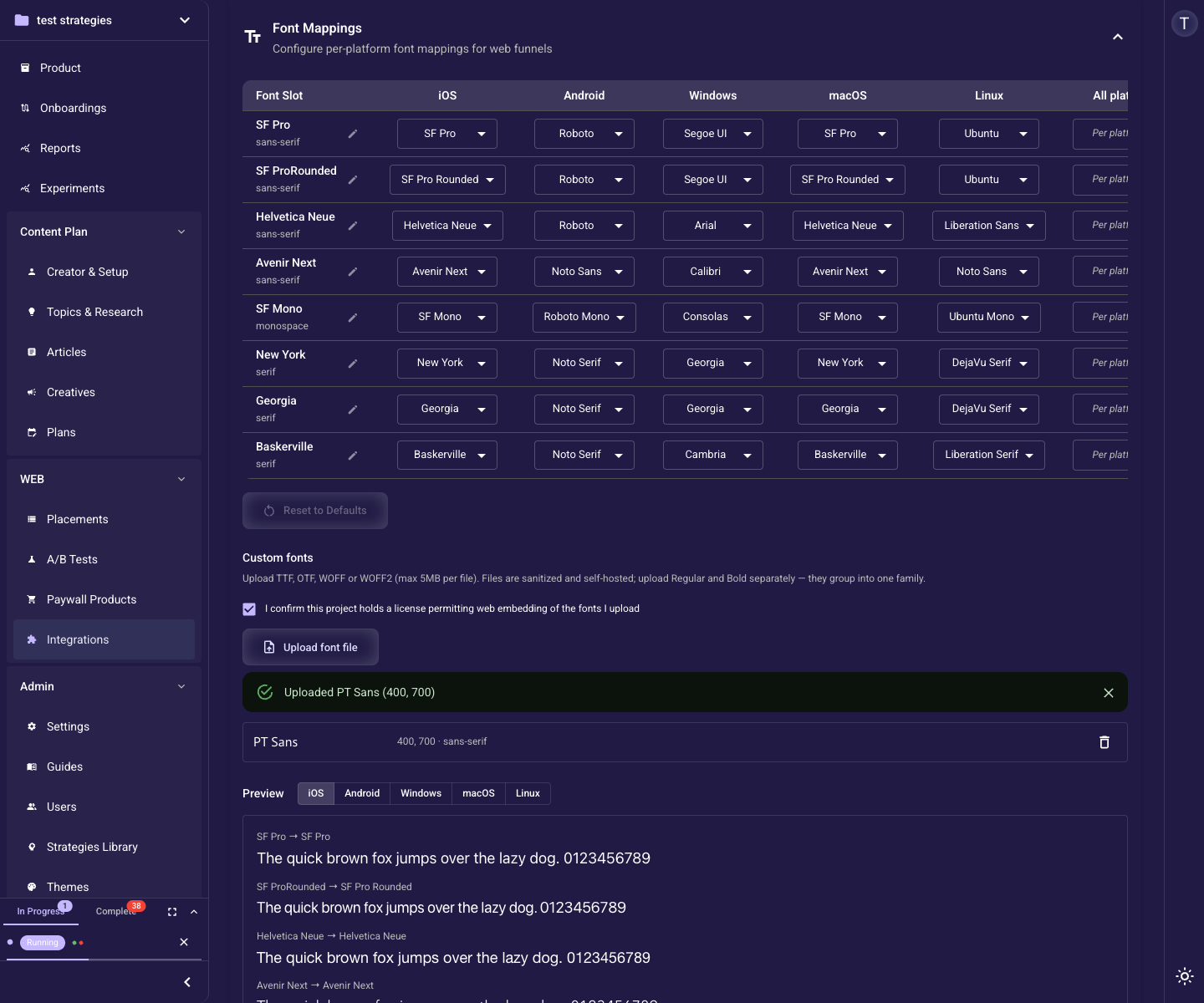
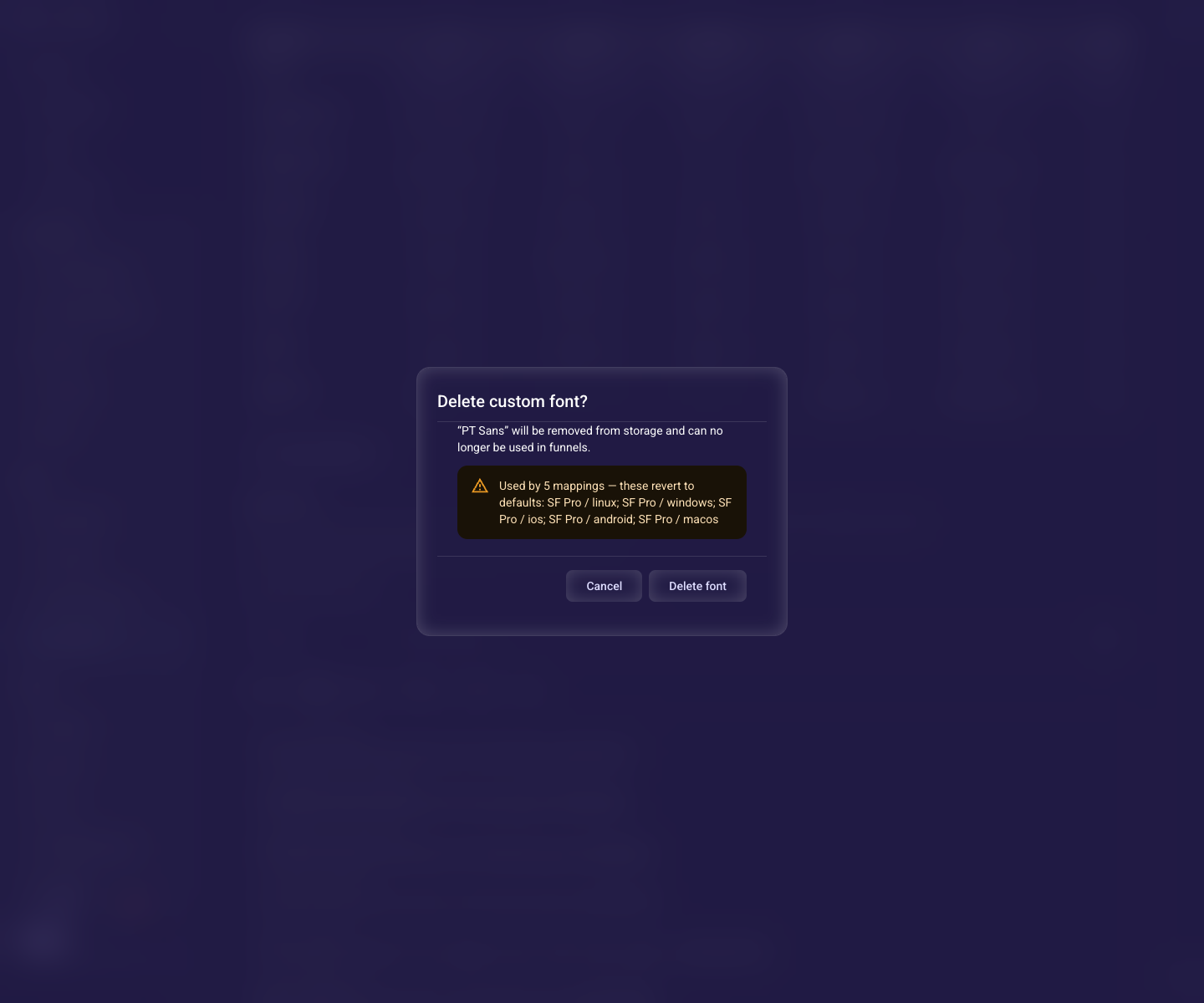
To remove a font, use its trash icon. If the font is still mapped anywhere, a confirmation dialog lists exactly which slot-and-platform mappings will revert to their defaults, then removes the font from storage. Republish any affected funnels to push the change live.