Web Placement publish URL
Publish, copy the URL, and smoke-test the full flow (and checkout/analytics) in a clean session before sending traffic.
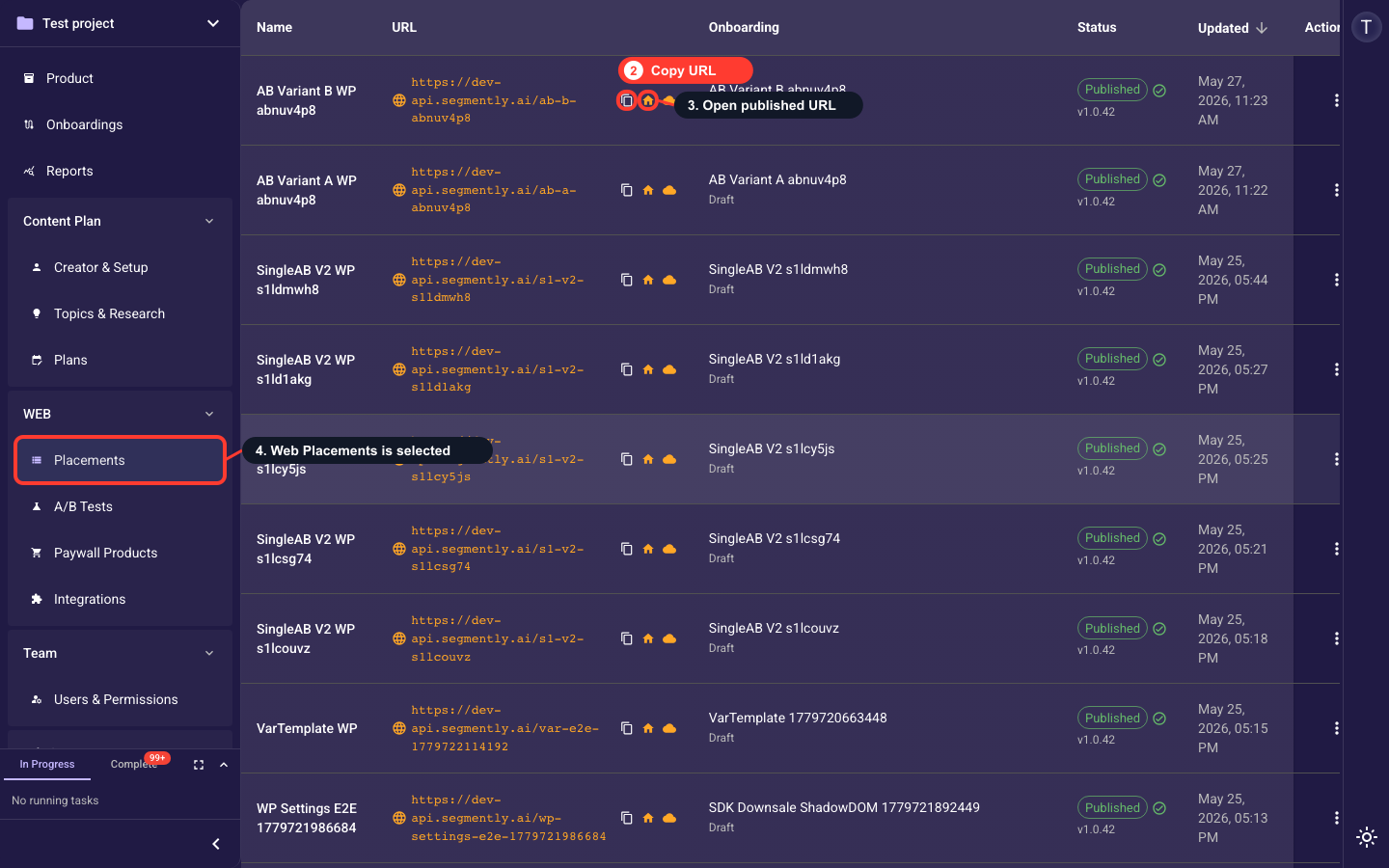
Open Web Placements to publish and get the URL
Publishing and the public Cloud URL live on the Web Placements list, not inside the editor canvas. In the project sidebar, open the WEB section and click Placements. Each placement row shows its URL, a Copy URL button, an Open published URL button, and its Status. Publish (or republish) the placement from the row actions or the publish control; once it is Published, the Cloud URL in the URL column becomes the live public link. Note: the placement must reference a V2 onboarding, and a custom domain must be connected and verified before the funnel can go fully live.
Find the Cloud URL
This is the live public URL of the published funnel, using your custom domain when configured. Share it in ads, emails, and landing pages.
Copy the URL
Copy the Cloud URL to the clipboard for campaigns and links. The button shows a checkmark to confirm the copy.
Open the funnel in a new tab
Open the Cloud URL to confirm it loads before sending traffic. It runs with full analytics and Stripe checkout.
Test locally with the Debug Panel (dev only)
On localhost, a local URL with the Debug Panel shows live variable inspection, analytics preview, and error logs. Use it for QA before release.
Complete a smoke test
Open the Cloud URL in a clean (incognito) session, complete the flow, confirm analytics events fire, and test the paywall or checkout before sending traffic.
Related guides