Onboarding wizard: theme customization
Tune high-level theme settings now; do screen-specific copy/layout later in the Screen Editor.
Reach the Customize Theme step
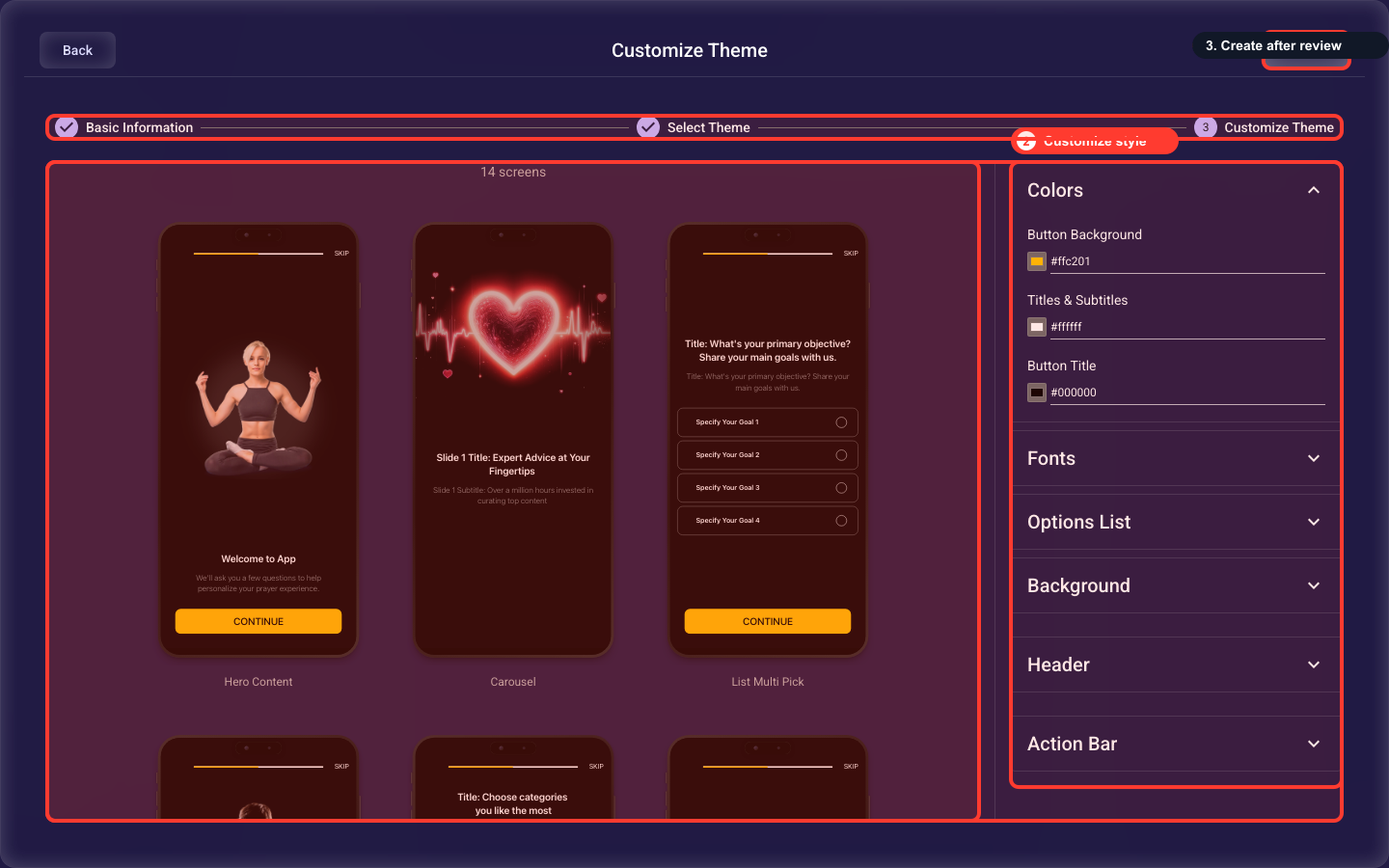
Customization happens on the last step of the Create Onboarding wizard. After you pick a theme card on the Select Theme step, click Next — the wizard opens Customize Theme, showing a live preview carousel on the left and the styling controls on the right. Everything you set here becomes the default for every screen in the new onboarding, and you finish by clicking Create. If you have not opened the wizard yet, start by creating an onboarding and advancing through Basic Info and Select Theme first.
Set the color scheme
Three color pickers define the whole theme. Button Background fills the color behind your buttons, Titles & Subtitles sets the color of heading text (subtitles automatically reuse it at half opacity for a softer, secondary look), and Button Title sets the text color inside buttons. These colors carry into every screen you create, so set them once here.
Choose fonts and text styling
Main Font Family is the base font used for all text. You can give Titles and Subtitles their own family, weight, size, color, and alignment if you want them to stand out. Your font choices flow into option cards, product cards, and every screen, so this is what sets the overall voice and feel of the funnel.
Style the option and product cards
These controls style the tappable cards visitors choose from. Checkbox Kind sets circle or square selection markers, List Border Radius rounds the card corners (0 = sharp, 32 = very rounded; around 12 looks modern), and Item Title and Item Subtitle set the text inside each card. They apply to list, grid, and paywall product screens — anywhere a visitor makes a choice.
Set the background
Choose a solid color, a photo, or a video clip to sit behind every screen. Whatever you pick must keep headings, body text, and buttons easy to read — low contrast here hurts conversion on every single screen, so favor a calm background over a busy one.
Configure the header bar
The header bar sits at the top of every screen. Toggle the back button, the skip button, and the progress indicator on or off. Leaving the progress indicator on reassures visitors how far along they are, which helps them finish; colors and fonts here inherit from your theme automatically.
Configure the action buttons
These are the buttons at the bottom of each screen — a primary one (usually 'Continue') and an optional secondary one. Set whether each is shown, its label style, and its look. Their colors pull from your Titles & Subtitles and Button Title theme colors, so they stay consistent across all screens without per-screen tweaks.
Review the live preview
The carousel on the left shows sample screens using your current settings, updating in real time as you change them. Use it to confirm text is readable and spacing looks right before you commit — fixing the theme now is far faster than editing every screen one by one afterward.
Create the onboarding
Click Create to apply this theme and generate the draft. Everything you set here is just a starting point — you can still override the colors, fonts, and layout on any individual screen later in the Screen Editor.
Related guides