Web Placement Stripe metadata
Carry stable funnel values (email/UTM) into Stripe checkout/webhooks via metadata mapping.
Open the placement and find Stripe Metadata
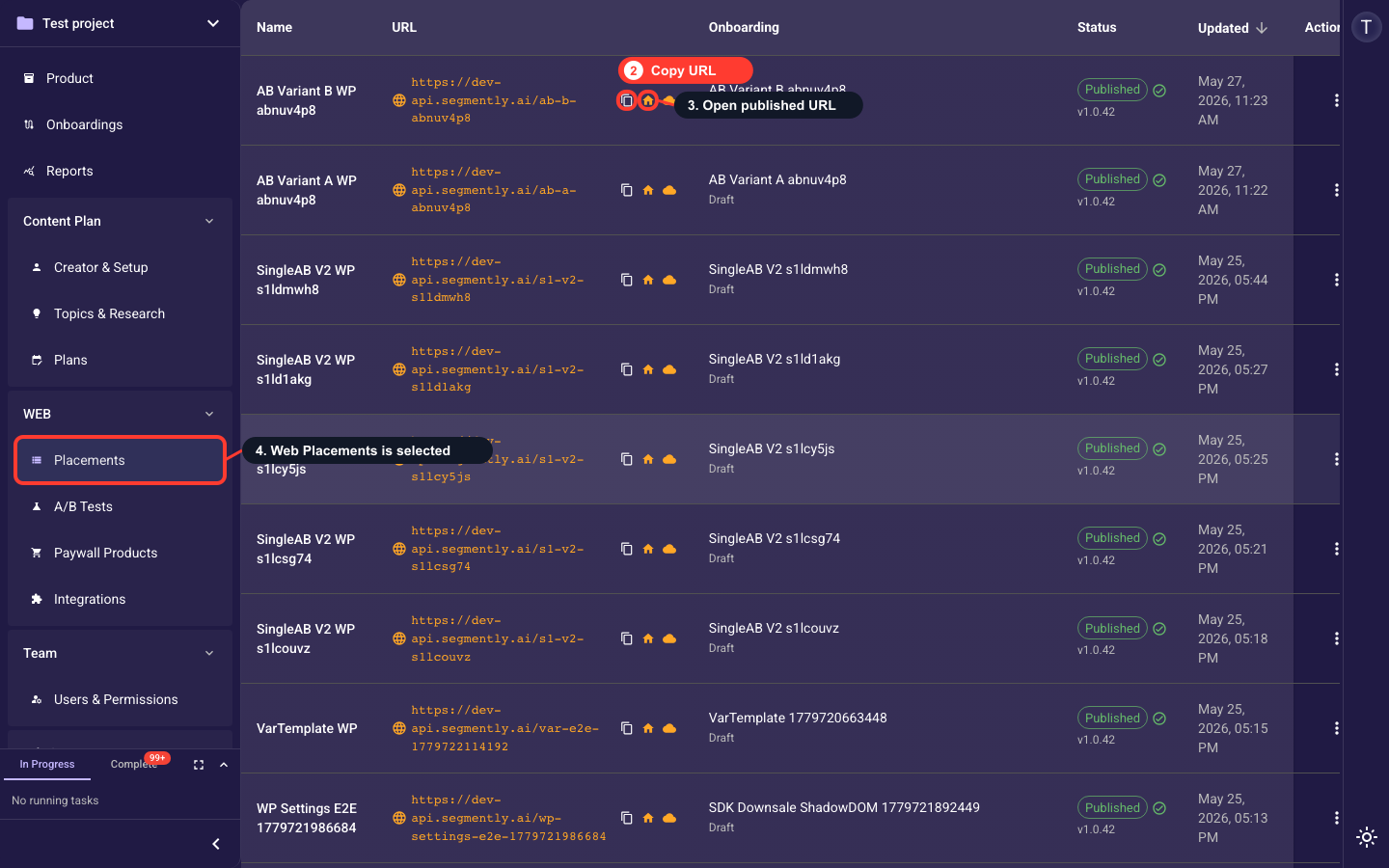
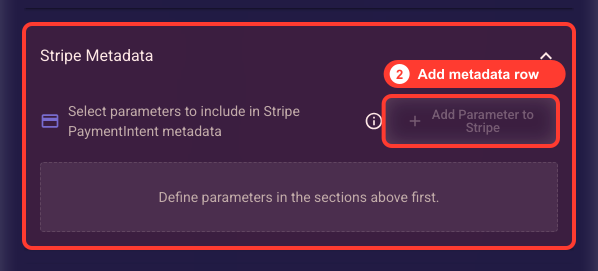
Stripe metadata is configured inside a Web Placement's settings. In the project sidebar, open the WEB section and click Placements to open the Web Placements list, then create a new placement or edit an existing one to open the Web Placement dialog. Scroll down and expand the Stripe Metadata accordion. Important: metadata rows can only forward values you have already defined in the Sources sections above (URL Params, Server Data, or Variable Inputs) -- if no sources are defined, the Add Parameter to Stripe button stays disabled. Email is handled separately in the Stripe Email section of the same dialog, not as a metadata field.
Why attach metadata, and how to add one
Attaching metadata stamps extra info onto each Stripe payment so you can see, right in your Stripe Dashboard and payout reports, which ad campaign, traffic source, or quiz answer produced the sale. Click Add and pick one of your defined parameters (a URL, Server, Variable, or Custom value you set up in Sources). Its key becomes a field on every PaymentIntent. Stripe allows up to 50 such keys.
Choose which parameter to send
Select from the parameters you've already defined in Sources. The parameter's internal key becomes the field name shown in Stripe, and every value is sent to Stripe as plain text (a string), even numbers.
Review the metadata preview
The JSON preview shows exactly how your chosen parameters will appear on the payment in Stripe. Check the field names and values here before saving, so your revenue reporting and reconciliation line up with the right campaign or source data.
Remove a parameter
Delete a mapping to stop sending that field to Stripe on future payments. This only removes the mapping on this screen — it does not delete or change the parameter definition itself over in Sources.
Watch the keys limit
A counter shows how many of Stripe's 50 metadata keys you've used. The Add button turns off once you hit the limit, so if you need room for a new field, remove a mapping you no longer need first.
Related guides