Create an onboarding
Start one V2 onboarding draft from this page; avoid duplicate drafts for the same campaign.
Open the Onboardings page
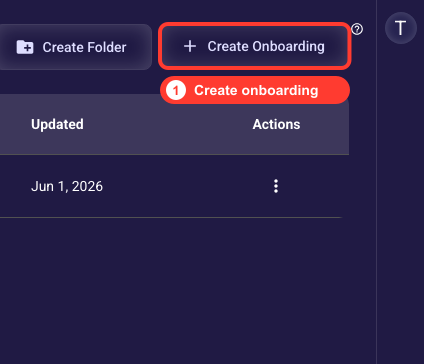
Inside your project, click Onboardings in the left sidebar to open the Onboardings list. This is the page that holds every onboarding draft for the project and where you start a new one. The Create Onboarding button sits at the top of that list — clicking it opens the setup wizard. If you are coming from a support link straight to the Onboardings page, you are already in the right place; just confirm Onboardings is the highlighted area in the sidebar before continuing.
Start from the onboarding list
Click Create Onboarding to open the setup wizard. It walks you through three things in order: naming the draft, choosing where it will be published (pick Web if you're building an ad landing page), and picking a starting theme. After that the draft opens on the canvas ready to edit.
Name and organize the draft
Give the draft a clear internal name — this is just for you to find it in the list, and visitors never see it. Optionally drop it in a folder to keep a long list tidy. Keep one draft per ad campaign instead of making duplicates, because separate drafts split your analytics and make results harder to read.
Related guides