Web Placement entry rules
Route visitors to the right entry screen by source value, and always keep a valid default entry path.
Open the placement and find Entry Screen Rules
Entry screen rules live inside a Web Placement's settings. In the project sidebar, open the WEB section and click Placements to open the Web Placements list. Create a new placement, or open the actions menu on an existing V2 placement and edit it, to open the Web Placement dialog. Scroll down in that dialog and expand the Entry Screen Rules accordion. Entry rules only apply to placements that point at a V2 onboarding, and you must already have at least one parameter defined in the Sources sections (URL Params, Server Data, or Variable Inputs) before a rule can read a value.
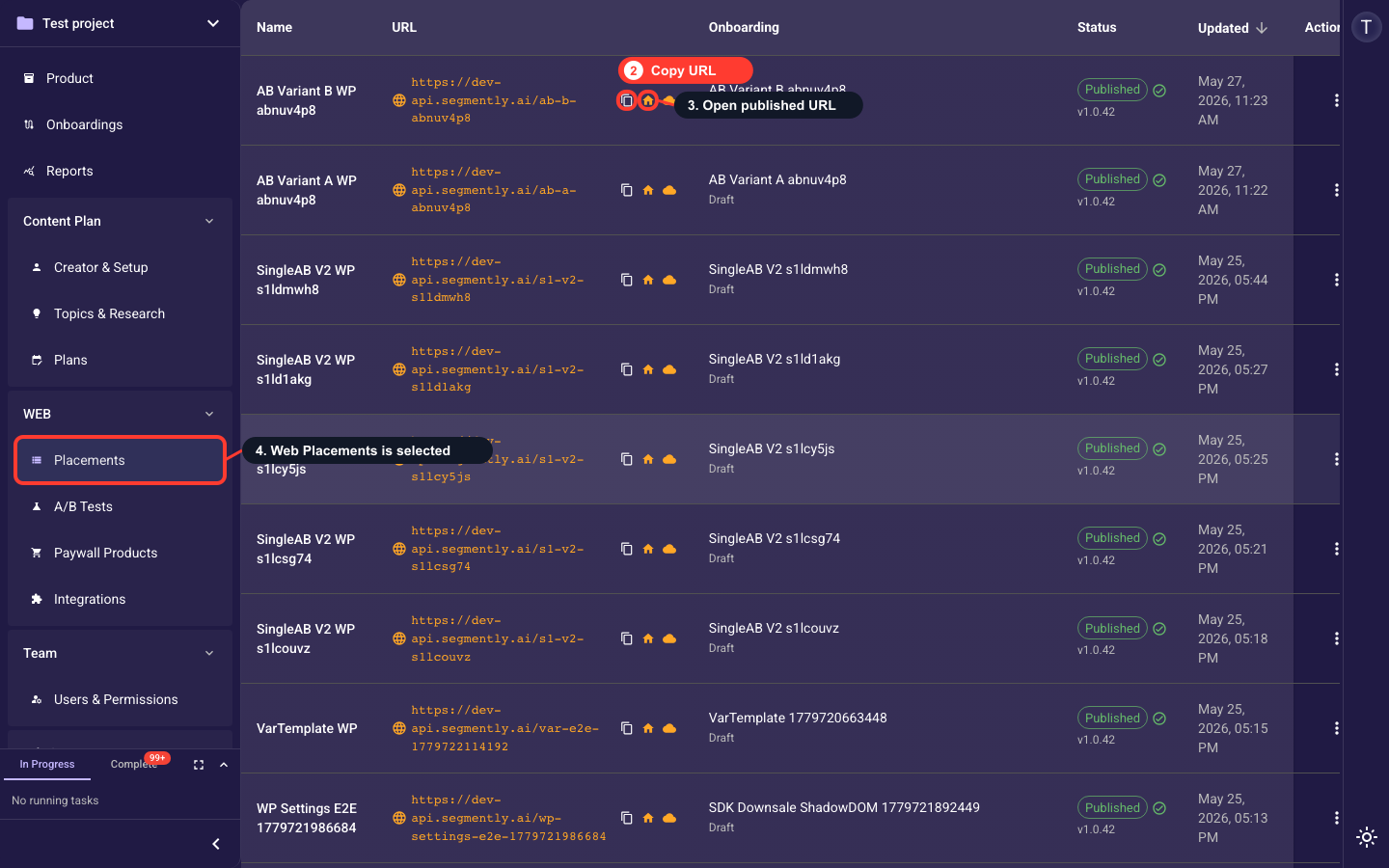
Add an entry screen rule
Open the form to create a routing rule. Each rule matches a URL parameter value and routes the visitor to a start screen; rules are checked top to bottom and the first match wins.
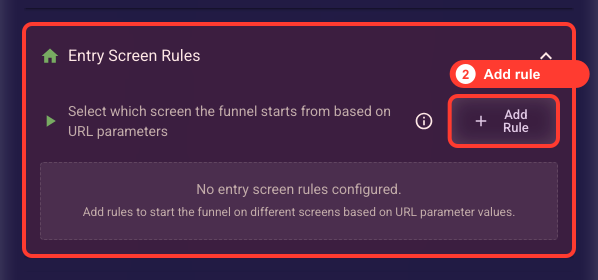
Choose the URL parameter to match
Select a parameter you defined in Sources. Its key is read from the incoming URL (for example utm_campaign) when the funnel loads.
Specify the value to match
Enter the exact value the parameter must have to trigger the rule. The match is case-sensitive (for example, enter summer for utm_campaign=summer).
Choose the start screen
Pick the V2 step where matching visitors land; it must exist in the selected onboarding version. Saved visitor progress overrides rules.
Enable or disable the rule
Toggle a rule active or inactive. Disabled rules are kept but skipped at load, which is useful for testing or temporary pauses.
Remove a rule
Delete a rule permanently; this cannot be undone. With no matching rule, the default start screen is used.
Related guides