Launch a paid funnel you can run ads against
This is the complete, ordered checklist to take a funnel from nothing to a published, paying funnel you can point ads at. Do the five required steps in order; the ad-pixel step is optional. Each step below has a short "what to do", a screenshot of where it lives, and a "full guide" link to the article with every detail.
What you need (and the order)
Five steps are required to publish a live, paying funnel: (1) connect Stripe, (2) create a paywall product and attach it to a paywall screen, (3) set up email passing, (4) connect a custom domain, and (5) publish and run a test purchase. One step — wiring ad-pixel events for Facebook or TikTok — is optional and only matters if you plan to run ads. Always work top to bottom: each step depends on the ones before it.
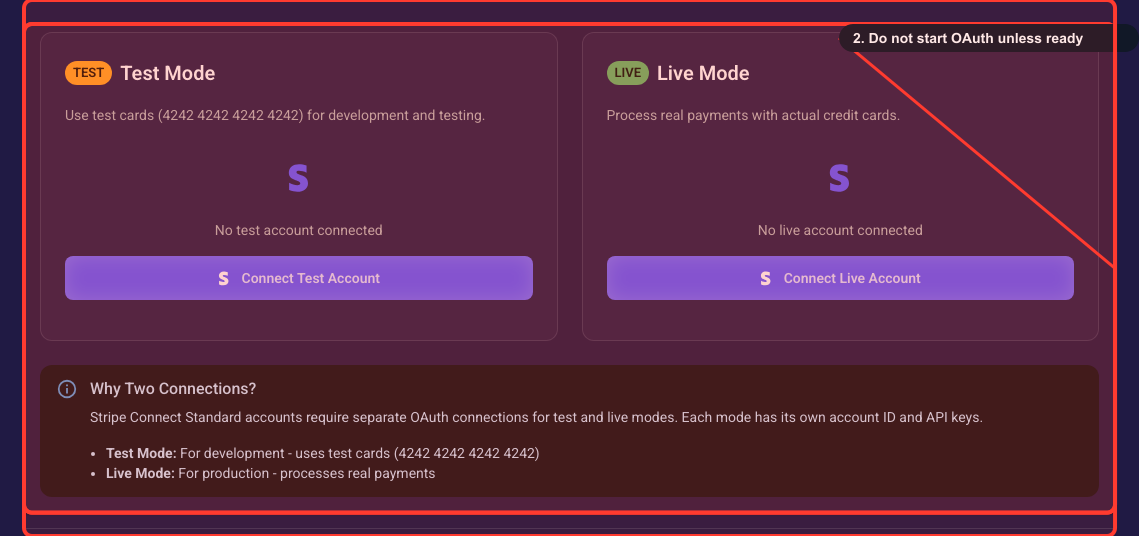
Open Settings → Integrations → Stripe and connect the Stripe account you will charge with. Stripe Connect uses a separate OAuth connection for test mode and for live mode, so connect the mode you will ship (connect both if you want to test first, then go live). Nothing downstream works until at least one mode is connected and shows Charges + Payouts enabled. Full walkthrough — including test vs live and the OAuth prompts — is in the details guide.
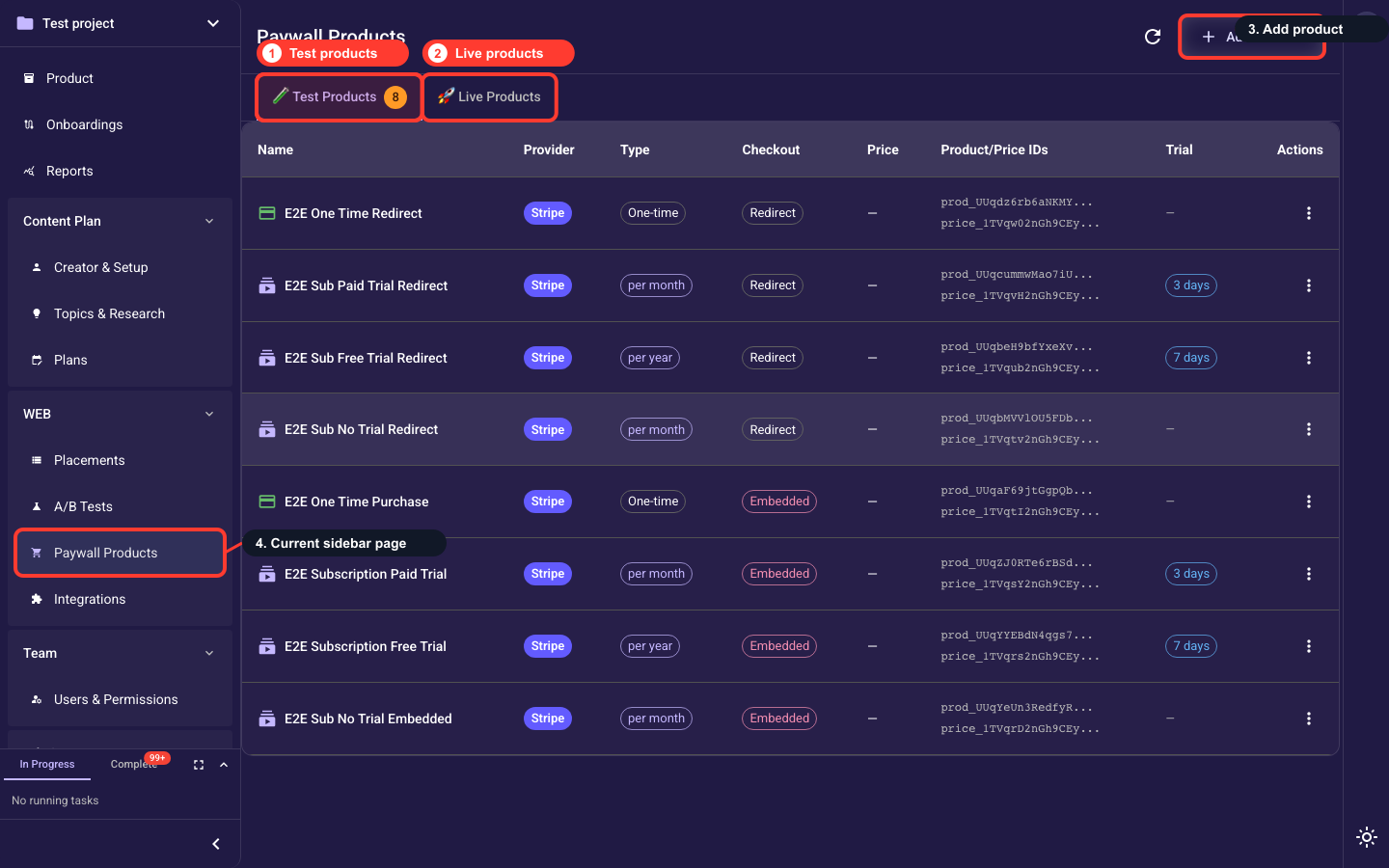
Create the product+price you will sell. You can create it under Paywall Products, or directly on the paywall screen via the product picker's "Create new product" button — it auto-selects on save. The product and its price must already exist in your connected Stripe account. Then attach it to a paywall screen; how you attach differs by paywall type (native rows, a Flexible-Layout product catalog, or a WebEmbed). For which payment methods appear (cards, Apple Pay / Google Pay, embedded vs redirect) see the pm guide; for the product fields themselves see the details guide.
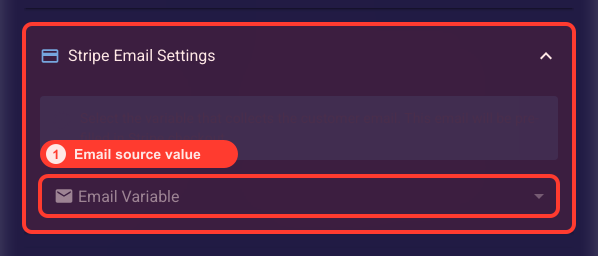
Subscriptions will not start without a customer email, so collect it before the paywall: (a) add an email input screen before the paywall, (b) create a variable to hold the value, (c) bind that variable to the input field, and (d) before publishing, select that variable in the Web Placement's Stripe email setting. The four sub-steps with screenshots are in the details guide.
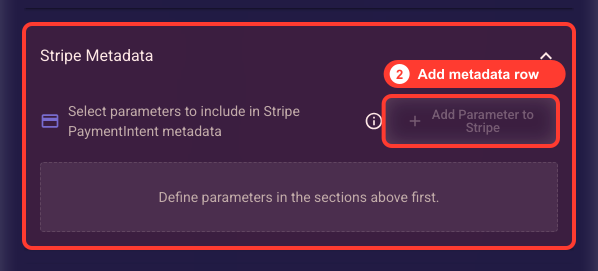
Only if you will run ads: add the platform integrations in Analytics settings, and at publish map your ad identifiers into the Web Placement's Stripe metadata so conversions reach the platform. For Facebook (Pixel + Conversion API) follow the fb guide; for TikTok (Pixel + Events API) the tt guide. To see exactly which events and parameters Segmently sends, read the fbcat and ttcat catalogs.
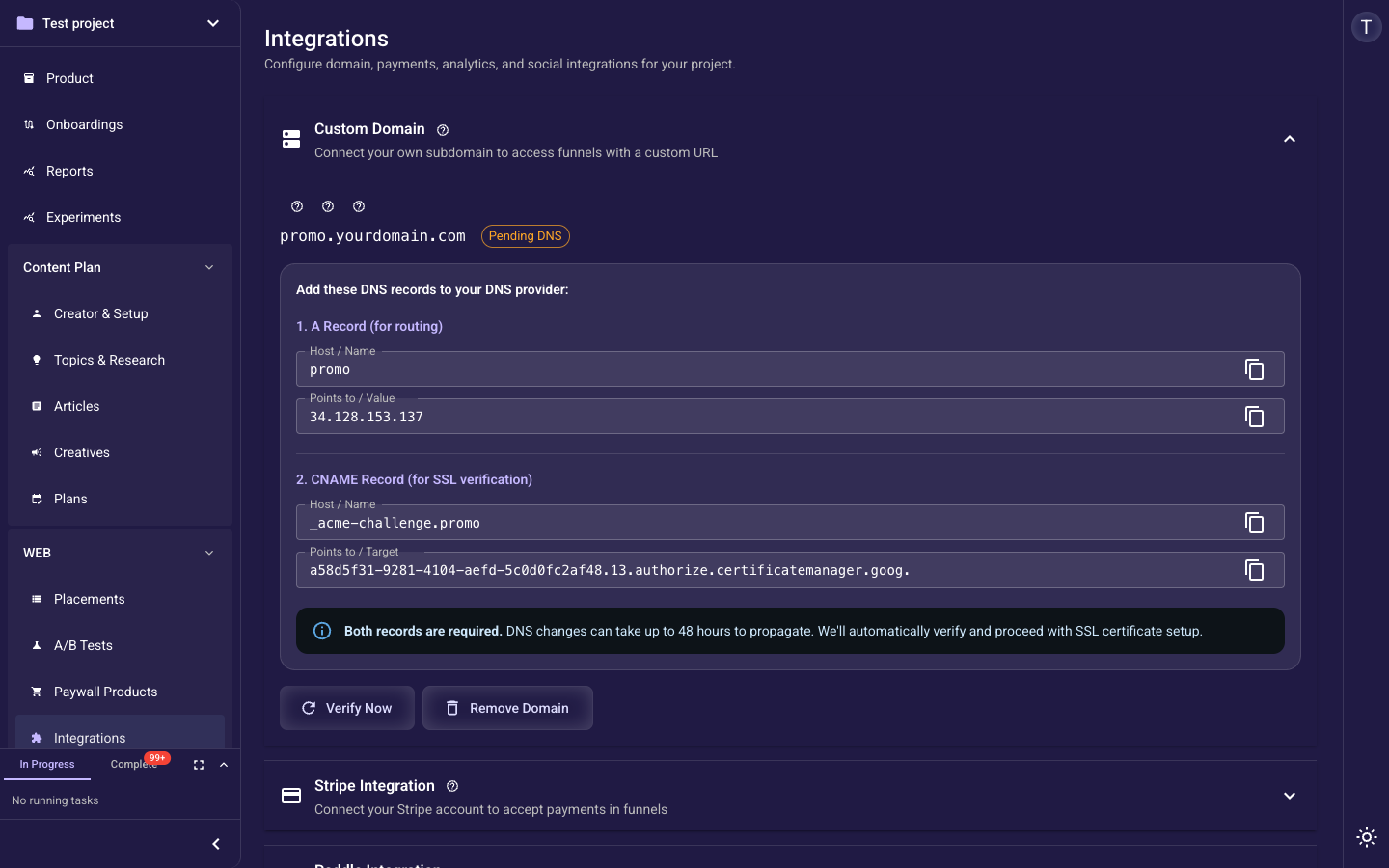
You cannot publish without a connected, verified custom domain — publishing is blocked until one is active. In Settings → Integrations → Custom Domain, enter your domain, add the two DNS records it shows you (an A record for routing and a CNAME for SSL verification), then click Verify and wait for "Verified". This is also the domain you register on your Stripe account for Apple Pay / Google Pay. Full DNS + Apple Pay steps are in the details guide.
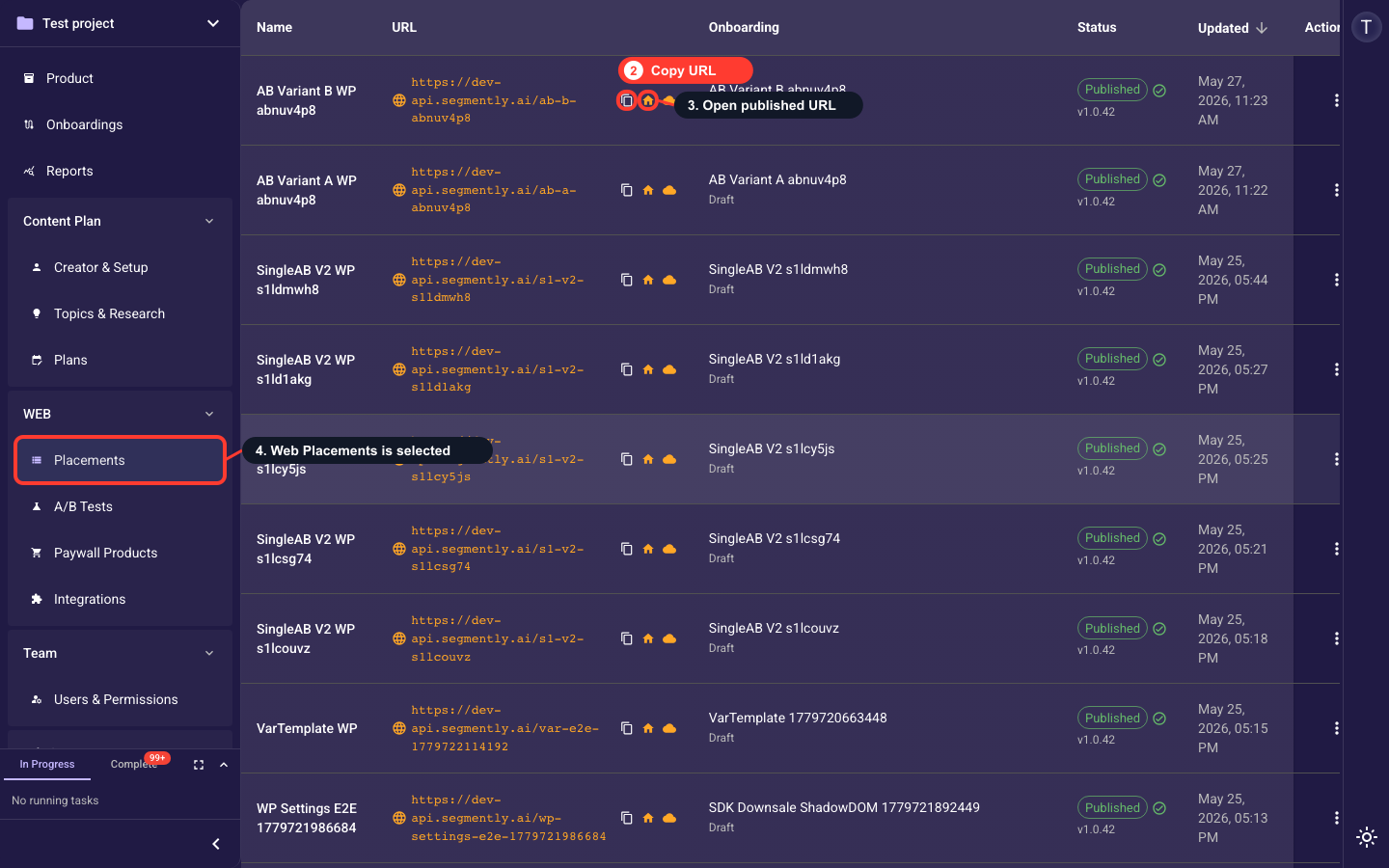
With Stripe connected, a paywall product attached, email passing set, and a verified custom domain, publish the Web Placement to get your public funnel URL. Then walk through the funnel yourself and complete a purchase (use Stripe test mode and a test card first) to confirm the payment goes through and, if you wired pixels, that the events fire. The publish controls are covered in the details guide.
Minimum to go live
The shortest real path: connect Stripe → create and attach a paywall product → set up email passing → connect a custom domain → publish and test. That is five required steps; skipping the custom domain will block publishing. Add the optional ad-pixel step whenever you are ready to advertise.