Paywall Product: price setup
Set amount, currency, and recurrence to the exact values customers should see at checkout.
Open the Create Price form
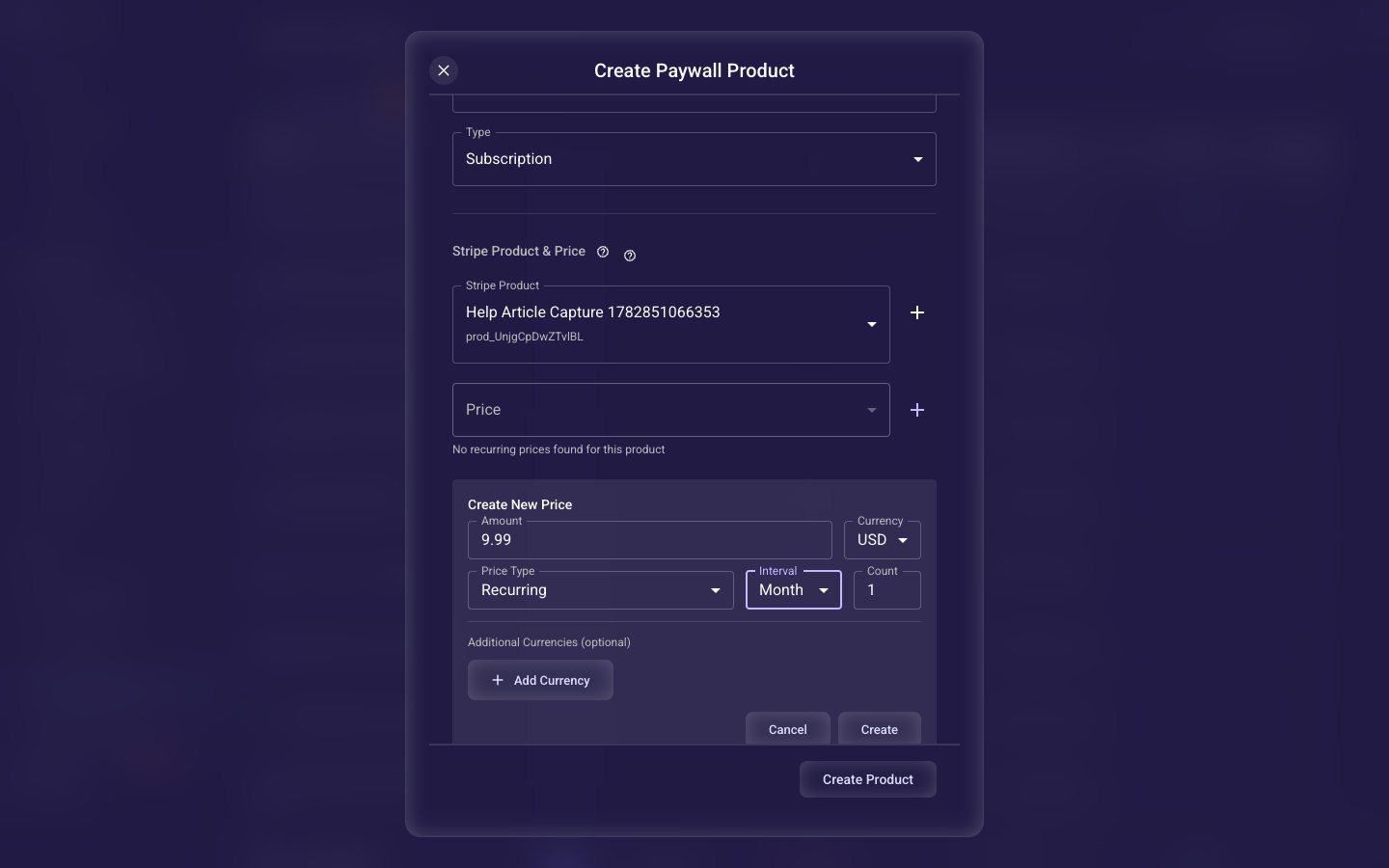
Price setup happens inside the Add Product dialog. From the WEB section of the left navigation, open Paywall Products, click Add Product, and fill the basic fields. Once a Stripe Product is selected, a Price selector appears with a + button next to it — click that + to open the inline Create Price form, where you set the amount, currency, price type, and (for subscriptions) the billing interval.
Set the amount and primary currency
Enter the base price and currency (USD, EUR, GBP, RUB) customers are charged at checkout. Type it in whole currency units — enter 9.99 for nine dollars ninety-nine, not 999. This value is sent to Stripe and shown to customers, so double-check it before you publish.
Set the price type and recurrence
Choose one-time (charged once) or recurring (billed on a schedule). For recurring, set the interval (day, week, month, year) and the count: count 1 bills every period, count 3 bills every third period — so interval 'month' + count 3 equals quarterly billing.
Add optional multi-currency pricing
Optionally add up to five extra currencies with their own amounts so international visitors see prices in their local money, which lifts conversion. At checkout Segmently shows the local price when one is defined for the visitor's currency; otherwise it falls back to your primary currency above.
Related guides