Paywall Product: subscription options
Configure billing interval and trial so the subscription matches the Stripe price and the paywall copy.
Reach the Subscription Options
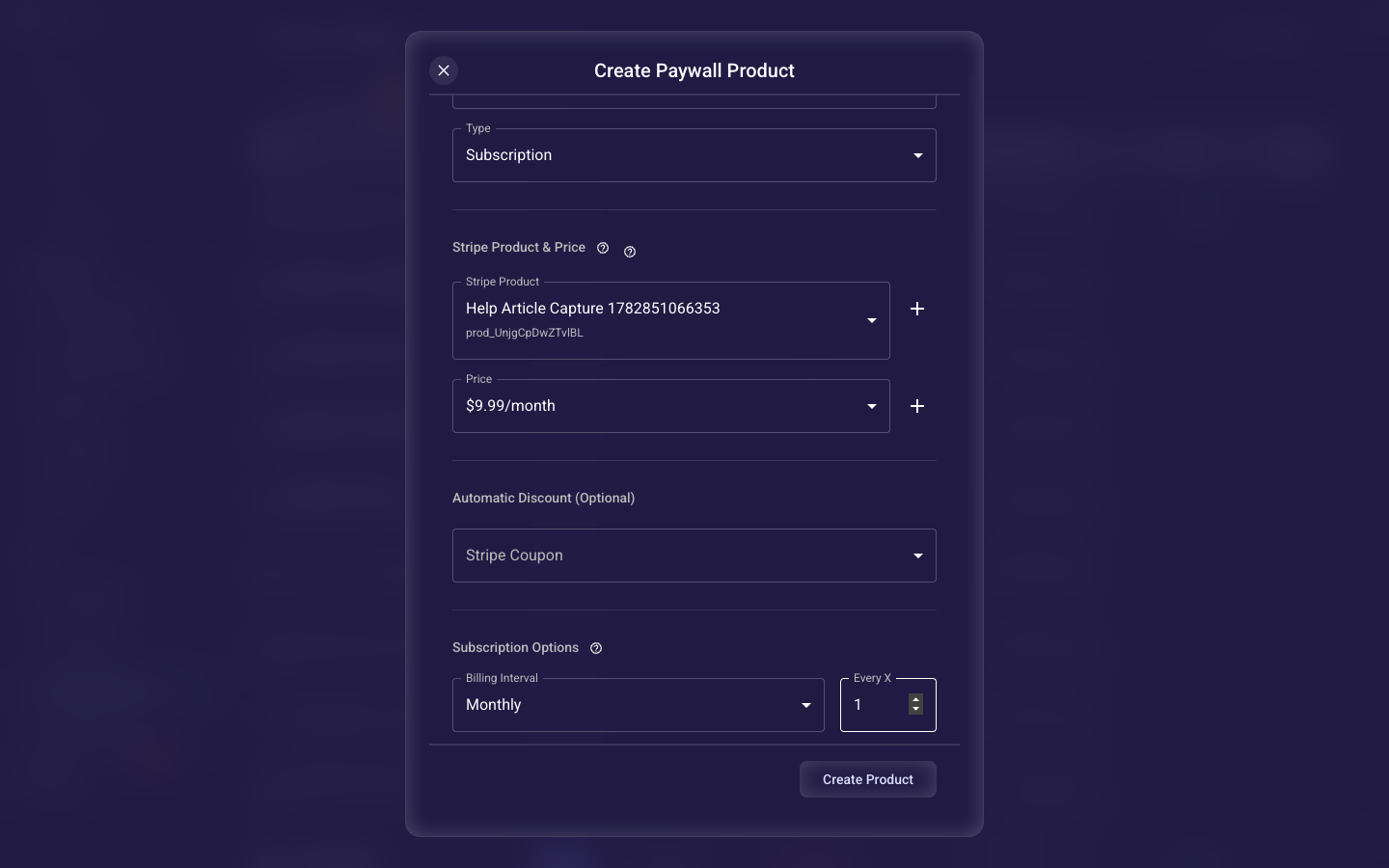
Subscription Options only appear when the product Type is set to Subscription. In the Add Product dialog (WEB → Paywall Products → Add Product), keep Type set to Subscription and select or create a Stripe Product and Price. The Subscription Options section then shows the Billing Interval, the Every-X count, the free-trial days, and the optional paid (upfront-fee) trial controls.
Set the billing interval
Choose how often customers are billed (daily, weekly, monthly, yearly) and the Every-X count for multi-period billing — for example every 3 months. This has to match the recurrence on the Stripe price you mapped, or Stripe will reject the checkout.
Configure the free trial
Set how many free days a customer gets before the first charge; enter 0 for no trial. Billing starts the day after the trial ends. Always state the trial length clearly on the paywall — it keeps checkout compliant and cuts down on disputes and chargebacks from surprised customers.
Charge an upfront fee at sign-up (optional)
Turn this on to charge a one-time fee the moment the subscription starts, on top of the recurring price — useful for an activation or onboarding fee. Leave it off for a standard free-trial or pay-as-you-go subscription. (This is what the 'paid trial' setting controls: an immediate charge, not a free period.)
Select the upfront fee price
Pick or create the one-time Stripe price used for that upfront fee. It's charged immediately and billed separately from the recurring subscription, so it shows up as its own line in Stripe.
Related guides