Paywall Product: basic fields
Define product name, type, and checkout behavior so the offer appears and creates checkout correctly.
Open the Add Product dialog
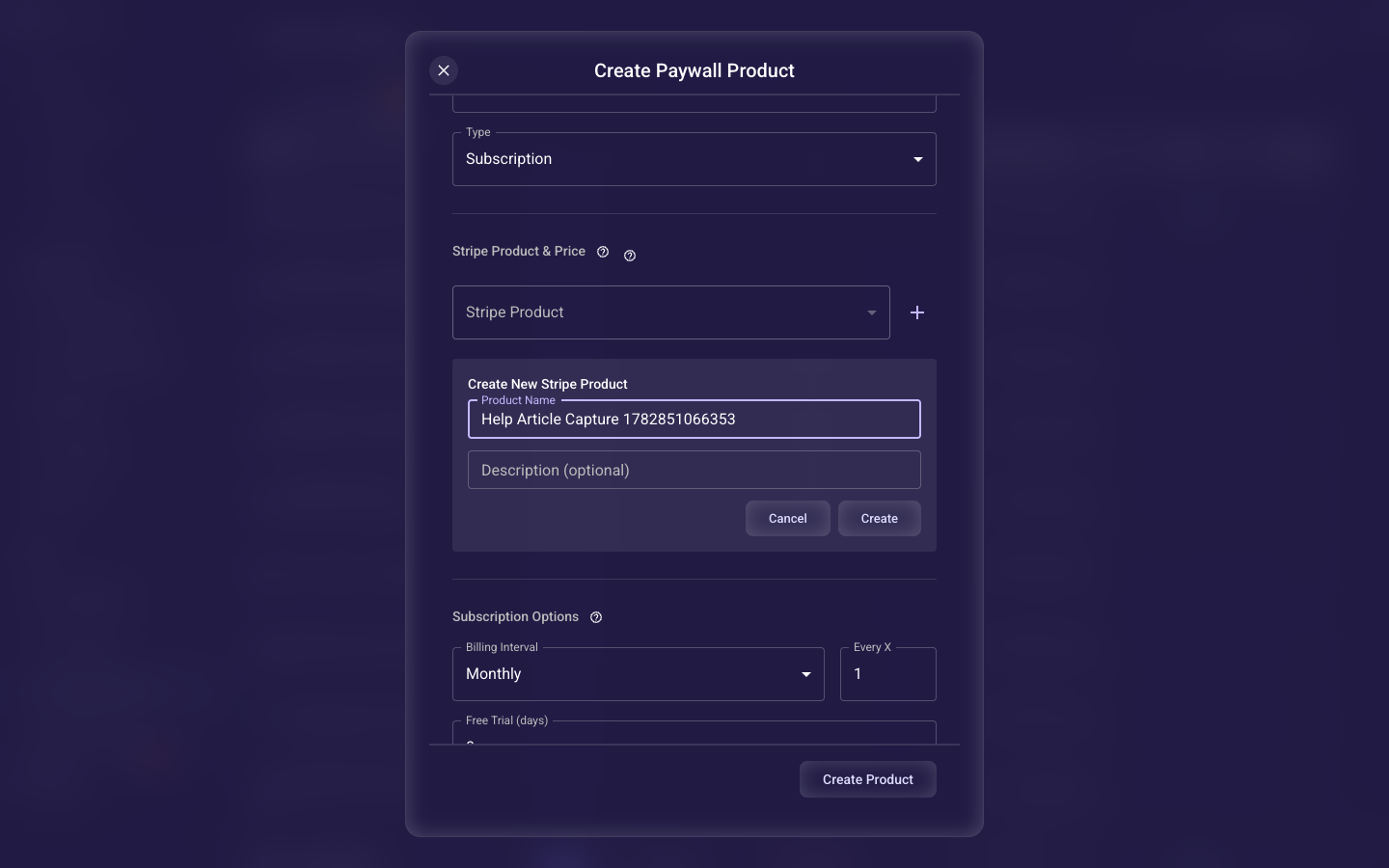
In the left navigation, expand the WEB section and click Paywall Products to open the catalog. Click the Add Product button in the top-right (if a provider menu appears, choose Stripe). The Create Paywall Product dialog opens. The fields below are the first thing you fill in: the Stripe mode banner, the checkout experience, the product name and description, and the product type.
Select Stripe mode
Choose whether this product uses your Test or Live Stripe credentials. Test mode lets you rehearse the whole checkout with no real charge; Live charges real customers. It has to match your connected Stripe mode and the mode you publish in — if they don't line up, checkout will fail.
Choose the checkout experience
Pick how the payment form appears. An embedded form slides up as a bottom sheet and keeps visitors inside your funnel — recommended for most funnels since staying in-flow converts better. A full-page Stripe Checkout redirect is simpler to set up but sends the visitor away to Stripe's own hosted page.
Name the product
Set the display name customers see on the paywall and at checkout — this field is required. Use clear, benefit-focused wording like 'Premium Annual Plan' rather than an internal code or SKU, since this is part of the buying decision.
Add a description (optional)
Optionally add supporting text shown on the paywall and inside the Studio to spell out what's included, the key benefits, or the terms. Leave it blank if the product name already says everything a buyer needs to know.
Choose the product type
Select subscription (recurring, billed on a schedule) or one-time payment (charged once). This decides which trial and subscription options appear below and which Stripe prices are eligible. If you change it after a live product is already wired up, retest checkout before you relaunch.
Related guides