Paywall Products mode tabs
Pick the Test/Live tab that matches the Stripe connection and the funnel you will publish, to avoid checkout mode mismatches.
Find the Test / Live tabs
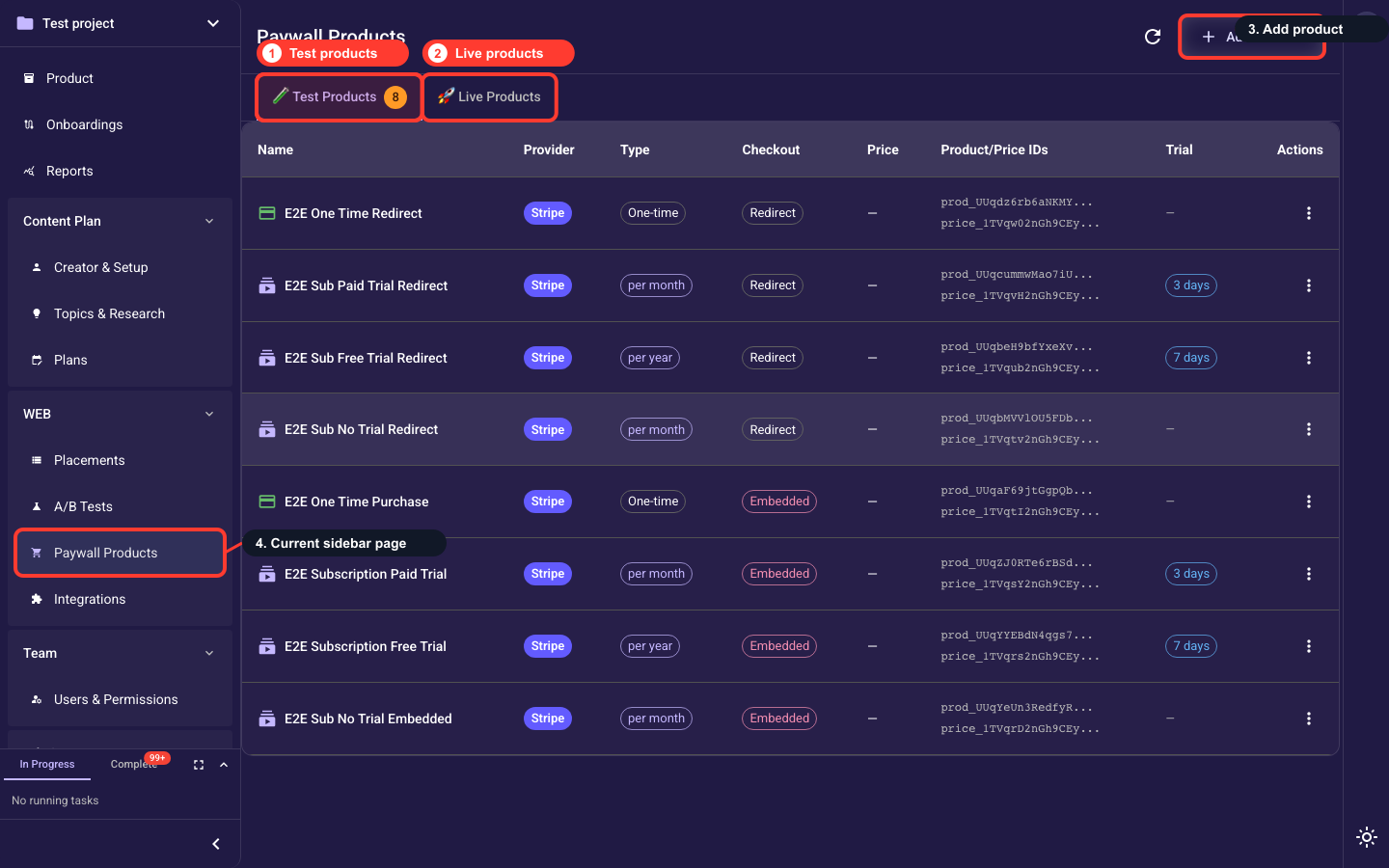
Open Paywall Products from the WEB section of the left navigation. Directly under the page header and the Add Product button you'll see two tabs: 🧪 Test Products and 🚀 Live Products. Each tab shows a count of the products in that catalog and filters the table below to that Stripe mode.
Switch between Test and Live catalogs
The Test and Live tabs hold two completely separate product catalogs, each with its own count badge. Start in Test while you're still validating — it can't charge real cards. Always glance at which tab is selected before you create or edit a product, so it lands in the right catalog.
Keep the mode consistent everywhere
A product only works at checkout if the paywall screen, your Stripe connection, and this tab are all in the same mode. A real launch needs a Live product with a Live Stripe connection; a safe rehearsal needs a Test product with a Test connection. Mixing modes is the most common reason a paywall fails to charge.
Related guides