Stripe Connect: test mode
Connect test mode first to validate the paywall and checkout safely before charging real customers.
Open the Stripe section in Integrations
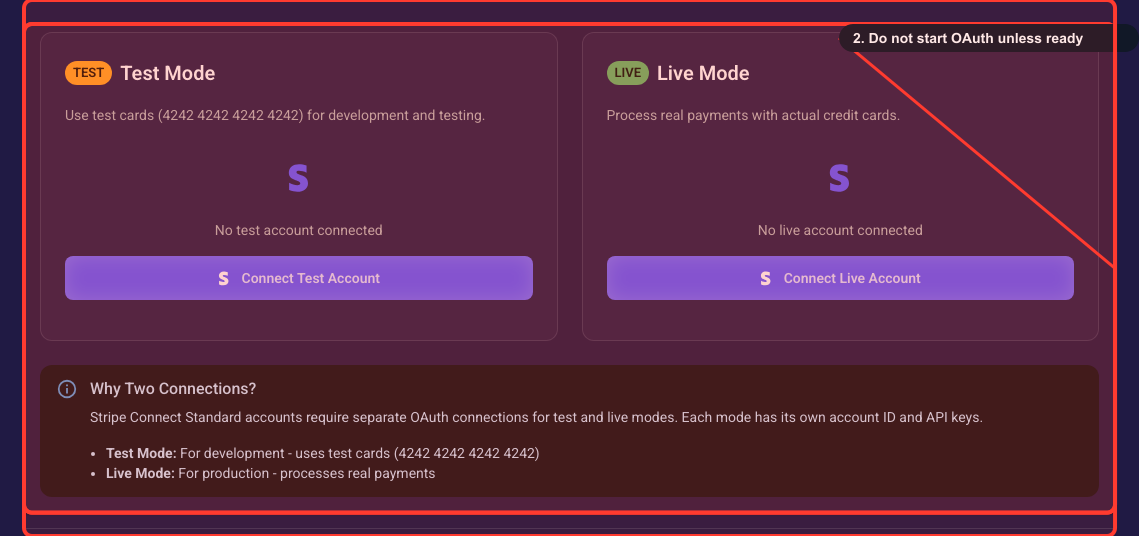
Go to your project's Settings and open the Integrations page (the URL is /project/<your-project-id>/integrations). Find the Stripe Integration accordion and click its header to expand it. Inside you'll see two cards side by side: a TEST card titled "Test Mode" and a LIVE card titled "Live Mode". Start with the Test Mode card on the left — that's where the steps below take place.
Connect a test Stripe account
Use Connect Test Account to authorize Segmently for your test Stripe account. Test mode uses sandbox cards (for example 4242 4242 4242 4242) and never charges real customers, so validate products and checkout here first.
Check the test account status
After connecting, confirm the account shows charges enabled. If onboarding is incomplete, finish it in the Stripe Dashboard; you cannot create products or test checkout until charges are enabled.
Related guides