Stripe Connect: live mode
Connect live mode to the production Stripe account only when real products, prices, and payouts are ready.
Open the Stripe section in Integrations
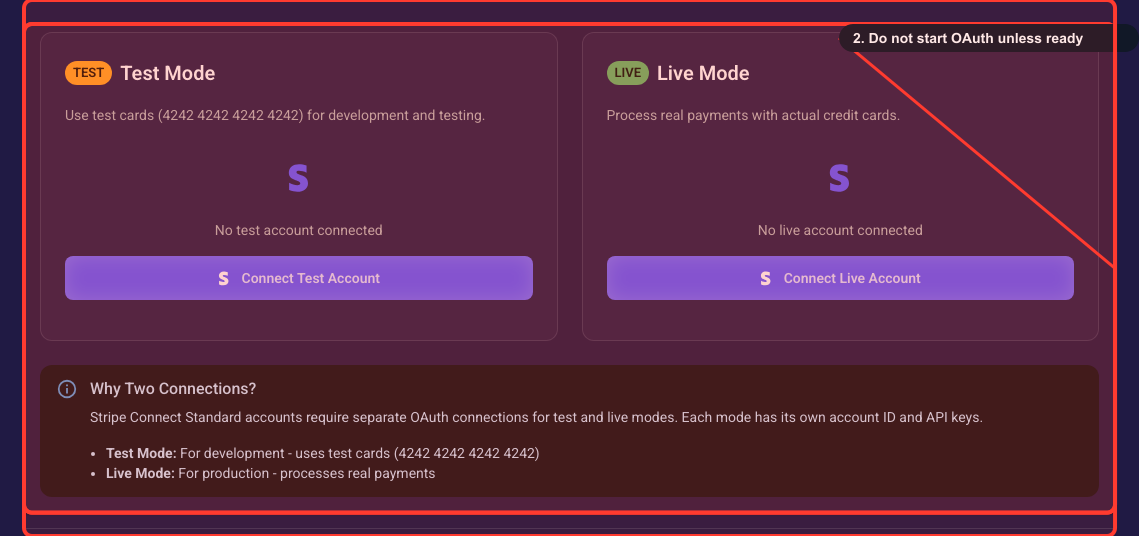
Open your project's Settings, go to the Integrations page (/project/<your-project-id>/integrations) and expand the Stripe Integration accordion. The right-hand card with the green LIVE chip, titled "Live Mode", is the one these steps use. Connect Live Mode only after you have validated everything in Test Mode, because Live Mode moves real money.
Connect your live Stripe account
Use Connect Live Account to authorize your production account. Live mode processes real payments and maps to your production products and prices, so connect it only after test validation is complete.
Verify live account readiness
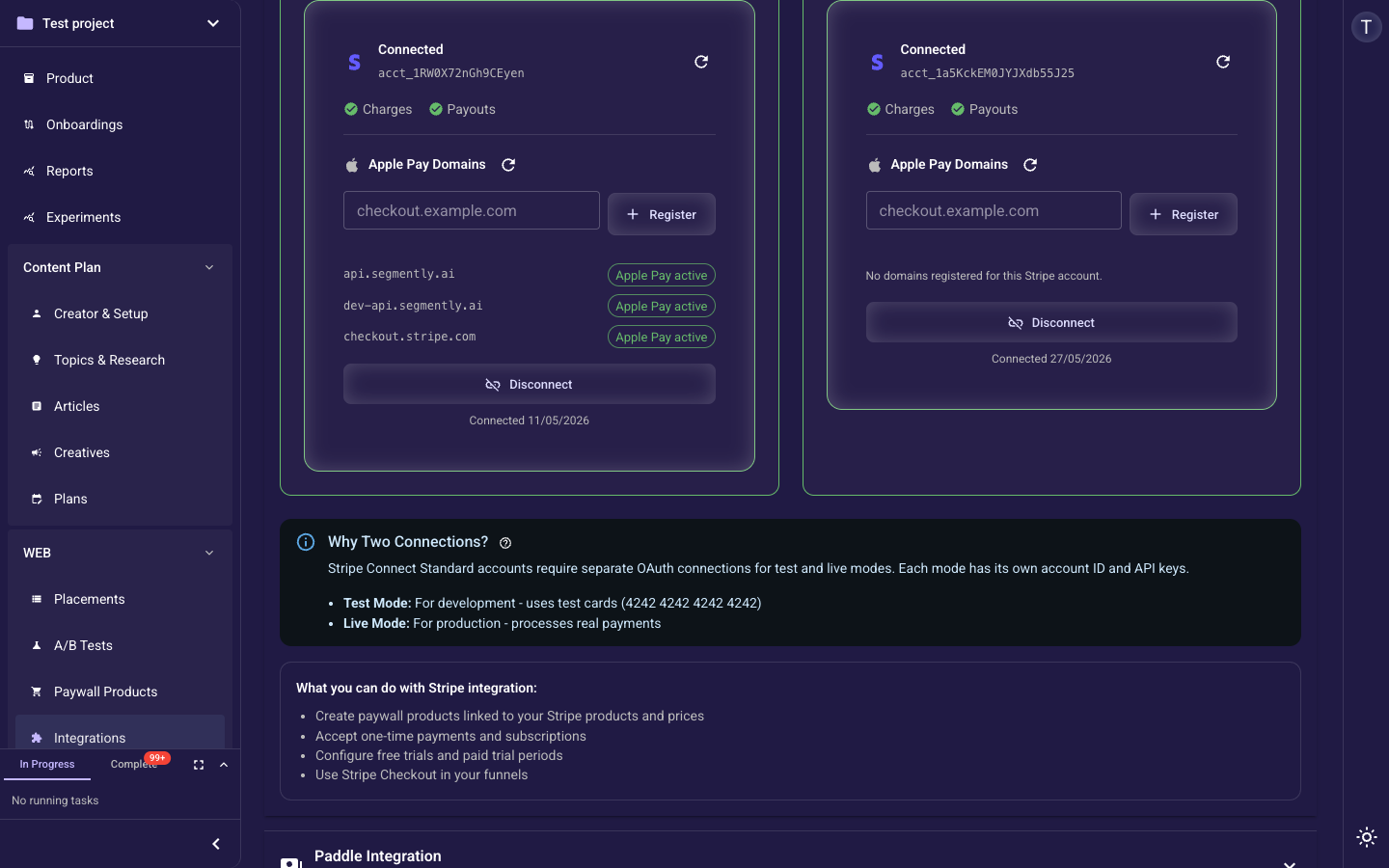
Confirm that both charges and payouts are enabled before deploying a paywall to production. Finish any remaining business verification (identity, bank account) in the Stripe Dashboard if onboarding is incomplete.
Keep test and live separate
Test and live modes are independent and cannot be mixed in one published funnel. Every product in a single publish must use the same mode, so review the product mode before publishing to production.
Related guides