Stripe Connect: OAuth guidance
Authorize the correct Stripe mode so product/price lookup and checkout creation succeed for the published funnel.
Where this guidance applies
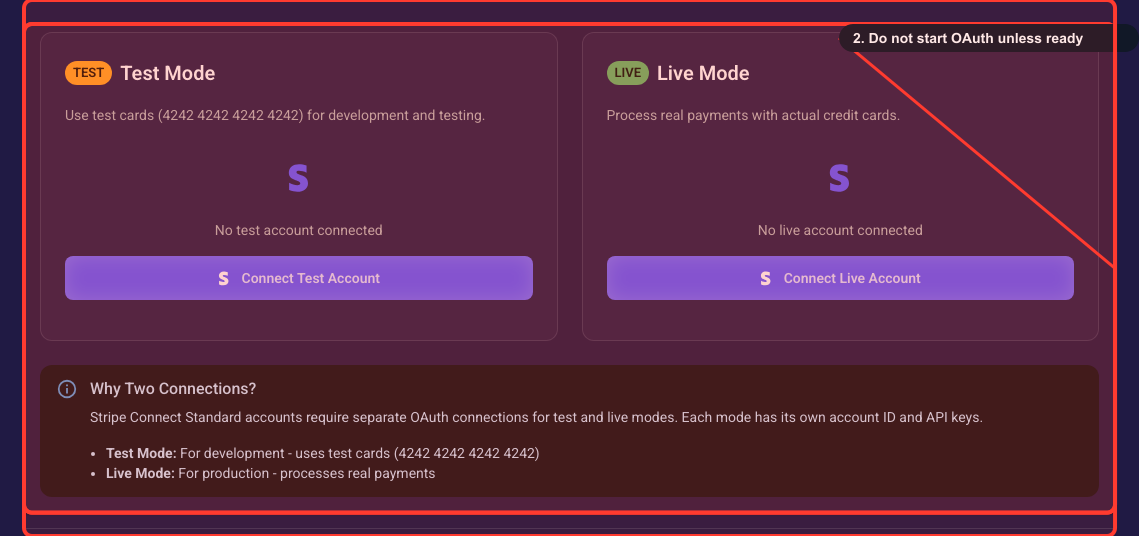
This explains why Segmently asks you to connect Stripe twice. You'll see it on the Integrations page (Settings -> Integrations -> Stripe), in the "Why Two Connections?" panel under the Test Mode and Live Mode cards. Read this if you're unsure why test and live are separate, what the connection grants, or why your Stripe products aren't showing up in the product picker.
Why test and live need separate connections
Stripe Connect Standard accounts require separate OAuth connections for test and live because each mode has its own account ID and API keys. This is a Stripe limitation; connecting test first is the recommended safe pattern.
Know what you are granting
OAuth authorizes Segmently to read your products and prices and to create new ones inline in the product dialog. You are not granting direct charge access; all charges run through your connected Stripe account.
If products do not appear
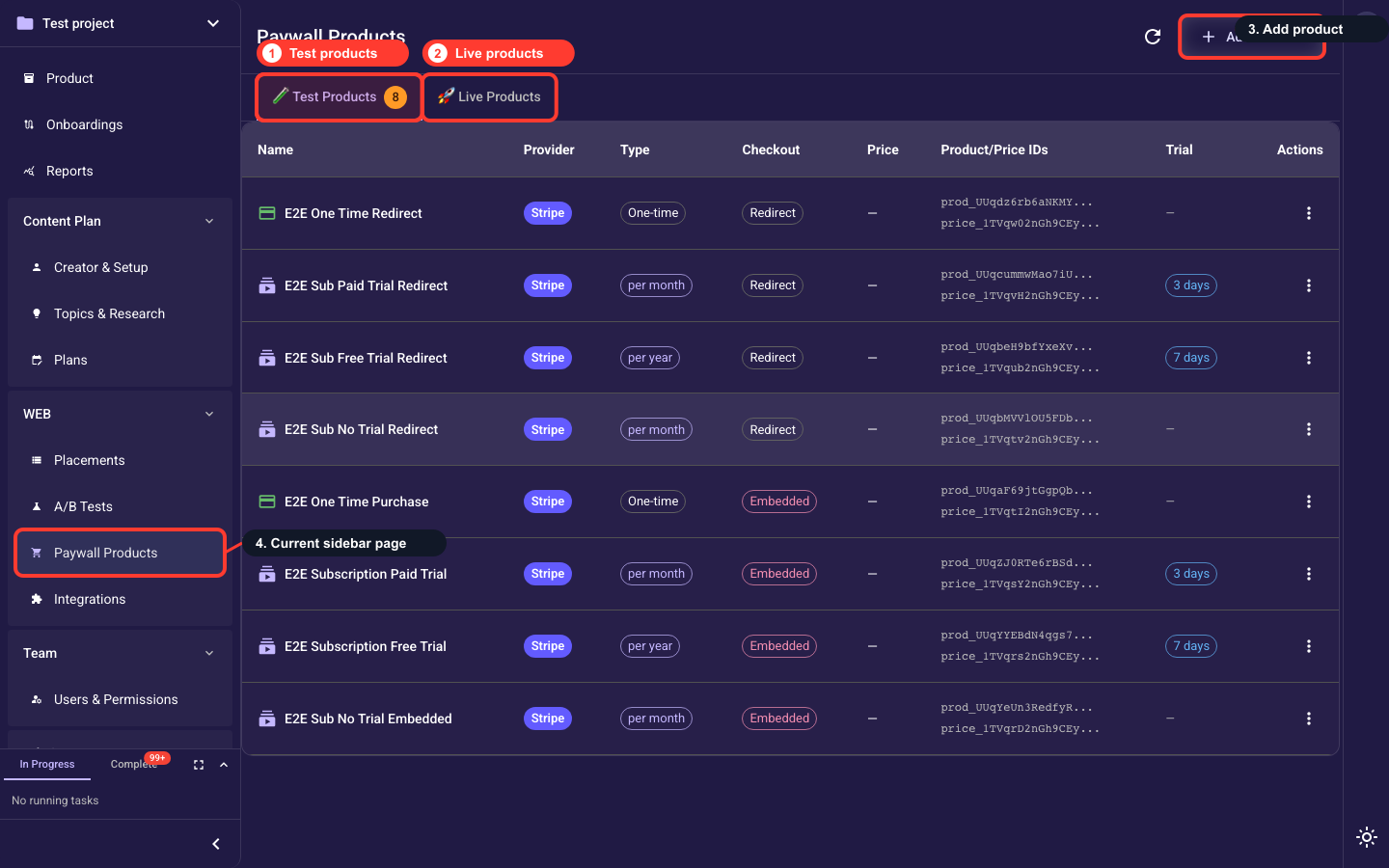
If your Stripe products or prices are missing in the picker, verify you selected the matching mode and that the products exist in that Stripe account, since test and live are separate catalogs. Refresh the page or reconnect OAuth if needed.
Related guides