Stripe Connect setup
Know that Stripe must be connected before paywall products can map to Stripe prices, and where that connection lives.
Open the Stripe section
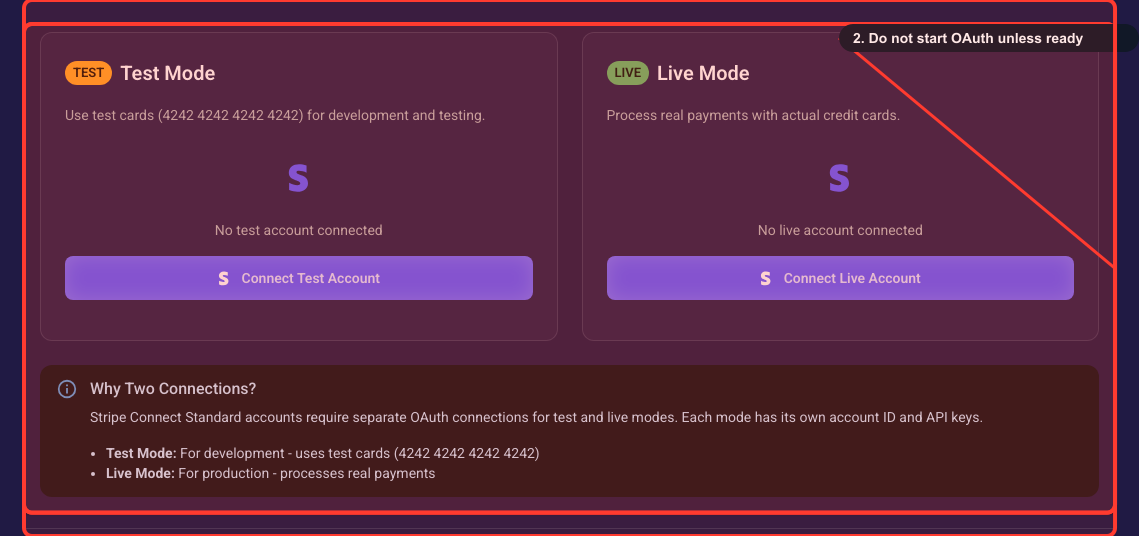
From your project, open Settings and go to the Integrations page (/project/<your-project-id>/integrations). Click the Stripe Integration accordion to expand it. You'll see two connection cards — Test Mode and Live Mode — and a "Why Two Connections?" panel below them. The steps below start here.
Connect Stripe before adding products
Click Connect to link your Stripe account here first — Segmently needs it to match each paywall product to a real Stripe product and price so payments actually go through. Stripe's Test and Live environments are separate accounts, so each needs its own connection. Start with Test mode so you can run a full checkout safely before any real money moves.
Custom deployment? Register OAuth redirect URLs first (one-time)
You only need this if your team runs a custom or self-hosted Segmently install. In that case an admin must add the OAuth callback URL in the Stripe Dashboard (Connect Settings) before the Connect button will work, because Stripe rejects an unregistered redirect URL. On the standard hosted Segmently this is already handled for you — you can skip this step.
Related guides