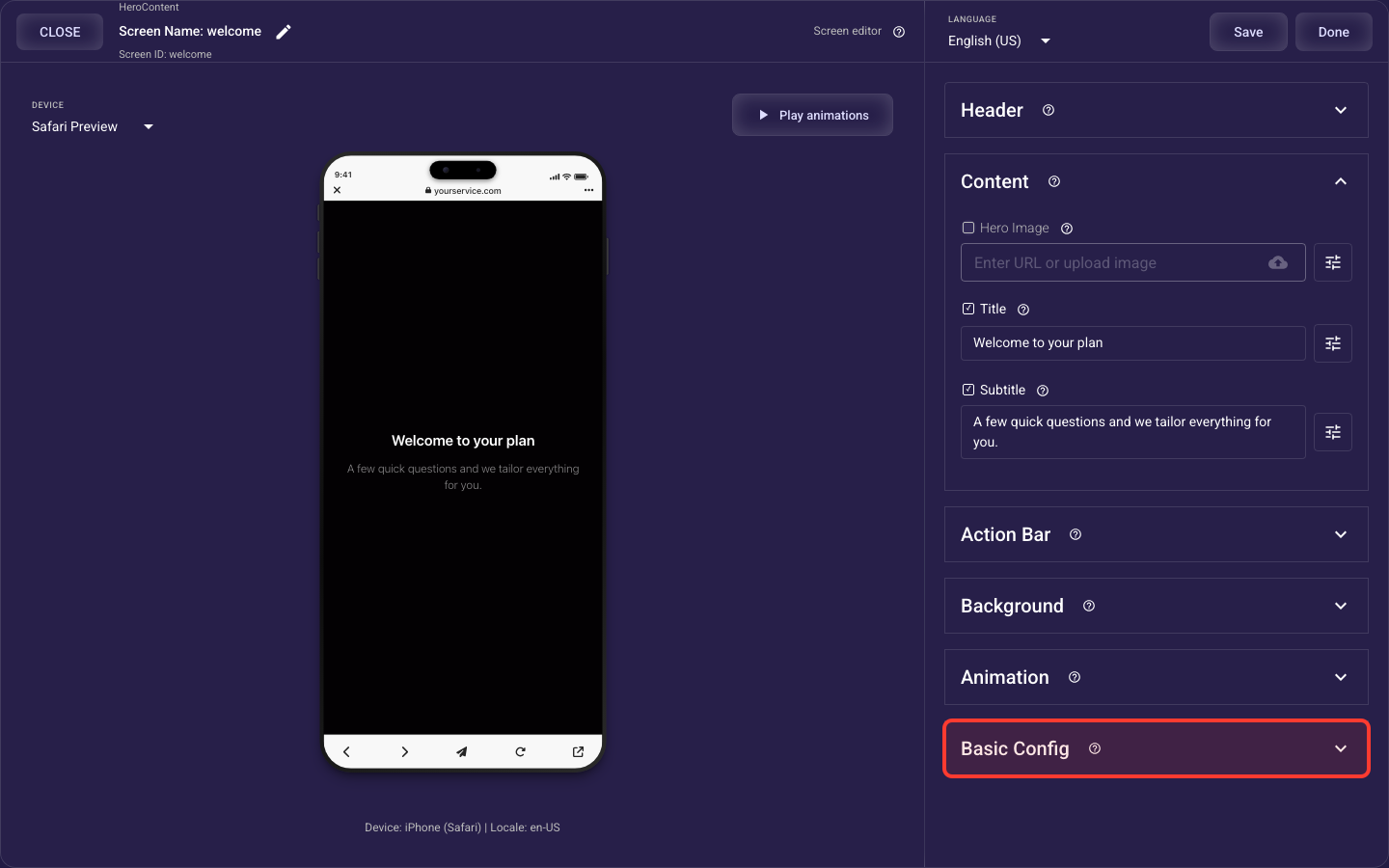
Hero Content screen
The Hero Content screen is built from the sections below. The sections specific to this screen type are documented in full here; the shared sections link to their own guides.
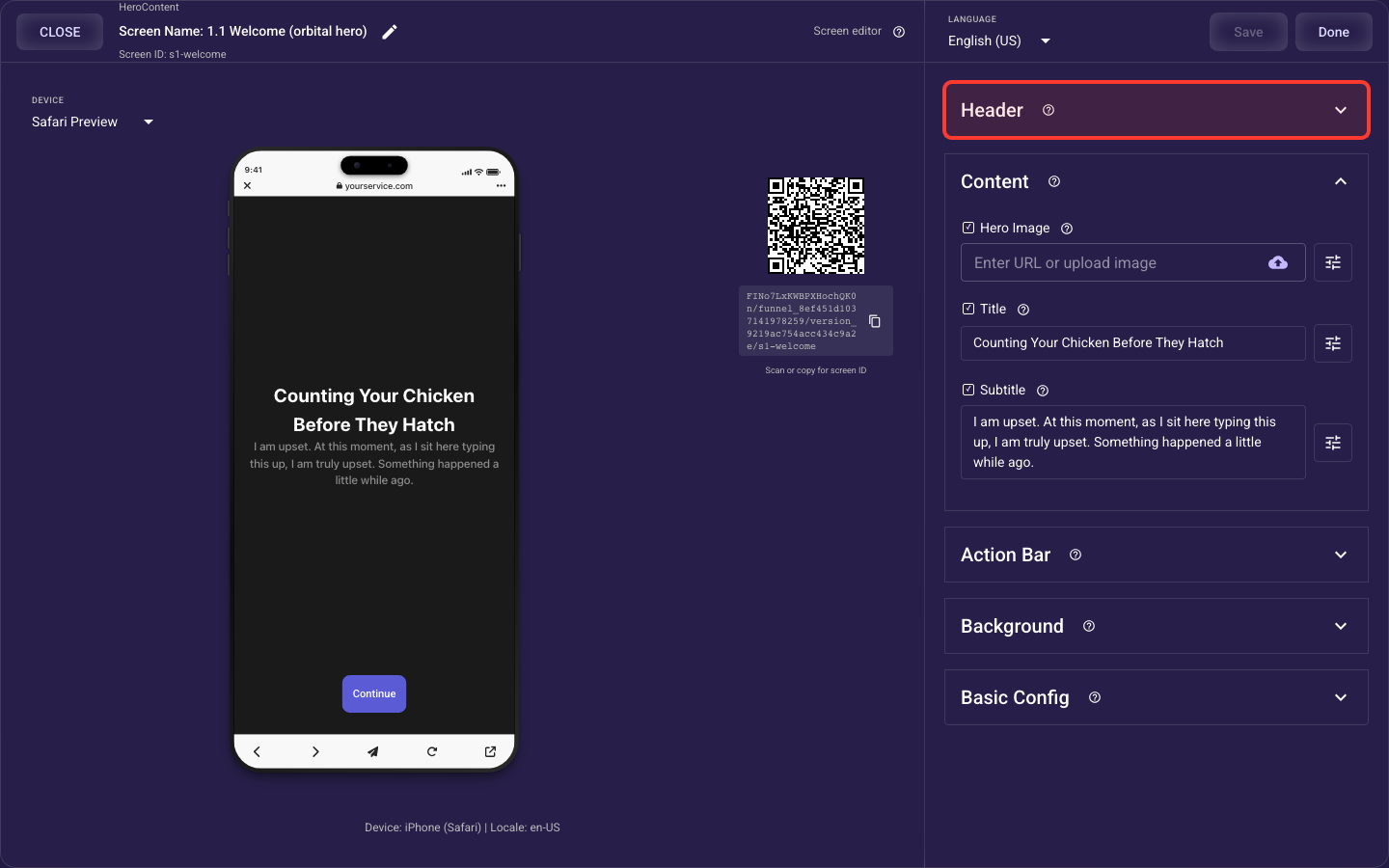
Header — details
The top bar of the screen — the Back and Skip buttons and the progress indicator that shows how far along the visitor is.
Content
What this screen shows
Title & subtitle
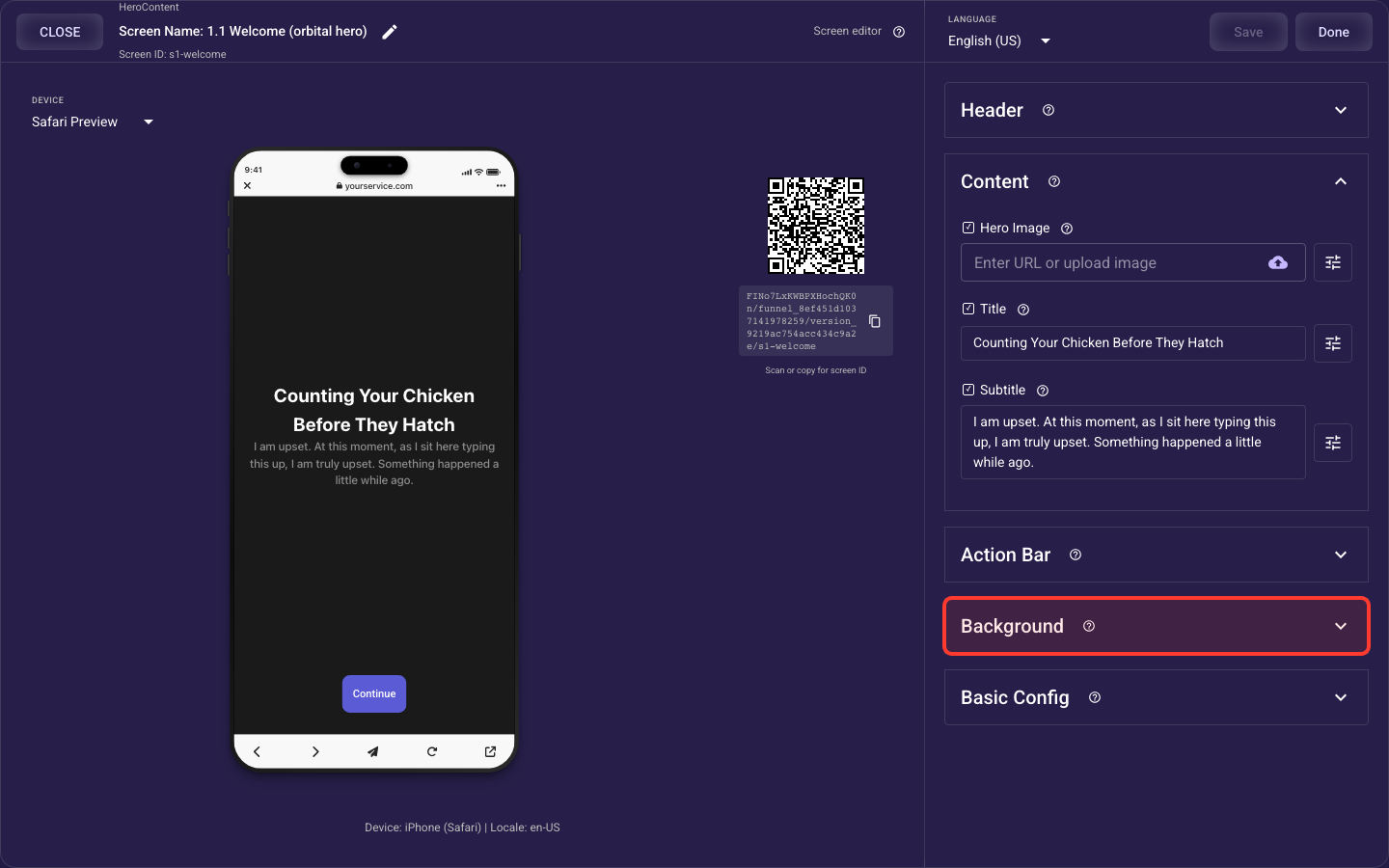
Every screen of this type has an optional title (headline) and subtitle. Turn each on or off and style it independently.
Hero image
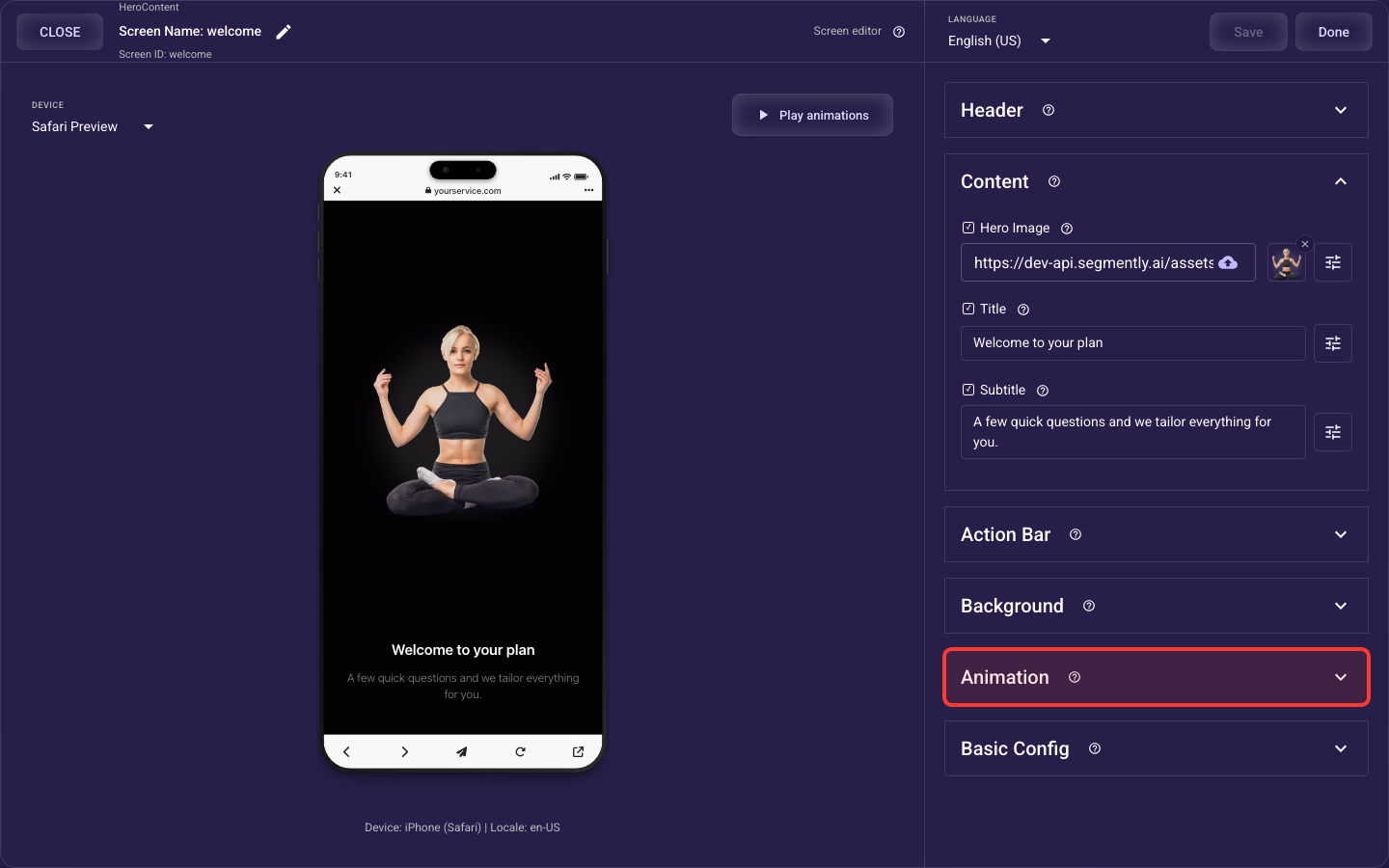
This screen also shows a hero image above the text, with its own sizing, rounding, spacing — and an Image Layout that controls how the image and text are arranged.
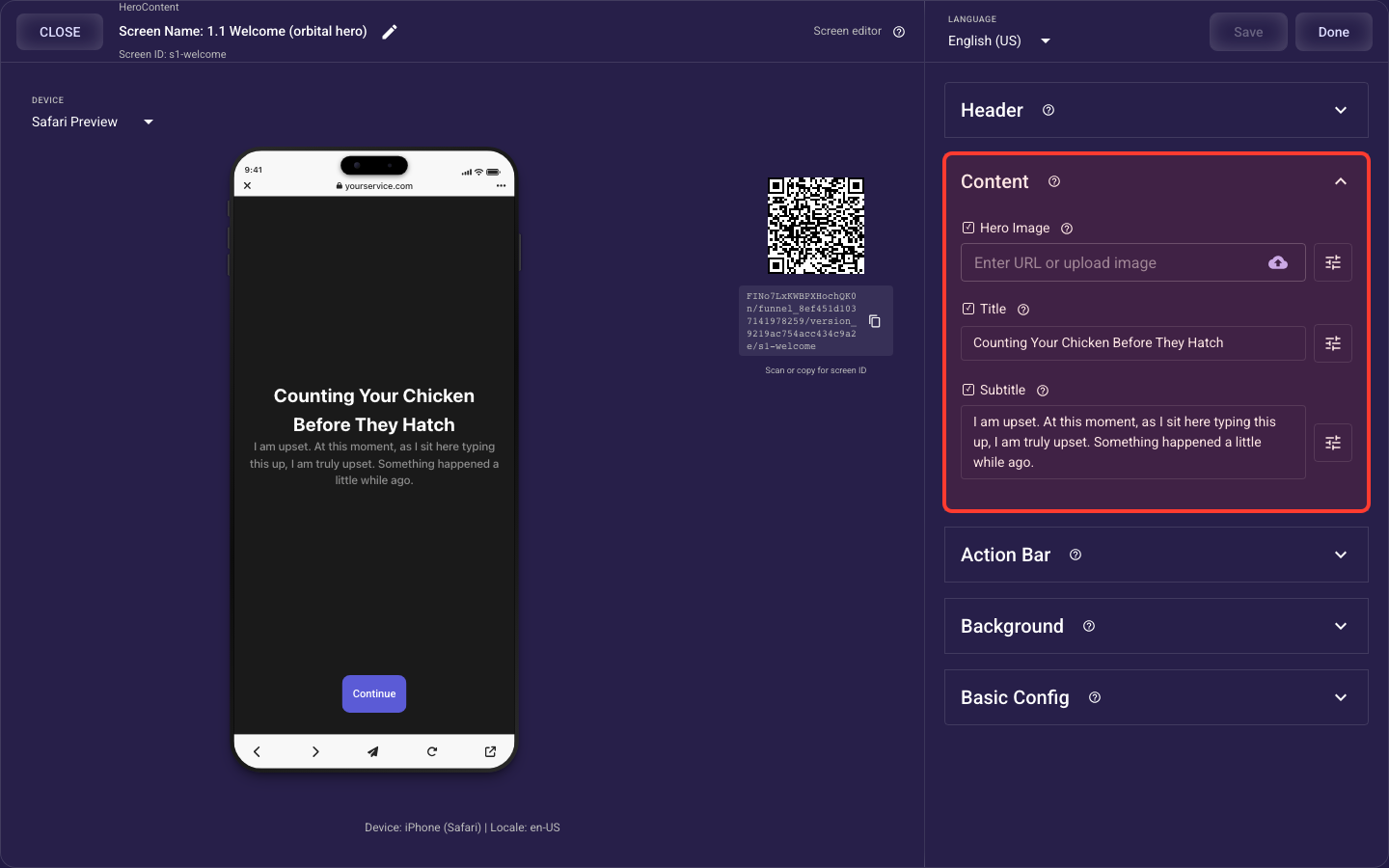
Open the Content section in the screen editor to configure its settings.
Title (headline)
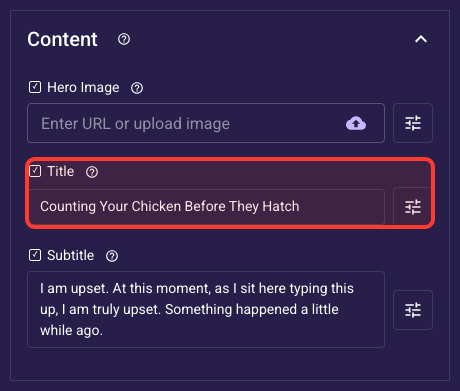
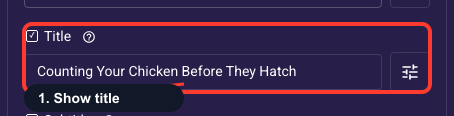
Inside the Content section, this is the Title (headline).
Your main headline
The title is the biggest, first thing a visitor reads, so it carries most of the weight on whether they keep going. Turn it on, then write one short benefit-led line, like an ad headline rather than a sentence. Type @ to drop in an earlier answer (for example @user_goal) so it feels personal, and style it under the gear icon below.
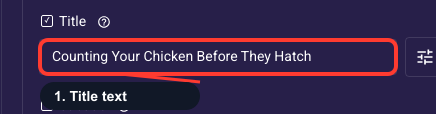
Write the headline text
This is where you type the actual headline; keep it short and benefit-driven. Type @ to pull in a visitor's earlier answer (such as @user_goal) for personalization, add a link inside the text with @link, or insert a countdown with @countdown to create urgency on offer screens. If your funnel runs in more than one language, text is saved per language, so switch language before editing each translation.
Title look and emphasis
Override how the headline looks — font, size, weight, color, alignment, and an optional highlight behind the text. By default it inherits your project theme, which keeps every screen consistent, so most funnels never need to touch this. Override only when one screen needs extra punch, like a bigger color headline on your hero.
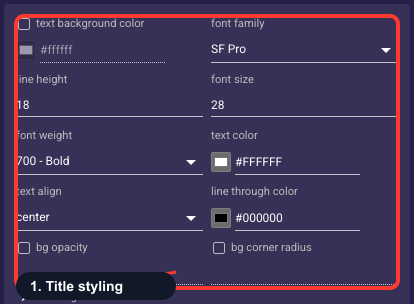
• Text background color
An optional fill drawn behind the title text (a highlight pill). Off unless you set it; leave empty for plain text on the screen background.
• Font family
The typeface of the title.
• Line height
Vertical spacing between lines of text — raise it to give multi-line text more breathing room.
• Font size
Text size of the title in pixels.
• Font weight
How bold the text is, from Thin through Bold to Black.
• Text color
The color of the title text. Keep enough contrast with the background that it stays readable.
• Text align
Horizontal alignment of the text: start (left), center, or end (right).
• Strikethrough color
Color of a line-through decoration when the text is struck out (for example, an old price).
• Background opacity
How see-through the text background fill is, from 0% (invisible) to 100% (solid). Only matters when a background color is set.
• Background radius
Corner rounding (px) of the text background fill; higher is softer.
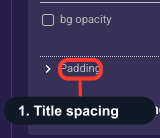
Space around the title
Adds empty space on each side of the title (top, right, bottom, left) so it isn't cramped against the screen edges or the text below. Leave it at the theme default unless the title feels too tight or too far from the next element. Increase a side to give it room, or decrease to pull elements closer together.
Subtitle
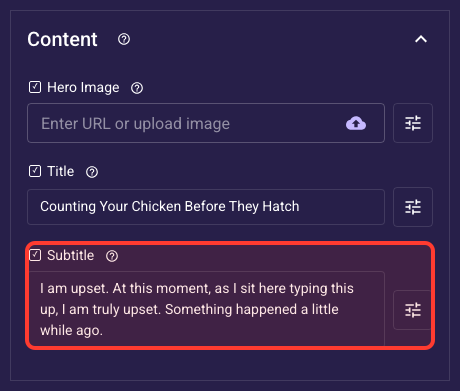
Inside the Content section, this is the Subtitle.
The line under your title
The subtitle is the supporting line beneath your title; use it to expand the promise, add proof, or hint at what happens next. Turn it on and keep it to one short sentence; it shows smaller and lighter than the title by default so the headline stays dominant. Like the title, you can personalize it with @ variables. Skip it on screens where the title already says everything.
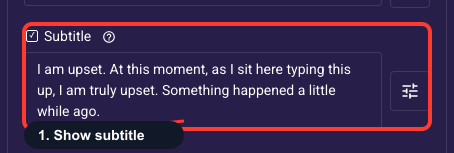
Write the subtitle text
Type the supporting line that sits under your title here, one short sentence that reinforces the offer or tells the visitor what comes next. The same shortcuts work as in the title: type @ to insert an earlier answer, @link to add a clickable link, or @countdown for urgency. If your funnel is multilingual, text is saved per language, so switch language before editing each translation.
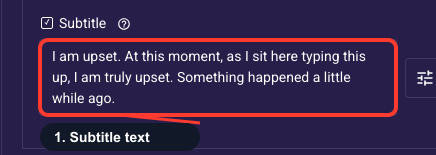
Subtitle look and emphasis
Change how the subtitle looks — font, size, weight, color, alignment, and an optional background — styled separately from the title so you can tune each one. By default it inherits your theme (usually smaller and lighter than the title), which works for most funnels. Override only when a specific screen needs different emphasis.
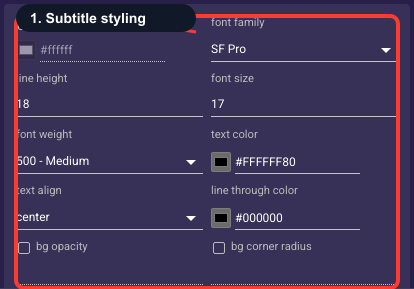
• Text background color
An optional fill drawn behind the subtitle text (a highlight pill). Off unless you set it; leave empty for plain text on the screen background.
• Font family
The typeface of the subtitle.
• Line height
Vertical spacing between lines of text — raise it to give multi-line text more breathing room.
• Font size
Text size of the subtitle in pixels.
• Font weight
How bold the text is, from Thin through Bold to Black.
• Text color
The color of the subtitle text. Keep enough contrast with the background that it stays readable.
• Text align
Horizontal alignment of the text: start (left), center, or end (right).
• Strikethrough color
Color of a line-through decoration when the text is struck out (for example, an old price).
• Background opacity
How see-through the text background fill is, from 0% (invisible) to 100% (solid). Only matters when a background color is set.
• Background radius
Corner rounding (px) of the text background fill; higher is softer.
Space around the subtitle
Adds empty space on each side of the subtitle, controlling the gap above it (to the title) and below it (to what follows). Leave it at the theme default unless the subtitle feels crowded. Increase the top value to separate it from the title, or reduce spacing to tighten the whole headline group.
Hero image
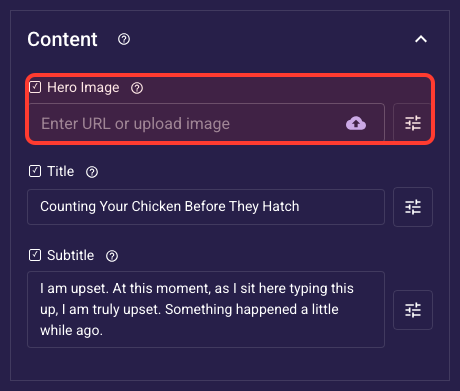
Inside the Content section, this is the Hero image.
The featured image up top
The hero is the large featured image at the top of a headline or wheel-picker screen, the picture that sells the screen at a glance. Turn it on, then upload a file or paste an image URL. Pick a high-quality, on-message visual (product, result, or lifestyle shot); on a paid landing page it is often the first thing a visitor sees. Sizing and position are set just below.
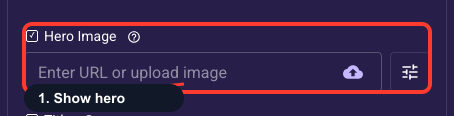
The hero image itself
Pick the actual hero image: upload a file from your computer or paste a direct image URL, then check the preview thumbnail. Use a high-resolution JPG or PNG so it stays crisp on large screens — uploads are optimized automatically for fast loading. To change it later, just upload or paste a new source here.
How the image fills its box
Sets how your image fits its box: Aspect Fit shows the whole image with no cropping (you may see empty bars at the sides), Aspect Fill crops the edges so it fully covers the box, Scale to Fill stretches it (can look distorted, avoid for photos), and Tile repeats it as a pattern. Default is Aspect Fit, which never distorts; switch to Aspect Fill when you want it edge-to-edge and don't mind some cropping.
Fixed image width
Optionally pin the hero image to a set width with the slider (0–500) or by typing a number. Leave it empty in most cases — the image then sizes to the screen and stays responsive across devices, which almost always looks best on a landing page. Set a fixed width only when you need the image smaller than full-width or aligned to a specific size.
Fixed image height
Optionally pin the hero image to a set height with the slider (0–500) or by typing a number. Leave it empty to let the image keep its natural proportions from the width — best for most screens. Use a fixed height when you want a consistent banner size; to size by screen proportion instead, use 'Image height relative to container' below, which takes priority over this value.
Size the image by screen
Sizes the hero image as a percentage of the screen height (0 to 100%), so it scales with the device, the more responsive way to size a hero. If set, it overrides any fixed height above. A common starting point is 30 to 50% for a prominent banner that still leaves room for your title and button below; leave it empty to size by proportions instead.
How rounded the image is
Rounds all four corners of the hero image; 0 is sharp and higher values (up to 50) make them softer and more rounded. The default is 0. A small radius around 8 to 16 gives a modern, friendly look; match it to the rounding used elsewhere in your funnel, like buttons and cards, so the page feels consistent.
Space around the image
Adds empty space on each side of the hero image (top, right, bottom, left) so it isn't flush against the screen edges or crammed next to the title. Leave it at the theme default in most cases. Increase a side when the image feels too tight against nearby content, or reduce it for a full-bleed, edge-to-edge look.
Image & text layout
Where the image sits
On headline screens, this sets where the hero image sits relative to your title and subtitle — above the text, below it, or beside it. Lead with your strongest element: image-on-top when the visual is the hook, text-on-top when the headline does the selling. The preview updates instantly, so try a couple and keep whichever reads clearest.
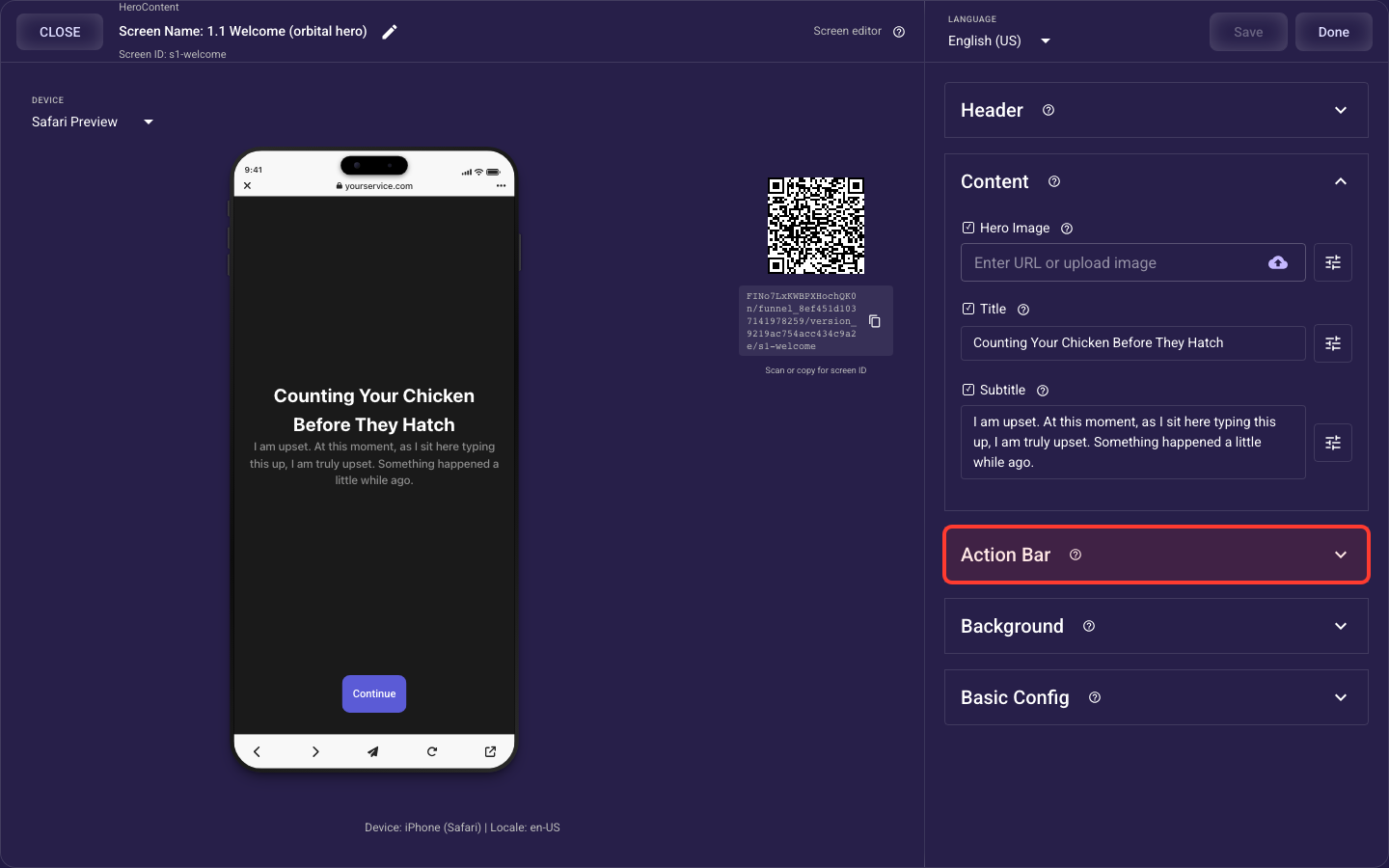
Action Bar — details
The bottom button bar — your primary call-to-action and an optional secondary button.
Background — details
What fills the whole screen behind your content: a solid color, a photo, or a looping video.
Animation — details
How the screen's standard elements (header, image or video, title and subtitle, choices or bullets, paywall products, action bar) animate in when it opens — style, speed, stagger, easing, and per-element overrides, which take priority over the theme's default motion.
Basic Config — details
Screen-level behaviour: cached media, a device-permission prompt, and auto-advance.